
Set stock aside for a customer
Set bags aside for a customer's pickup. A hold lowers the quantity available at that location while the stock stays on hand. Release the hold at pickup or give it a date to run out.
In this chapter
Set stock aside
Included on Counter + Stock and Whole Store plans.
- Stock hold
- A quantity of one size set aside for a customer at one location. It reduces what is available there without changing stock on hand.
A cashier, including Staff, can sell past a hold made here. A sale at the register leaves the hold open. This is separate from the standing Hold back for the store setting on a size (Set when a size counts as low, in Chapter 18 of Core Roadside).
- Find the bags the customer wants. Under Set stock aside, type the size's item number in SKU. Enter a Quantity above zero and choose the Location that has the bags.
- Say who they are for. Choose a Kind of Pickup, Will-call, Special order or Booking. In Customer or note, type the customer's name and pickup details. To hold through Saturday, choose Saturday under Hold until. A blank date keeps the hold until someone releases it.
- Check the quantity and location. Saving takes this quantity off what is available there. The count on hand stays the same. Staff can hold up to what is available. A Manager or Store owner can hold more.
Press Set aside.
Included on Online Store, Counter + Online Store and Whole Store plans. The website sells from the default location. A hold there also takes those bags out of what shoppers can order.
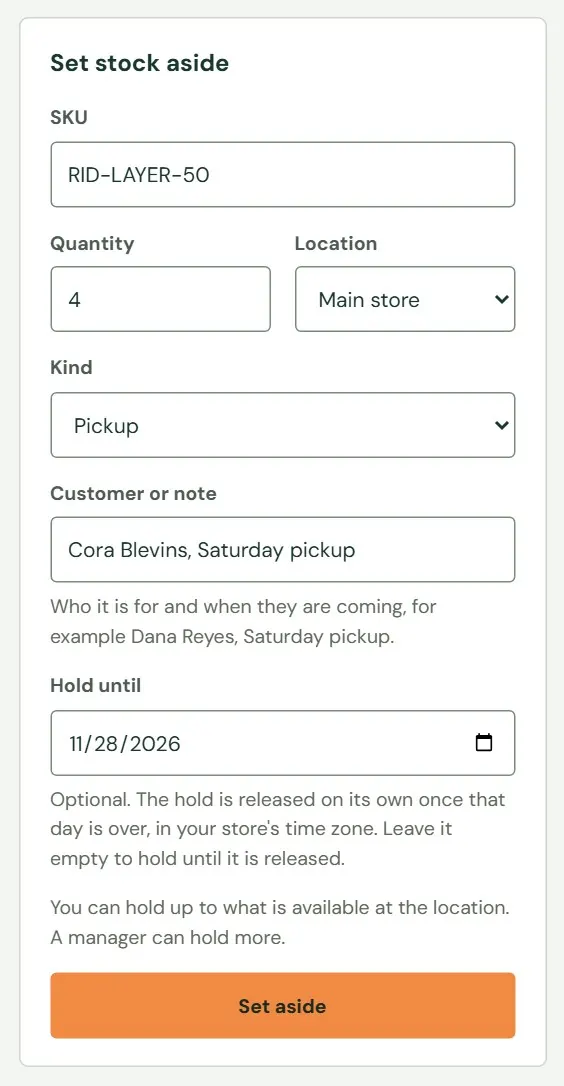
- 1Choose what the bags are being held for.
- 2Name the customer and when they are coming.
- 3Choose the last day to keep the bags aside.
- 4Save the hold for this quantity and location.
The message names the quantity, SKU, location and any date. Choose Open under Show and press Show to see the hold. If Staff ask for too much, Roadside refuses the hold. Check the location and reduce the quantity or ask a Manager. When a Manager or Store owner holds more than is available, the row also reads Oversold.
Release a hold
Included on Counter + Stock and Whole Store plans.
When the customer collects the bags, record the sale as usual and release the pickup hold here. Release it here too if the customer changes their mind, or if a sale at the register took the bags first: that sale leaves the hold open. Staff can release holds made on this screen.
- Find the right pickup. Choose Open under Show and press Show. Match Product and size, Quantity and Location with Customer or note. Use Date to put the oldest or most recent holds first.
- Free the quantity for sale. Releasing takes the quantity off hold without adding stock. Press the row's Release button, check the quantity and SKU, and confirm. Roadside says Hold released. The stock is available again.
- Find the finished hold. Under Show, choose Released or All and press Show. The row reads Released. A repeated release says That hold was released already.
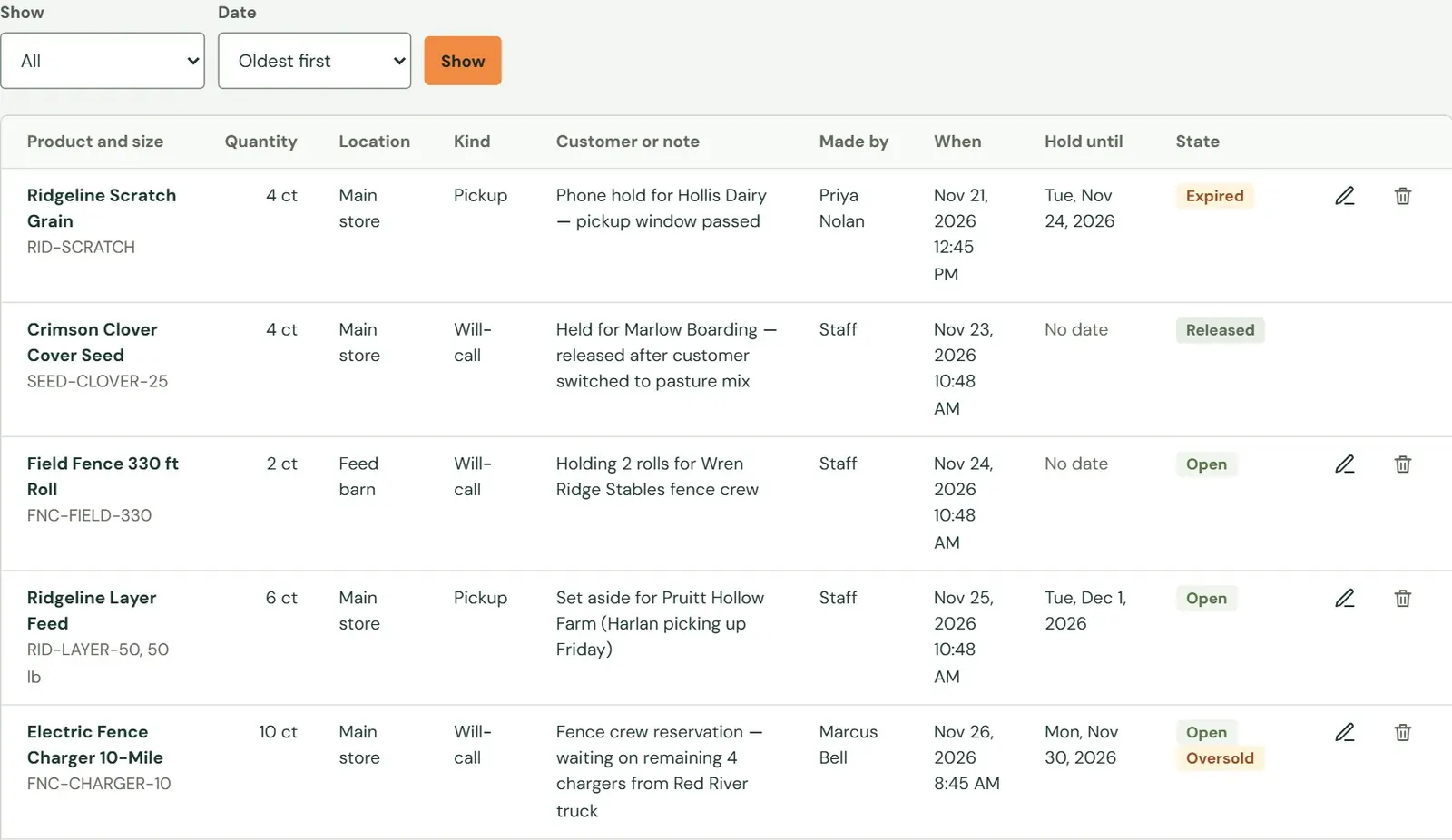
- 1Choose All to include holds that have ended.
- 2Check whether the hold is open or already released.
- 3Read the last day the bags are held.
- 4Free the quantity on this customer's row.
Expired marks an open hold past its date until Roadside releases it. Oversold means the hold exceeded what was available when it was made. Turned into a sale finds rows marked Sold. If the row belongs to an online order or a transfer, its release belongs with that record and the row has no Release button.
Change how long a hold lasts
Included on Counter + Stock and Whole Store plans.
- Find the customer's open hold. On Holds, check the size, location and customer. Press the pen marked Change the date. Staff can change the date of a hold made here.
- Choose the last pickup day. On the Hold until card, choose today or a later date, or clear the field to keep the hold until someone releases it. A dated hold lasts through that day in the store's time zone. Roadside checks every 15 minutes and releases holds whose day has ended.
- Press Save date. Check the Hold until column for the day you chose or No date. If the hold changed while the page was open, reload the list and check its state before changing the date again.
Something here does not match your screen? Write to support@dirtroadsoftware.com with the name of the screen, what you pressed and what you expected. A picture of the screen helps.