
See who can do what, and what is waiting on Today
A Store owner and a Manager can do every Storehouse job, and Staff do the daily work of the stock room. See which presses wait for a Manager or the Store owner, and find the purchase orders someone started and never sent.
Who on your team can do what
Included on Counter + Stock and Whole Store plans.
A Store owner and a Manager can do every Storehouse job. Staff do the daily work of the stock room: they order, receive, count, move stock and enter bills. The presses that review someone else's work, or that show what the stock cost, wait for a Manager or the Store owner. The menu lines each role sees are listed in What Storehouse adds to basic stock, in Chapter 1.
| Store owner, Manager and Staff | Store owner and Manager only | |
|---|---|---|
| Vendors and buying |
|
|
| Receiving and vendor bills |
|
|
| Counting and moving stock |
|
|
| Lots and blends |
|
|
| Products, prices and reports |
|
|
Three of the jobs Staff can do change cost. Posting a receipt for a delivery adds the stock and moves the size's average cost, and cannot be undone. Applying a price file changes what a vendor charges you, and so does changing a vendor item's cost by hand.
Where a press waits for a Manager, the screen says so, as in Shipping a return to the vendor needs someone of Manager rank or above. A Read only person opens no Storehouse screen, and still reads a product's page without Storehouse's buttons.
Roles are given on Admin > Users (Give someone their own sign-in, in Chapter 41 of Core Roadside). It worked when a Staff member signs in and sees Purchase orders and Counts in the menu, and no Stock value.
Find draft orders waiting on Today
Included on Counter + Stock and Whole Store plans.
A purchase order that was started and never sent orders nothing. Today (See what needs attention today, in Chapter 2 of Core Roadside) lists draft orders on the Waiting for your OK card. The card shows only when something is waiting, and a Read only person does not see the card.
- Open Today and find Waiting for your OK. Each draft order is a row reading Purchase order and its number, with Draft and the vendor under it, then the person who started it, if a person did, and the time.
- Press the order's title, then finish the order and send it, (Send the order and put it on order, in Chapter 6), or cancel it if it is not wanted (Close or cancel an order, in Chapter 6). A draft order needs nobody's approval. It needs sending.
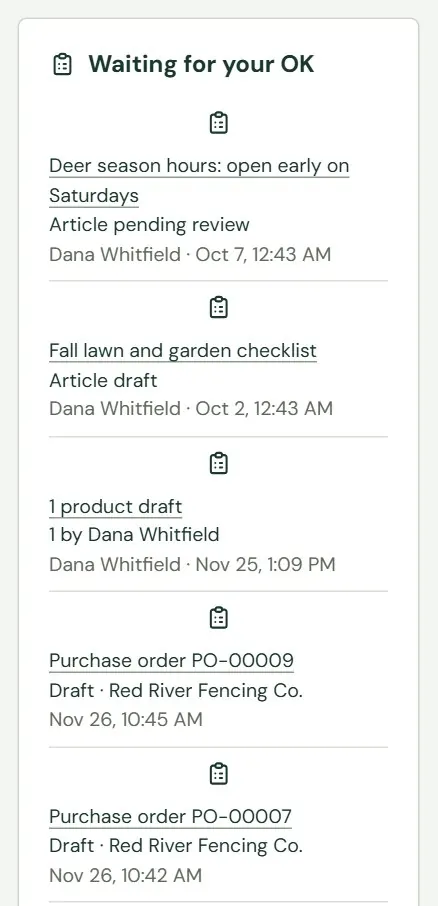
- 1Waiting for your OK: look here for work that someone started and left.
- 2Purchase order and its number: press it to open the order.
- 3Draft and the vendor's name: read who the order is for.
The card shows the five newest draft orders. When there are more, a last row gives the number, such as and 2 more, with Draft purchase orders under it, and opens the Purchase orders list. An order leaves the card once it is sent or cancelled.
The same card lists other waiting work, such as a change Dusty prepared, which a Store owner or Manager looks over (Look over a change and say yes, in Chapter 5 of Core Roadside).
Something here does not match your screen? Write to support@dirtroadsoftware.com with the name of the screen, what you pressed and what you expected. A picture of the screen helps.