
Download files for QuickBooks
Name your QuickBooks accounts once, then download each month's sales and the bills for your receipts as files to import. Nothing is sent to QuickBooks for you.
In this chapter
Tell Roadside your QuickBooks account names
Included on Counter + Stock and Whole Store plans.
The QuickBooks screen makes files for QuickBooks Online. Its card says it plainly: Roadside makes a file. You import it with QuickBooks' own Import data page; nothing is sent for you and you never sign in to QuickBooks here. The files hold account names, and QuickBooks matches them by name, so step 1 is typing the names your books already use. You do it once, and change it only when an account changes.
- Chart of accounts
- The list of accounts your books keep in QuickBooks, such as your sales and your inventory.
- Journal entry
- A dated entry in your books that records amounts going to and from accounts. The Sales by day file makes one for each day.
The screen's help for step 1 reads: Type each account's name exactly as it appears in your QuickBooks chart of accounts. For a subaccount, type the parent, a colon, then the subaccount, like Income:Feed sales. Add any account to QuickBooks first; QuickBooks matches by name. A name can't start with = + - or @. Leave a line blank if you don't use it. For the Sales by day file you need Sales and Money taken (undeposited funds). For the Bills file you need Inventory.
Which account each line goes to is your bookkeeper's decision. Under each box the screen says what the line holds and gives an example name.
| Box | What the screen says it holds |
|---|---|
| Sales (needed for Sales by day) | Where your sales go. |
| Delivery charges | Delivery charges you bill. Left blank, they go in Sales. |
| Refunds | Money you gave back. Left blank, it comes off Sales. |
| Sales tax collected | The sales tax you collect and owe the state. Needed if you charge tax. |
| Money taken (undeposited funds) (needed for Sales by day) | Cash, checks and cards you took in and have not deposited yet. |
| Charge accounts | What customers on a charge account owe you. The screen asks for an account of its own, not Accounts Receivable, because QuickBooks wants a customer on every Accounts Receivable line and the file has none. |
| Store credit and gift cards | What you owe customers who hold store credit or a gift card. |
| Sales not paid yet | Sales not paid on their sale day, and payments taken on another day. The screen asks for an account of its own here too, not Accounts Receivable. |
| Inventory (needed for Bills) | The stock you keep on the shelf. Each bill adds to it. |
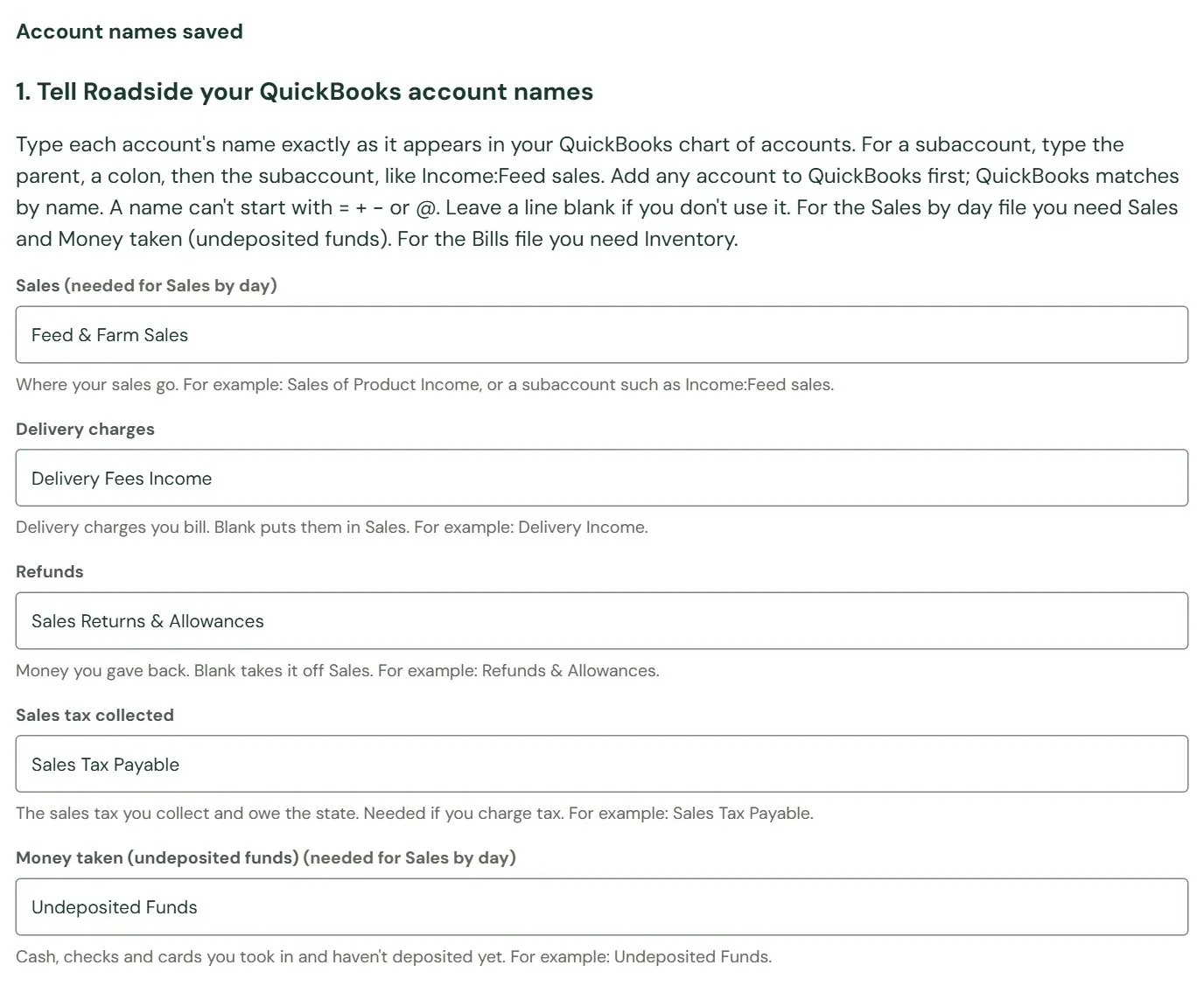
- 1Reads Account names saved once names are saved, or Name your accounts first (step 1).
- 2Type the name of the account your sales go to. Sales by day needs it.
- 3Type the account for money taken and not deposited yet. Sales by day needs it.
- Go to Store settings, then QuickBooks. The status line under the card's first paragraph reads Name your accounts first (step 1) until names are saved.
- Type each name on one line, exactly as QuickBooks shows it, up to 200 characters. Leave a box blank if the store does not use it.
- Press Save account names. Roadside says Account names saved., and the status line reads Account names saved.
When Roadside refuses, nothing on the form is saved, and the message says which name to fix:
- The name for <box> is too long (up to 200 characters) or runs onto a second line. Put each name on one line, the way QuickBooks shows it.
- A name that starts with = + - or @ is refused, because a spreadsheet would read it as a formula. The message asks you to rename that account in QuickBooks first, then type its new name here.
- These names were saved again since you opened this page, so nothing was saved. Someone else saved names meanwhile. The form shows the names saved, so make your changes again.
Download a file for QuickBooks
Included on Counter + Stock and Whole Store plans.
Step 2 makes one of two files for a stretch of days. Downloading changes nothing in Roadside except the list of files you have downloaded. Nothing is sent to QuickBooks, and nothing pays a vendor (Paying a vendor, in Chapter 13).
| Which file | What it holds |
|---|---|
| Sales by day (a journal entry a day) | One journal entry for each day with sales, with the day's sales, tax, money taken, refunds and charge-account sales. Today never goes in: the last day has to be yesterday or earlier. |
| Bills for receipts you've posted | One bill for each receipt for a delivery posted between the dates, dated the day it was received, with one line for each receipt line that cost something, on your Inventory account. |
The Bills file is made from the receipts you posted into stock, not from the vendor bills entered under Vendor bills. A vendor's bill you entered and matched in Storehouse is not in it, and a receipt that cost nothing has no bill. Each bill is due on the vendor's terms when they are Net 30, Net 45 and the like, and on the day received otherwise (Add a vendor and its terms, in Chapter 4). Neither file holds the change in what your stock is worth: the screen says your accountant can post that from your inventory report.
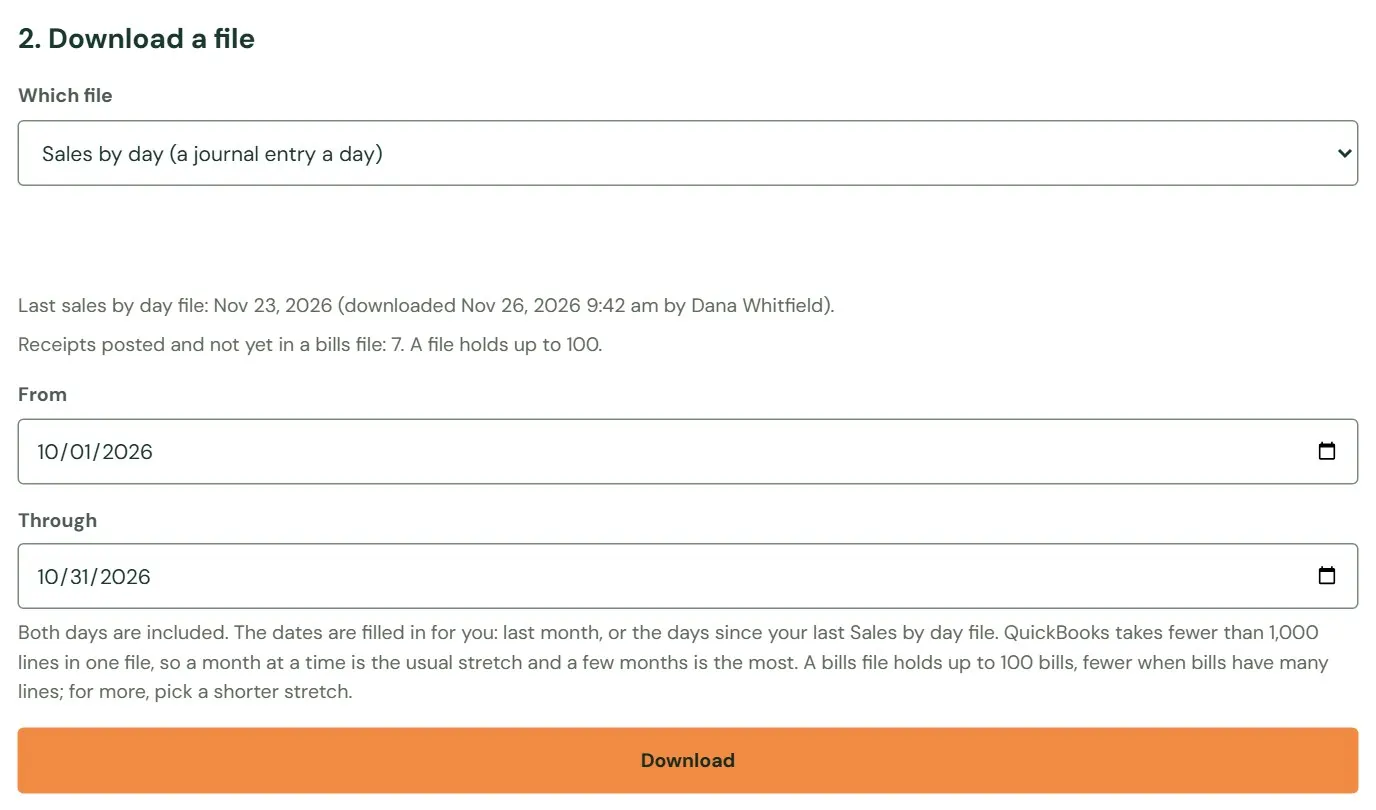
- 1Choose Sales by day or Bills.
- 2The first day in the file.
- 3The last day in the file. Both days are included.
- 4Makes the file and downloads it.
- Choose Which file. Under it the screen names your last file of each kind, its days and who downloaded it, and how many receipts have been posted since the last Bills file.
- Check From and Through. The screen fills them in for you: last month, or the days since your last Sales by day file. When there are no days left to download, the screen says No new days of sales yet: your last Sales by day file ran through yesterday. Come back tomorrow for today's sales.
- Press Download. The file downloads, and it is added to Files you've downloaded.
- If the screen warns you already downloaded some of these days, stop and read it. Importing a day or a bill a second time puts it in QuickBooks twice. The warning lists the earlier files. If you only want the file, or a day changed and you deleted that day in QuickBooks first, tick I deleted those days in QuickBooks, or I only want the file and won't import it twice, then press Download anyway.
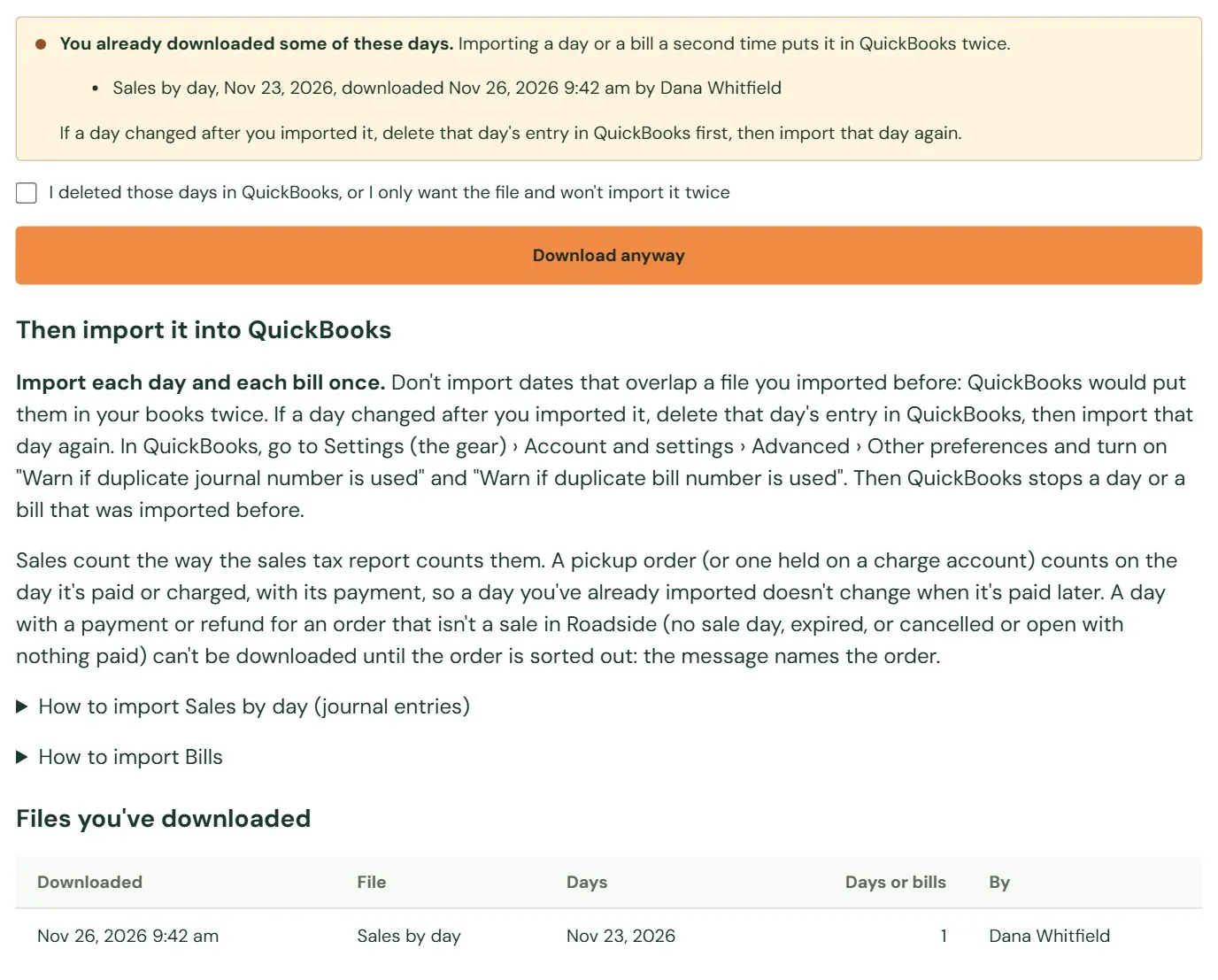
- 1The warning, with the earlier files that cover some of the same days.
- 2Tick only if you deleted those days in QuickBooks or will not import the file.
- 3Downloads the file once the box is ticked.
- 4The 12 latest files: when, which kind, the days, how many days or bills, and who.
A month at a time is the usual stretch. A file covers a year at most, holds fewer than 1,000 rows, and a Bills file holds up to 100 bills. Past a limit the screen asks for a shorter date range.
When the file is refused
Nothing downloads, and the message says why:
- For Sales by day: The last day has to be before today. Today's sales aren't finished until the day ends, so pick yesterday or an earlier day, and download today's sales tomorrow.
- Name these QuickBooks accounts first: <boxes>. A box the file needs is blank: Sales or Money taken for Sales by day, Inventory for Bills, or a box one of the days has an amount for, such as Sales tax collected. Name it in step 1.
- That is more than 100 bills, and QuickBooks takes up to 100 at a time. Pick a shorter date range.
- No sales from <dates>, so there's nothing to download. (No sales on <day> for one day), or No receipts were posted between those dates, so there's nothing to download. Check the dates.
- Two vendors with the same name, or two receipts that would make the same bill number, are refused by name. Rename one vendor under Vendors, or follow what the message says.
Two refusals name days a Sales by day file cannot take at all. In both, pick dates that leave those days out, and give the days to your bookkeeper to enter in QuickBooks by hand.
- A part refund given as an amount. The message reads <day> can't go in the file. A refund that day was entered as an amount for part of a sale, not as the sale's items, so Roadside can only estimate how much of it was sales tax. Enter that day in QuickBooks by hand, and pick dates that leave it out. This is a refund that gave back part of a taxed sale as an amount, without naming the items (Give money back for an order, in Chapter 30 of Core Roadside).
- A payment or refund on an order that is not a sale. The message names the order: That day has a payment or refund of an order that isn't a sale in Roadside (no sale day, expired, or cancelled or open with nothing paid). Check that order on the Orders screen first (Find an order even if it is not in To do, in Chapter 27 of Core Roadside); the message also offers the hand entry.
Import the file into QuickBooks
Included on Counter + Stock and Whole Store plans.
The import itself happens in QuickBooks, by whoever keeps your books. The QuickBooks screen carries the steps under Then import it into QuickBooks, in two boxes that open when pressed: How to import Sales by day (journal entries) and How to import Bills. Open the box for your file and follow it in QuickBooks.
The section starts with the rule that keeps the books right: Import each day and each bill once. Do not import dates that overlap a file you imported before. If a day changed after you imported it, the screen says to delete that day's entry in QuickBooks first, then import that day again.
Three things in the files help the bookkeeper match them up:
- Each day's journal entry is numbered with RS-S- and the date, one entry for each day with sales.
- A bill's number is the vendor's invoice number, then -R and the receipt's number, as in the screen's example INV-778-R42. A receipt with no invoice number gives its own number. Its memo names the Roadside receipt.
- A bill's supplier is the vendor's name as Storehouse has it. The screen notes it has to match the vendor in QuickBooks exactly, or QuickBooks adds another one.
Sales go in the way the sales tax report counts them. In the screen's words: A pickup order (or one held on a charge account) counts on the day it's paid or charged, with its payment, so a day you've already imported doesn't change when it's paid later.
It worked when QuickBooks shows the journal entries or the bills for your dates. If QuickBooks turns rows away, the box for your file says what to do; most often an account name does not match exactly, and you fix it in step 1 (Tell Roadside your QuickBooks account names, in Chapter 30).
Something here does not match your screen? Write to support@dirtroadsoftware.com with the name of the screen, what you pressed and what you expected. A picture of the screen helps.