
Approve or void a vendor's bill and see what is due
A bill that is right and still does not match waits for a Manager or the Store owner, who approves it with a note. Void a bill entered by mistake, set how far over the order a bill may run, and see what Roadside gives the person who pays the vendor.
In this chapter
Approve a bill that needs review
Included on Counter + Stock and Whole Store plans.
The mill raised its price after you ordered, or the invoice carries freight nobody put on the receipt. The bill is right and it still does not match. A Manager or the Store owner approves it as it stands and says why. Staff see Someone of Manager rank or above approves a bill that needs review. in the Approve with a note card.
- Open the bill and read each problem (Match a bill to the order and the receipt, in Chapter 12). The card says what approving means: The bill is approved as it is, with the problems above. Say why it's all right: it's kept with the bill.
- Type Why it's all right. The bill cannot be approved without it.
- Be sure before you approve. An approved bill no longer changes, and Roadside does not ask a second time. Approving changes no stock and no cost, and it pays nothing. Press Approve the bill.
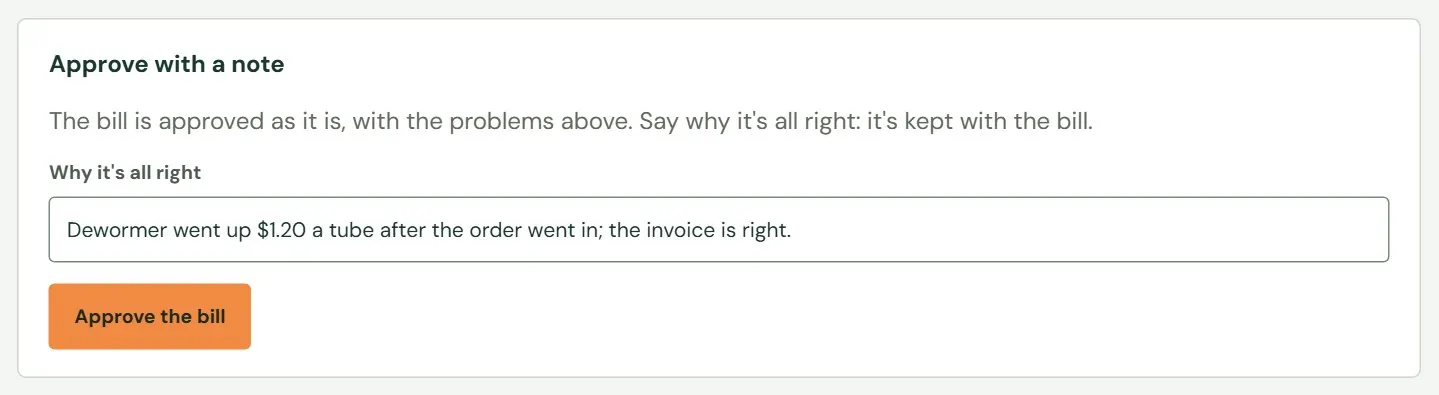
- 1Why it's all right: type the reason. It is kept with the bill.
- 2Approve the bill accepts it with its problems.
Roadside runs the match once more before it approves, so the press ends one of three ways.
- Bill approved. The badge reads Approved, an alert at the top shows Approved with the date and your note, and History adds Approved by a manager.
- Nothing needs review any more: the bill is matched. Something changed since the last match, such as a wider tolerance, and the problems are gone. The badge reads Matched.
- Approving a bill that needs review needs someone of Manager rank or above. A Staff member sent the form from a page that was out of date. The bill stays as it was.
Void a bill entered by mistake
Included on Counter + Stock and Whole Store plans.
Void a bill that was entered for the wrong vendor, or one the vendor withdrew. Voiding is also the way to correct a bill that is Matched or Approved: void it, then enter the invoice again. Store owners, Managers and Staff can void a Draft bill or one that needs review. A matched or approved bill takes a Manager or the Store owner, and Staff do not see the card on those.
The Void the bill card says what happens: Its lines stop counting as billed, and its invoice number can be entered again. The receipt can then be billed again. The bill stays in the list as Void, with your reason. No stock and no cost changes.
- Open the bill and type Why in the Void the bill card. The bill cannot be voided without a reason.
- Be sure it is the right bill. Voiding cannot be undone.
- Press Void the bill and confirm. Roadside asks Void <number>? It can't be undone.
- Bill voided. Its invoice number can be entered again. The badge reads Void, an alert shows the reason, and History adds Voided.
- A vendor credit is applied to that bill. Remove it from the bill first, then void it. A Manager or the Store owner takes the credit off (Take a credit back off, or void it, in Chapter 14), then voids the bill.
- Voiding a matched or approved bill needs someone of Manager rank or above. The bill was matched after a Staff member opened it. Ask a Manager or the Store owner.
Set how far a bill may run over the order
Included on Counter + Stock and Whole Store plans.
A vendor's price often lands a few cents off the order. Tolerances let a bill that close still match. They cover every bill the store matches from the moment they are saved. A bill already matched stays as it is.
- Tolerance
- How far a bill may run over the order before a Manager must review it.
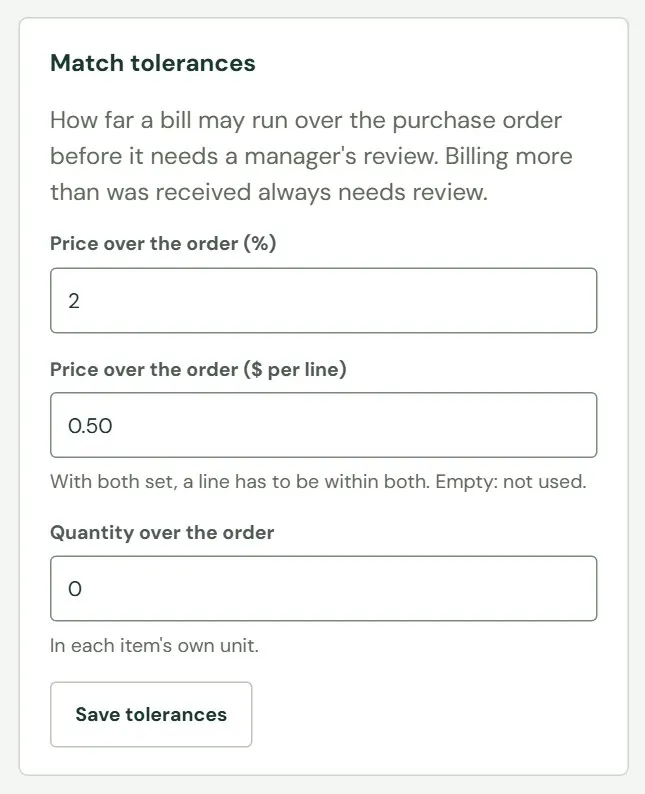
- 1Price over the order (%): type a percent of the line's amount.
- 2Price over the order ($ per line): type a dollar limit for one line.
- 3Save tolerances keeps them for the next match.
- Go to Purchase orders, press the Vendor bills tab and find Match tolerances. The card reads How far a bill may run over the purchase order before it needs a manager's review. Billing more than was received always needs review.
- Type Price over the order (%), Price over the order ($ per line), or both. The percent is of the line's amount at the order's cost. The dollar limit is for one line of one bill. The hint reads With both set, a line has to be within both. Empty: not used.
- Type Quantity over the order, in each item's own unit. It starts at 0.
- Press Save tolerances. Roadside says Tolerances saved.
With 2% and $0.50 set, a line ordered at $100.00 and billed at $100.40 matches. Billed at $100.60 it needs review, because it is more than $0.50 over. A line ordered at $10.00 and billed at $10.30 needs review too: it is within $0.50 and 3% over.
With both price boxes empty, any price over the order needs review. The same two price limits are used for the bill's freight and other charges against the landed costs on its receipts. No tolerance lets a bill charge for more than was received.
Staff read the tolerances and cannot change them. They see None: any price over the order needs review. or the price limits, followed by A store owner or manager changes them.
Paying a vendor
Included on Counter + Stock and Whole Store plans.
Roadside has no screen that pays a vendor's bill, marks one as paid or prints a check. Matched and Approved say the bill agrees with the order and the receipt, or that a Manager accepted it. Neither says the vendor has been paid. Bills are paid outside Roadside, by whoever keeps the store's books. Roadside gives that person three things.
- The bills themselves. On the Vendor bills tab, choose a vendor or a status at the top and press Apply. Each row shows the Invoice, the Invoice date, Due, the Total and the Status.
- What is due on one bill. A matched or approved bill shows Total, Credits applied and Amount due. Amount due goes down only when a vendor credit is applied (Take a credit off a bill, in Chapter 14). Paying the vendor does not change it.
- The QuickBooks files. The Bills file is made from posted receipts, one bill for each receipt, and not from the bills on this tab (Download a file for QuickBooks, in Chapter 30).
Something here does not match your screen? Write to support@dirtroadsoftware.com with the name of the screen, what you pressed and what you expected. A picture of the screen helps.