
Set margin targets and find thin margins
Set the margin you aim for by vendor or brand, with a default for the whole store. The Margin list shows what sells below cost or under target.
Set the margin you aim for
Included on Counter + Stock and Whole Store plans.
A margin rule says what margin the store aims for and, if you want one, the floor under it. A rule never changes a price. It decides which sizes are flagged: below the floor is an alert, between the floor and the target is a warning. You see the flags on the Margin list, on a price change's check page (Check the new prices and schedule the change, in Chapter 27) and in the reviews of vendor cost changes (Review what vendors' costs did to your margins, in Chapter 5).
- Target margin
- The margin the store aims for on a size, as a percent of its price.
- Floor
- The margin under the target below which a size is shown as an alert.
The margin is what is left of the price after the cost, as a percent of the price: a bag priced $20.00 that costs $15.00 earns 25%. A size exactly at its target is on target.
The page's lead says how a size finds its rule: A size takes its vendor's rule first (the vendor it's usually bought from), then its brand's, then its category's (or the nearest category above it with a rule), then the store default. The vendor is the size's preferred vendor (Compare the vendors for one size, in Chapter 4). On a store that has moved over to Storehouse, Applies to offers the store default, brands and vendors: moving over does not bring the store's categories into Storehouse, so a rule for a category can't be made. Set a rule for the brand or the vendor instead.
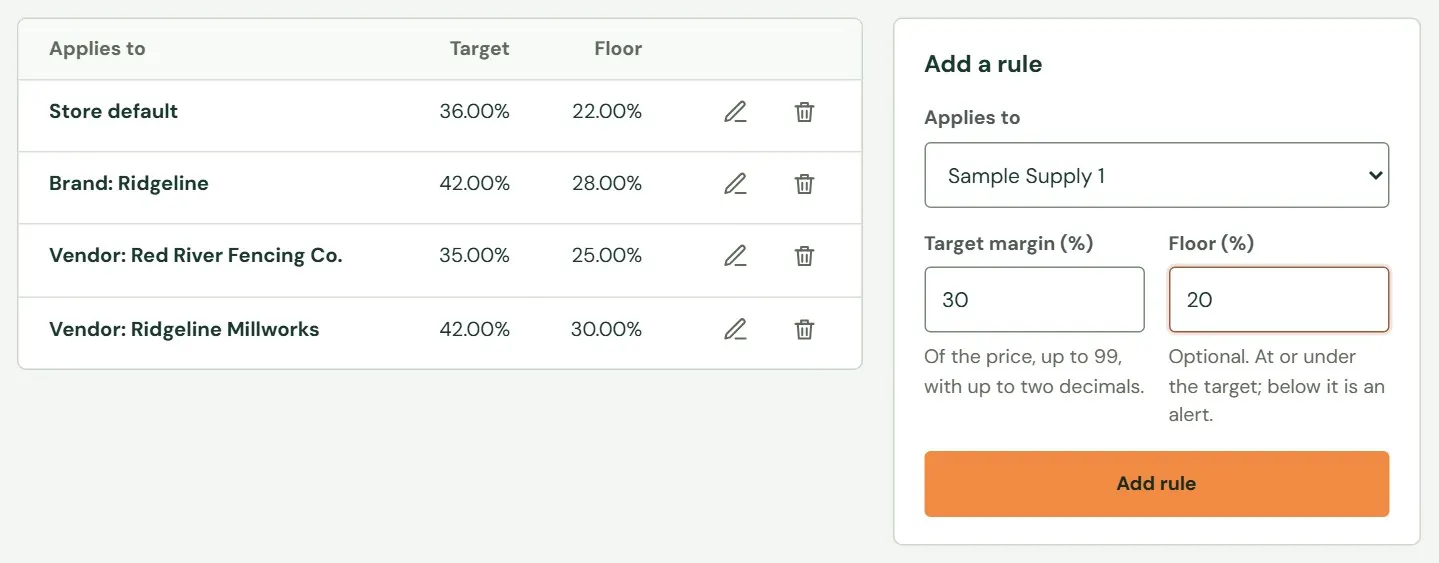
- 1What the rule is for: the store default, a brand or a vendor.
- 2The margin aimed for. Under it is a warning.
- 3Under this is an alert. None when no floor is set.
- 4Saves the rule typed in the form.
- Open Stock and purchasing > Margin rules.
- Choose what the rule is for under Applies to in Add a rule. Start with Store default (every size without a closer rule), which is offered until the store has one. Brands and vendors follow, each listed once; one already with a rule is left out, and one that is switched off reads (inactive).
- Type the Target margin (%), such as 30: of the price, from 0.01 up to 99, with up to two decimals.
- Type the Floor (%), such as 20, or leave it empty. It is at or under the target.
- Press Add rule. No price changes. Roadside says Added the rule for <name>., and the rule is listed with its Target and Floor. The Margin list's targets tab uses it straight away.
A floor above the target is refused with A floor is empty, or from 0 up to the target. A second rule for the same thing is refused with There is a rule for this already. Change that one with its pen.
Change or turn off a rule
The pen on a row opens Edit the rule for <name>. Change the target or the floor and press Save rule; Roadside says Saved the rule for <name>. If someone changed the rule while you had it open, the card says so, shows the saved target, and keeps your figures for you to save over it or cancel.
Turning a rule off moves its sizes to the next rule that applies, such as the store default. Press the trash button and answer Turn off the rule for <name>? Its sizes take the next rule that applies. Roadside says Turned off the rule for <name>. Its sizes take the next rule that applies. A rule that is off leaves the table. To bring it back, add a rule for the same brand, vendor or store default again.
Find what sells below cost or under target
Included on Counter + Stock and Whole Store plans.
The Margin list finds the sizes to look at after a cost goes up: the ones sold for less than they cost, under a margin you choose, or under the store's own targets. It only reads. Changing a price is done on the product, or with a price change for a later day.
Each size is judged at its regular price, the one a walk-in customer pays, with no level, contract price, quantity price, price book or sale. A size sold to a contract customer below cost is not listed because of the contract. The cost is the size's current cost, the same figure Stock value uses. A price or cost of $0.00 counts as none, so that size is not checked, and the summary line counts how many were skipped that way.
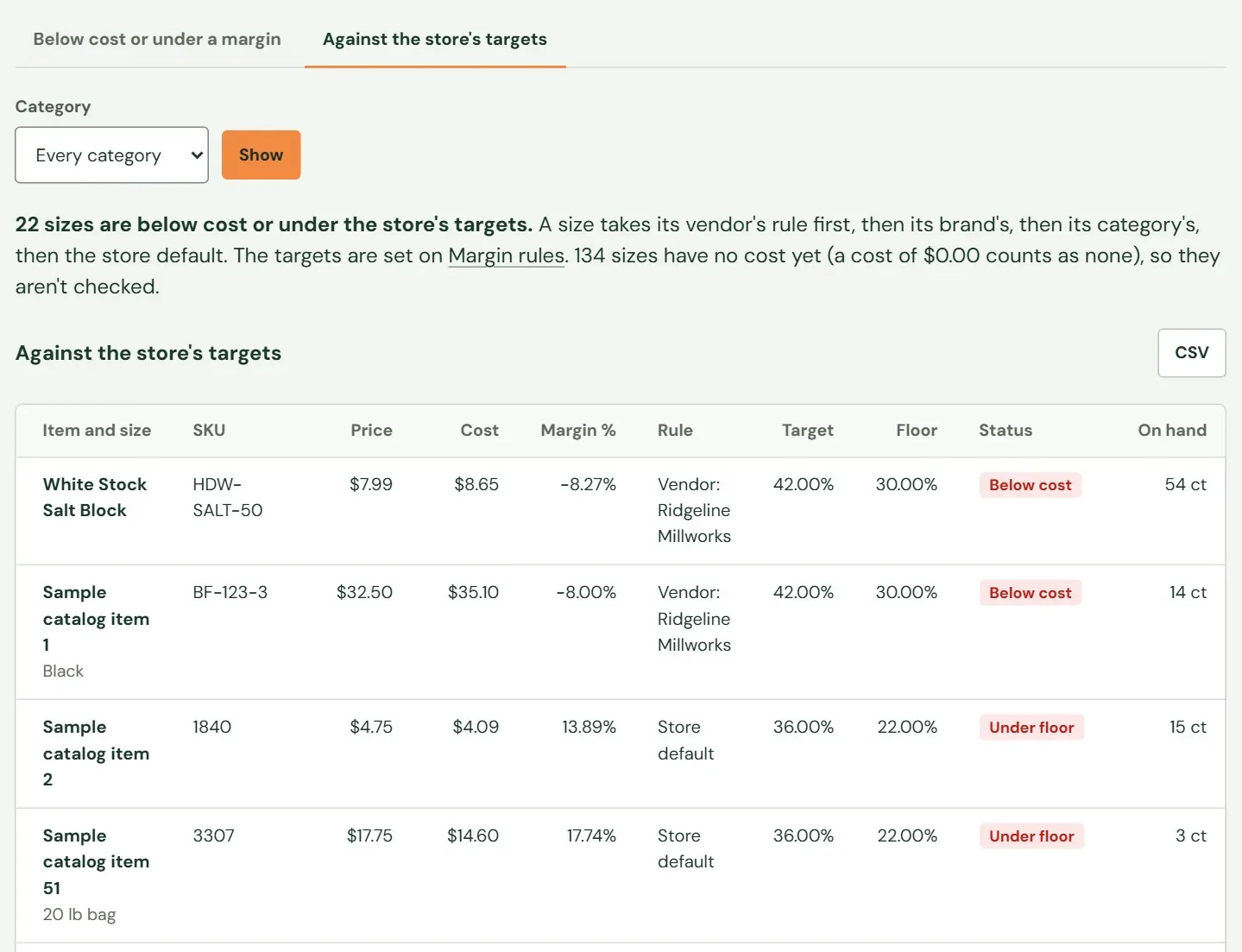
- 1Lists the sizes under the store's own margin rules.
- 2The rule this size is judged by, or No rule.
- 3Below cost, Under floor or Under target.
- 4Downloads every size on the list as a spreadsheet file.
- Open Stock and purchasing > Margin list. The first tab, Below cost or under a margin, lists the sizes sold below their cost.
- To look for thin margins, type a whole number in Margin under (%), such as 20, and press Show. Sizes under that margin are listed; a size at exactly 20% is not. Leave it empty for below cost only.
- Or open Against the store's targets to list the sizes below cost or under their rule. Rule names the rule a size is judged by, and Status reads Below cost, Under floor or Under target. With no margin rules yet, the tab lists the sizes below cost only and says so.
- Read the summary line, such as 5 sizes are below cost or under the store's targets. The first tab lists the lowest margin first. The targets tab lists sizes below cost, then under the floor, then under target, the lowest margin first in each.
- Press the pen on a row to open the product and change its price or cost.
- Press CSV to download the list. The page shows the first 1000 sizes, and says so when there are more; the file has all of them.
The first tab's table shows Item and size, SKU, Price, Cost, Margin (in dollars), Margin % and On hand. The targets tab shows Item and size, SKU, Price, Cost, Margin %, Rule, Target, Floor, Status and On hand, without the dollar margin. An empty list reads No size is priced below its cost., No size has a margin under <n>%. when you typed a margin, or Every size with a price and a cost is at or over its target.
The Category filter lists the categories Storehouse keeps. Moving over does not bring the store's categories across, so on a store that has moved over it offers Every category only.
Something here does not match your screen? Write to support@dirtroadsoftware.com with the name of the screen, what you pressed and what you expected. A picture of the screen helps.