
Receive a delivery against its order
When the truck comes, check what came against the order, note what was short or damaged, add the freight, and post the receipt. Posting puts the stock on the shelf at what it actually cost.
In this chapter
Receive a delivery against its purchase order
Included on Counter + Stock and Whole Store plans.
A receipt for a delivery is opened from the order it answers, so its lines start with what the order still has open. You change each line to what came off the truck. Store owners, Managers and Staff can all do this. Nothing goes into stock while the receipt is open: stock moves when the receipt is posted (Post the receipt into stock, in Chapter 9).
- Receipt (for a delivery)
- The record of what came in from a vendor, posted into stock.
- Open the order. Go to Purchase orders and press the order's number. Its status must be Sent or Partly received.
- Start the receipt. Starting one moves no stock. Press Receive against it. A receipt opens, numbered such as RC-00008, with a line for each line the order still has open. Roadside says Receipt <number> started with what the order has open. Change each line to what came. Each line's Expected and Into stock start at what is open.
- Check each line against the truck. A line that came complete and in good condition needs no change. For any other, press the pen at the end of its row to open Change line.
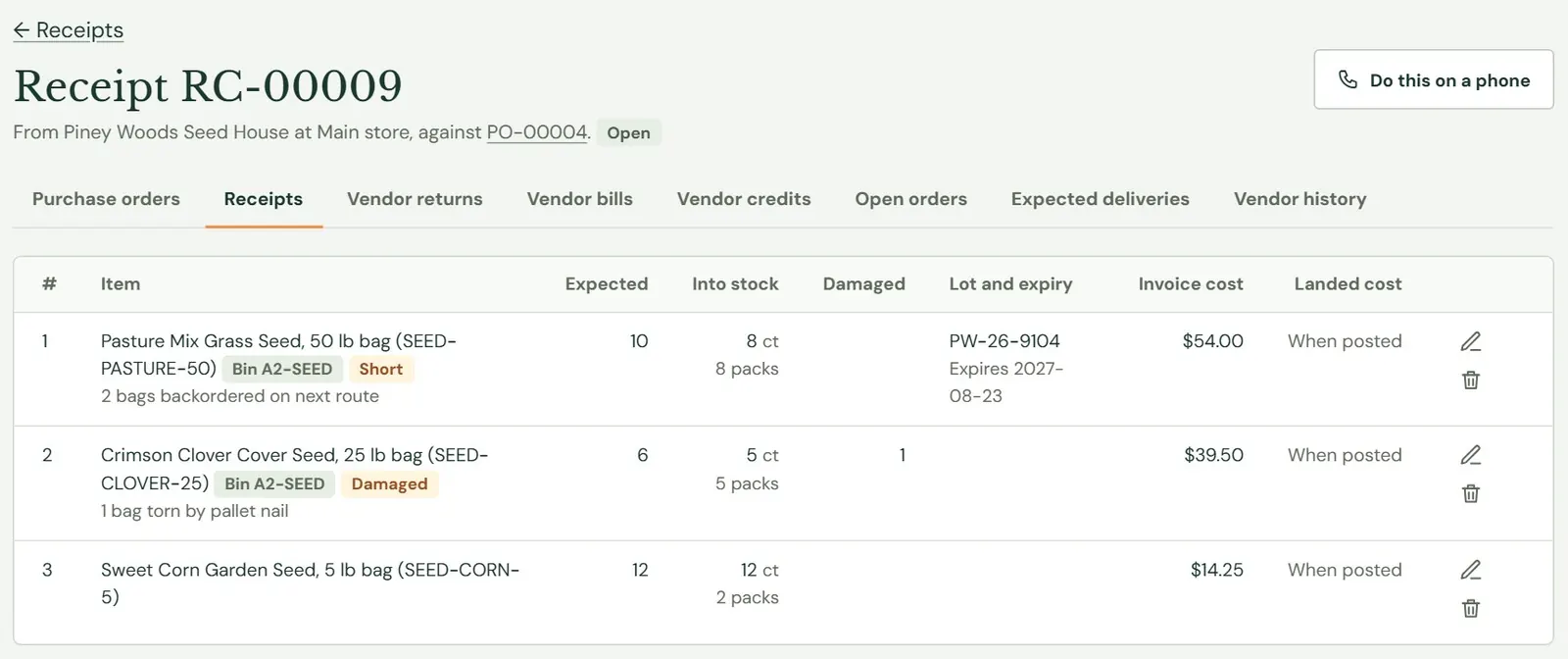
- 1Into stock: what came in good condition. Check it against the truck.
- 2Damaged: what came torn or broken. It does not go into stock.
- 3Short marks a line where less came than was expected.
- 4Lot and expiry: read the code and date off the bag, and type them on the line.
- 5Do this on a phone opens the same receipt in Walk, to check it at the truck.
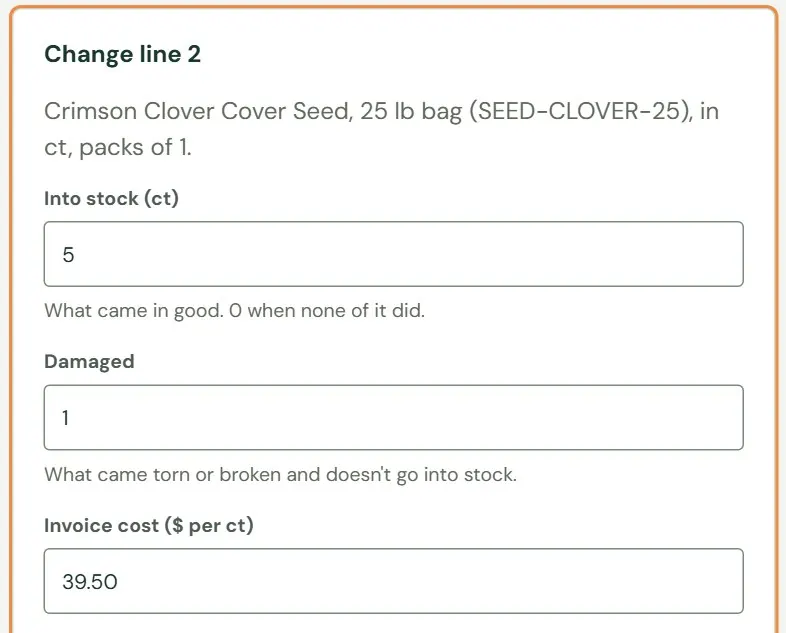
- 1Into stock: type how many came in good condition.
- 2Damaged: type how many came torn or broken.
- 3Invoice cost: for one unit, as the vendor charges it.
In Change line, fill in what applies and press Save line. Roadside says Line changed.
- Into stock is What came in good. 0 when none of it did. For a line that did not come at all, type 0: it puts nothing into stock and the order keeps it on order.
- Damaged is What came torn or broken and doesn't go into stock.
- Invoice cost starts at the order's cost for one unit. Type the cost on the vendor's paperwork if it differs. For goods that came free, tick No charge: it came free. A line at $0 without that tick stops the receipt from posting.
- Lot and Expires are for goods that carry a lot code. In a store that keeps lots, posting puts the line into that lot, and the hint adds A lot keeps the expiry it was made with: leave the expiry empty to use the lot's. (Add a lot and receive stock into it, in Chapter 21).
Roadside adds Into stock and Damaged and compares the sum with Expected. A line where less arrived carries a Short badge, one where more arrived carries Over, and one where the count is right and some is damaged carries Damaged.
For something that is not on the receipt, use Add a line. A second lot of a line goes under A line of the order. An item the order never had goes under Or what this vendor sells or Or an item of yours. The receipt is ready to post when every line shows what came in good condition and any damage. To check the truck with a phone in your hand, press Do this on a phone (Receive a delivery on the phone, in Chapter 17).
Goods received on a receipt must not also be added with Update stock on the product's page. They would be counted twice (Record a delivery, shelf count or damaged bag, in Chapter 18 of Core Roadside).
Receive a delivery that has no order
Included on Counter + Stock and Whole Store plans.
A driver drops off goods that were ordered by phone, or a vendor sends something nobody ordered. Start the receipt on the Receipts tab and add each item yourself.
- Go to Purchase orders and press the Receipts tab. In the list, Order reads None for a receipt without one, and Received at is the location, not a date.
- Fill in Receive without an order. Choose the Vendor and Received at, the location the goods go into. Type the Packing slip and Vendor's invoice number if you have them. A store with no vendors sees Add a vendor first: every receipt is from one of your vendors. (Add a vendor and its terms, in Chapter 4).
- Start it. Starting a receipt moves no stock. Press Start the receipt. Roadside says Receipt <number> started. and the receipt opens as Open, with no lines.
- Add each item in Add a line. Choose it under Or what this vendor sells, which brings the vendor's pack and cost, or under Or an item of yours. Type Packs or Or into stock, any Damaged, the Lot and Expires.
- Give the line a cost, then press Add line. Type Invoice cost ($ per unit) when there is no vendor cost to use, or tick No charge: it came free. Without either, Roadside refuses the line: That line has no cost. Enter what it costs, or mark it no charge if it came free.
A line on this kind of receipt has nothing to be short against. To mark it short or over, press the pen on its row and type Expected: What the packing slip says, to mark it short or over. From here the receipt is like any other. Add its freight and post it.
Add freight and other landed costs
Included on Counter + Stock and Whole Store plans.
Freight, a fuel surcharge or a pallet fee is part of what the goods cost you. Add it to the open receipt and Roadside shares it over the lines at posting, so each bag's cost carries its part. A posted receipt takes no more costs.
- Landed cost
- What a line cost on the shelf, with its share of freight and other charges.
- Open the receipt and find Add a landed cost. Choose the Charge: Freight, Fuel surcharge, Pallet fee, Duty or Other. Type the Amount ($).
- Choose the Spread. The table says what each choice does.
- Add it. Adding a cost changes nothing in stock until the receipt is posted. Press Add the cost. Roadside says Landed cost added. It is spread over the lines when the receipt is posted. and lists the charge in the Landed costs card.
| Spread | How the amount is shared |
|---|---|
| By value | By each line's quantity at its invoice cost. A line worth twice as much carries twice the freight. |
| By weight | By each line's pounds: the Weight (lb) typed on the line, or else the weight Roadside has for the item. |
| By quantity | By how many came on each line. |
| By hand | You type each line's share in that line's share by hand ($) box. The shares must add up to the amount. |
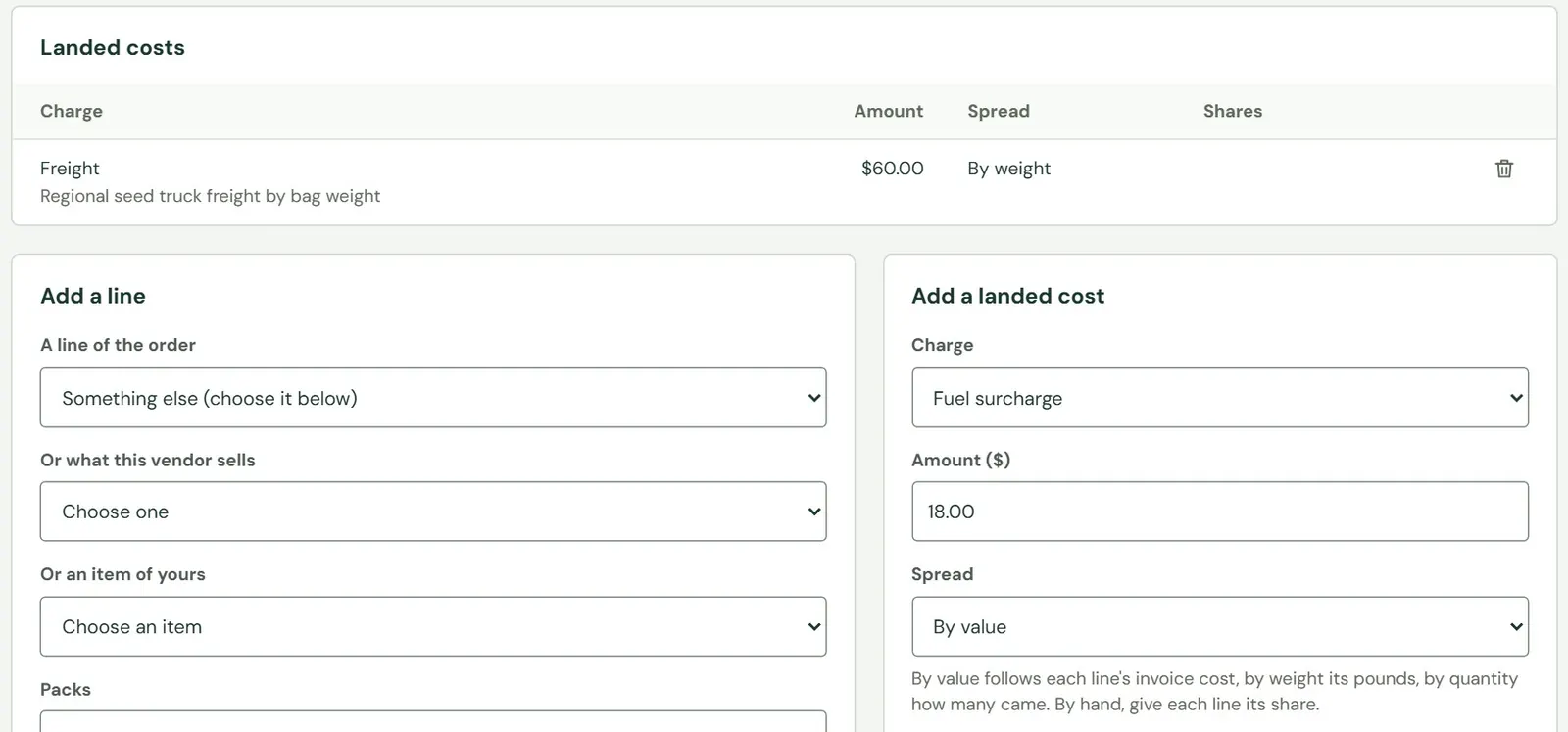
- 1Charge: choose what the cost is for.
- 2Spread: choose how the amount is shared over the lines.
- 3Shares: what each line carries. Read it after posting, or right away for a cost spread by hand.
Only lines with something going into stock take a share. Damaged goods carry none. Until the receipt is posted, each line's Landed cost reads When posted.
- The shares by hand come to <n> cents, not the <m> the landed cost is. Correct the shares and add the cost again.
- At posting, Line <n> has no weight: enter it, or spread that cost another way. Press the pen on that line and type Weight (lb).
- A charge cannot be edited. Press the trash button on its row, confirm, and add it again.
Post the receipt into stock
Included on Counter + Stock and Whole Store plans.
Posting is the press that changes stock and cost. Store owners, Managers and Staff can all post a receipt. In one step it does all of this:
- Each line with a quantity under Into stock goes into stock at the receipt's location, once. Damaged goods do not.
- Each line gets its landed cost: its invoice cost plus its share of the receipt's landed costs.
- The size's average cost moves toward that landed cost, by how much came in against what the store had on hand at all its locations. With none on hand, the landed cost becomes the average.
- What came in comes off on order, never more than was still open. The order reads Partly received while a line still has something open and Received when none has. More than was ordered still goes into stock.
- In a store that keeps lots, a line with a Lot goes into that lot. A lot the size does not have yet is made, with the line's expiry.
- What came in for a special order is set aside for its customer (Follow a special order to its purchase order, in Chapter 8).
- Post
- To record a receipt or a count in the stock record, after which it no longer changes.
- Average cost
- Storehouse's cost of a size, moved by each receipt and blend run.
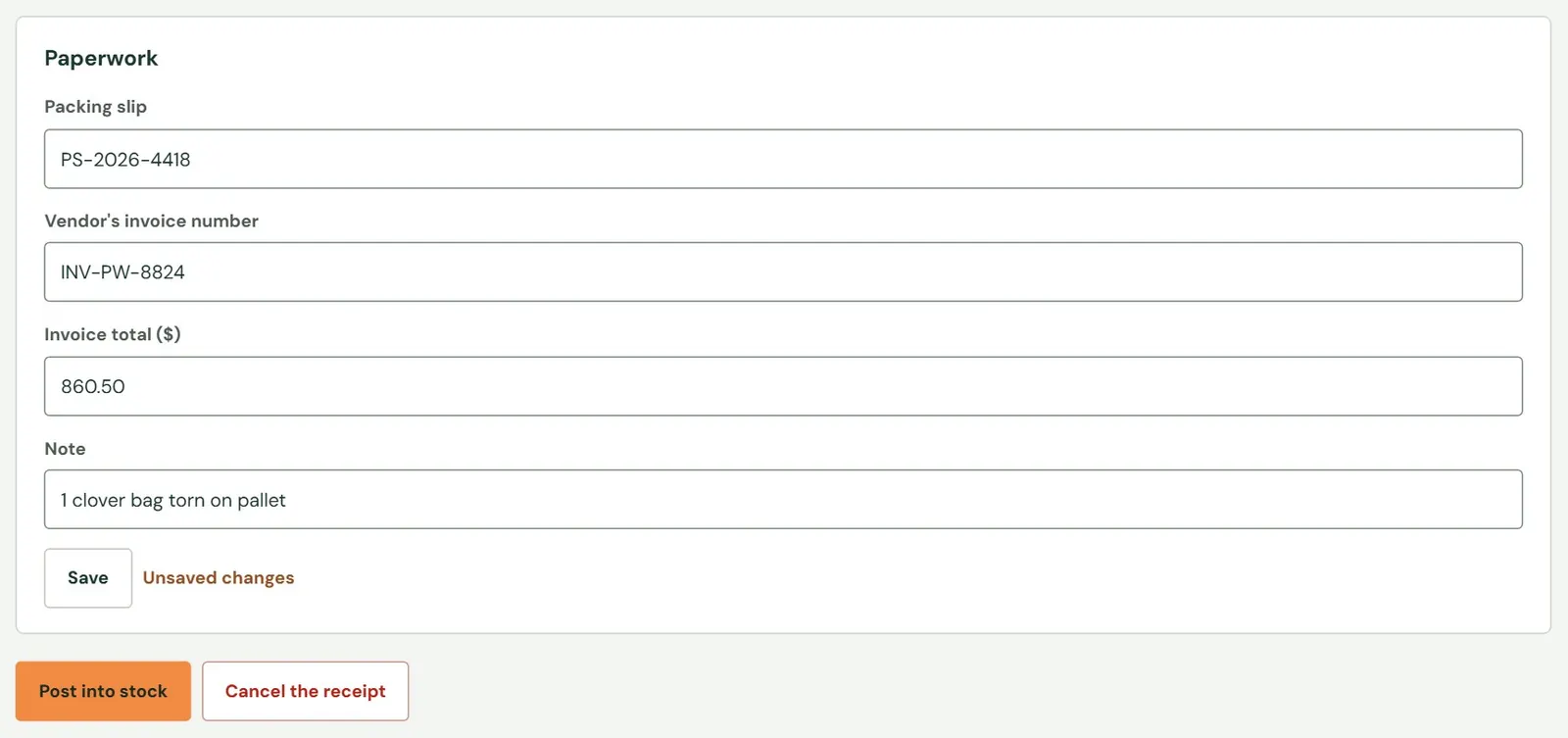
- 1Packing slip: type the number on the driver's paperwork.
- 2Vendor's invoice number: type it as printed. It is carried to the bill you start from this receipt.
- 3Post into stock adds the stock and moves the cost. It cannot be undone.
- 4Cancel the receipt, for one started by mistake.
- Fill in Paperwork. Type the Packing slip, the Vendor's invoice number and the Invoice total ($) if the invoice came with the goods, and press Save. Roadside says Receipt saved.
- Read every line and every landed cost once more. Posting adds the stock at this cost, moves the average cost, and cannot be undone. A posted receipt cannot be changed or cancelled. The way back is a vendor return (Start a return to a vendor, in Chapter 11).
- Press Post into stock and confirm. Roadside asks Post <number>? Each line goes into stock at its landed cost, and the receipt doesn't change after.
The press ends one of three ways.
- It posted. Roadside says Receipt posted: <n> line(s) went into stock. The badge reads Posted, each line's Landed cost is filled in and the forms are gone.
- Someone else had posted it. Roadside says That receipt was already posted. Nothing goes in a second time.
- It was refused. A message at the top of the page says why, and nothing was posted. Fix what it names and post again.
| The message | What to do |
|---|---|
| Line <n> has no cost. Enter what it costs, or mark it no charge if it came free. | Press the pen on that line. Type the Invoice cost or tick No charge: it came free. |
| The vendor's invoice number "<number>" starts with "<character>". A spreadsheet reads that as a formula. Change the invoice number on the receipt (leave that character off), then post it. The characters are =, +, - and @. | Take that first character off the Vendor's invoice number in Paperwork and save. |
| Its order is closed, so nothing more is received against it. The message names the order's own status. | The order was closed, cancelled or fully received after the receipt was started. Cancel this receipt and receive the goods without an order. |
| A line's lot is already kept for this item with another expiry, or was recalled, so it takes no more stock. | Check the code and date on the bag against the lot on Lots and expiry. Correct the line, or give a different batch its own code. Nothing posts into a recalled lot. |
| Line <n> is in <unit>, and that size's cost is kept per <unit>. Its cost has to be per <unit> first. | The size's unit was changed after the order was written. Ask a Manager or Store owner to put the size's cost in the unit the line names, then post. |
| Line <n>'s landed cost works out past what one unit may cost. | Check the Invoice cost on that line and the amounts under Landed costs for a figure typed wrong. |
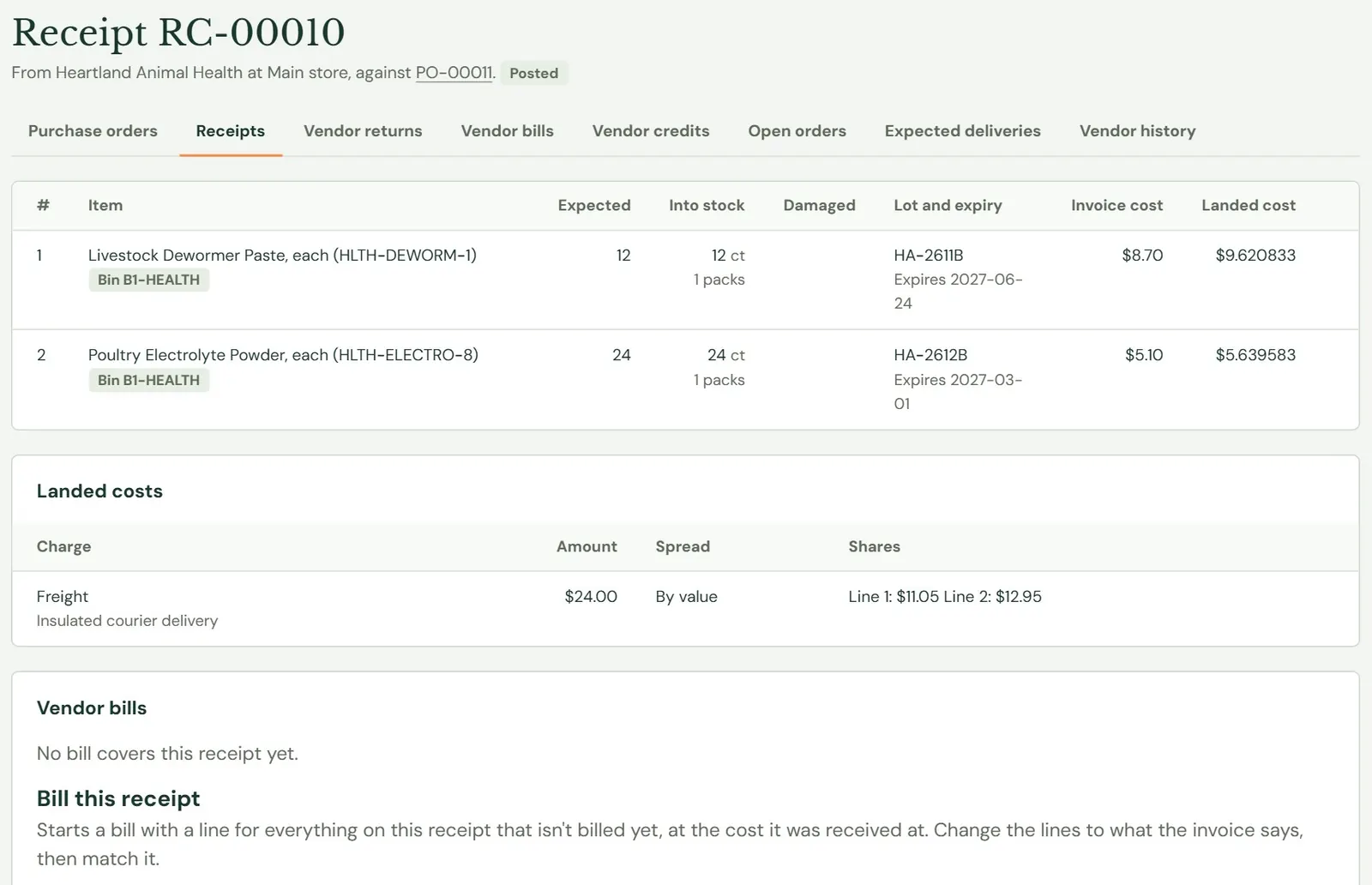
- 1Posted: the receipt no longer changes.
- 2Landed cost: the invoice cost plus this line's share of the freight.
- 3Bill this receipt starts the vendor's bill when the invoice comes.
To see what posting did, open the product. Its Stock history has a Received line that names the receipt (Find low items and explain a missing bag, in Chapter 18 of Core Roadside), and its cost history shows the average before and after (See why a size's cost changed, in Chapter 3). A receipt posted from these screens takes the date and time of the press, so post on the day the goods arrive. When the vendor's invoice comes, start its bill from the posted receipt's Vendor bills card (Enter a vendor's bill, in Chapter 12).
Cancel a receipt that was started by mistake
Included on Counter + Stock and Whole Store plans.
A receipt opened against the wrong order, or opened twice for one truck, is cancelled while it is still Open. An open receipt has put nothing into stock, so cancelling takes nothing out.
- Open the receipt from the Receipts tab and be sure it is the wrong one. A cancelled receipt stays in the list as Cancelled and can never be posted. Its order keeps what it had open, and the real delivery needs a receipt of its own.
- Press Cancel the receipt and confirm. Roadside asks Cancel <number>? Nothing goes into stock. The receipt stays listed as cancelled and can't be posted.
It worked when Roadside says Receipt <number> cancelled. Nothing went into stock. and the badge reads Cancelled. If someone cancelled it first, the message is That receipt was already cancelled. A posted receipt has no cancel button, and Roadside refuses to cancel one: That receipt was posted, so it can't be cancelled. To send the goods back, make a return to the vendor. (Start a return to a vendor, in Chapter 11).
Something here does not match your screen? Write to support@dirtroadsoftware.com with the name of the screen, what you pressed and what you expected. A picture of the screen helps.