
Keep seed tags and regulated sales on record
Copy the seed tag from the bag and keep the earlier readings when the seed is retested. Use Regulated sales to look up what was recorded when a product sold.
Copy a seed tag onto its lot
Included on Counter + Stock and Whole Store plans.
- Seed tag
- The analysis label on seed, copied onto its lot.
- Match the bag to its lot. On Lots and expiry, find the size's item number and lot code, then press the pen marked Edit seed tag. Staff can enter tags and retests. If the lot is missing, see Add a lot and receive stock into it, in Chapter 21.
- Copy the tag as printed. Enter the Seed lot number. Copy the percentages for purity, inert matter, other crop, weed seed, germination and hard seed where given. Each percentage takes 0 to 100 with up to two decimal places. Enter the month under Tested, the Sell by date, Origin and Noxious weeds where printed.
- Press Save seed tag. Look for Seed tag saved. The lot row shows Germination and the percentage if you entered it, or Tagged otherwise. If Roadside says A seed tag has at least one fact on it., copy a value from the tag before saving.
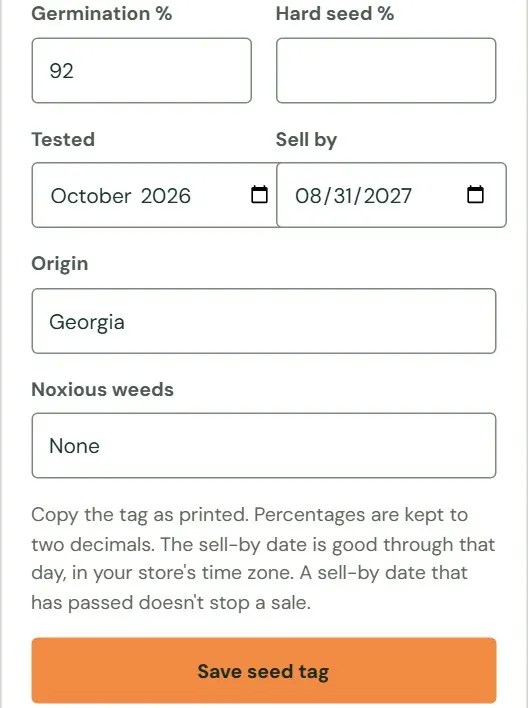
- 1Copy the germination percentage from the tag.
- 2Enter the tag's sell-by day.
- 3Save the tag against this lot.
For a later reading, open the saved tag and use Retest. Enter the month under Tested and the reading under Germination %. A blank Hard seed % clears the previous hard seed reading. A blank New sell by keeps the existing date. The sell-by date must be in or after the month tested. Saving replaces the readings on the tag and keeps the earlier values in History. Press Save retest and look for Retest above Tag changed or Tag added in the history. An unchanged entry says That seed tag was saved already.
The tag is good through its sell-by day in the store's time zone. After that the row reads Tag expired. Passing the tag date alone does not stop a sale. To stop it selling, a Manager or Store owner can put the lot on hold (Hold, release or recall a lot, in Chapter 21).
Mark a product's sale rules
Included on Counter + Stock and Whole Store plans.
- Open Sale rules on the product. Under Regulated product, compare Kind and Registration number with the product's label. To change either, press Edit the product and go to Basics.
- Choose what applies under Rules. Tick Restricted-use pesticide for a product marked restricted-use, or VFD required for feed sold under a Veterinary Feed Directive. Use Log every sale to include another product in the report. These marks and the regulated kind put sales on the report from the time the product is marked. Sold in store only alone does not put sales on it.
- Check the effect on orders. Staff can still sell these items at the counter or take a phone order.
Press Save. Look for Saved. and check the boxes you chose. Nothing changed. means the saved rules already matched.
Included on Online Store, Counter + Online Store and Whole Store plans. Saving Sold in store only blocks online orders for the product. Restricted-use and VFD products are always blocked from online ordering, even with Sold in store only unticked.
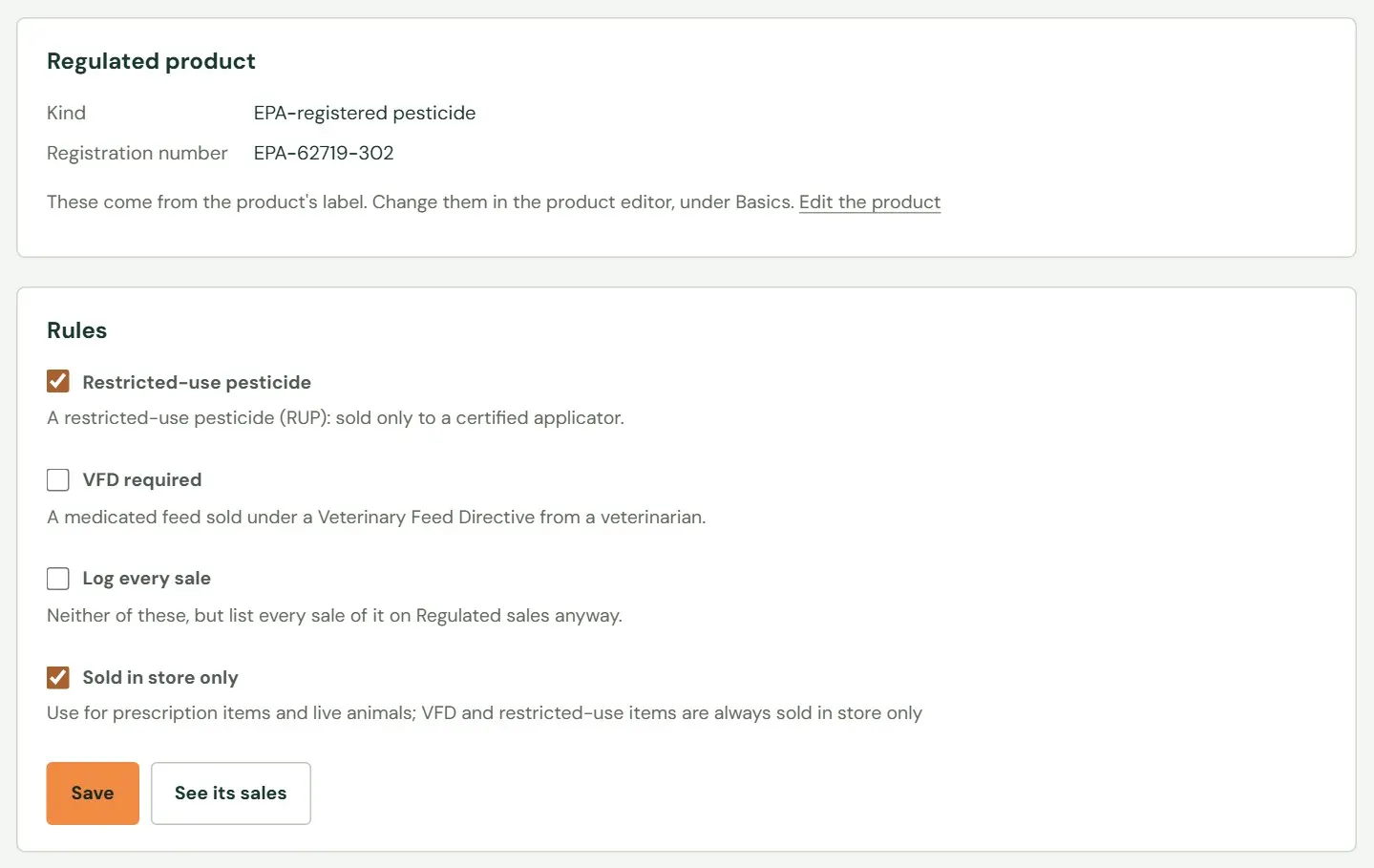
- 1Check the regulated kind against the product label.
- 2Tick this for a restricted-use pesticide.
- 3Check whether you mean to restrict ordering.
- 4Save the rules for this product.
See its sales opens the report for a product that has been marked, even if no sale appears yet. For the customer's documents see Record or correct a farm document, in Chapter 20 of Core Roadside. For counter checks left to follow see Let a known customer's license or VFD follow the sale, in Chapter 1 of Counter & Charge Accounts.
Look up regulated sales
Included on Counter + Stock and Whole Store plans.
- Regulated sale
- A sale recorded for a product marked regulated, restricted-use, VFD required or set to log every sale when it sold.
A Manager or Store owner can look up register sales and itemized refunds for the store's records. Removing a mark leaves earlier sales made under that mark on the report. Refunds follow the marks on the original sale.
Included on Online Store, Counter + Online Store and Whole Store plans. The same report includes website sales and their itemized refunds.
- Choose the store days under From and Through. The dates start at two years ago through today. Under Kind, keep Every kind or choose EPA-registered pesticide, Animal drug (over the counter), Medicated feed, Restricted-use pesticide, VFD required or Log every sale.
- Narrow the list. Choose a Product or enter a name, email or account number under Customer. Press Show and check the dates under the heading. If a product filter was refused, choose the product from the list and press Show again. If more than 200 customers or accounts match, type more of the name.
Rows appear most recent first, up to 100 per page. Press Older for earlier records or Newest to return. For No sale or refund of these products in these dates., check the dates, filters and the first recorded sale day at the top. The report gives the date Roadside began keeping product marks. A product marked and unmarked before that day can be missing. For a product already marked that day, older sales show the registration number it had then.
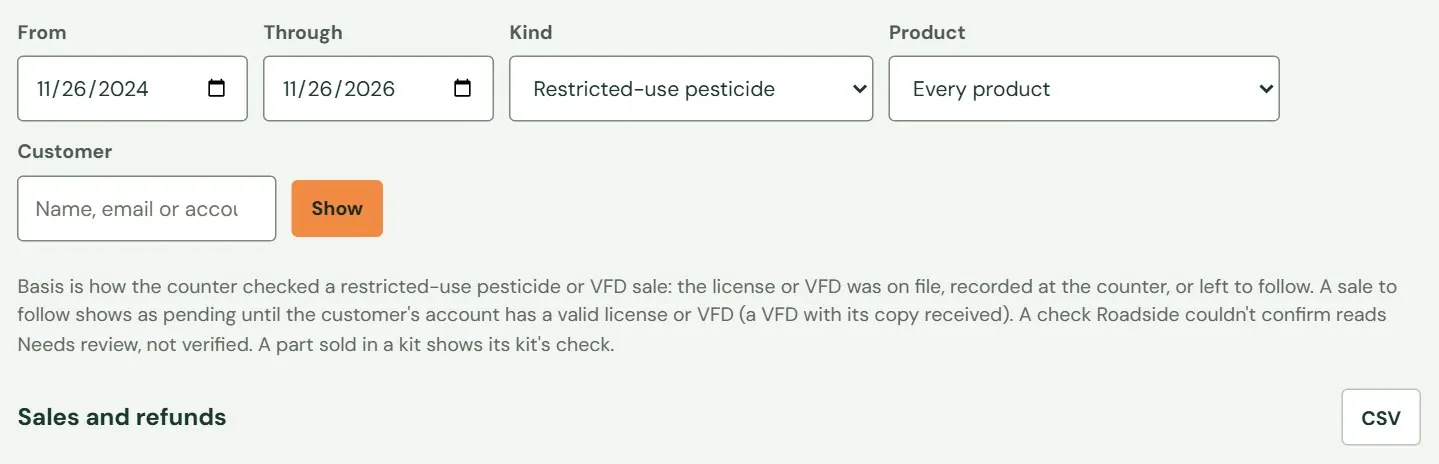
- 1Choose the kind of product to find.
- 2Narrow the list to the customer or account.
- 3Apply the dates and filters.
- 4Download the filtered records.
Under Sales and refunds, match the date, Reference, customer, product and registration number. Check the quantity and location. A refund has a negative quantity. Read Basis to see how the counter checked a restricted-use or VFD sale. A document can be on file, recorded at the counter or left to follow. A check left to follow stays pending until the account has a valid license or a valid VFD with its copy received. Needs review means Roadside could not confirm the check. For the customer's document dates, see Find documents that need renewing, in Chapter 20 of Core Roadside.

- 1Read how the counter checked the sale.
- 2Look up the document recorded on this line.
- 3Check the expiry recorded for that document.
- 4Read who verified it, when recorded.
Press CSV to download a spreadsheet file covering the filtered date range across pages. If the report cannot read all kit components or locations, narrow the dates or choose one product before downloading. One file holds up to 20,000 rows. If its last line says the file stopped there, use smaller date ranges.
Something here does not match your screen? Write to support@dirtroadsoftware.com with the name of the screen, what you pressed and what you expected. A picture of the screen helps.