
Track lots and expiry dates
Use the code and date on the bag to tell lots of the same size apart. You can stop a suspect lot from selling and trace which customers may have taken it home.
In this chapter
Turn on lots for the store
Included on Counter + Stock and Whole Store plans.
Lots are off to start. A Store owner or Manager turns them on for the whole store. If Staff see Lots are off for this store. A manager can turn them on., they ask a Manager or Store owner.
- Choose whether to keep lots. Under Settings, tick Keep lots for this store. You can then name a lot on a receipt for a delivery. When a sale leaves the lot unspecified, it takes the eligible lot at that location that expires first.
- Decide what happens after expiry. Sell expired stock starts unticked. Leave it unticked to prevent sales from an expired lot. Tick it to allow sales from that lot after its date. The expiry flag still shows either way.
- Set the warning time. In Flag a lot this many days before it expires, enter a whole number from 0 to 3,650. The starting value is 30. Press Save settings. Roadside says Stock settings saved. Check the number of days under the page heading. If Roadside refuses the number, enter it as whole days.
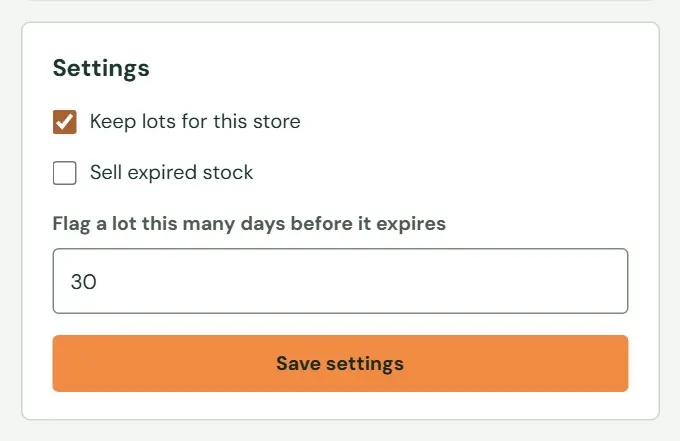
- 1Tick this to keep lots for the store.
- 2Choose whether an expired lot may sell.
- 3Enter how many days of warning you want.
Add a lot and receive stock into it
Included on Counter + Stock and Whole Store plans.
For goods on a purchase order, fill in Lot and Expires on the receipt for the delivery. Posting adds the stock to that lot and creates it if needed. For an existing lot you can leave the expiry blank to use its date. Record the delivery once (Receive a delivery against its purchase order, in Chapter 9).
- To enter a lot by hand, match the bag. On Add a lot, type the size's item number in SKU and copy the Lot code. Enter Expires on if it has a date. The lot is good through that day in the store's time zone.
- Decide whether stock is coming in with the code. Leave Quantity received blank to save only the lot. Entering a quantity adds those units to stock at Received at. Check the location and press Add lot. For a lot coded HA-2611A, Roadside says Lot HA-2611A saved. If Roadside says That size already has a lot HA-2611A, with another expiry., nothing was added: check the bag against the existing row and use that lot.
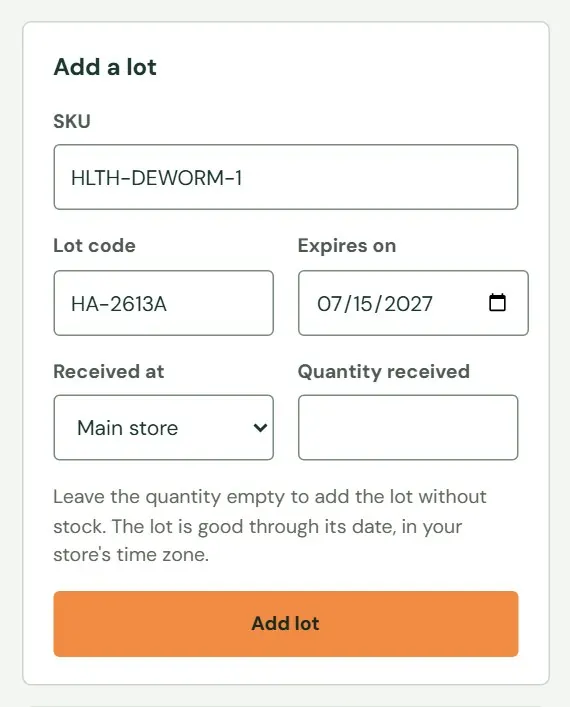
- 1Copy the code from this lot.
- 2Enter its last good day.
- 3Leave blank to enter the code without adding stock.
- 4Save the lot and any quantity entered.
For stock coming into an existing lot without a receipt, Staff can use Receive into a lot. Choose the Lot, select its location under At and type the Quantity. Receiving adds that quantity to the lot at that location. Check it, then press Receive. For that same code the message reads Received into lot HA-2611A. Check its On hand in the list. A recalled lot is left out of the picker.
Find a lot and see which sells first
Included on Counter + Stock and Whole Store plans.
- Lot
- Stock of one size that shares a lot code and, when it has one, an expiry date.
- Match the code on the bag. Find the size under SKU and read across to Lot. If you start on the product's page, use its size's item number (Read one product's record, in Chapter 13 of Core Roadside). Receipt numbers under the lot code take you to the deliveries it came on.
- Read the date and state together. Good and Expires soon lots can sell. After its last good day the lot reads Expired, unless it is On hold or Recalled. A hold or recall takes precedence over the date. Doesn't expire means the lot has no expiry date.
- Check what is on hand. The row gives the lot's total across locations. To count it at one location, use the lot lines on that location's count sheet (Count the sheet, in Chapter 16). If the list says No lots yet., check the settings and the delivery's lot code.
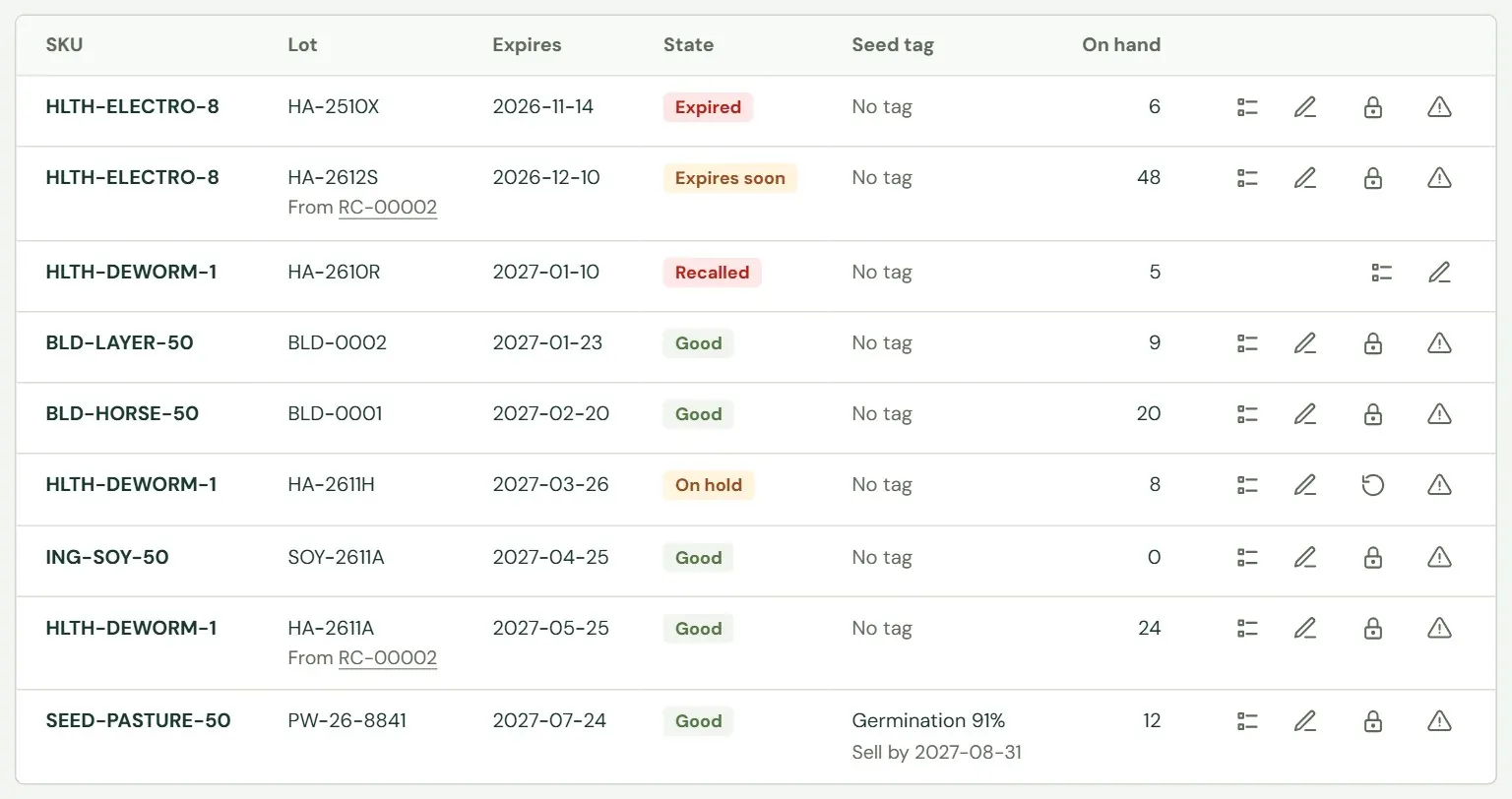
- 1Match the bag's code with this row.
- 2Read the lot's last good day.
- 3Check the expiry warning, hold or recall.
- 4Read the total left in the lot.
- 5Use the lock to put this lot on hold.
Unless the sale names a lot, the register takes stock at its location from the eligible lot that expires first. Undated lots come last. Held and recalled lots are skipped. An expired lot is skipped unless Sell expired stock is ticked. A sale naming an ineligible lot is refused. Without a named lot, any quantity the eligible lots do not cover comes from stock outside lots.
Included on Online Store, Counter + Online Store and Whole Store plans. Website sales draw from the default location and take eligible lots in the same order.
Hold, release or recall a lot
Included on Counter + Stock and Whole Store plans.
- Recall
- Stopping a lot from ever being sold again.
A Manager or Store owner handles all three actions. Find the row with the exact SKU and lot code before choosing one.
- To stop sales while you check a lot, put it on hold. A hold stops sales from the lot and stops it moving on a transfer. Press Put on hold (the lock). The row reads On hold.
- To clear a held lot, check its expiry first. Releasing lets the lot move again and lets it sell under the store's expiry setting. Press Release. The message names the released lot and the row shows its date-based state again.
- To withdraw the lot for good, check the code again. Recalling permanently stops sales from that lot and stops transfers. A recalled lot cannot be released. Press Recall. The question reads, for example, Recall lot HA-2611A? It's never sold again. Confirm only if the code matches. Check that State reads Recalled.
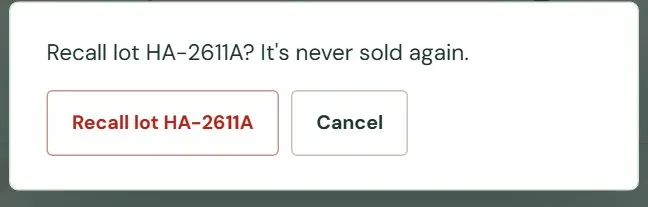
- 1Match the code in the question to the lot you intend to recall.
If someone has changed the lot since you opened it, reload and check its state. A recalled lot can still go back on a vendor return (Start a return to a vendor, in Chapter 11).
See which customers bought a lot
Included on Counter + Stock and Whole Store plans.
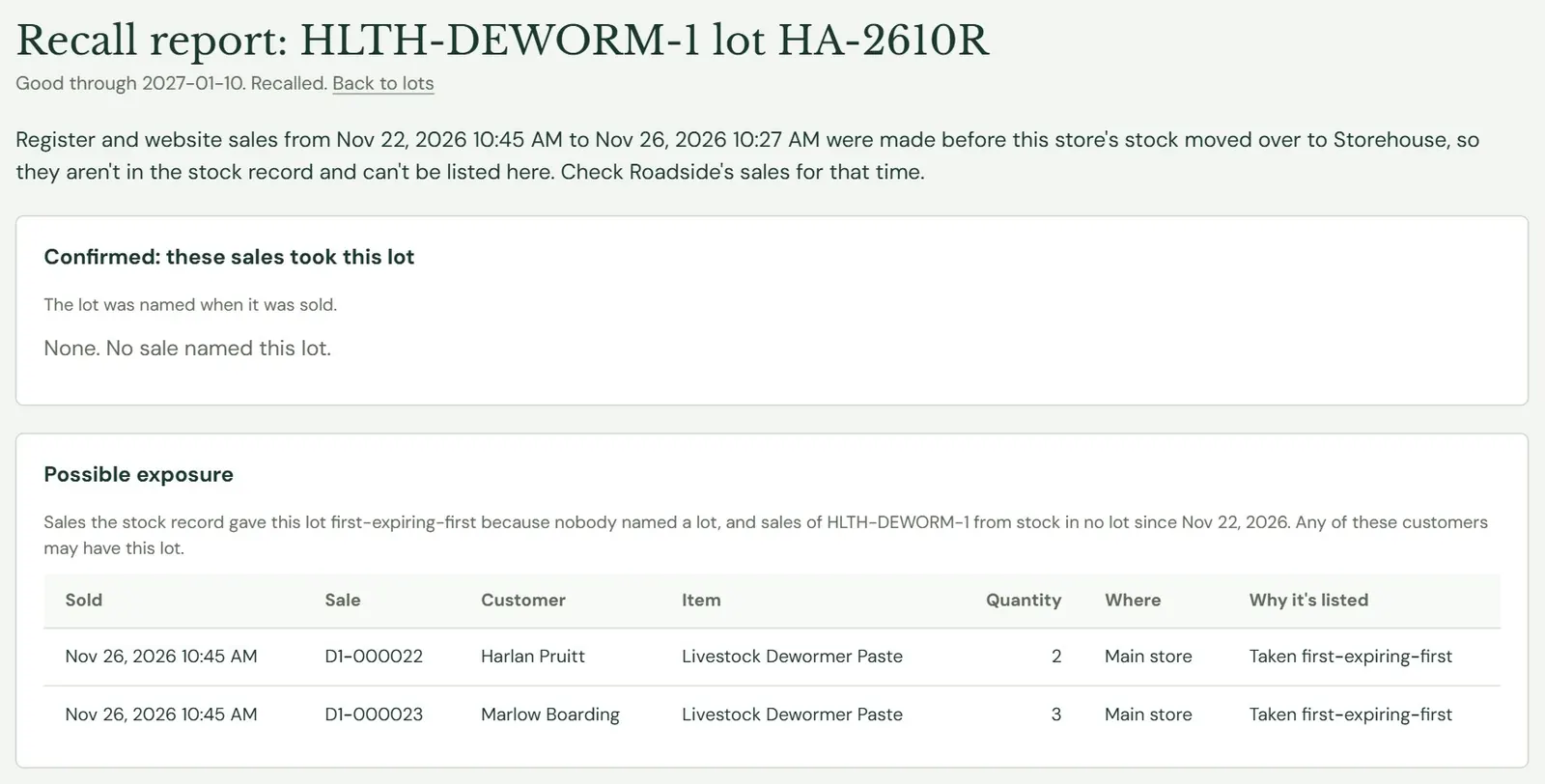
The Recall report sends nothing and prints nothing. Use it to find the customers your store needs to contact. You can read the report before deciding whether to recall the lot.
- Open the list icon marked Recall report on the lot's row. Only a Manager or Store owner can open it. Match the SKU and lot code in the heading to the bag.
- Start with Confirmed: these sales took this lot. The lot was named at the sale. Read the date under Sold, the sale number, customer and item where recorded, the quantity and where it sold. None. No sale named this lot. means there are no confirmed sales. A sale at the register or on the website does not name a lot, so expect those customers under Possible exposure.
- Check Possible exposure even if no sale is confirmed. Why it's listed reads Taken first-expiring-first when Roadside assigned this lot by expiry. Sold from stock in no lot means that size sold without a lot from the date shown. As the report says, Any of these customers may have this lot.
- 1Start with the sales that named this lot.
- 2Include possible customers in your follow-up.
- 3Read the customer's name where the sale has one.
- 4Check why each possible sale appears.
If lot tracking is off, sales made with it off take stock in no lot. If the report names dates before your stock moved to Storehouse ERP, check Roadside's sales for that period yourself.
Something here does not match your screen? Write to support@dirtroadsoftware.com with the name of the screen, what you pressed and what you expected. A picture of the screen helps.