
Schedule a price change for a later day
When a mill announces new prices from the first of the month, set the change up now, check every size's new price, and let it happen on its day.
In this chapter
Set up a price change
Included on Counter + Stock and Whole Store plans.
A price change sets the regular price of the sizes you pick to change by itself at midnight on a later day. It is the way to load a mill's increase ahead of the first of the month, instead of editing products that morning. A price for today is changed on the product (Change a shelf price or put it back, in Chapter 14 of Core Roadside).
- Price change
- A regular price set to change by itself on a later day.
The change writes the product's regular price, and Price history records it as Scheduled change. It writes nothing else: contract prices and the prices in a price book stay as they are. Where a price book prices the size, the book's price stays the regular price at that place. Customer prices are then worked out from the regular price at the place of sale by the rules in See which price a customer pays, in Chapter 25.
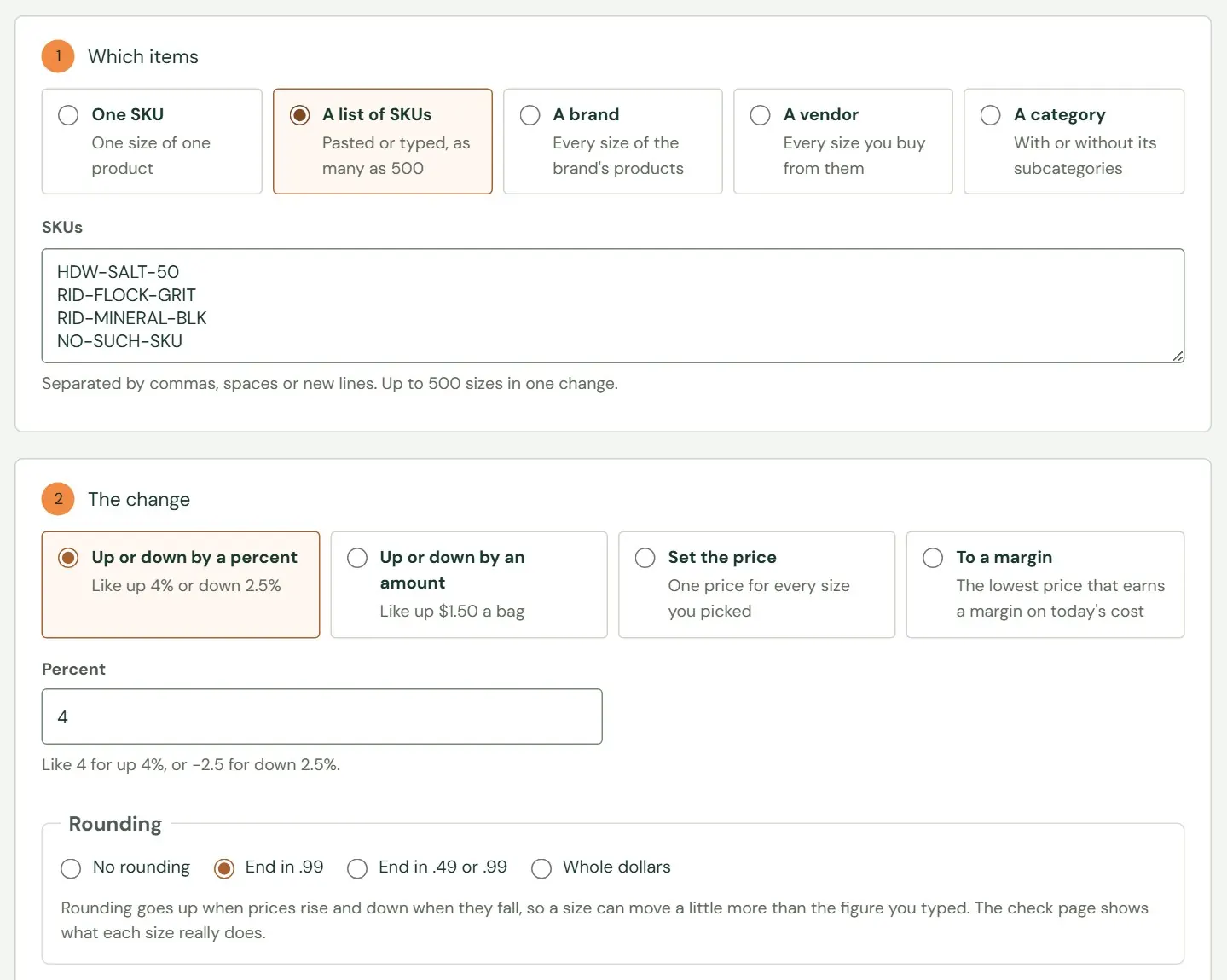
- 1Choose which sizes change.
- 2Choose how the price changes, then type the figure.
- 3Choose how the prices end.
- Open Products > Price changes and press Set up a price change. A product's page has its own Set up a price change button, which fills in that product's SKUs.
- Under 1 Which items, choose what to change.
- One SKU: one size of one product.
- A list of SKUs: pasted or typed, separated by commas, spaces or new lines.
- A brand: every size of the brand's products.
- A vendor: the sizes you buy from that vendor, as its vendor items say (Record what a vendor sells you, in Chapter 4).
- A category: tick Include its subcategories to take those too.
- Under 2 The change, choose how the price changes and type the figure.
- Up or down by a percent: Percent, such as 4, or -2.5 to go down. From -90 to 500.
- Up or down by an amount: Amount ($), such as 1.50, or -0.25 to go down 25 cents.
- Set the price: New price ($), one price for every size you picked.
- To a margin: Margin (%), from 1 to 99. Each size gets the lowest price that earns that margin on today's cost. A size with no cost on file is left out.
- Choose the Rounding: No rounding, End in .99 (the default), End in .49 or .99 or Whole dollars. Rounding goes up when prices rise and down when they fall, so a size can move a little more than your figure: up 4% ending in .99 takes a $19.99 bag to $20.99. A change To a margin always rounds up, even where it lowers a price, so it never lands under the margin. Even No rounding rounds to the whole cent. Set the price has no rounding.
- Under 3 Starts on, choose the Day: tomorrow at the earliest, up to a year out. The prices change at midnight at the start of that day, store time.
- Under 4 Name this change, type the Name (shown on the product), up to 120 characters, such as Ridgeline Dec 1 increase. Staff see it on each product the change touches and on the list of price changes.
- Press Check the prices. Nothing is saved or scheduled yet. The check page opens (Check the new prices and schedule the change, in Chapter 27).
If something is missing or out of range, the form comes back with your entries kept and a message beside the field, such as Enter a percent from -90 to 500, like 4 or -2.5. or Pick a day from <date> to <date>. For today, change the price on the product.
One change holds at most 500 sizes. A bigger pick is refused with That's <n> sizes. The most in one change is 500. Pick a narrower group, or split it into two changes. A pick with nothing for sale gets None of those sizes is for sale in this store. Check the pick and try again. A price change has no file upload: for more than one SKU, paste a list.
Check the new prices and schedule the change
Included on Counter + Stock and Whole Store plans.
Check the prices shows what the change does to every size before anything is stored. Its first line repeats the name, the pick, the change and the day, and ends Nothing is stored until you schedule it.
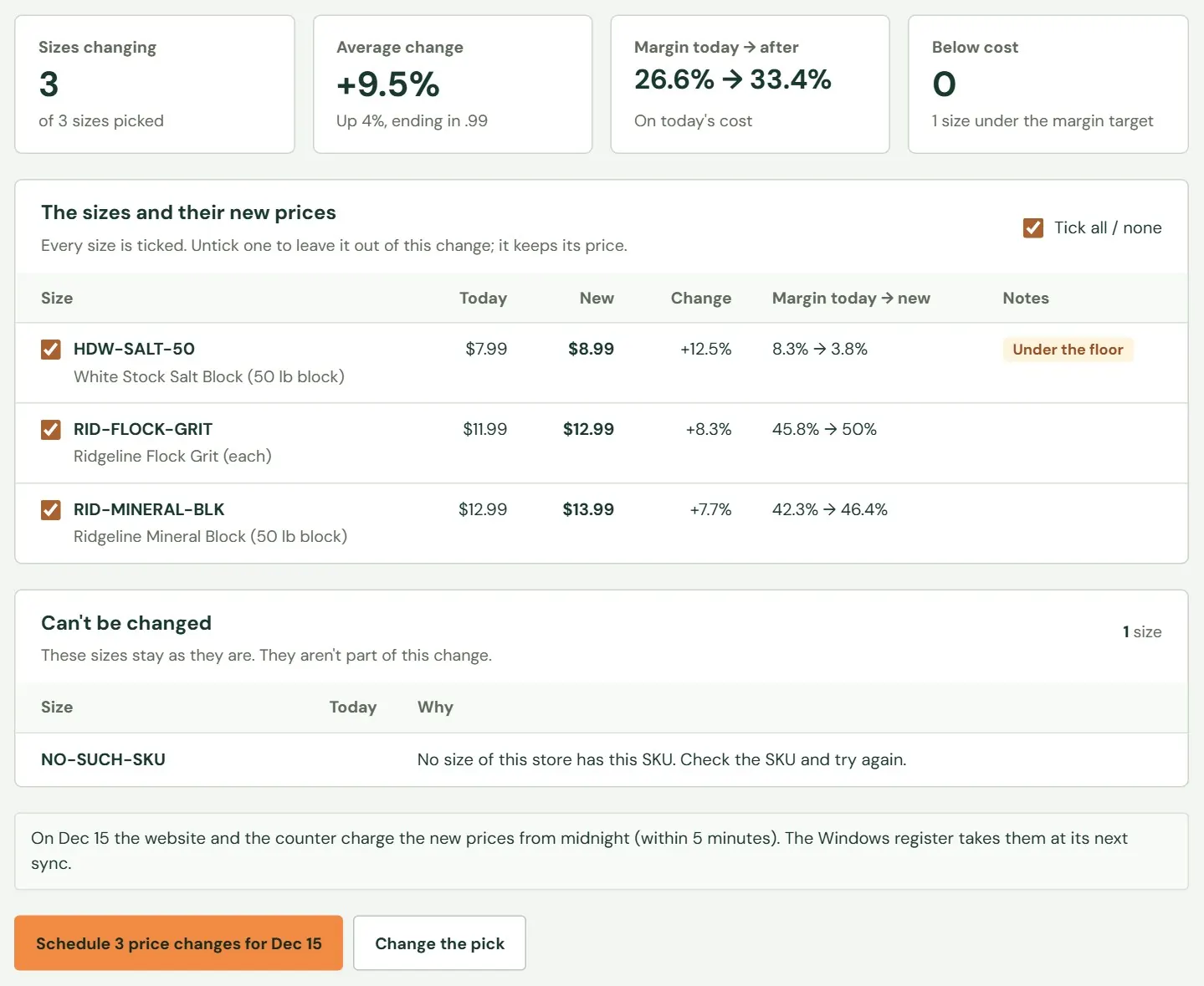
- 1Margin today → after: the average margin on today's cost, before and after the change.
- 2Untick a size to leave it out. It keeps its price.
- 3Notes: a size's warnings, such as below cost, under its margin, or another change coming.
- 4Sizes the change leaves alone, and why.
- 5Schedules the ticked sizes for their day.
- Read the four figures at the top. Sizes changing, Average change, Margin today → after (sizes with no cost on file are left out of it) and Below cost, with how many sizes fall under their margin target.
- Read each size in The sizes and their new prices: Today, New, Change and Margin today → new. Notes marks a size Below cost, Under the floor or Under target by the store's margin rules (Set the margin you aim for, in Chapter 28). These warn and never stop the change. A note such as Also changing to $<price> on <day> (<name>). means another change is coming for the size on a different day.
- Untick any size to leave out. Every size starts ticked. A size you untick keeps its price and is not part of this change.
- Read Can't be changed. These sizes stay as they are. Why gives the reason:
- Already at this price, so nothing changes.
- No cost on file, so a price for a margin can't be worked out. Set that size's price another way.
- The new price would be $0.00 or less, so it is left alone. Use a smaller cut.
- Not in Storehouse yet. Save its product once, or fill the store, then try again. Open the product, press Edit and save it once.
- No size of this store has this SKU. Check the SKU and try again. A typed SKU is wrong: correct it in the list.
- Another change for this size starts that day: <name> sets it to $<price> (<who>). Open that change to see it.
- To change the pick or the figure, press Change the pick. The set-up form comes back with everything you typed.
- Check the prices once more, then schedule. Scheduling fixes each ticked size's price as shown here: nothing is worked out again on the day, even if a cost changes. At midnight on the day, store time, the regular price changes at the counter and on the website by itself. Press Schedule <n> price change(s) for <day>.
Roadside says Price change scheduled: <n> sizes change on <date>. and opens the change's page with the status Coming. Each product it touches shows Price change coming: with the price, the day and the change's name.
The note above the buttons says the website and the counter charge the prices from midnight on the day, within 5 minutes. A register that is offline takes them when it next syncs with Roadside (See which price a customer pays, in Chapter 25).
Two other answers are possible. If a price changed while the page was open, it comes back with Prices changed since you checked. Look them over again, then schedule. Nothing was scheduled: read it again and press the button again. When no size can change, the button is greyed out. If the sizes still ticked when you press it would change nothing, Roadside says Nothing changes: every size is left out or already has that price or a change that day., and nothing is scheduled.
Follow or cancel a scheduled change
Included on Counter + Stock and Whole Store plans.
Price changes lists the changes by their day, at most the 100 with the latest days: a change set up long ago, with 100 later ones after it, may not show. Staff can open the list and each change, so the counter knows what is coming, but they have no button to set one up or cancel one.
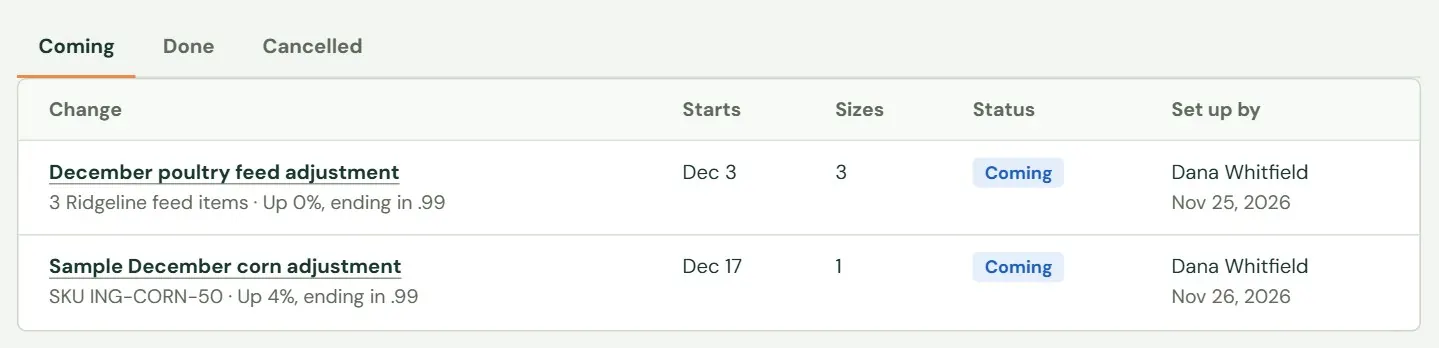
- 1Coming, Done or Cancelled.
- 2The day the prices change.
- 3Coming, Done, Cancelled, or Not updated when a size could not be set.
- 4Who set the change up, and when.
- Open Products > Price changes. Coming lists the soonest first. Done and Cancelled list the latest first.
- Read the row. Under each name are the pick and the change in words. Sizes counts them, with how many were cancelled. A row reading <n> sizes couldn't be changed. Open it to see why. has sizes that were not set.
- Open the change by its name. The page gives Starts (or Started), Status with a count of sizes done, coming, cancelled and not changed, The change, Sizes picked and Set up by. The Sizes table lists each size with Old → new, its Status and Notes.
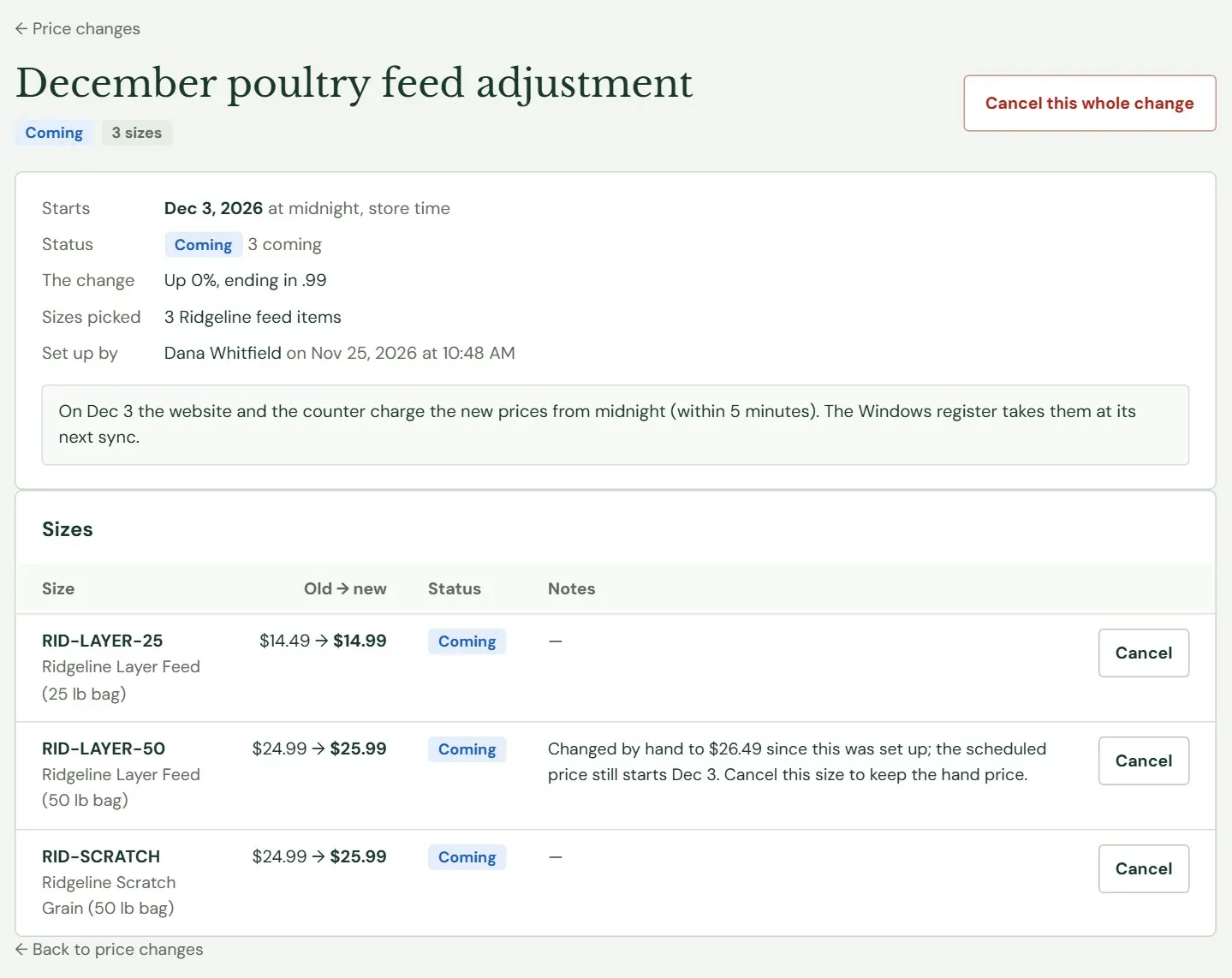
- 1What the change does, in words.
- 2This size's price was changed on the product. The scheduled price still replaces it on the day.
- 3Cancels this size only. It keeps its price.
- 4Cancels every size still coming.
Cancel before the day
A change, or one size in it, can be cancelled any time before midnight at the start of its day. Once its day has started it cannot be cancelled, and the price stays what it became: to change it again, open the product and set a price from today.
- Open the change from the Coming tab.
- To keep one size's price, cancel that size. It keeps its price and nothing happens to it on the day. Press Cancel on its row and answer Cancel the change for <SKU>? It keeps its price of $<price>. Roadside says That size is cancelled. It keeps its price.
- To stop the whole change, cancel it. Every size still coming keeps its price, and nothing happens on the day. Press Cancel this whole change and answer Cancel this whole change? <n> sizes keep their price and nothing happens on <day>. Roadside says The price change was cancelled. Its sizes keep their prices., and the change moves to Cancelled.
A size changed by hand after the change was set up reads Changed by hand to $<price> since this was set up; the scheduled price still starts <day>. Cancel this size to keep the hand price. Editing the product does not cancel anything: cancel the size to keep the hand price. If the day has come, the page says This change started <day>, so it can't be cancelled. To change a price again, open the product and set a new one from today. If someone else changed the change while you had it open, Roadside asks you to reload the page.
A size that says Not updated
After the day, each size reads Done, with Set <date, time>.; Cancelled if it was cancelled before the day; or Not updated when its price could not be written. A change with any such size shows Not updated on the list too. The note gives the reason:
- Couldn't be set: <why>. It is tried again every few minutes for a week after <day>; if it still fails, set the price on the product. Nothing for you to do during that week.
- Couldn't be set: <why>. It was tried for a week after <day>. To change the price, open the product and set it from today. The week is over: set the price on the product.
- This size was archived or removed before <day>, so it was left alone. The size was archived or gone when Roadside came to set its price. It is not tried again.
Something here does not match your screen? Write to support@dirtroadsoftware.com with the name of the screen, what you pressed and what you expected. A picture of the screen helps.