
Send stock back to a vendor
Damaged bags, the wrong item or a recall go back on a vendor return. A Manager ships it, and the vendor's credit is recorded when it comes.
In this chapter
Start a return to a vendor
Included on Counter + Stock and Whole Store plans.
Torn bags found after the receipt was posted, the wrong item, overstock the vendor agreed to take back, a recalled lot: each leaves the store on a vendor return. A return begins as a draft. Store owners, Managers and Staff can start one and add its lines, and none of that moves stock. Shipping it is a separate press for a Manager or the Store owner.
- Vendor return
- Stock sent back to a vendor. It leaves at average cost.
- Go to Purchase orders and press the Vendor returns tab. A store with no vendors sees Add a vendor first: every return goes back to one of your vendors. (Add a vendor and its terms, in Chapter 4).
- Fill in Start a return. Choose the Vendor and Sent from, the location the stock leaves. Type the Vendor's authorization if the vendor gave you a return number, and a Note. Type them before you start: the return's own page shows them and has no box to change them.
- Press Start the return. Roadside says Return <number> started. and opens the return as a Draft, numbered such as RT-00005.
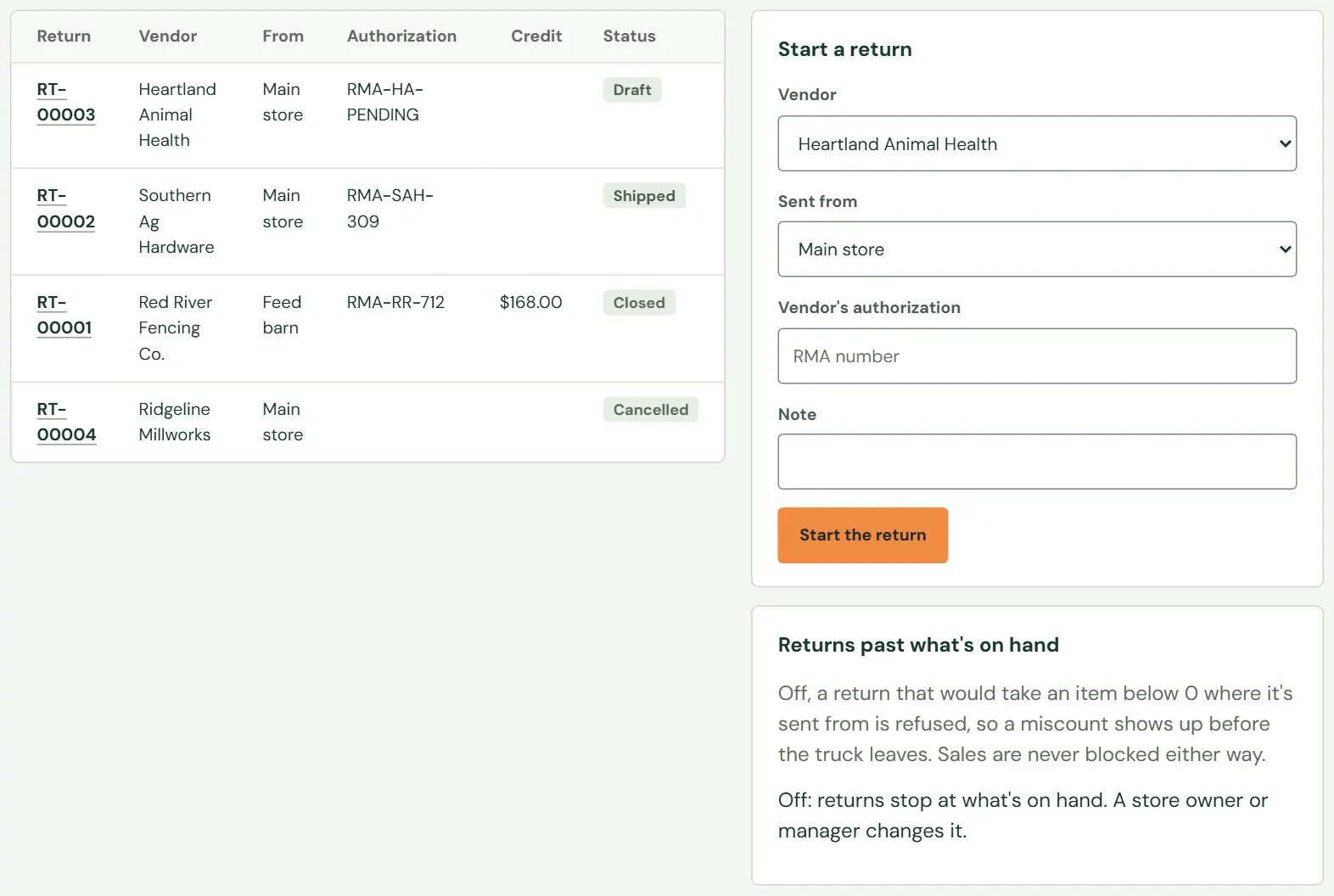
- 1Status: Draft, Shipped, Closed or Cancelled.
- 2Vendor's authorization: type the vendor's RMA number here before you start.
- 3Start the return opens a draft. No stock moves.
- 4Returns past what's on hand: read whether a return may take stock below 0.
Then add what is going back.
- Add each item in Add a line. Choose the Item, type the Quantity in the item's own unit, and choose Why: Damaged, Wrong item, Overstock, Expired, Recall or Other.
- Type the Lot when the stock belongs to one, as Lots and expiry shows the code. In a store that keeps lots the hint reads This store keeps lots: shipping takes the stock out of this lot, even one on hold or recalled. Leave the box empty for stock that is in no lot.
- Press Add line. Roadside says Line added. The pen on a row changes a line and the trash button removes it.

- 1Why: the reason each item is going back.
- 2Lot: the lot the stock comes out of when the return ships.
- 3When shipped: the cost of each unit is filled in at shipping.
The draft is ready when it lists every item going back and each line's Cost each reads When shipped.
Ship a return
Included on Counter + Stock and Whole Store plans.
Shipping is the press that takes the stock out of the store. A Manager or the Store owner does it. Staff see Someone of Manager rank or above ships a return. where the button would be.
Every line leaves the Sent from location at the size's average cost at that moment, and Cost each shows it. The average cost itself does not move. In a store that keeps lots, a line that names a lot takes its quantity out of that lot, and a lot that is on hold, recalled or expired still goes back (Hold, release or recall a lot, in Chapter 21).

- 1Ship the return takes the stock out. It cannot be undone.
- 2Cancel the return, for a draft that will not go.
- Open the draft and check it against the pallet: each line's item, quantity and lot.
- Be sure the goods are leaving. Shipping takes the stock out of the location at once and cannot be undone. A shipped return's lines no longer change.
- Press Ship the return and confirm. Roadside asks Ship <number>? Its stock leaves now, and the return doesn't change after.
A return ships whole or not at all. The press ends one of these ways.
- It shipped. Roadside says Return shipped: its stock left. The badge reads Shipped, Cost each is filled in, and each product's Stock history has a Returned line that names the return.
- A line asks for more than is there. Line <n> sends back <quantity> <unit>, more than is on hand there. Turn on returns past what's on hand in the settings, or count the stock first. Nothing shipped. Check the quantity and Sent from. If the goods are in front of you, the count is wrong: count the size (Start a count, in Chapter 16), or have the store allow it (Allow a return to take stock below zero, in Chapter 11).
- A lot is not found, or is short. The message names the line and the lot and ends Nothing was shipped. Check the code on the bag. Correct the line's Lot, or clear it to send back stock that is in no lot.
- Someone else had shipped it. Roadside says That return had already shipped.
A draft that will not go after all can be cancelled. Cancelling moves no stock, leaves the return in the list as Cancelled, and cannot be taken back: a cancelled return never ships. Press Cancel the return and confirm. Roadside says Return cancelled. Staff can cancel a draft too. A shipped return cannot be cancelled.
Record the vendor's credit for a return
Included on Counter + Stock and Whole Store plans.
Once a return has shipped, its page gains a card called The vendor's credit. It keeps Credit expected, Credited and, when a credit came in under what you expected, Short credited. Nothing on this card pays or refunds money. It records what the vendor says it owes you.
- Set what you expect, if it differs. Credit expected starts at what the return shipped at cost. If the vendor agreed another figure, such as the cost less a restocking fee, type it in Credit expected ($) and press Save credit expected. Roadside says Credit expected saved.
- When the credit memo comes, fill in Record the credit. Type the Credit memo number. Received starts at today's date: check it. Amount ($) starts at what the return still expects. Type the memo's own amount.
- Check the amount before you record it. Recording makes a vendor credit and applies it to this return in the same press, and Staff cannot take it off again. The hint says how the amount is split: Up to <amount> settles this return. Anything over stays open, to apply to a bill. Press Record the credit.
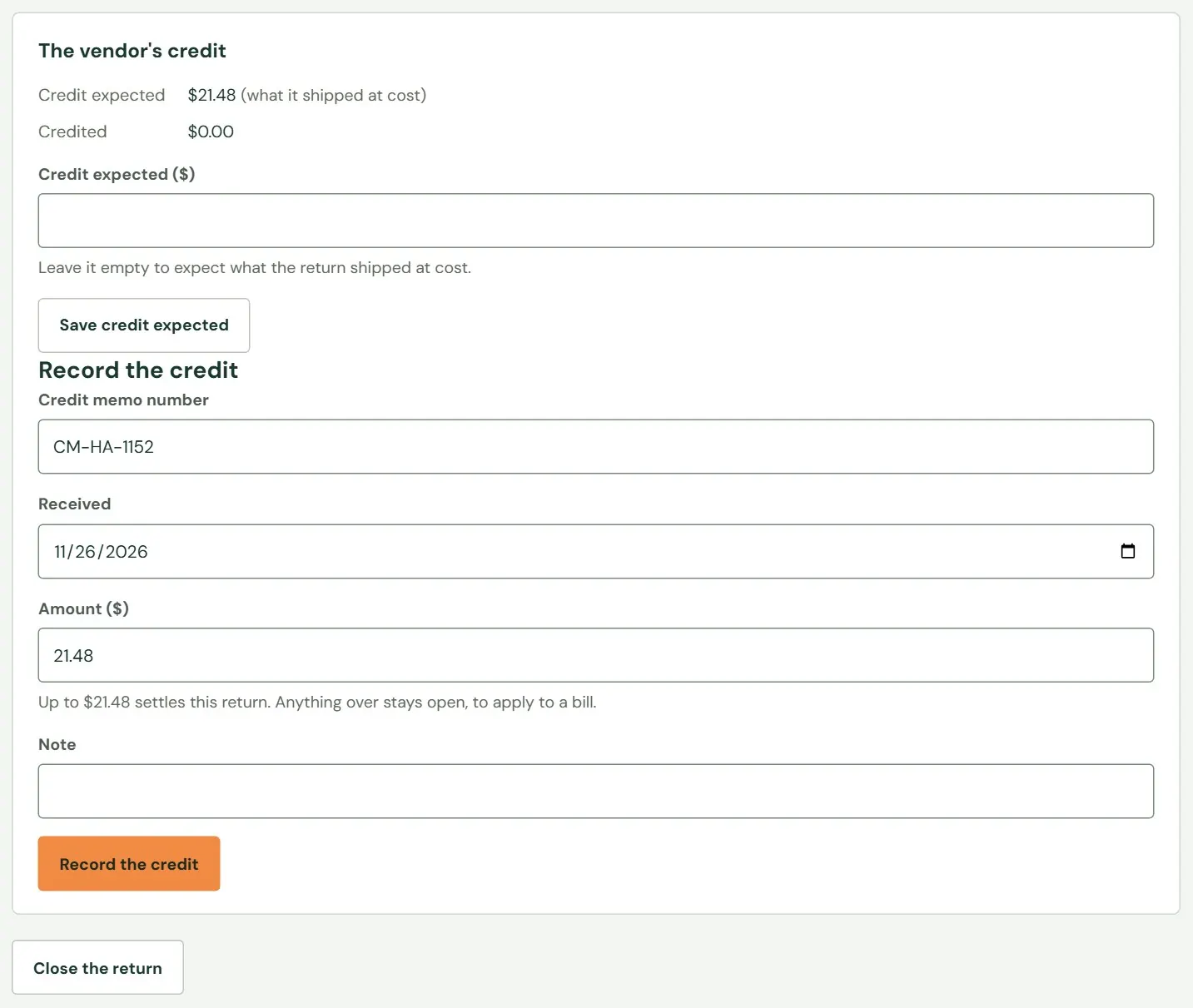
- 1Credit expected: what the return shipped at cost, until you type another figure.
- 2Credit memo number: type the number printed on the vendor's memo.
- 3Amount ($): type the memo's amount.
- 4Record the credit saves the memo and applies it to this return.
Roadside answers Credit <memo> recorded: <amount> applied to this return. When the memo is for more than the return expected, the message ends <amount> left to apply to a bill. and that part waits on the Vendor credits tab (Take a credit off a bill, in Chapter 14). When it is for less, Short credited shows the difference and the form stays for a second memo.
- That vendor's memo <memo> is recorded already. The number is on another credit from this vendor. Find it on the Vendor credits tab.
- A figure in Credit expected ($) below what is already credited is refused. The message ends Remove a credit first.
- A memo recorded on the wrong return is taken off by a Manager or the Store owner (Take a credit back off, or void it, in Chapter 14).
When nothing more is coming, press Close the return. Closing changes no stock and no credit, and Roadside does not ask first. It says Return closed. The return reads Closed from then on, and a late credit memo can still be recorded on it.
Allow a return to take stock below zero
Included on Counter + Stock and Whole Store plans.
A return cannot take out more than Roadside has on hand at the location it leaves from. The card on the Vendor returns tab gives the reason: Off, a return that would take an item below 0 where it's sent from is refused, so a miscount shows up before the truck leaves. Sales are never blocked either way. The setting starts off, and it covers every return the store ships.
A Manager or the Store owner changes it. Staff read how it stands, Off: returns stop at what's on hand. or On: returns may take stock below 0., followed by A store owner or manager changes it.
- Weigh what the setting gives up. With it on, a return ships even when it takes a size, or a lot, below 0 at that location, and nothing warns you. The size then shows on the Recount list until it is counted (Recount sizes that went below zero, in Chapter 18).
- Tick Let a return take stock below 0 in the Returns past what's on hand card and press Save setting. Roadside says Setting saved. Untick the box and save to turn it off again.
Something here does not match your screen? Write to support@dirtroadsoftware.com with the name of the screen, what you pressed and what you expected. A picture of the screen helps.