
Let reorder rules suggest what to buy
A reorder rule says how much of a size to keep at a location. The Reorder list works out what to order from each vendor and turns your choices into draft orders.
In this chapter
Set a reorder rule for a size
Included on Counter + Stock and Whole Store plans.
A rule is for one size at one location. Staff can open the Reorder list and read the rules, without the form or the buttons that change them. The Reorder point on a product's page is a different thing: it marks a size Low and does not feed this list (Set when a size counts as low, in Chapter 18 of Core Roadside).
- Reorder rule
- How much of one size to keep at one location, which the Reorder list orders up to.
- Par
- The quantity you want on hand. When you fall below it, the Reorder list orders back up to it.
- Days of cover
- Enough stock to last that many days at the pace of recent sales.
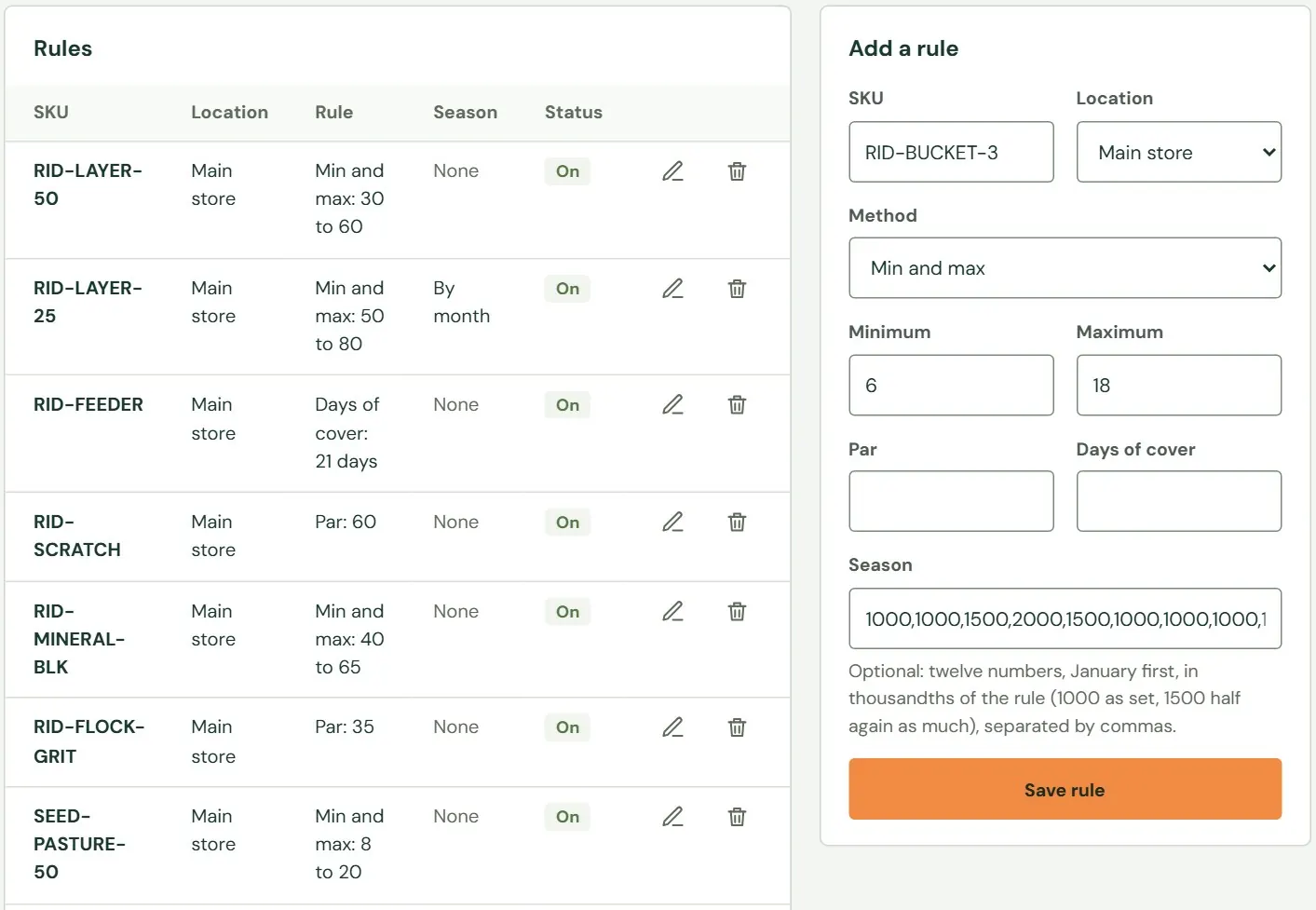
- 1Read each rule's method and its numbers.
- 2See which rules change by month.
- 3Choose how the rule works out what to order.
- 4Press to save the rule and turn it on.
- Open Reorder list and find the Add a rule card beside Rules.
- Type the SKU and choose the Location.
- Choose the Method.
- Min and max orders up to the maximum when the size's position is at or under the minimum. Type Minimum and Maximum.
- Par orders up to par when the position is under it. Type Par.
- Days of cover orders enough for that many days, plus the preferred vendor's lead time, at the pace the size sold at this location over the last 28 days. Type Days of cover, from 1 to 365.
- Add a Season if the size sells by the time of year. Optional: twelve numbers, January first, in thousandths of the rule (1000 as set, 1500 half again as much), separated by commas. Starter feed for spring chicks might read 1000,1000,1500,2000,1500,1000,1000,1000,1000,1000,1000,1000: half again in March and May, double in April.
- Press Save rule. Roadside says Rule saved. The rule shows in Rules with its method, such as Min and max: 5 to 20, Par: 10 or Days of cover: 14 days, its season (By month or None) and the status On.
A rule missing its numbers is refused with A min/max rule has a minimum and a maximum, the minimum no more than the maximum., A par rule has its par level. or A days of cover rule has how many days it covers. A location that is inactive is refused with Feed barn is inactive, so no reorder rule orders stock for it. Make it active on the Locations screen first. (Make a location inactive, in Chapter 15). A size and location that already have a rule take a change through that rule's pen, which opens Edit the rule for and its SKU.
The trash button switches a rule off. It asks Remove the rule for RID-LAYER-50? It stops suggesting orders. and says Rule switched off. The rule stays in Rules as Off, and nothing is deleted. To turn it on again, press its pen and Save rule.
Read why a size is on the list
Included on Counter + Stock and Whole Store plans.
What to order, worked out from your reorder rules and what's on hand now, rounded up to the preferred vendor's pack. Purchase orders start from it. The list is worked out each time the page opens and nothing on it is saved. Lines are grouped under each size's preferred vendor, and only sizes with something to order show. With nothing to order it reads Nothing to order right now.
- Position
- What a size has at a location for reordering: on hand, less what is set aside, plus what is on order and on draft orders.
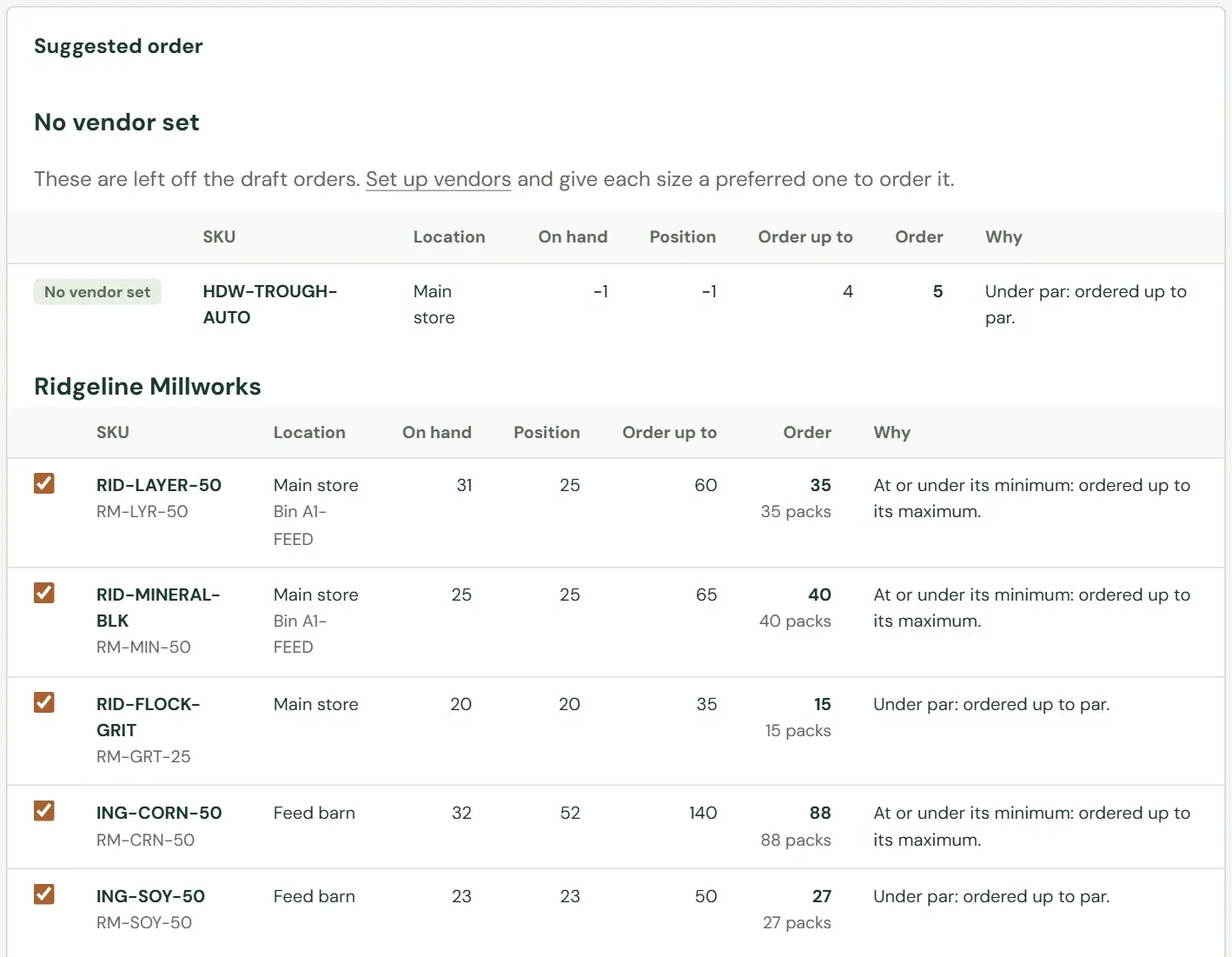
- 1Read what the size has, counting what is coming.
- 2Read the level the rule orders up to.
- 3Read how much to order, and in how many packs.
- 4Read which rule put the size on the list.
- 5Find sizes the list cannot order until they have a preferred vendor.
| Column | What it shows |
|---|---|
| SKU, Location | The size, the vendor's SKU under it, and the location, with the home bin as Bin and its code when it has one. |
| On hand | What the stock record has at that location. |
| Position | On hand, less what is set aside on holds (Set stock aside, in Chapter 20), plus what sent orders still have open and what draft orders have on them. |
| Order up to | The maximum, the par, or the days of cover worked out as a quantity, after any season. |
| Order | Order up to less Position, rounded up to whole packs of the preferred vendor's item, with the packs under it. |
| Why | At or under its minimum: ordered up to its maximum., Under par: ordered up to par., or Under 14 days of cover and 5 days of lead time at the last 28 days' sales. A badge such as Season 150% shows a month the season changes. |
- Open Reorder list and read the lines under each vendor.
- Check a line against the shelf when its On hand looks wrong. A count fixes the number (Start a count, in Chapter 16).
- Fix a line held back. Lines under No vendor set read These are left off the draft orders. Set up vendors and give each size a preferred one to order it. Make one vendor preferred for the size (Compare the vendors for one size, in Chapter 4). A line badged No cost set needs a cost on the vendor's item (Record what a vendor sells you, in Chapter 4). Open the list again to see it orderable.
A draft order counts at once, before it is sent, so a line shrinks or leaves the list as soon as it is drafted. Receiving the delivery moves the quantity from on order to on hand, which leaves the position as it was, or higher when more came than was ordered. A vendor's order multiple is applied when the order is sent, not here (Send the order and put it on order, in Chapter 6). Staff see the same lines with no tick boxes and no No cost set badge.
Turn the suggestions into draft orders
Included on Counter + Stock and Whole Store plans.
The list makes draft purchase orders from the lines you leave ticked, one for each vendor and delivery location. Each line takes the vendor item's pack and cost. The drafts wait on Purchase orders for someone to check and send.
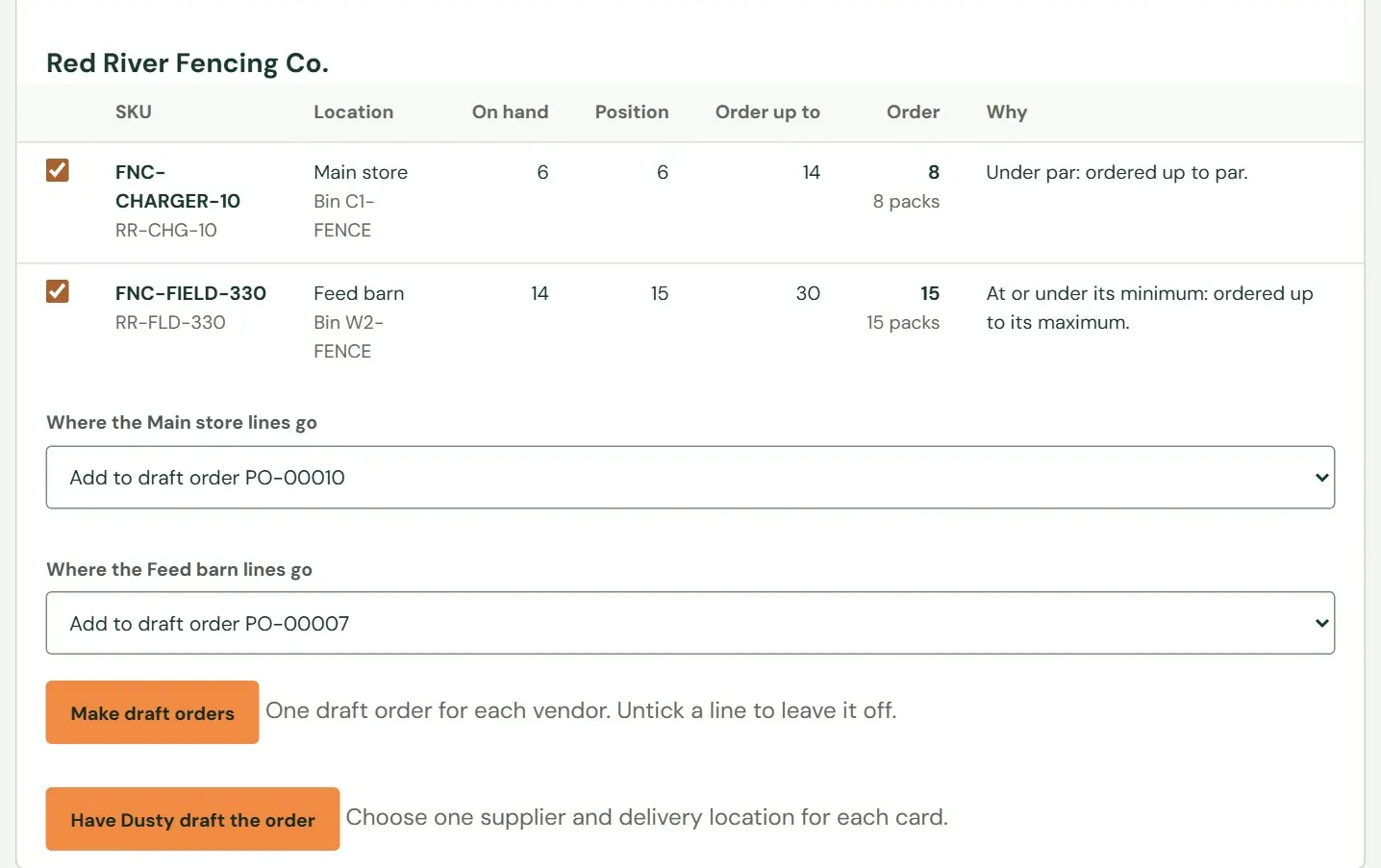
- 1Untick a line to leave it off.
- 2Choose an existing draft for this vendor, or a new one.
- 3Press to make the draft orders.
- 4Press instead to have Dusty prepare one vendor's order as a card.
- Open Reorder list. Every line that can be ordered has a ticked box. Lines badged No vendor set or No cost set have none.
- Untick what you do not want this time.
- Choose where each vendor's lines go, when that vendor already has a draft for that location. Where these lines go, or Where the Feed barn lines go in a store with more than one location, offers Add to draft order PO-00007 or Make a new draft order.
- Know what the press does. It makes or fills draft orders and sends nothing to any vendor. A draft it makes has the note Made from the reorder list.; a draft you add lines to keeps its own note. The drafted quantities count toward Position straight away. The figures are worked out again at the press, so a page left open does not order a stale quantity.
- Press Make draft orders. Roadside says Draft order PO-00007 is ready. or 2 draft orders PO-00008, PO-00009 are ready., and opens the order, or Purchase orders when there are several.
It worked when the drafts are on Purchase orders and on Today's Waiting for your OK (Find draft orders waiting on Today, in Chapter 2). Each still has to be sent (Send the order and put it on order, in Chapter 6). Pressing with nothing ticked says Tick at least one line to order. A line that could not go on says so, as in 1 line was left off: no vendor or cost set, or no longer needed. Have Dusty draft the order, below the button, is in Have Dusty draft an order from your reorder rules, in Chapter 6.
Something here does not match your screen? Write to support@dirtroadsoftware.com with the name of the screen, what you pressed and what you expected. A picture of the screen helps.