
See what your stock is worth and what you made
Stock value shows what the stock on hand cost. Gross margin shows sales less what the goods cost, by item, category, customer and month.
In this chapter
Which report or file to use
Included on Counter + Stock and Whole Store plans.
Storehouse has two reports that read the stock and sales, two places that make files to take away, and two lists for particular jobs. Store owners and Managers open all of them. Staff and Read only people do not see them in the menu.
| What you need | Where |
|---|---|
| What the stock on hand cost, today | Stock value (See what the stock on hand cost, in Chapter 29) |
| Sales less what the goods cost, for a stretch of days | Gross margin (See sales less what the goods cost, in Chapter 29) |
| Each day's sales, and a bill for each receipt you posted, as files to import into QuickBooks Online | QuickBooks (Download a file for QuickBooks, in Chapter 30) |
| Everything Storehouse keeps for the store, in one zip, to keep or hand over | Export your data (Download all your Storehouse records, in Chapter 31) |
| The sizes that sell below cost or under your margin target | Margin list (Find what sells below cost or under target, in Chapter 28) |
| Every regulated sale in a range of dates | Regulated sales (Look up regulated sales, in Chapter 22) |
Each table on Stock value and Gross margin has a CSV button that downloads it with the filters you chose. The product spreadsheet under Products is a different file, for editing products (Download your products as a spreadsheet, in Chapter 19 of Core Roadside). The export a closing store gets is different again (Download the store's records during closure, in Chapter 39 of Core Roadside).
- CSV
- A plain spreadsheet file (comma-separated values) that you can open in a spreadsheet program.
See what the stock on hand cost
Included on Counter + Stock and Whole Store plans.
Stock value adds up what the stock on hand cost, at the moment you open it: each size's quantity at each location, times its cost. The cost is the size's average cost, which Storehouse moves with each posted receipt and blend run (Post the receipt into stock, in Chapter 9). A size with nothing received yet is valued at the product's cost. Stock on its way between locations shows under the in-transit place, as a location of its own.
- Stock value
- What the stock on hand cost, as of the moment you look.
The report has no date to pick. It always shows the stock as it stands when the page opens. To keep the figure for a particular day, such as the last day of your year, open it that day and download the CSV files.
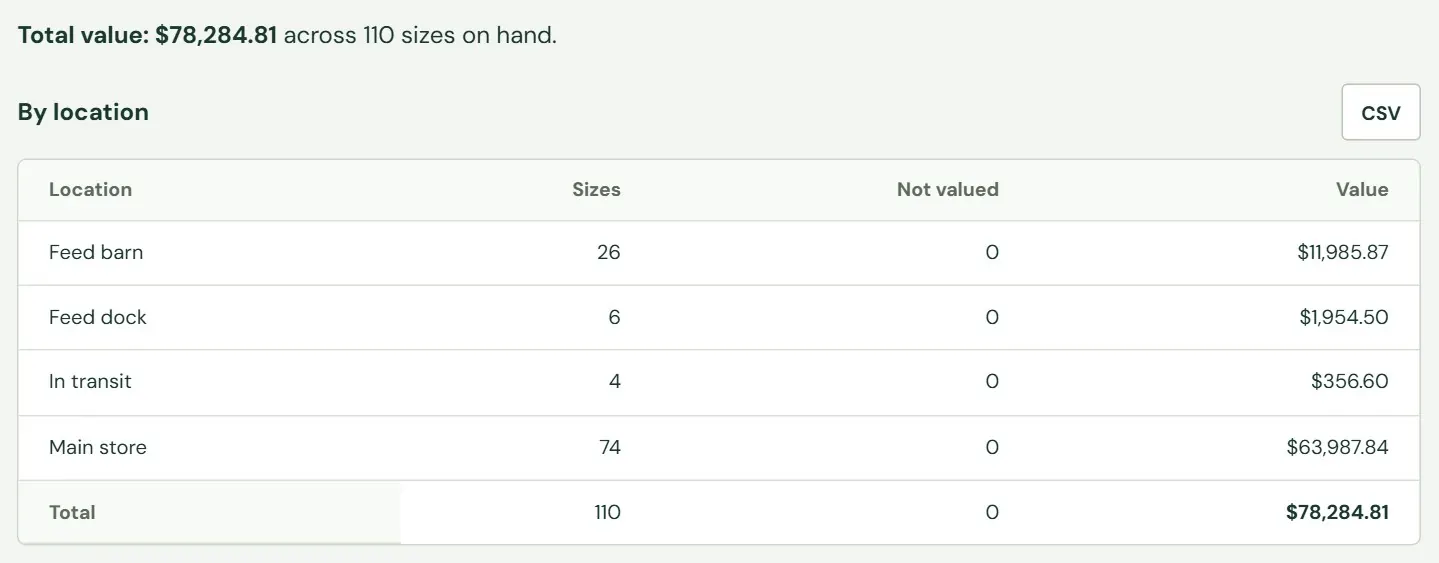
- 1The total value and how many sizes are on hand. Sizes with no cost are counted apart and left out.
- 2The value at each location, the in-transit place among them.
- 3How many sizes at that location have no cost and are not in its value.
- 4Downloads this table as a spreadsheet.
- Open Stock value. It starts with Every location and Every category.
- Narrow it if you want. Choose one Location or one Category and press Show. A category includes every category under it. If the store has an inactive location, tick Include inactive locations to list it.
- Read the total line. It reads Total value: <amount> across <n> sizes on hand., and adds <n> of them have no cost yet, so they aren't in the total. when some sizes have no cost.
- Read By location and By category for the value of each place and each category, with a Total row. By category uses the categories Storehouse keeps; a size Storehouse has no category for shows under No category.
- Read By size for each size at each location: its On hand, Unit cost, where the cost came from and its Value.
- Press CSV beside a table to download it.
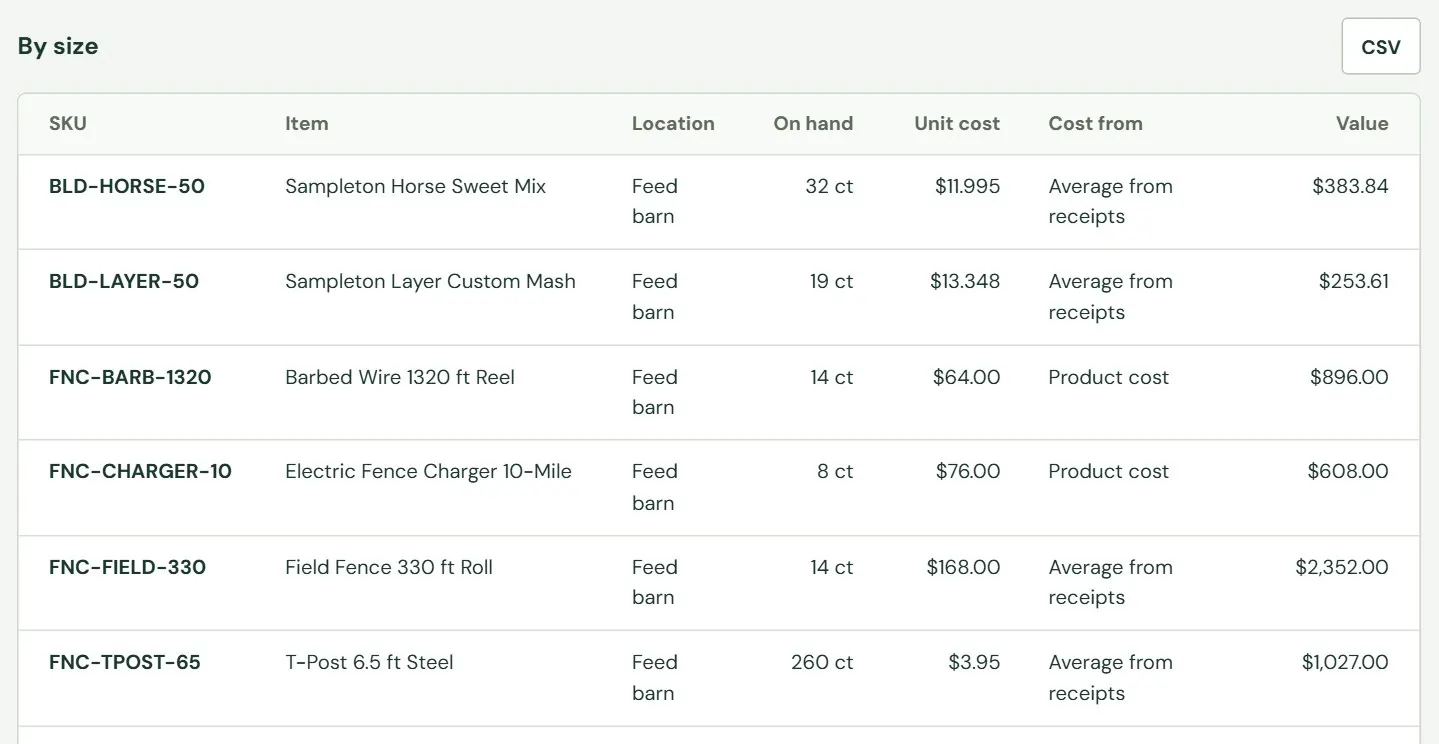
- 1The cost of one unit of the size.
- 2Where that cost came from. Not valued sizes have none to use.
- 3On hand times the unit cost. Not valued when there is no cost.
| Cost from | What it means |
|---|---|
| Average from receipts | The average cost Storehouse keeps for the size. A blend's cost from its runs shows here too. |
| Product cost | The cost on the product, for a size nothing has been received for yet. |
| Kept in another unit | The cost is kept in a different unit from the stock, so the size is not valued. |
| No cost yet | The size has no cost at all, so it is not valued. |
A size that reads Not valued is left out of every total, not counted at zero. It joins the total once it has a cost, such as when a receipt for it is posted (Post the receipt into stock, in Chapter 9). A size with nothing on hand is not listed. If the page reads No stock on hand. for the location or category you chose, nothing there has stock on record.
See sales less what the goods cost
Included on Counter + Stock and Whole Store plans.
Gross margin sets the sales for a stretch of days against what the goods cost: orders and register sales together, by item, by category, by customer and by day or month. Each sale's cost is the stock's average cost at the moment it sold, recorded with the sale.
- Gross margin
- Sales less what the goods cost.
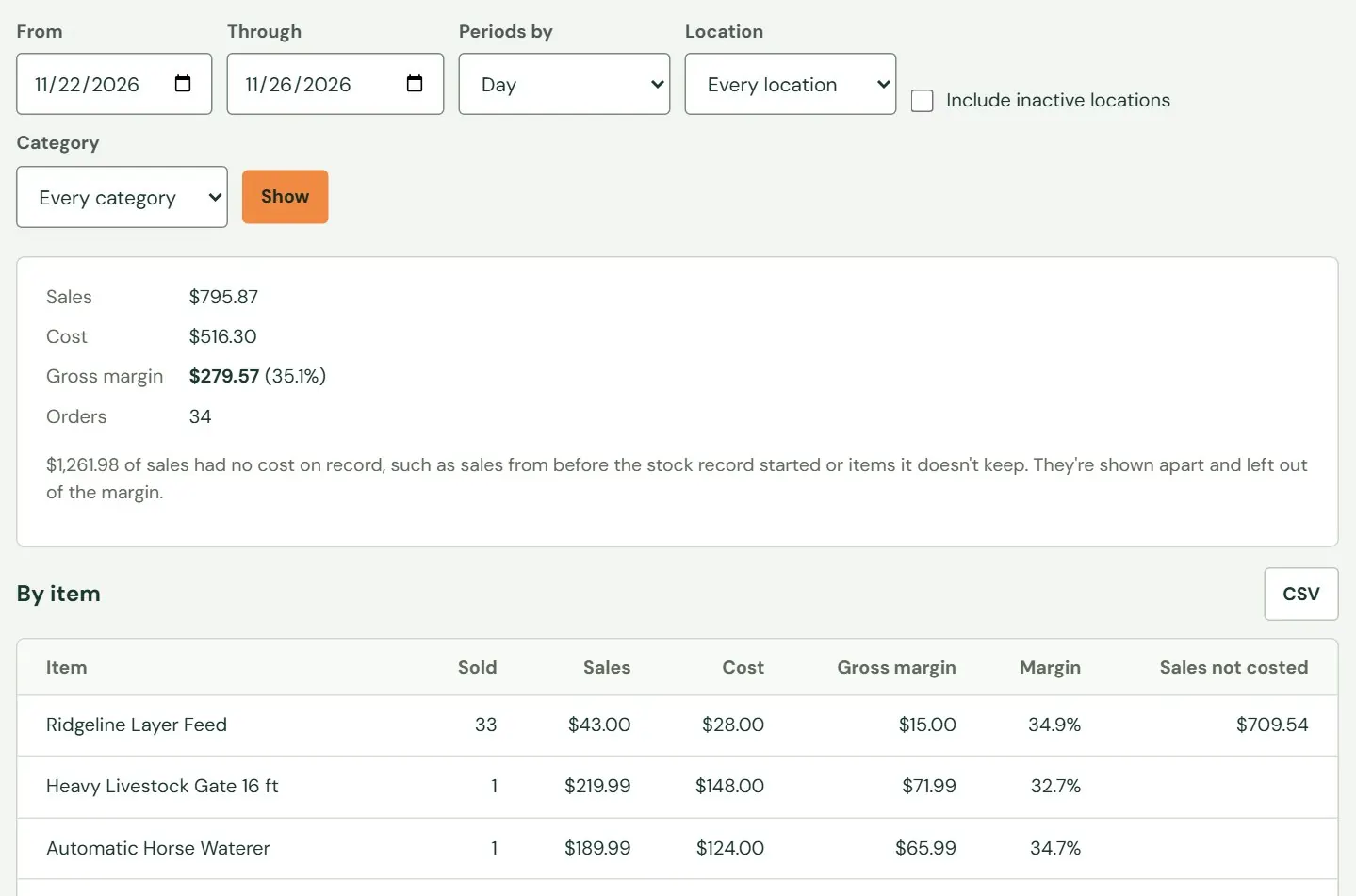
- 1The first day to count. Through is the last.
- 2Sales less cost, in dollars and as a percent of sales.
- 3By item: the same figures for each item, with a Total row. By category, By customer and By period follow it.
- 4Sales that had no cost on record, kept out of the margin.
- Open Gross margin. It starts at the first of this month through today.
- Choose the days. Set From and Through; both days count. Choose Month or Day under Periods by for the By period table.
- Narrow it if you want to one Location, for the sales sold from there, or one Category, which includes every category under it. Press Show.
- Read the totals. Sales, Cost, Gross margin with its percent, and Orders.
- Read the four tables: By item (with Sold, the quantity), By category, By customer and By period. Each has Sales, Cost, Gross margin, Margin (the percent) and Sales not costed, and a Total row. Press CSV beside a table to download it.
What the figures count:
- Sales is each costed product line's total after its discounts and before tax; a line with no cost goes in Sales not costed instead. Delivery charges and tax are not in it.
- Refunds come off both the sale and its cost, in the period of the original sale, so one order's sale and its returns stay together. A returned item that did not go back on the shelf takes nothing off the cost.
- A refund of an amount that names no items lowers the sales but not Sold.
- Sales not costed are sales with no cost on record: sold before the store moved over to Storehouse, or items whose stock is not tracked or that had no cost when they sold. The screen says <amount> of sales had no cost on record, such as sales from before the stock record started or items it doesn't keep. They're shown apart and left out of the margin.
- By category uses the categories Storehouse keeps, as on Stock value.
A table reading No sales in this period. means nothing sold in those dates, or in the location or category you chose. Gross margin reads No costed sales when every sale in the dates was without a cost.
Something here does not match your screen? Write to support@dirtroadsoftware.com with the name of the screen, what you pressed and what you expected. A picture of the screen helps.