
Count the drawers and take the day to the bank
At closing, count the cash in each drawer on Day summary and close it. Then take the checks to the bank with a list that matches, and check the card processor's deposit when it arrives.
In this chapter
Count the cash and close a drawer
Included on every plan except Static Website and Online Store.
Each register has one drawer a day. Count it on the Cash drawers card, then close it. Staff can count and close a drawer, as can Managers and the Store owner. Closing is done here in Roadside: the register's own day summary does not close the drawer.
- Opening float
- The cash put in the drawer before the first sale, for making change.
- Over or short
- The counted cash less what should be in the drawer. Over means more cash than expected, short means less.
Expected in drawer is the Opening float plus the Cash expected. Cash from special-order pickups stays in the office, in no drawer. What Cash expected and the other lines of the day's totals mean is in Read the register's sales, cash and checks for a day, in Chapter 3.
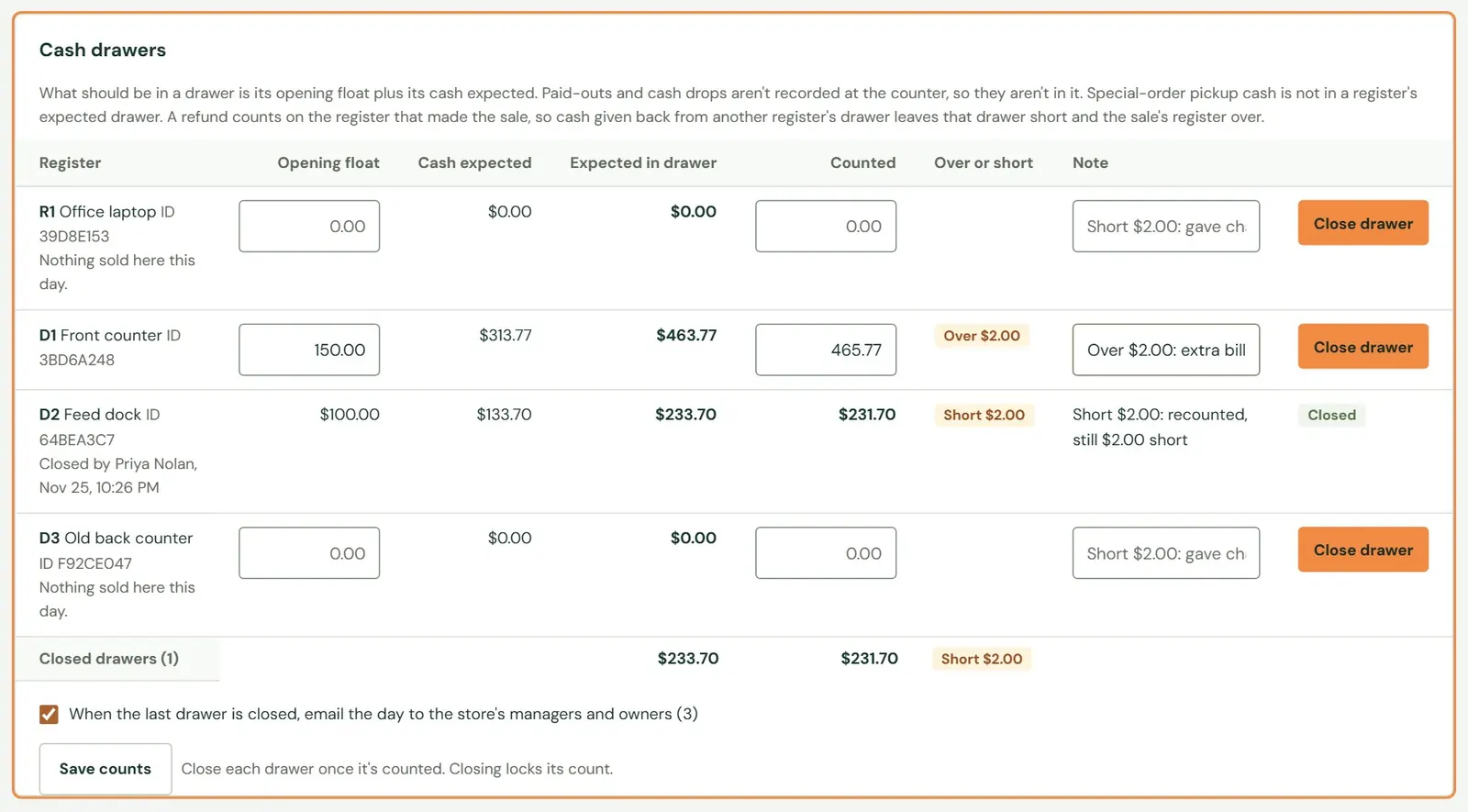
- 1Opening float: the cash the drawer started with.
- 2Counted: the cash you counted at the end.
- 3Over or short: the difference from Expected in drawer.
- 4Note: why the drawer is over or short.
- 5Close drawer locks this row's count.
- Open Day summary, choose the Day and press Show. Close out the day on Today opens the same card for today.
- Type each register's Opening float. The box can start with the last shift's float, marked From the last shift. Change it if the drawer started with a different amount.
- Count the cash in the drawer and type it in Counted.
- If the drawer is over or short, type why in Note, such as Short $2.00: gave change twice. A note takes up to 300 characters.
- Press Save counts. The message reads Counts saved. Close each drawer once it's counted.
- Close the drawer once its count is right. Closing locks the count and keeps the day's figures as they stand. After that only a Manager or the Store owner can reopen it, and the old count stays in the log. The box When the last drawer is closed, email the day to the store's managers and owners starts ticked. Left ticked, closing the day's last open drawer emails the day to every Manager and Store owner, and that email cannot be called back. Untick it first to send nothing. Press Close drawer on that register's row. The message reads Drawer closed. Even., or gives the amount over or short.
It worked when the row shows Closed with Closed by, the person and the time, and the Log card lists Drawer closed. The email is in Email the day to the managers and owners, in Chapter 3.
A drawer closes only with a count: Enter the counted cash for <register>, then close its drawer. If two people count at once, the second save answers Someone else changed the counts for <register> after you opened this page. Nothing was saved. and shows their numbers to check. Staff count today and the 7 days before it. Older days answer Drawers more than 7 days old are for managers. Ask a manager to count one.
Before you put an over or short down to a counting mistake, check what Day summary cannot see. A refund counts on the register that made the sale, so cash handed back from another drawer leaves that drawer short and the sale's register over. Cash from offline sales not booked yet is in the drawer but not in Cash expected, and so is cash paid back on a returned check, if it went into a drawer. Paid-outs and cash drops are not recorded.
Reopen a closed drawer to count again
Included on every plan except Static Website and Online Store.
A closed drawer's count is locked. To correct it, a Manager or the Store owner reopens it with a reason. Do this too when a row reads Changed since it was closed: cash expected is now <amount>. Reopen it to count again. Reopening changes no sale. It only unlocks the count.

- 1Reopen a drawer: choose the closed register.
- 2Why: the reason, kept in the log.
- 3Reopen the drawer unlocks its count.
- Open Day summary for the day and choose the register under Reopen a drawer. The form is under the drawers while one of that day's drawers is closed.
- Type the reason in Why, such as Found $20 in the safe bag; counting again. It is required and takes up to 300 characters.
- Press Reopen the drawer. The note beside it says Unlocks its count. The reason and the old count stay in the log. The message reads Drawer reopened. Staff can change its counts and close it again.
- Correct the count and close the drawer again (Count the cash and close a drawer, in Chapter 4).
It worked when the Log lists Drawer reopened with your reason and the old count, and the row takes a new count. Without a reason the form answers Say why the drawer is being reopened, for example "Found $20 in the safe bag".
Look back at past drawer counts
Included on every plan except Static Website and Online Store.
Past register shifts lists every drawer anyone counted or closed, and warns about recent days where a drawer with sales was never closed. Press Past register shifts at the top of Day summary. The page opens with Every drawer someone counted or closed, newest day first, with what it should have held and what was counted.
- Register shift
- One register's drawer for one store day. It has nothing to do with the hours a person works.
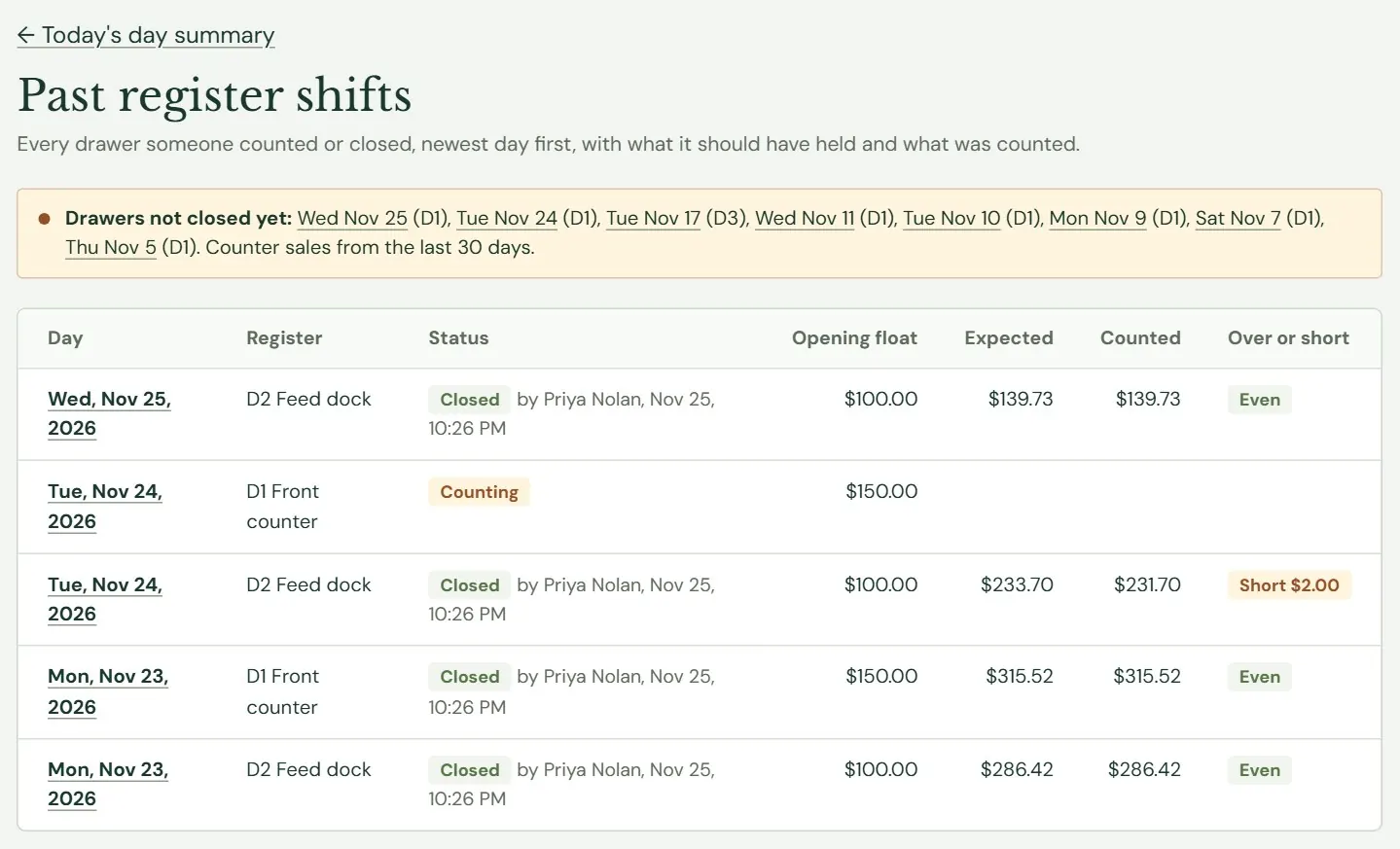
- 1Drawers not closed yet: recent days with a drawer still open.
- 2Status: Closed with who and when, Reopened, or Counting.
- 3Expected: what the drawer should have held.
- 4Counted: the cash counted when it closed.
- 5Over or short for that drawer.
- Read the Drawers not closed yet warning at the top, if there is one. It names each day of the last 30 that had counter sales on a register whose drawer nobody closed, with the registers in brackets.
- Press a day in the warning. Day summary opens at that day's drawers. Count and close each one (Count the cash and close a drawer, in Chapter 4).
- To look up an old count, find its row. Each row gives the Day, the Register, the Status and the Opening float. Expected, Counted and Over or short fill in once the drawer is closed. The list is newest first, 60 rows a page, with Older and Newer.
It worked when the warning is gone after the drawers it named are closed. A store that has never counted a drawer sees No register shifts yet. They show up here once someone counts a drawer on the day summary.
Take the checks and cash to the bank
Included on every plan except Static Website and Online Store.
Day summary lists every check to take to the bank, so the deposit slip and the list match. Registers' checks and checks taken in the office are on separate lists.
- Office check
- A check taken for a payment on a charge account in Roadside, not at a register. It is in no drawer.
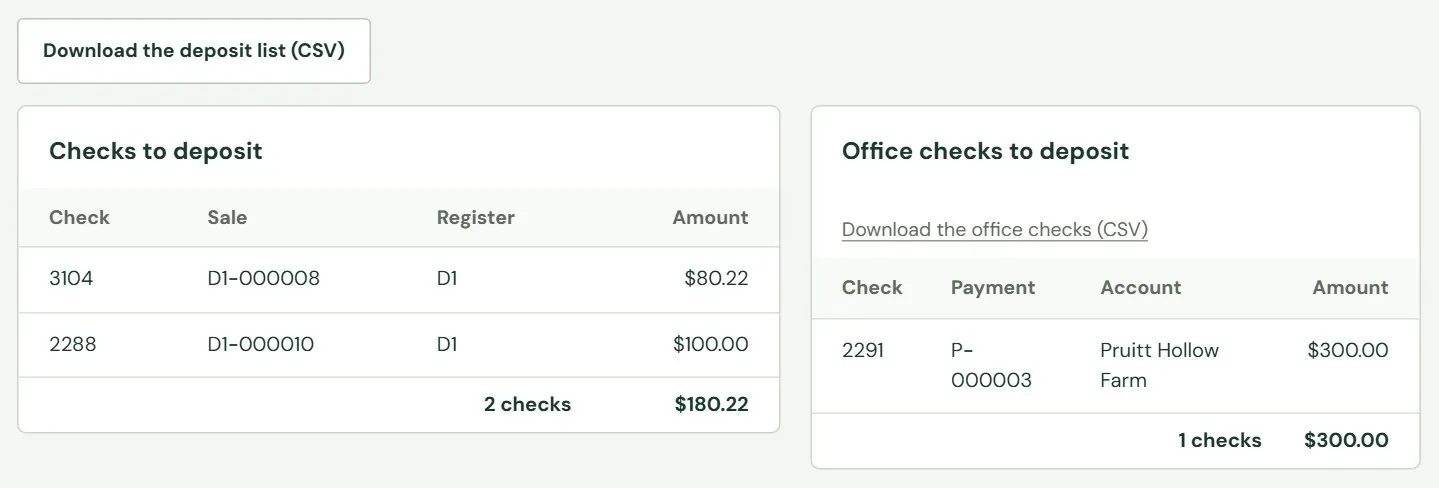
- 1Checks to deposit: every check taken at the registers.
- 2Download the deposit list (CSV) saves that list as a spreadsheet file.
- 3Office checks to deposit: checks for payments on account taken in Roadside.
- 4Download the office checks (CSV) saves the office list.
- Open Day summary, choose the Day and Every register, and press Show.
- Read the Checks to deposit list. Each row gives the Check number, the Sale, the Register and the Amount, with the count and total at the foot. A day without any reads No checks this day.
- Press Download the deposit list (CSV) or Print, both at the top of the page. The file has the columns Date, Sale, Register, Check number and Amount, with a Total row.
- Read the Office checks to deposit list and press Download the office checks (CSV), inside that list. Its rows give the Check, the Payment, the Account and the Amount.
- Lay the checks beside the lists and tick each one off.
It worked when the counts and totals of the lists match the checks on the deposit slip.
Included on Counter + Stock and Whole Store plans. Special-order pickups (office) lists the cash and checks taken when a special order was picked up. That money stays in the office, in no drawer. Its checks download with Download the special-order checks (CSV).
Three things on Roadside are called a deposit. Checks to deposit is the paper going to the bank. Card deposit on this page is a figure someone types in (Match the card processor's deposit, in Chapter 4). Sales > Deposits is what your card processor reports it paid to the bank (Match a processor deposit with the bank, in Chapter 30 of Core Roadside).
Match the card processor's deposit
Included on every plan except Static Website and Online Store.
The Card deposit card checks the card processor's deposit for a day against the day's card sales. Roadside does not read the deposit from the processor. A person types it in when it reaches the bank, usually a day or two later. Typing it moves no money.
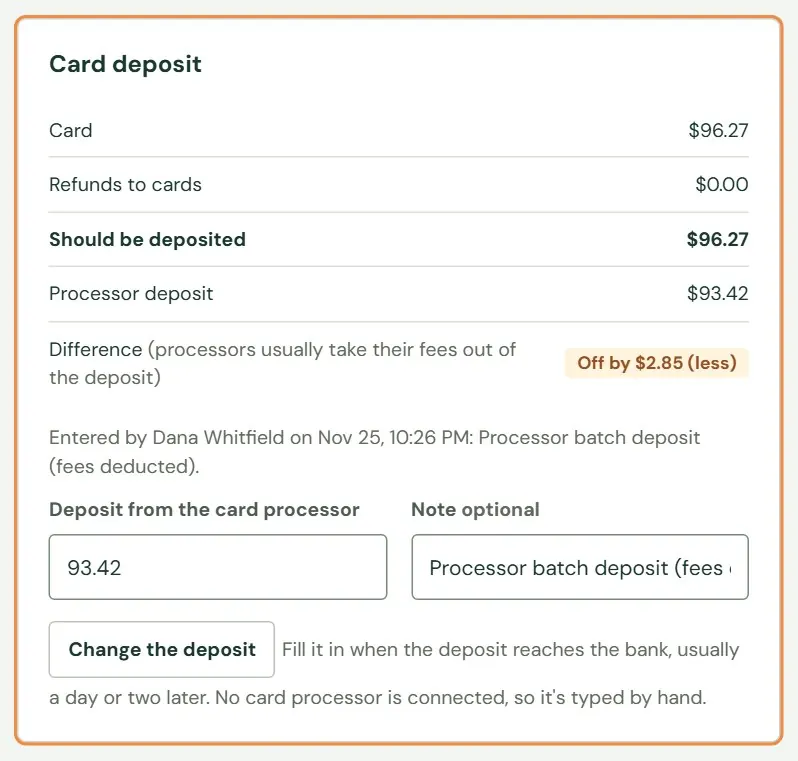
- 1Should be deposited: card sales less refunds to cards.
- 2Processor deposit: the amount you typed in.
- 3Difference: Matched, or Off by an amount.
- 4Change the deposit corrects the amount.
- Open Day summary, choose the Day and Every register, and press Show. The card lists Card, Refunds to cards and Should be deposited. Processor deposit reads Not entered yet.
- Type the amount from the bank in Deposit from the card processor, such as
812.40. - Add a Note, marked optional, if it helps, such as Bank deposit Oct 17. It takes up to 300 characters.
- Press Save the deposit. The message reads Card deposit saved.
- Read the Difference line. Its label adds (processors usually take their fees out of the deposit), and it reads Matched, or Off by an amount marked (less) or (more).
It worked when the card shows Matched, or an Off by amount you can explain with the processor's fees, and the line under it names who entered it and when. To correct the figure, type the new amount and press Change the deposit. The Log keeps each change, with the amount it replaced.
Staff can enter the card deposit within 7 days. Once every drawer of the day is closed and a deposit is in, only a Manager or the Store owner can change it, and Staff see Every drawer of this day is closed, so only a manager can change the card deposit.
Something here does not match your screen? Write to support@dirtroadsoftware.com with the name of the screen, what you pressed and what you expected. A picture of the screen helps.