
Give a promised call a due date and an owner
When you promise to call about a feed delivery, put the call on the customer's account with the day it is due. Your team can see who is due to make the call and whether it is finished.
In this chapter
Add a follow-up for a customer
Included on the Whole Store plan.
A Timeline entry marked Follow-up stays in the customer's history. Use the Follow-up tasks card when someone needs to act by a particular day. For a Timeline note, see Record a call or visit so the next person can find it, in Chapter 33 of Core Roadside.
- Follow-up
- A job for one customer with a due date and, usually, someone assigned to it.
- Open the customer's account. Press Add follow-up on the Follow-up tasks card. If you started on the store's Follow-up screen, press Choose an account first and open the customer.
- Write down the job and the day. In What needs doing?, type a title of up to 160 characters, such as Call about the next feed delivery. Choose a Due date. The job becomes overdue after that day in the store's time zone.
- Choose who will do it. Under Assigned to, choose an active team member who can work follow-ups, or leave Unassigned. Use Details for instructions, up to 4,000 characters.
- Press Add follow-up. Look for Follow-up saved. The job shows on this customer's Follow-up tasks card, marked Open. Nobody gets a notice. Tell the person taking the call.
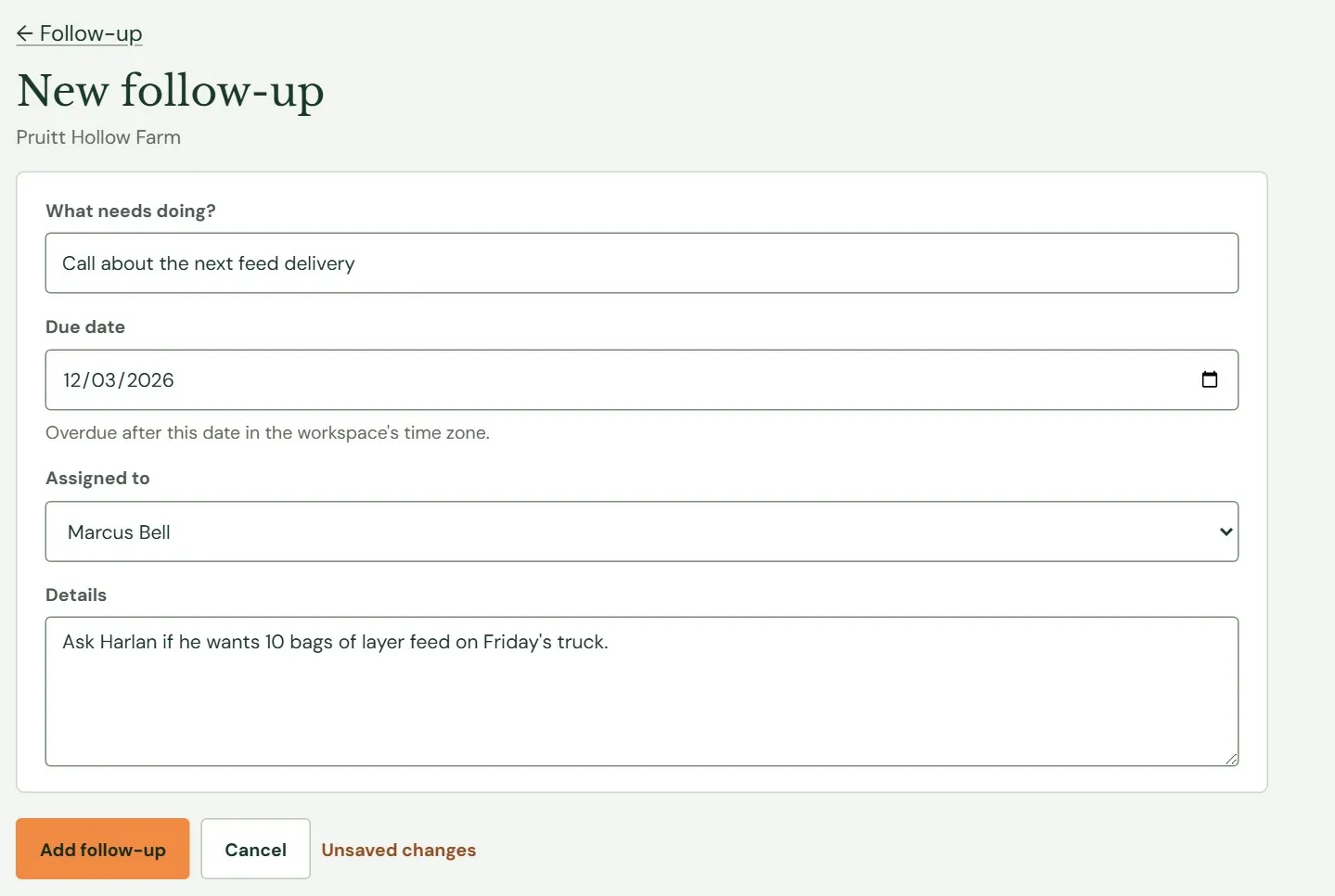
- 1Type what the person making the call needs to do.
- 2Choose the day the job is due.
- 3Choose who takes the call.
- 4Save the job on this customer's account.
If the form stays open, check the title and date. If it refuses the person you chose, choose someone else or leave the job unassigned. Read only can see follow-ups. To add one, use an unarchived account and a role that can edit.
If the card is missing, the Store owner can set up Follow-up and customer lists under All of Roadside. Press Set it up, then Set it up for the store. See Set up a tool the store already has, in Chapter 3 of Core Roadside for setup and Switch off a tool the store set up, in Chapter 3 of Core Roadside to switch it off.
Work through today's follow-ups
Included on the Whole Store plan.
Open Follow-up under Customers to find calls and other jobs for accounts that have not been archived. Store owners, Managers and Staff can finish or reopen them. Read only can use the filters.
- Choose whose jobs to see. Everyone includes unassigned jobs. Assigned to me shows yours. If a customer's name is above the filters, press All accounts to see the rest of the store.
- Choose the dates you need. Due today and Overdue show unfinished jobs. Open also includes later ones. Completed holds finished work, and All includes both. Jobs are in due-date order, up to 100 per page.
- Find the call. Check its title, customer, due date, person and details. If a list is empty, try Everyone and Open, or use Next page when there are more.
- After doing the job, press Mark complete. Look for Follow-up completed. The job moves to Completed. If an overdue call is finished, it leaves the overdue count. To correct a mistake, open Completed and press Reopen. Roadside says Follow-up reopened.
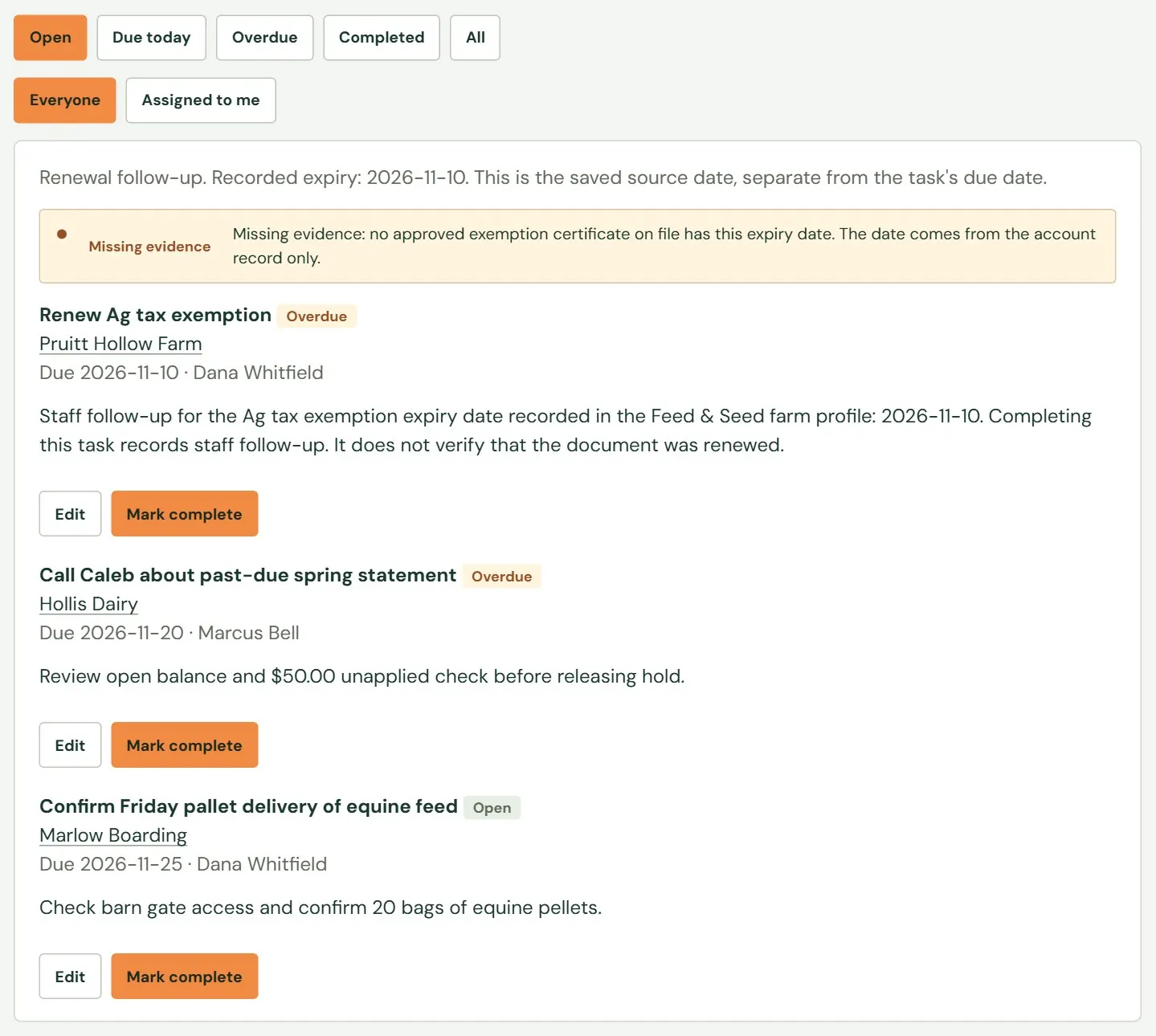
- 1Find what is due today.
- 2Check which calls are late.
- 3Narrow the list to your own work.
- 4Record a finished job.
- 5Change the date, the person or the details.
A follow-up stays in the history when you complete it. There is no delete button. A register sale finished with a restricted-use pesticide license or a Veterinary Feed Directive (VFD) to follow can put a job here too. See Let a known customer's license or VFD follow the sale, in Chapter 1.
Change a follow-up or hand it to someone else
Included on the Whole Store plan.
If a customer asks you to call on a different day, change the existing follow-up so the team sees one date for that call.
- Find the customer's job and press Edit. If it is missing, choose Everyone and All. Check the account name on Edit follow-up.
- Change what the team needs. Choose the Due date or a person under Assigned to. Use Details for what the customer told you. If the previous person is unavailable, choose an active team member or Unassigned.
- Press Save follow-up. Look for Follow-up saved. Check the date and the name beside it. Tell the person taking over or ask them to check Assigned to me. Roadside sends no assignment notice.
If you see This follow-up was changed by someone else. Reload it and try again., copy the changes you want to keep. Press reload the current follow-up, read the other person's changes, then make yours and save.
See what is waiting, from Today or a customer's account
Included on the Whole Store plan.
Before calling a customer, check what your team has already promised. To plan the day's calls for the whole store, use the dashboard count.
- For one customer, open their account. The Follow-up tasks card shows up to five open jobs, including unassigned ones. Press View all follow-ups for the rest, including completed work. No open follow-up tasks. means there is no unfinished job for this customer.
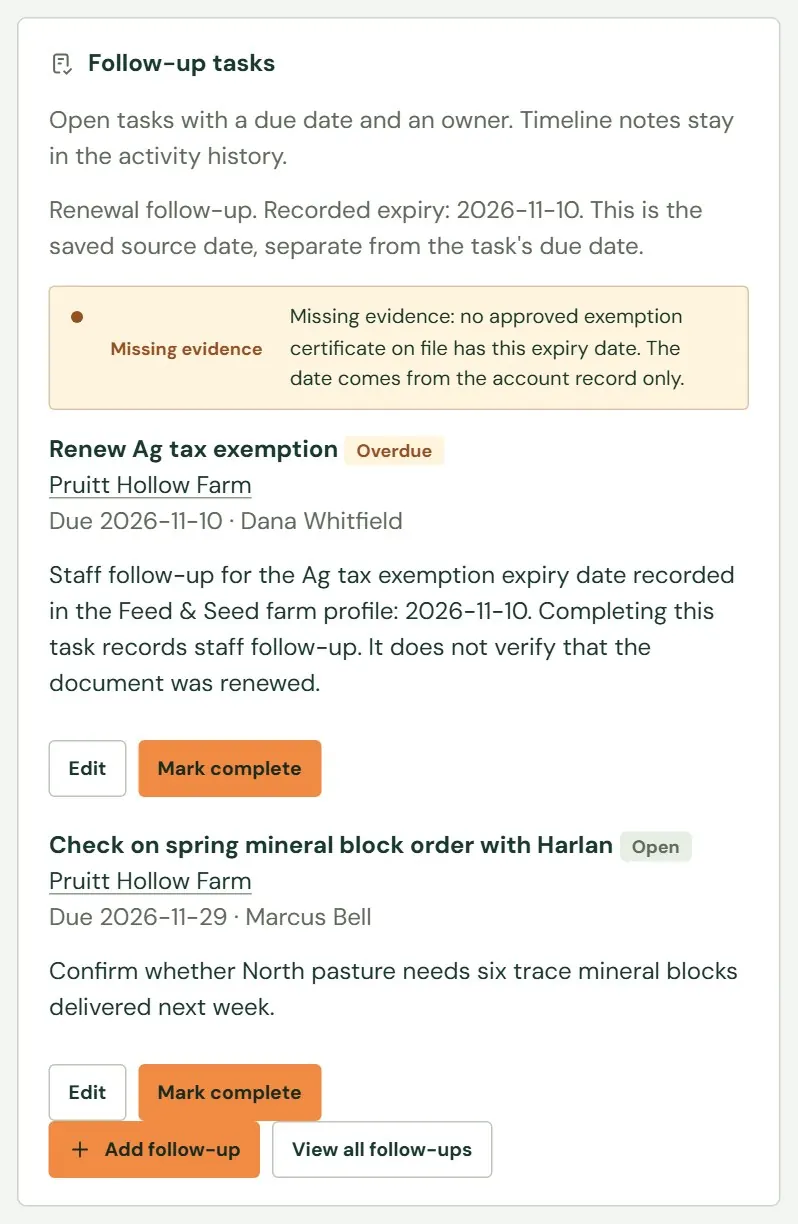
- 1Read the customer's outstanding jobs.
- 2Add the next call here if you can edit follow-ups.
- 3Open this customer's full list, including finished work.
- For the store, find Follow-up on your dashboard. Read Due today, Overdue or All open. Choose Me for your work or Everyone for the team. Today's and overdue jobs are already counted in All open.
- Press a number. The list opens with the same date and assignment filters. A zero means there are no jobs in that group. If the dashboard has no card, see Arrange a dashboard for the team, in Chapter 2 of Core Roadside.
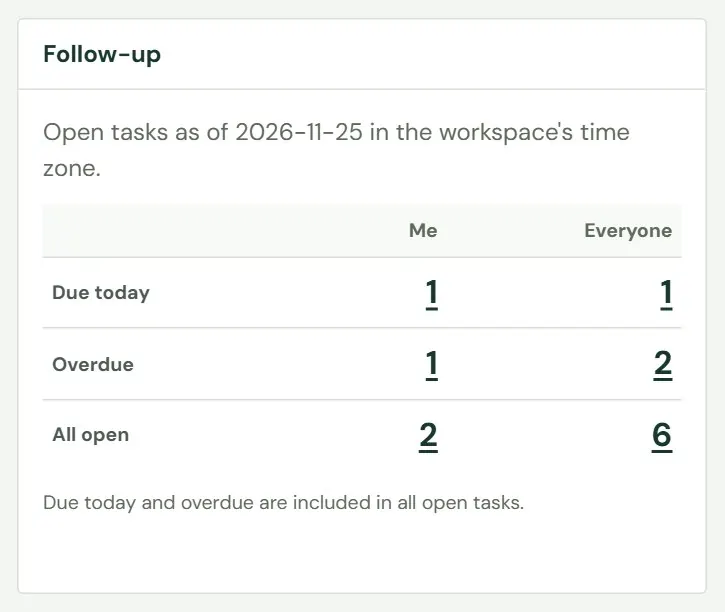
- 1Read down this column for your own jobs.
- 2Use this column for everyone's jobs.
- 3Press the late-job count to open those follow-ups.
Something here does not match your screen? Write to support@dirtroadsoftware.com with the name of the screen, what you pressed and what you expected. A picture of the screen helps.