
Decide who may give a discount at the register
Choose who can give the employee discount or mark down a torn bag. Roadside keeps the cashier's name with the sale and records who approved the discount when approval was needed.
In this chapter
Choose who may give a counter discount
Included on every plan except Static Website and Online Store.
- Counter discount
- A discount a person gives by name at the register, with no code.
With Discounts set up for the store, a Manager or Store owner chooses who can give each discount. If Discounts is missing under Products, the Store owner can check setup in Turn on Discounts for the store, in Chapter 22 of Core Roadside.
- Open Discounts, press New discount and choose Counter discount. Type a Name of up to 120 characters, such as “Military”. Cashiers pick it by this name and customers see it on the receipt.
- Set What it gives. Choose Percent off or Amount off and type the figure, or choose Cashier enters it for a discount that varies. Under Goes on, choose The whole sale, Chosen items or Either. With Either, the cashier chooses each time.
- Under At the register, check Who may give it. Staff, Manager and Store owner start ticked. Leave the roles that should see the discount ticked, Store owner included: a Store owner whose role is unticked cannot give the discount at the register. Ticking Staff lets them use this discount at the register. They still cannot open Discounts in Roadside. Read only can view discounts in Roadside.
- Check the amount, roles and approval before turning it on. Once active and within its dates, this discount lets those cashiers reduce what a customer owes on the next eligible sale. For a PIN requirement, see Have a manager approve a counter discount, in Chapter 11. Leave Turn it on now ticked to use it, or untick it to keep it paused. Press Create discount.
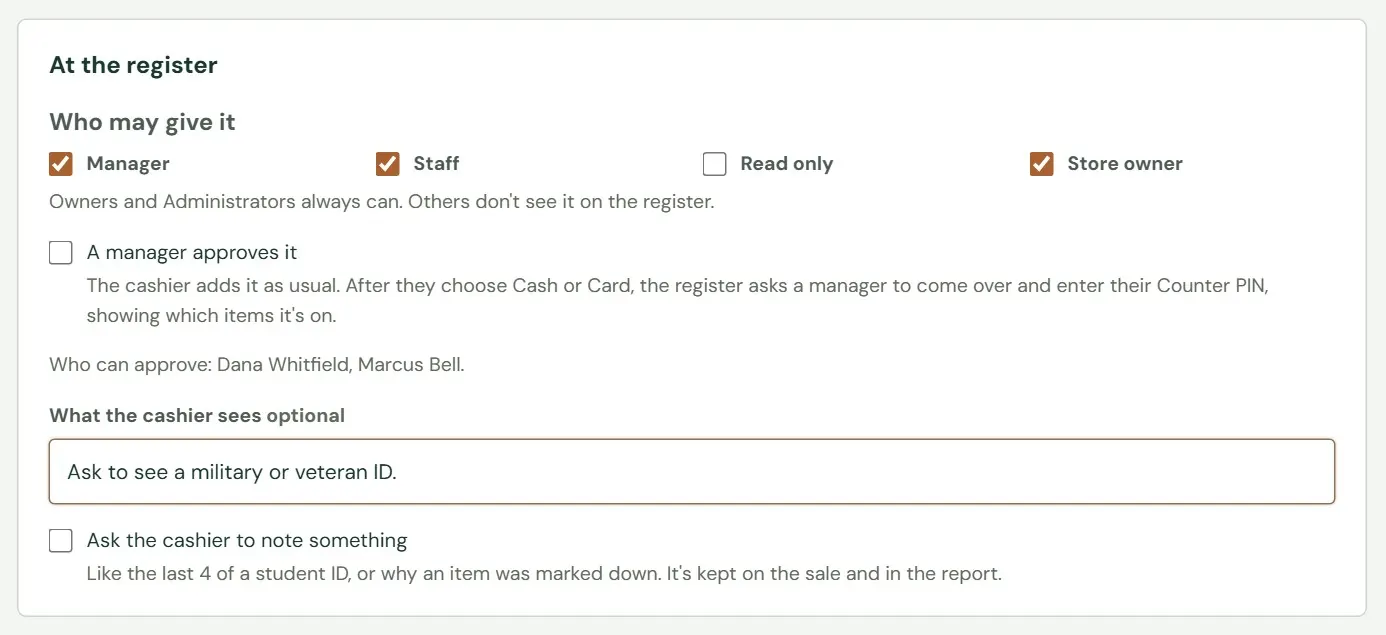
- 1Tick the roles that can offer this discount.
- 2Tick this if the cashier needs a manager each time.
- 3Check which Managers and Store owners have a Counter PIN.
- 4Type what the cashier should check before giving it.
Look for Discount saved. If paused, the message adds It's paused until you turn it on. On the Counter discounts tab, look for Running. If the discount is missing at the counter, check its dates and the cashier's role. See Check where a discount shows and which one a customer gets, in Chapter 22 of Core Roadside for the other conditions that affect a sale.
At the register the cashier finds an active discount their role can give under Choose a counter discount, as shown in the Crossroads POS manual's Apply a discount.
Have a manager approve a counter discount
Included on every plan except Static Website and Online Store.
With Discounts set up, you can require approval for one discount and let cashiers give another on their own. Set the rule on the discount you mean to change.
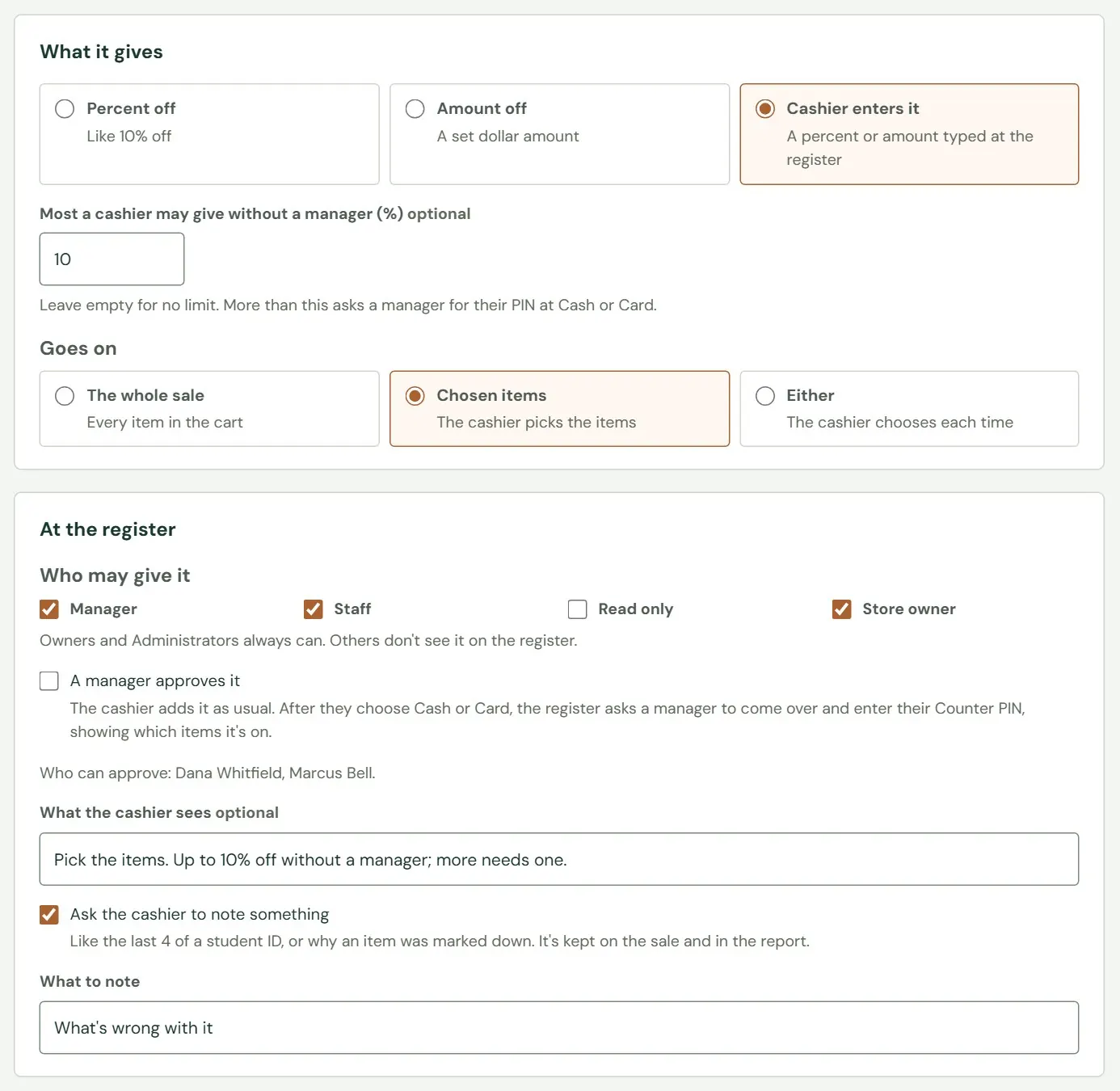
- 1Set the percentage a cashier can give on their own.
- 2Choose whether the discount can cover one item or the whole sale.
- 3Tick this to require a note on the sale.
- 4Name the detail you want the cashier to record.
- Open the counter discount, press Edit and find At the register. Read Who can approve. If nobody is listed, a Manager or Store owner must set their own Counter PIN under My account (Set your own Counter PIN, in Chapter 2). Reopen the form and check for their name.
- Choose when a cashier needs approval. For approval every time, tick A manager approves it. For approval only above a percentage, leave it unticked, choose Cashier enters it under What it gives and fill in Most a cashier may give without a manager (%). A cashier can give up to and including that percentage. Always type a number: the hint under the field says an empty field means no limit, but Roadside saves an empty field as 0, and then every discount a cashier enters asks for a manager.
- Check that someone can approve before saving a rule that requires a PIN. If no Manager or Store owner has a Counter PIN, a cashier cannot finish a sale with a discount that needs approval. Press Save discount, look for Discount saved. and reopen Edit to check the rule and the names.
The register asks for a manager after the cashier chooses Cash or Card, and shows which items the discount is on. The approver chooses their name and enters their own Counter PIN, as shown in the Crossroads POS manual's Apply a discount and A discount needs a Manager.
Approval covers one sale and one cashier for 15 minutes. Taking more off, changing the items covered or changing the note asks for approval again. Five wrong PIN entries at one register hold that person's PIN there. For help, see Help a team member whose PIN does not work, in Chapter 2.
Tell the cashier what to check and what to write down
Included on every plan except Static Website and Online Store.
With Discounts set up, you can give the cashier a reminder for one discount. If you also need a record of why a bag was marked down, ask for a note on that discount.
- Open the counter discount and press Edit. Under At the register, type the instruction in What the cashier sees (optional), up to 200 characters. For example, “Ask to see a military or veteran ID.”
- To require an answer, tick Ask the cashier to note something. Under What to note, describe what to enter in up to 60 characters. For a damaged bag, “Reason for markdown” is enough. The cashier's answer stays on the sale and in the report. Never ask for a whole ID number, card number or date of birth.
- Press Save discount and look for Discount saved. Reopen the form to check the instruction and note label. If the cashier sees an instruction but no place to answer, check that Ask the cashier to note something is ticked.
After the discount is used, a Manager or Store owner can find the cashier's answer under Note in See who gave and who approved each discount, in Chapter 11.
See who gave and who approved each discount
Included on every plan except Static Website and Online Store.
With Discounts set up, the Discounts report lets you trace an amount taken off at the counter back to the person and the sale. A Read only teammate can open the report and the order. Only a Store owner or Manager sees the cashier's note.
- Open Discounts and press Report. It opens on today and the previous 29 days. Set From and To, then press Show. Cancelled orders are left out. If you see No discounts given in these days, check the sale date and run the report again.
- Read the figures at the top. Given is the money taken off across all discounts. Orders counts orders with a discount. Counter discounts counts the counter entries listed and shows how many a manager approved. By discount groups the figures by discount name. For sale prices and coupons, see See which discounts were used on orders, in Chapter 22 of Core Roadside.
- Find the cashier in Counter discounts by who gave them. Given here counts uses. Amount is the money taken off, and Approved by a manager counts approvals. The largest amount is first.
- Match the person's entry to an order under Every counter discount. Check When, Discount and Off, then read Given by, Approved by and, if your role shows it, Note. Press the number under Order and check the discount against the sale.
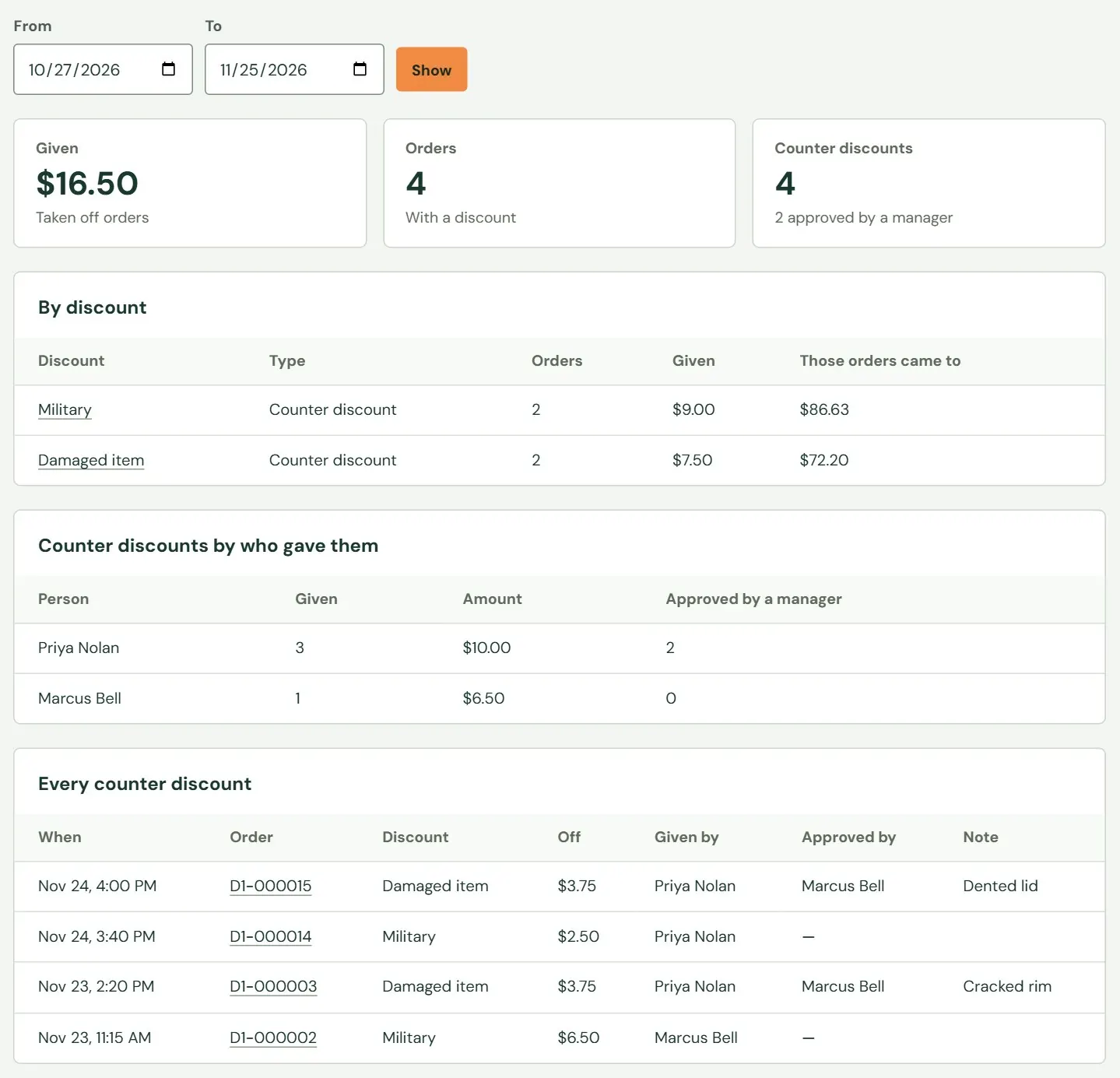
- 1Check how many counter discounts and approvals are listed.
- 2Find the cashier and read their amount.
- 3Check how many of that cashier's discounts needed approval.
- 4Read the cashier's answer alongside the sale.
The counter list holds the most recent 500 entries in the period. The counter count and per-person totals use those same entries. If you reach 500, use shorter date ranges before totaling a cashier's discounts. Changing the dates only changes the report you see. There is no download.
Something here does not match your screen? Write to support@dirtroadsoftware.com with the name of the screen, what you pressed and what you expected. A picture of the screen helps.