
Remind customers to reorder before the bag runs out
Fencepost Plus lets a customer see how long a bag should last for their animals. They can ask for an email before the feed runs out and use the link in it to order more.
In this chapter
Set up Fencepost Plus
Your store must have the Fencepost Plus add-on, offered on the Whole Store plan.
The Store owner sets up Fencepost Plus once for the store. The setup adds the settings and the reminder list. The calculator starts off, so setup alone puts nothing on a feed page. A reminder puts the customer's address on the store's email list: Check whether someone agreed to email, in Chapter 31 of Core Roadside.
- Fencepost Plus
- The Whole Store add-on that includes the feed calculator and reorder reminders.
- Open All of Roadside and look under Ready when you are. On the line named Newsletters, press Set it up.
- Read the setup sheet. Press Set it up for the store. Look for Reorder reminders under Customers and the Feed calculator tab under Checkout and delivery in Store settings. If you see no setup line, the tool may be set up already: look for Reorder reminders under Customers. Otherwise check that you are signed in as the Store owner and that your store has Fencepost Plus. See Set up a tool the store already has, in Chapter 3 of Core Roadside.
- Turn on the calculator for eligible feeds. See Show “How long will a bag last?” on feed pages, in Chapter 21.
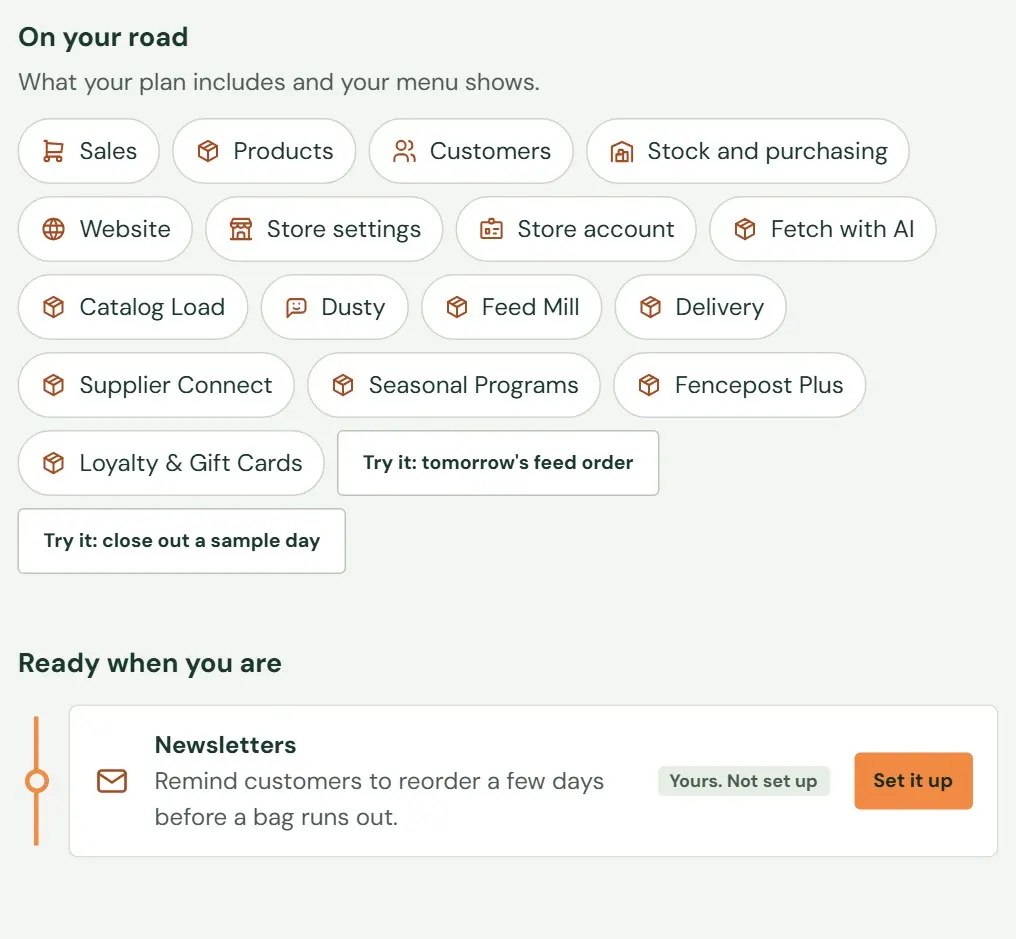
- 1Find the add-on your store has.
- 2Find the setup line about reminding customers to reorder.
- 3Open the setup sheet for the store.
To stop the reminder tool for everyone, open Add-ons you set up under Store settings. Switching it off stops reminder emails. The store keeps the records for the next time it sets up the tool. Press Switch it off beside Newsletters, review what stops, then press Switch it off on that page and confirm your sign-in when asked. See Switch off a tool the store set up, in Chapter 3 of Core Roadside.
Show “How long will a bag last?” on feed pages
Your store must have the Fencepost Plus add-on, offered on the Whole Store plan.
Open the Feed calculator tab on Checkout and delivery. Before you save, decide what customers should see. Turning the calculator on shows an estimate on feed pages with a daily amount and a bag weight. Allowing reminders adds a form where a customer can agree to join your email list and get a reminder for that feed. A customer who asks gets an email to confirm the address when it needs confirming, then a reminder the set number of days before the bag runs out, at most once every 7 days. Roadside stops after 3 emails in a row with no online order of that feed, and each email carries a link where the customer changes or stops the reminder.
- Feed calculator
- The part of a feed's product page that estimates how long one bag lasts for the number of animals a customer feeds.
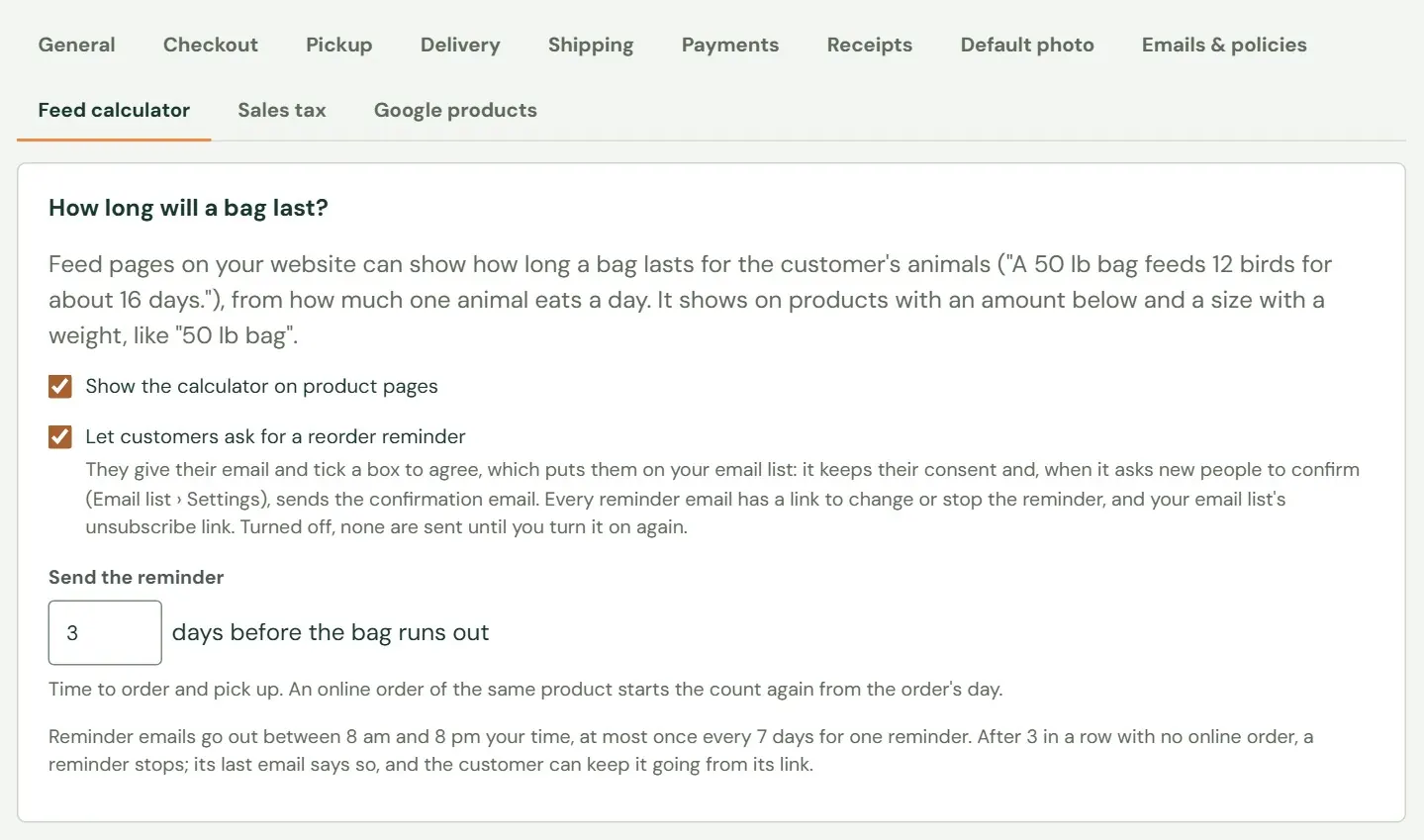
- 1Open this tab under Checkout and delivery.
- 2Tick this to show estimates on eligible feed pages.
- 3Tick this to let customers request emails.
- 4Choose how many days ahead to remind them.
- Tick Show the calculator on product pages. Let customers ask for a reorder reminder starts ticked, but only works with the calculator on. Untick it for a calculator alone. Reminder emails pause while reminders are off.
- Set the lead time. In Send the reminder, enter 1 to 14 days before the bag runs out. It starts at 3. Saving recalculates the next email date on active reminders and those waiting for confirmation.
- Press Save feed calculator settings. Look for Feed calculator settings saved. Open a feed's page on your website and look for How long will a bag last?. If it is missing, check the feeding amount and bag weight in Set how much each animal eats, in Chapter 21.
Reminders go out between 8 am and 8 pm store time. Each reminder email carries your store's mailing address. If the screen says emails are waiting for an address, enter it under Hours and contact in Store settings (Correct the phone number, address or map pin, in Chapter 6 of Core Roadside). To check a customer's subscription, see Check whether someone agreed to email, in Chapter 31 of Core Roadside.
Set how much each animal eats
Your store must have the Fencepost Plus add-on, offered on the Whole Store plan.
Use the feed tag for the amount one animal eats in a day. Customers see the estimate based on what you save. The example printed on the settings screen is A 50 lb bag feeds 12 birds for about 16 days. Use the directions for the particular feed when entering your figures (Copy the bag's feed tag onto the product, in Chapter 17 of Core Roadside).
- Set a department amount. Under Amounts by department, enter Pounds a day, each as a number greater than 0 and up to 100. Under One animal and More than one, enter the words customers use, such as bird and birds. If no departments are listed, open Categories under Products (Put products in the right department, in Chapter 13 of Core Roadside).
- Give one product a different amount if it needs one. Under Amounts for one product, use the row for the product, or type its name or stock code in Product name or SKU. Its amount takes precedence over the department's. Enter 0 to leave a supplement or treat out. Clear a saved product amount to use the department's again.
- Save and check the bag weight. Saving updates the amounts on eligible website feeds and recalculates reminder email dates using the saved days of notice. Press Save feed calculator settings. Check for Feed calculator settings saved. If the product name is refused or matches several products, use its stock code.
- Open the product on your website. Enter an animal count and read the estimate. If the item is under Products without a bag weight, give at least one size a weight (Add a size and set how you sell it, in Chapter 15 of Core Roadside). This card shows up to 20 products and disappears when there are none to fix.
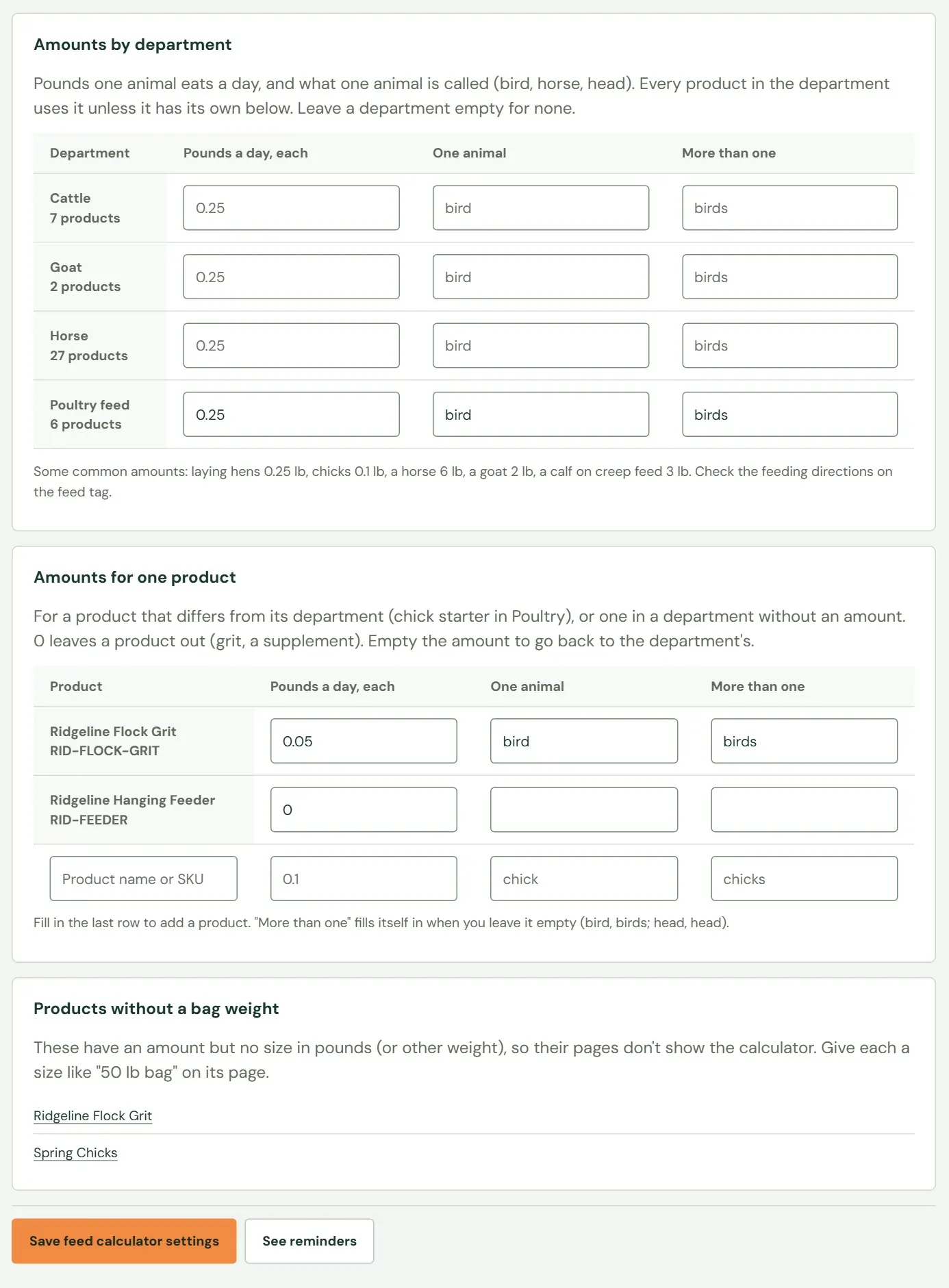
- 1Enter the daily amount from the feed tag.
- 2Name the animal the amount is for.
- 3Set a different amount for one feed or leave it out.
- 4Look here for products that still need a weight.
- 5Save the entries before checking a product page.
See who gets reminders, and stop one
Your store must have the Fencepost Plus add-on, offered on the Whole Store plan.
Customers request reminders on the website. The email gives them a link to order more. It places no order. If Reorder reminders is missing from the Customers menu, see Set up Fencepost Plus, in Chapter 21.
- Reorder reminder
- An email a customer asks for before their feed is due to run out.
- Check the totals and choose a tab. Active, Next 7 days and Sent, last 30 days show the store's reminder activity. The tabs are Active, Waiting to confirm and Stopped. Enter an email, name or product and press Search. There are up to 50 reminders per page.
- Match the customer and the feed. Feeding shows their animals and bags. Next email and Runs out are two different dates. Under Stopped, the row gives the reason. If the search finds nobody, try a shorter name or another tab.
- To stop a single reminder, check the address and product first. Stopping ends emails for this reminder. The customer stays on the email list and keeps their other reminders. Only the customer can ask for another on the product page. Press Stop, then confirm the address and product in the prompt.
- Check Stopped. The row reads Stopped by staff. Staff, Managers and the Store owner can stop one. Read only can look it up. For a request to unsubscribe from the store's email list, see Check whether someone agreed to email, in Chapter 31 of Core Roadside. Unsubscribing stops all that person's reminders.
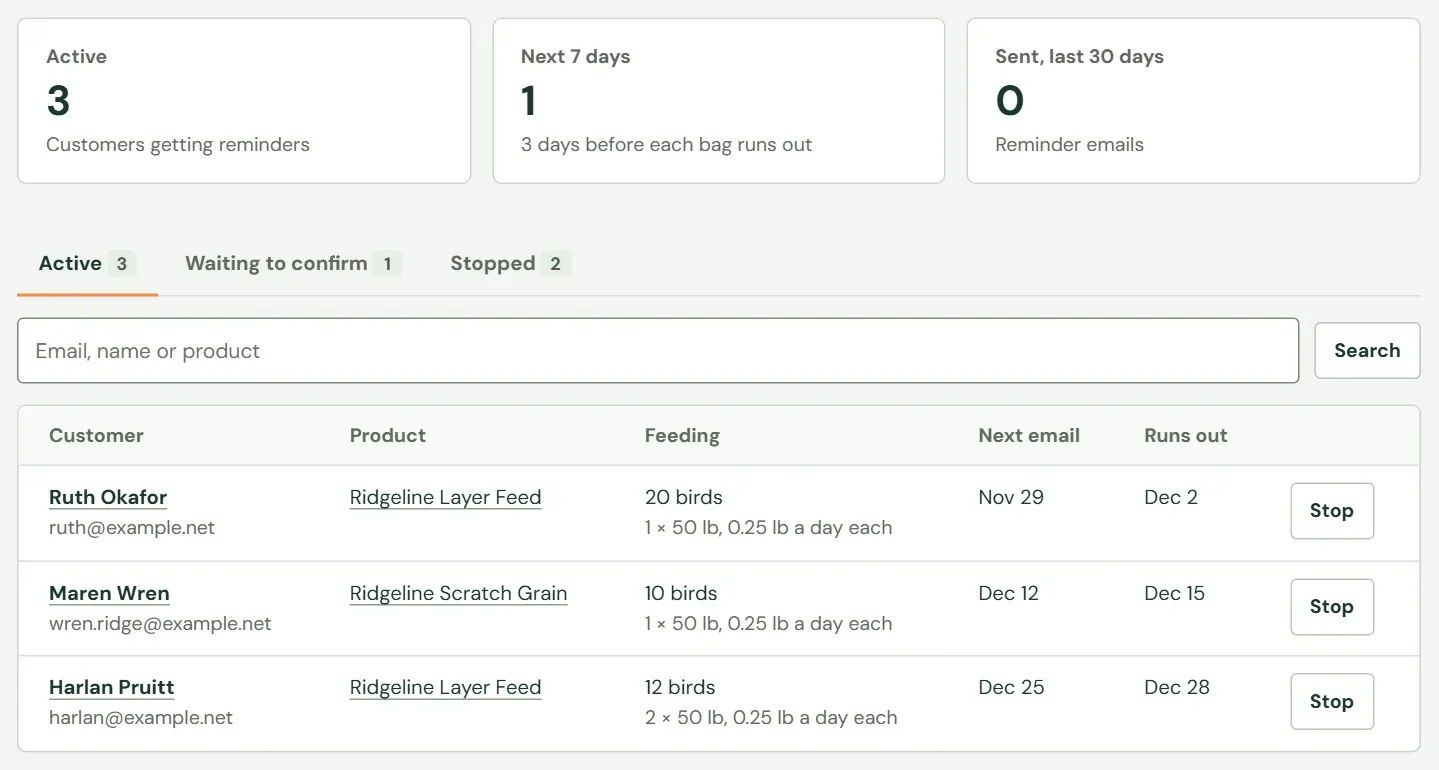
- 1Check how many reminders are due in the next week.
- 2Find requests that still need confirmation.
- 3Read when the next email is due.
- 4Check the estimated day the feed runs out.
- 5Stop only the reminder for the customer and feed on this row.
The reason on a stopped row tells you where to look.
- For a customer request, look for Stopped by the customer, Replaced by a newer reminder or Unsubscribed from the email list.
- For an email problem, the reason reads The address bounced or reported spam or Emails to the address kept failing.
- The other reasons are The product left the website and Stopped after 3 emails with no order.
Use the product page if the customer wants to request a reminder again.
Know what the customer sees and receives
Your store must have the Fencepost Plus add-on, offered on the Whole Store plan.
A customer can use the estimate without giving an email address. If they want a reminder, they ask for it themselves on the feed's page.
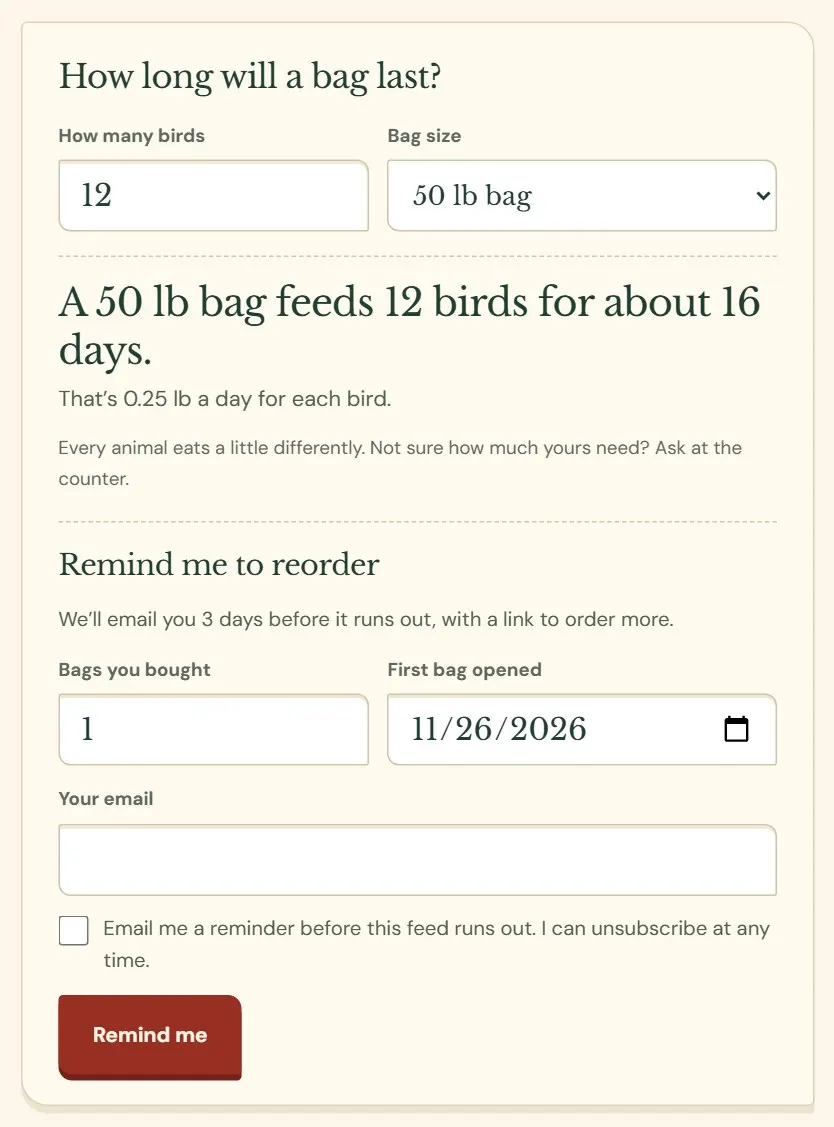
- 1Find the estimate on the product page.
- 2Enter how many birds will eat the feed.
- 3Enter the bag and email details here.
- 4Ask for the reminder after agreeing to the email.
- Check how long a bag lasts. Under How long will a bag last?, enter the number of animals. For poultry the field reads How many birds. Choose a Bag size if more than one size has a weight. The estimate changes with the count.
- Ask for a reminder. Under Remind me to reorder, enter Bags you bought (1 to 50), First bag opened (it starts at today's date) and Your email. Asking puts this address on the store's email list and may send a confirmation email. Tick Email me a reminder before this feed runs out. I can unsubscribe at any time. and press Remind me.
- Check for confirmation. If the store asks for email confirmation and the address needs it, the subject is Please confirm your reorder reminder from [business]. Open its link and press the button on the page. The request moves from Waiting to confirm to Active. A subscribed address can start straight away. Unconfirmed requests drop off after 30 days.
The reminder's subject is Your [product] runs out around [Mon d]. It has a link to order more and a link to change or stop the reminder. An online order of the same feed using the same email address starts the count again. The third email with no order tells the customer they can open the change link and press Save to keep getting reminders while the reminder is active.
- To change the count, open the change link in the reminder email. On Your reorder reminder, change the number of animals or bags and press Save. Look for Saved. The dates below are worked out again. Read Runs out around and We'll email to check the result.
- To finish with this feed, check the product before stopping. Stop this reminder ends emails for this feed only. Press it and look for Reminder stopped. To stop all reminders from the store, use the unsubscribe link in a reminder email.
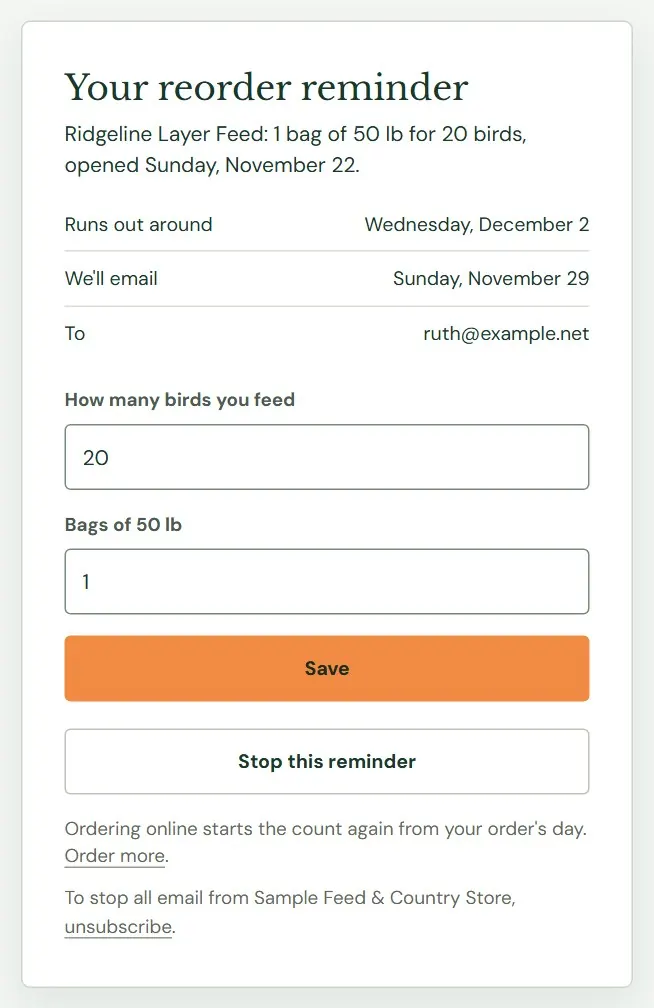
- 1Check the estimated day the feed runs out.
- 2Read the next email date or see whether it was sent.
- 3Save the animal or bag count and check the dates.
- 4End the reminder for this feed.
If the change link does not work, open it again directly from the email. A stopped reminder needs a fresh request on the product page. One email address can have up to 20 open reminders. At that limit, stop an unwanted reminder before requesting another.
Something here does not match your screen? Write to support@dirtroadsoftware.com with the name of the screen, what you pressed and what you expected. A picture of the screen helps.