
Handle a check the bank sent back
When the bank returns a customer's check, mark it on the order it paid for. Roadside then shows what the customer owes, with the store's fee, until it is paid back or written off.
In this chapter
Set the store's rules for checks
Included on every plan except Static Website and Online Store.
The Checks at the counter card on the Payments screen decides whether the registers take checks. While they do, it also holds the rules for checks: who checks are made out to, how long a check sale waits before a cash refund, and the fee suggested when a check comes back. The rest of the Payments screen is in Choose how the store takes payment, in Chapter 27 of Core Roadside.
- Returned check
- A check the bank sent back unpaid. Store owners also call it a bounced check or an NSF check.
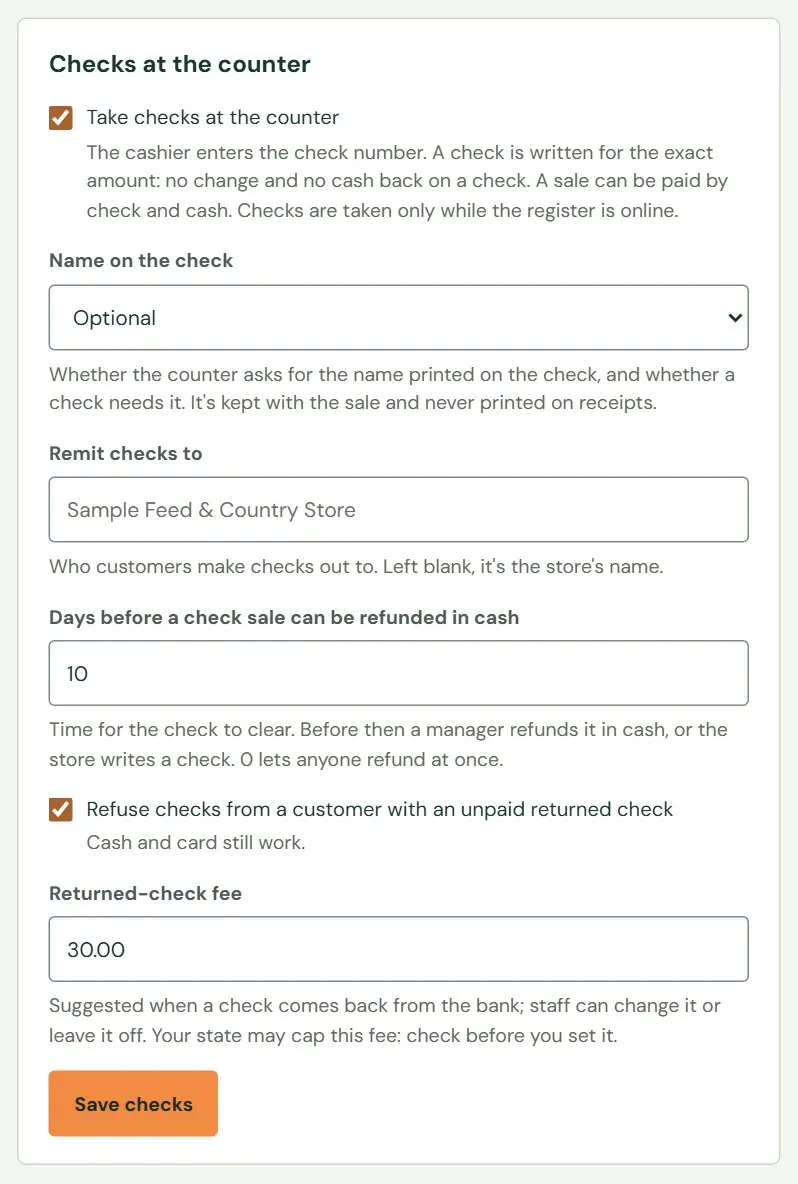
- 1Take checks at the counter turns checks on at the registers.
- 2Days before a check sale can be refunded in cash: time for a check to clear.
- 3Refuse checks from a customer who still owes on a returned check.
- 4Returned-check fee: suggested when a check comes back.
- 5Save checks keeps the card's settings.
- Go to Store settings, then Payments, and tick Take checks at the counter. Its note reads The cashier enters the check number. A check is written for the exact amount: no change and no cash back on a check. A sale can be paid by check and cash. Checks are taken only while the register is online.
- Press Save checks. The message reads Saved. The counter takes checks. The rest of the card shows once checks are on.
- Choose Name on the check: Don't ask, Optional or Required. It decides whether the register asks for the name printed on the check. The name is kept with the sale and never printed on receipts.
- Type Remit checks to if checks are made out to another name. Left blank, it is the store's name.
- Set Days before a check sale can be refunded in cash, from 0 to 60. Its note reads Time for the check to clear. Before then a manager refunds it in cash, or the store writes a check. 0 lets anyone refund at once. A Manager or the Store owner still gives the refund: 0 only removes the wait.
- Tick or untick Refuse checks from a customer with an unpaid returned check. Ticked, the register refuses that customer's checks. Cash and card still work.
- Type a Returned-check fee, or leave it empty for none. This is money your customers are charged when their check comes back. The note says Suggested when a check comes back from the bank; staff can change it or leave it off. Your state may cap this fee: check before you set it. Roadside takes up to $100.00 and does not know your state's limit.
- Press Save checks.
Taking a check at the register is in the Crossroads POS manual, Take a check, with what the cashier sees when a customer's checks are refused.
Unticking Take checks at the counter and saving gives Saved. The counter doesn't take checks. The registers stop taking checks and no further check can be marked returned. Returned checks the store already has stay listed, and you can still record payments on them and settle them.
Mark a check the bank sent back
Included on every plan except Static Website and Online Store.
When the bank's notice comes, mark the check returned on the order it paid for. The order then shows what the customer owes, and the check joins the Returned checks list. Store owners and Managers mark a check returned. Staff cannot.
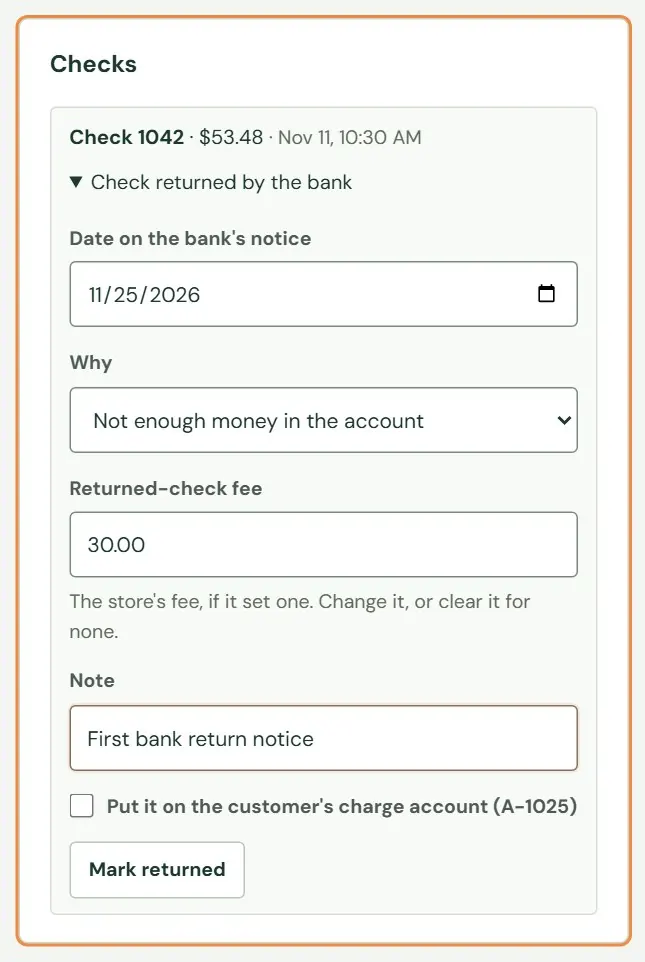
- 1Date on the bank's notice: today to begin with.
- 2Why: the reason the bank gives.
- 3Returned-check fee: the store's fee, which you can change or clear.
- 4Mark returned records the bank's return.
- Find the order the check paid for. Search Orders by the customer's name or phone. On Day summary, the Checks to deposit list for the day the check was taken gives each check number with its sale (Take the checks and cash to the bank, in Chapter 3).
- Open the order and find the Checks card. It lists each check the order was paid with: Check <number>, the amount and when.
- Press Check returned by the bank under the right check.
- Set Date on the bank's notice. It starts at today.
- Choose Why: Not enough money in the account, Account closed, Payment stopped or Other.
- Check the Returned-check fee. It starts at the store's fee. Change it for this check, or clear it for none. Add a Note of up to 500 characters. If the reason you chose is Other, the note is required: say why there.
- Mark it returned only for the right check. The check's amount comes off what the order has been paid: an order the check paid in full reads Not paid, and one with other money on it still reads Paid, for the smaller amount. When what is owed goes on the customer's charge account, the order reads Paid. The customer owes the check and any fee. While it is owed, a refund on this order is refused with A check on this order came back from the bank and isn't settled. Settle the returned check first, then refund., and, if the store refuses checks from a customer with an unpaid returned check, the register refuses this customer's checks. No button undoes a mark. If you mark one in error, send the order number to Dirt Road (Send a question about Roadside, in Chapter 37 of Core Roadside) before you write anything off. Press Mark returned, and confirm Mark check <number> returned? Its <amount> comes off what's been paid.
The message reads Check <number> marked returned. The order shows what's owed: <amount>. It worked when the check carries the badge Returned · Owed, the order has a Check badge in the order list, and Returned checks appears under Sales with a count. Find a check the bank sent back, in Chapter 27 of Core Roadside explains the list.
Included on every plan except Static Website and Online Store. When the customer has a charge account that is not closed, the form has a box, Put it on the customer's charge account, that moves what is owed there as you mark it (Put a returned check on the customer's charge account, in Chapter 6). A check that paid a payment on account always goes back on that charge account, whatever the account's status. While Charge accounts is off for the store, such a check cannot be marked returned.
When the mark is refused
- Choose why the bank sent the check back. or Enter the date on the bank's notice. Fill in the field it names.
- A returned-check fee set here is at most $100.00. Type a smaller fee.
- Check <number> is already marked returned. Someone marked it already. The order's Checks card shows where it stands.
- The store doesn't take checks now (Store settings, Payments), so checks aren't marked returned here. Turn checks on first (Set the store's rules for checks, in Chapter 6).
Record what the customer pays back
Included on every plan except Static Website and Online Store.
When the customer makes good on a returned check, record what they paid on the order's Checks card. They can pay all of it or part, toward the check, the fee or both. Staff can record this payment, as can Managers and the Store owner. It records money taken in. It is not a refund.
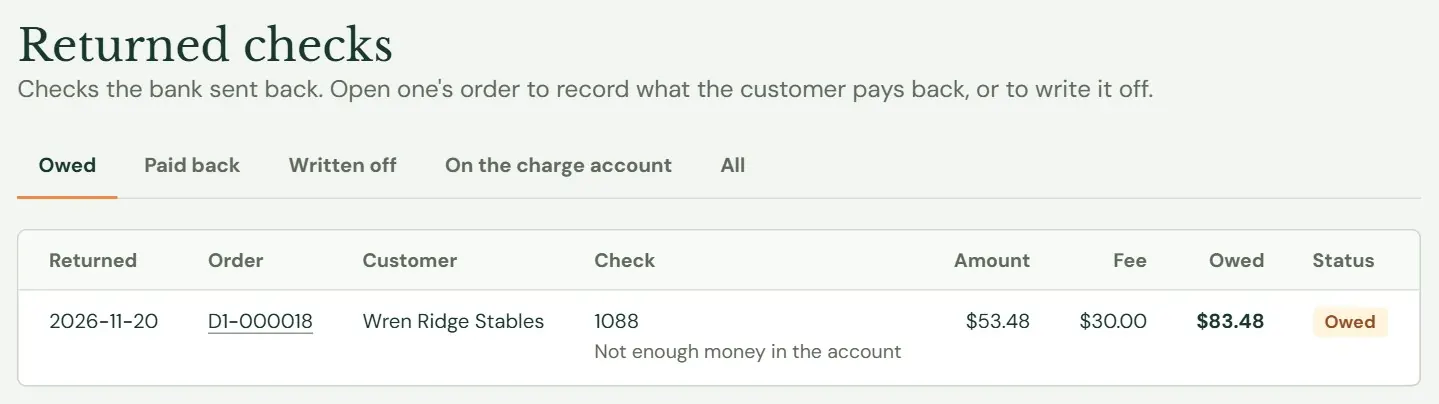
- 1Owed: the checks nobody has made good yet.
- 2Check: the check number and the bank's reason.
- 3Fee: the store's returned-check fee on that check.
- 4Owed: what the customer still owes on it.
- 5All: every returned check, moved ones included.
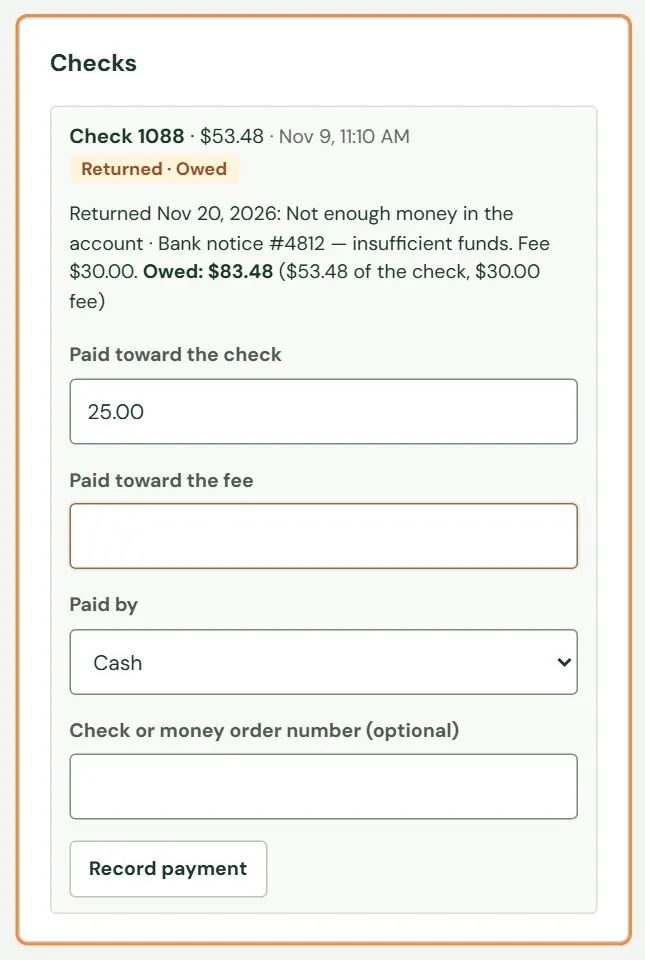
- 1Paid toward the check: starts at what is owed on it.
- 2Paid toward the fee, when a fee is owed.
- 3Paid by: how the customer paid.
- 4Record payment saves it.
- Take the money from the customer first.
- Open Returned checks and press the order number. The order opens at its Checks card, which reads Owed with the amount.
- Type what was paid in Paid toward the check, and in Paid toward the fee when a fee is owed. Each starts at what is still owed on it. Type less for a part payment.
- Choose Paid by: Cash, Card at the counter or Cashier's check or money order. Card at the counter is for a card already run on the store's card terminal.
- Type the number in Check or money order number (optional) for a cashier's check or money order.
- Record what is in hand, once. Recording charges no card and has no undo. Press Record payment.
The message reads Payment recorded: <amount>. The returned check is paid back. or Payment recorded: <amount>. Still owed: <amount>. It worked when the check moves to Paid back, or its Owed figure drops, and the payment is listed under the check with how it was paid and who recorded it. A wrong entry cannot be taken back in Roadside: send the order number to Dirt Road (Send a question about Roadside, in Chapter 37 of Core Roadside).
Cash paid back this way is not in Day summary's Cash expected, so a drawer it goes into counts over by it. Day summary lists it as Cash collected on returned checks (Read the register's sales, cash and checks for a day, in Chapter 3). A fee paid is not a sale, and it is not taxed.
- Only <amount> of the check and <amount> of the fee are still owed. Type no more than what is owed.
- That looks like a card number. Roadside never keeps card numbers: enter a check or money order number, or leave it blank. Clear the number box.
Put a returned check on the customer's charge account
Included on every plan except Static Website and Online Store.
For a customer with a charge account that is not closed, what is owed on a returned check can move to the account and be collected with the rest of their balance. The button shows on the Checks card of a customer whose charge account is active or on hold. A closed account takes nothing further, so the check stays on the order. A check that paid a payment on account is not moved here: it goes back on that account as you mark it, whatever the account's status. You can also do it while marking the check, with the box Put it on the customer's charge account (Mark a check the bank sent back, in Chapter 6).
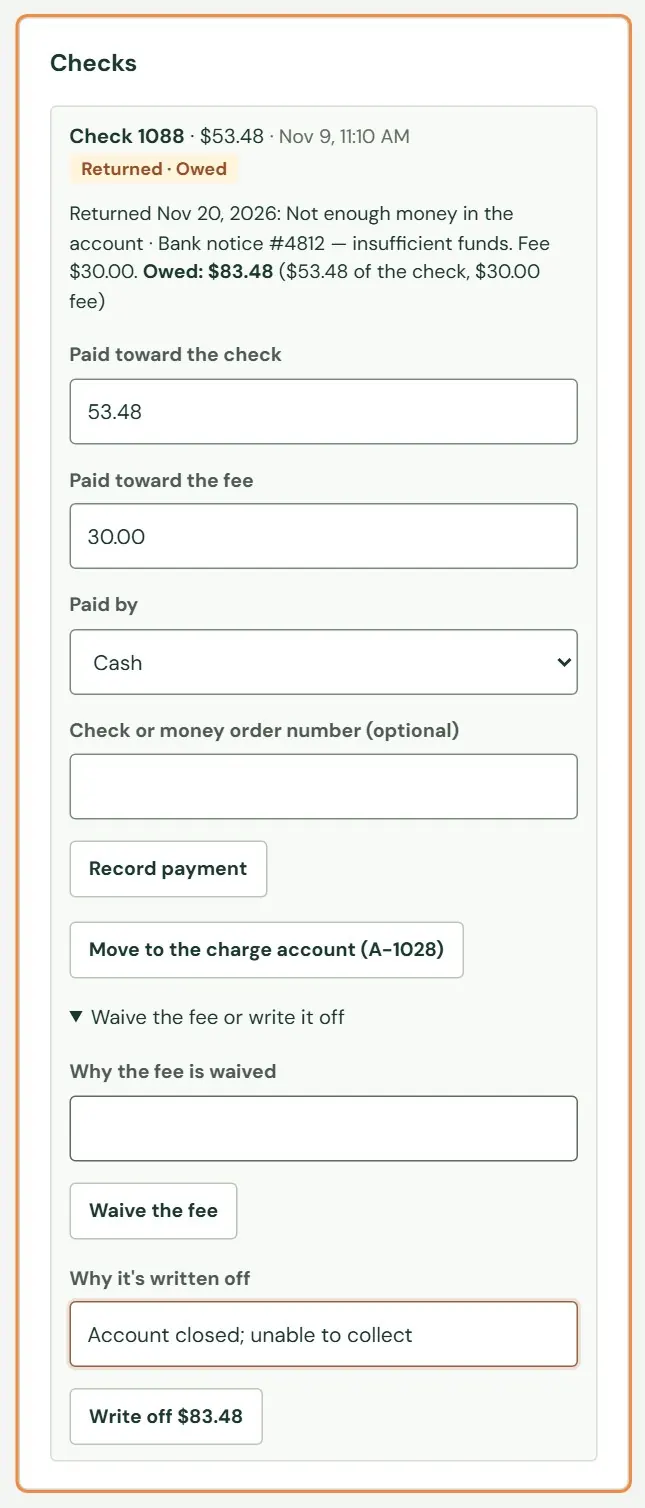
- 1Move to the charge account puts what is owed on the account.
- 2Waive the fee drops the fee, with a reason.
- 3Write off stops expecting payment, with a reason.
- Open Returned checks and press the order number.
- Move it only when the account should carry it. A move cannot be undone in Roadside. What is owed leaves the order and joins the account's balance, owed from the date on the bank's notice, as a returned-check invoice and, when a fee is owed, a fee invoice. From then on it can draw a finance charge (Turn on a finance charge, in Chapter 14) or a late fee (Turn on a late fee, in Chapter 14) if the store uses them. While those invoices are unpaid, a refund that takes money out of this order waits, and, if the store refuses checks from a customer with an unpaid returned check, the register refuses this customer's checks. Press Move to the charge account, which names the account's number, and confirm Move <amount> to charge account <number>? It's owed there from the notice's date.
The message reads Moved to the charge account: <amount>. It worked when the check's status reads On the charge account, the Checks card says Moved to the customer's charge account, and the account shows the invoice, or both invoices when a fee is owed. To find a moved check while another check is still owed, press All on the Returned checks list. Once no check is owed, that menu line is gone: open Orders, press All, then open the order by its number or the customer's name and read its Checks card. Payments toward it are taken on the account (Take a payment on account, in Chapter 12). After a move the order's Checks card no longer waives the fee or writes the check off: take the fee off with a credit applied to its invoice (Give a credit or add a charge, in Chapter 12), or write the invoices off on the account (Write off what will not be paid, in Chapter 12).
Waive the fee or write the check off
Included on every plan except Static Website and Online Store.
Drop the store's fee, or stop chasing a check that will not be paid. Both keep your reason with the check. A write-off is a record for the store's books. It tells the customer nothing.
- Write off
- Stop expecting a payment, and record why.
- Waive
- Drop a fee, so the customer no longer owes it.
- Open Returned checks and press the order number.
- Press Waive the fee or write it off under the check. The picture in Put a returned check on the customer's charge account, in Chapter 6 shows the choices.
- To drop the fee, type the reason in Why the fee is waived. The reason takes up to 500 characters. A waived fee cannot be brought back in Roadside. Press Waive the fee. The message reads Fee waived., and adds The returned check is settled. when nothing else is owed. This part shows while a fee is owed.
- To write off what is owed, type the reason in Why it's written off.
- Write it off only when you have stopped expecting payment. A write-off cannot be reversed in Roadside, and the order goes on showing the amount as not paid. The customer still counts as having an unpaid returned check, so the register refuses their checks while the store refuses checks from such customers. Press Write off with the amount, and confirm Write off <amount>? The order keeps showing it as not paid.
The message reads Written off: <amount>. It worked when the check is under Written off on the Returned checks list. Once no check is still owed, Returned checks leaves the Sales menu, and the order's Checks card, found on the All tab of Orders, is where to look.
- Add a note saying why. Both need a reason.
- This returned check is already settled. It was paid back, moved or written off already. The order's Checks card shows which.
Something here does not match your screen? Write to support@dirtroadsoftware.com with the name of the screen, what you pressed and what you expected. A picture of the screen helps.