
Take a payment on account and correct a balance
When a check comes in the mail or a customer pays at the desk, record it against their account. A manager can also give a credit, add a charge, write off an invoice or hand back a credit balance.
In this chapter
Take a payment on account
Included on every plan except Static Website and Online Store.
A check arrives in the mail, a customer hands cash across the desk, or someone reads a card over the phone and you run it on the counter card terminal. Take a payment records that money against the customer's charge account. Staff can take a payment on account. Read only people cannot.
Take the payment records money you already hold. It charges no card: Card at the counter terminal means the card was already run on the store's card terminal. No button undoes a payment. One recorded by mistake is put right by a Manager or the Store owner, who adds a charge for the same amount: Give a credit or add a charge, in Chapter 12.
- Payment on account
- Money a customer pays toward what they owe on their charge account. It is not payment for a sale made today.
- Office payment
- A payment on account recorded in Roadside, away from the register. Its money is in no register's drawer.
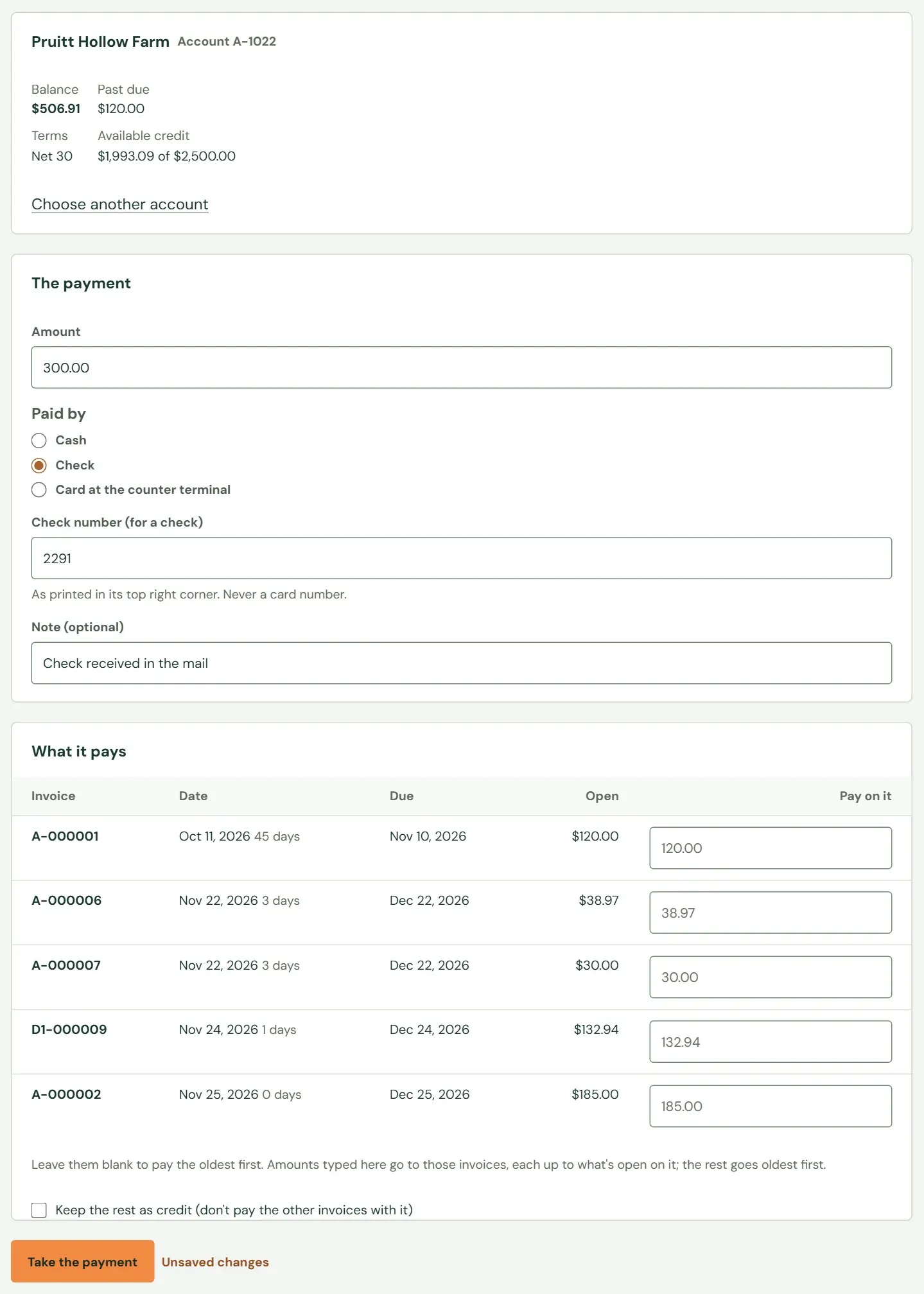
- 1Amount: what the customer paid.
- 2Paid by: Cash, Check or Card at the counter terminal.
- 3Check number: the number printed on the check.
- 4Pay on it: type an amount here to send it to that invoice.
- 5Take the payment records the money on the account.
- Go to Customers, then Charge accounts, and press Take a payment.
- Choose the customer under Which account? and press Next. An account on hold is in the list, marked on hold. A closed account is not. The account's card shows its Balance (Credit balance when the store owes the customer), Past due and Terms, and Available credit when the account has a limit. If it is the wrong customer, press Choose another account.
- Type the Amount, in dollars and cents.
- Choose Paid by. Check is chosen to start with. The others are Cash and Card at the counter terminal.
- For a check, type its number in Check number (for a check). The note under the box reads As printed in its top right corner. Never a card number. It takes 1 to 10 digits. Note (optional) takes up to 500 characters.
- Decide what the payment pays, under What it pays. Leave every Pay on it box blank and the payment goes to the invoice due first, then the next. To pay particular invoices, type an amount beside each one.
- Press Take the payment. Roadside says Payment of, the amount, and taken on account. The payment's receipt opens.
The screen states the rule for the boxes: Leave them blank to pay the oldest first. Amounts typed here go to those invoices, each up to what's open on it; the rest goes oldest first.
Tick Keep the rest as credit (don't pay the other invoices with it) when the customer wants the payment to cover only the invoices you chose. What is left stays on the account as credit. A payment larger than everything owed leaves credit too. On an account with nothing open the card reads Nothing is open on this account. The payment is kept as credit and pays the next purchases.
A refusal takes nothing and brings the form back empty with the reason. A payment on account is more than $0.00. means the amount is missing or zero. Enter the check's number as printed in its top right corner: 1 to 10 digits. means the check number is missing or has letters in it. An amount beside an invoice can be no more than what is open on it.
Where the money shows afterwards
The payment is on the customer's Charge account card under Recent activity, and on the customer's timeline. On Day summary for the whole store it is in Received on account, and a check is on the Office checks to deposit list for the bank: Take the checks and cash to the bank, in Chapter 3.
A payment on account can also be taken at the register. Cash is in the register's drawer count, a check is on the day's checks to deposit and a card is in the register's card total. The receipt in Roadside reads taken at the counter.
If the bank sends back a check that paid on account, mark it returned on the payment's order. The amount goes back on the charge account: Put a returned check on the customer's charge account, in Chapter 6.
Check what a payment paid
Included on every plan except Static Website and Online Store.
Every payment on account has a receipt that says which invoices it went to and what the account owed before and after. It opens when you take a payment.
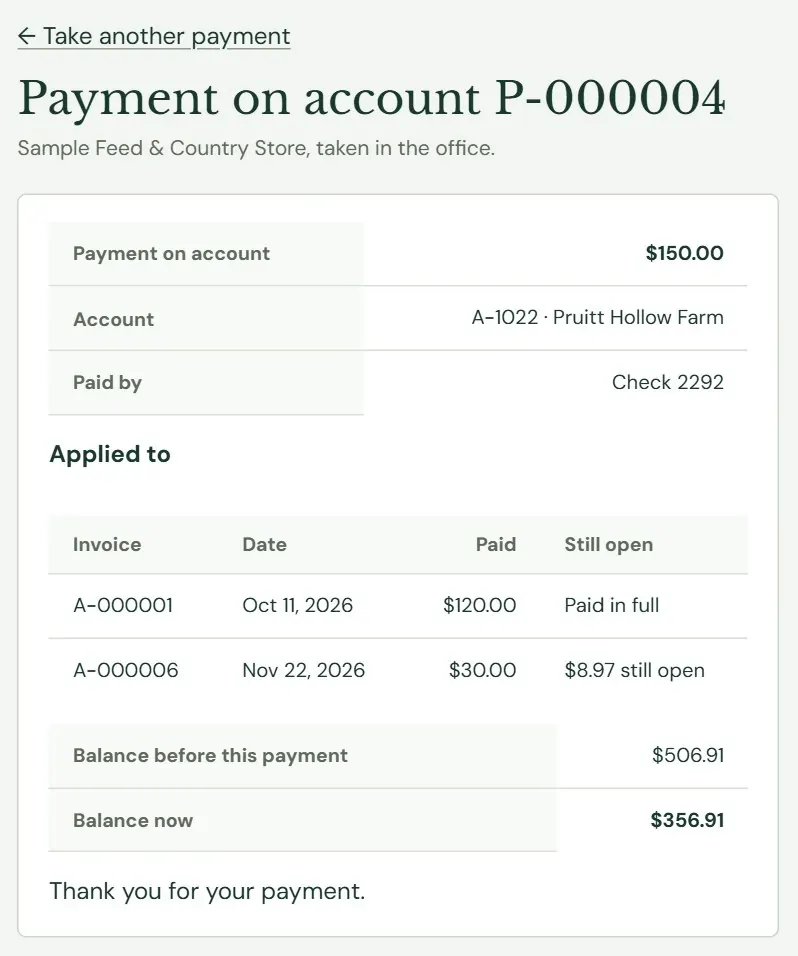
- 1Payment on account: the amount taken, with the account and how it was paid.
- 2Applied to: each invoice the payment went to.
- 3Still open reads Paid in full, or what is left on that invoice.
- 4Balance now: what the account owes after the payment.
- Read the heading. It gives the payment's number, such as P-000001. The line under it names your store and reads taken in the office or taken at the counter.
- Read Applied to. Each row is an invoice, with its date, the amount Paid on it and Still open, which reads Paid in full or the amount left.
- Check the last rows. Balance before this payment less the payment gives Balance now. Money that went to no invoice is on its own row, Kept as credit on your account or Credit on your account.
The payment is right when Balance now is the old balance less what the customer paid. When the payment was more than the customer owed, the last row reads Credit balance and the page adds It will pay your next purchases.
The receipt is worded for the customer and ends Thank you for your payment., so you can print the page from your browser and hand it over. Roadside emails nothing from it. ← Take another payment at the top opens the form again for the same customer.
Find a payment again
The customer's Charge account card lists each payment under Recent activity as Payment, with its date, its note, the amount and the balance after it. That line is not a link. To open the payment itself, go to Sales, then Orders, press the All tab and search for the payment's number or the customer's name. Its row begins Payment on account, and its page has a Receipt (PDF) button. Payments on account are left out of the To do tab.
Give a credit or add a charge
Included on every plan except Static Website and Online Store.
Give a credit and Add a charge correct what a customer owes when no sale or payment explains it. Give a credit takes an amount off, for a bag that split or a price you agreed to honor. Add a charge puts an amount on, for a delivery fee that was not rung up or a payment recorded by mistake. Both show to a Manager or the Store owner only.
- Credit (on a charge account)
- An amount taken off what a customer owes on their charge account. No goods come back and no money changes hands.
- Credit balance
- A charge-account balance below zero. The store owes the customer.
Each one changes what the customer owes and shows on their next statement. Neither can be deleted. A wrong credit is corrected with a charge for the same amount, and a wrong charge with a credit.
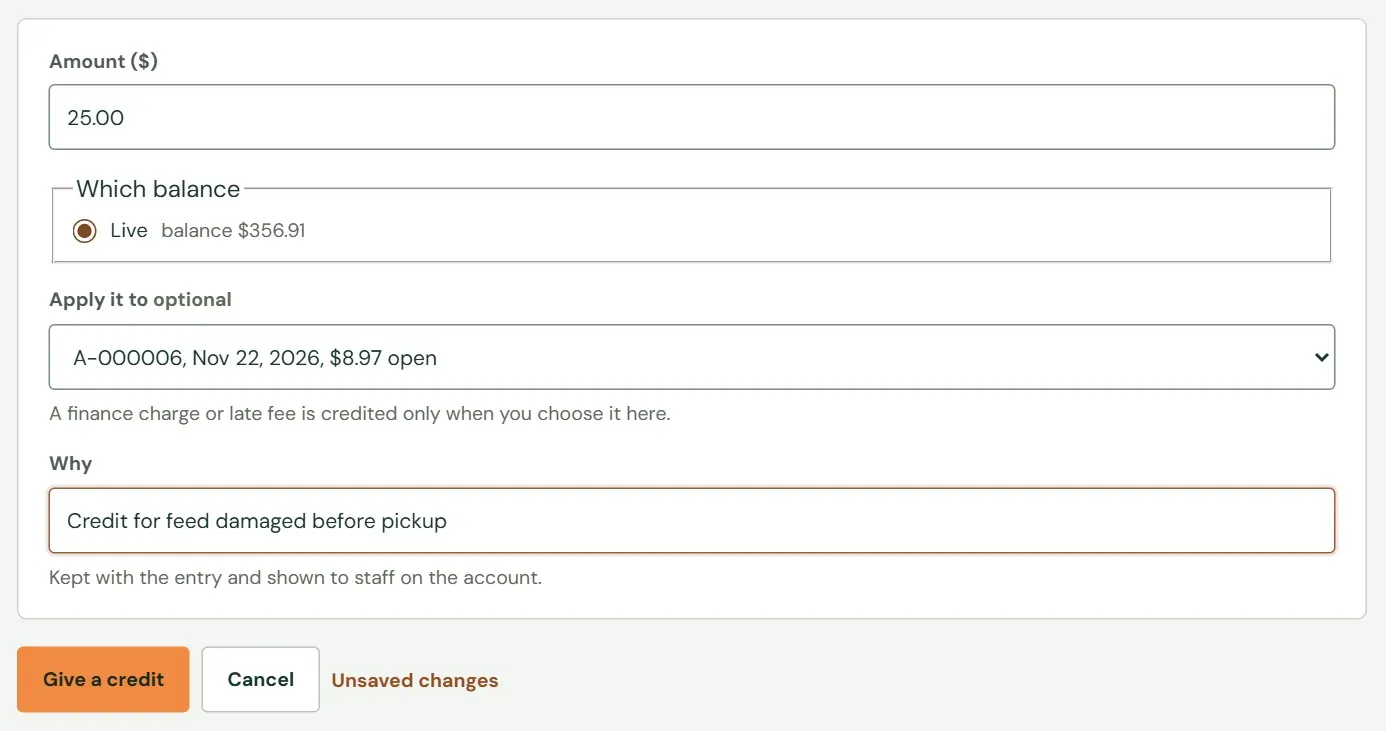
- 1Amount ($): how much to take off.
- 2Apply it to: choose the oldest open invoices, or one invoice.
- 3Why: the reason, kept with the entry.
- 4Give a credit posts it to the account.
- Open the customer and press Give a credit on the Charge account card.
- Type the Amount ($).
- Under Which balance, choose Live. The form does not post until one is chosen.
- Choose where it goes in Apply it to. The list shows on an account with open invoices. It starts on The oldest open invoices, or you can pick one invoice. The note under it says A finance charge or late fee is credited only when you choose it here.
- Type the reason in Why, up to 500 characters. It is Kept with the entry and shown to staff on the account.
- Press Give a credit. Roadside says Credit given.
The screen says where a credit goes: It goes to the invoice you choose, then the oldest open ones; with nothing open it stays as credit for the next charges. Find a charge on a statement and take one off, in Chapter 14 shows how to find a finance charge or late fee to take off.
Add a charge
Press Add a charge on the card. The form asks for the Amount ($), Which balance and Why, and its button reads Add a charge. Roadside says Charge added. The screen describes the result: an invoice with no sale behind it, dated today and due by the account's terms, and It changes no stock and no sales. A closed account has no Add a charge button.
Either one worked when the entry is in Recent activity on the card, as Credit or Charge, and the Balance has moved by the amount.
A credit is not a return and it is not store credit. When goods come back, the cashier refunds the sale at the register, so the stock count and the sales tax follow: Crossroads POS manual, Refund a sale.
Write off what will not be paid
Included on every plan except Static Website and Online Store.
When a farm has closed or a debt is past collecting, a write-off clears the open amount from the account and keeps your reason with it. The screen puts it this way: Clears what's still open on the invoices you choose. The sales stay sales; the statement shows the amount as written off.
A write-off cannot be reversed in Roadside, and the customer's next statement shows it. It does not stop the customer charging again. To do that as well, close the account: Put an account on hold, or close it, in Chapter 11. A hold still lets a second manager approve one charge.
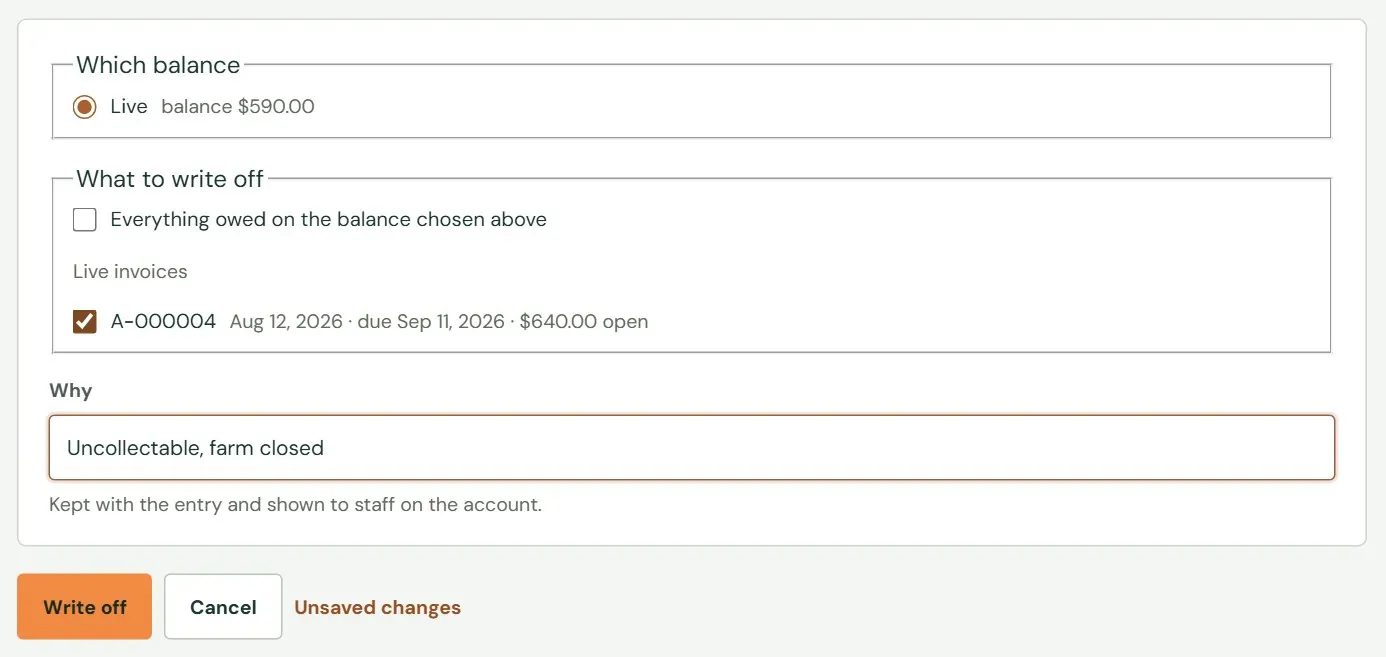
- 1What to write off: tick everything owed, or single invoices.
- 2Why: the reason, kept with the entry.
- 3Write off clears what is open on the invoices you ticked.
- Open the customer and press Write off on the Charge account card. The button shows only while the account has something open.
- Under Which balance, choose Live.
- Choose What to write off. Tick Everything owed on the balance chosen above, or tick single invoices. Each invoice is listed with its date, its due date and what is open on it. An invoice is written off for all that is open on it. There is no box for part of one.
- Type the reason in Why, up to 500 characters.
- Press Write off. Roadside says Written off.
It worked when the invoices have left Open invoices on the card and Recent activity has a Written off entry. With nothing ticked, Roadside answers Choose the invoices to write off, or everything owed.
A write-off does not change the sale or the sales tax collected on it. How to treat the loss in your books is a question for your accountant.
Pay out a credit balance
Included on every plan except Static Website and Online Store.
A customer who paid twice, or paid more than they owed, has a credit balance. Most leave it to pay their next charges. For one who wants the money back, a Manager or the Store owner hands it over and records it here. A pay-out counts as a refund, so it also takes the right to refund orders, which both roles have.
This records that money leaves the store, and it cannot be undone. Hand over the cash or write the check, then record it once.
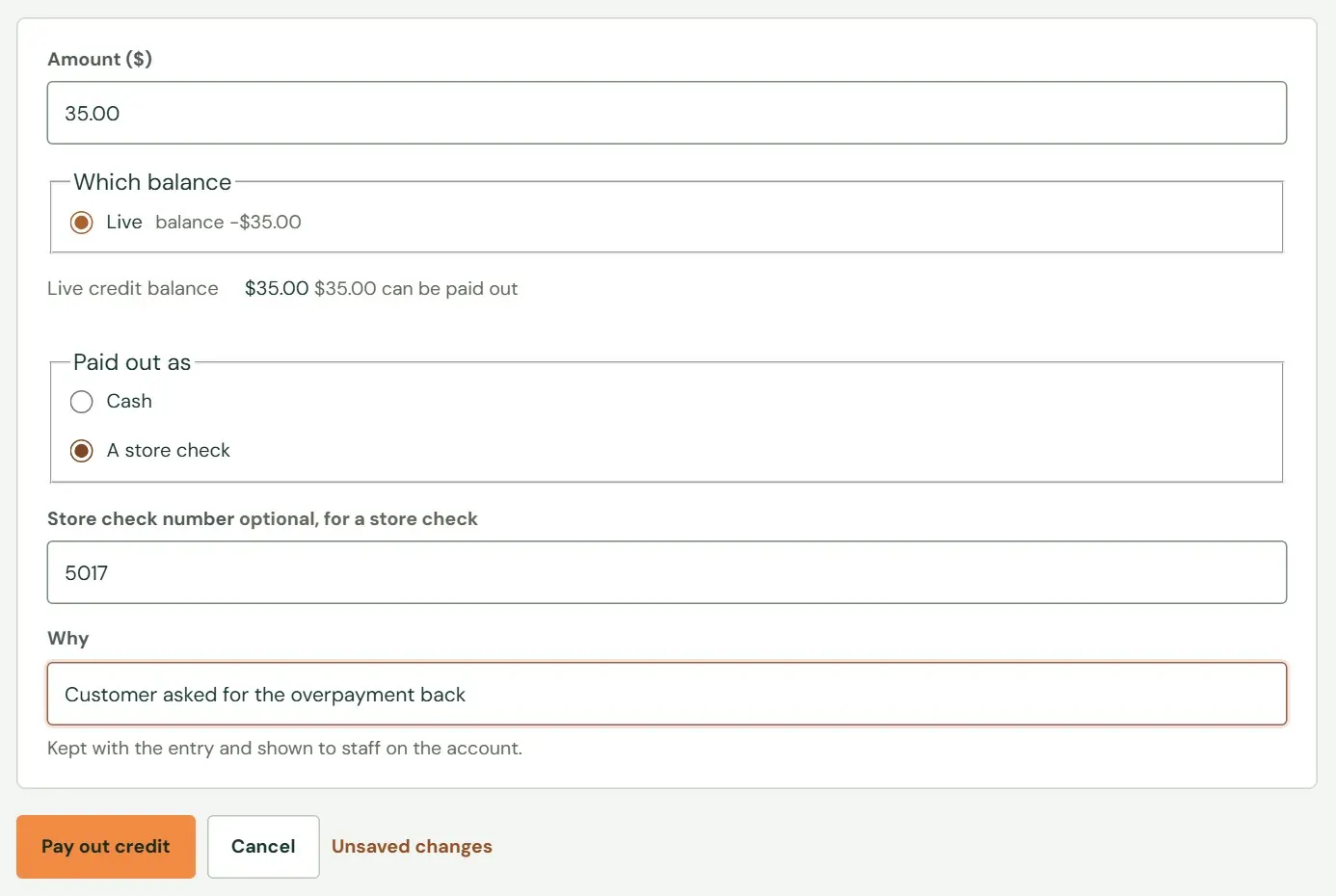
- 1Can be paid out: the part of the credit Roadside lets you hand back.
- 2Paid out as: Cash or A store check.
- 3Store check number: the number of the check you wrote.
- 4Pay out credit records the money as handed back.
- Open the customer and press Pay out credit on the Charge account card. The button shows only while the account has a credit balance.
- Read the credit balance and the figure beside it, can be paid out. They are not always the same.
- Type the Amount ($) and, under Which balance, choose Live.
- Choose Paid out as: Cash, which is chosen to start with, or A store check. For a check you may type its number in Store check number, 1 to 10 digits.
- Type the reason in Why, up to 500 characters.
- Press Pay out credit. Roadside says Credit paid out.
Not every credit can be handed back. The screen gives the rule: Only credit left by payments on account made in cash or by check can be paid out; credit from a card payment, a refund to the account or a manager's credit pays the next charges instead. Ask for more than that and Roadside answers with the amount it allows, and says The rest pays the next charges.
It worked when the credit on the card is lower by the amount and Recent activity has a Credit paid out entry. If the cash came out of a register drawer, tell whoever counts that drawer.
A customer who would rather spend the credit in the store can have it as store credit instead: Move a charge-account credit to store credit, in Chapter 15.
Something here does not match your screen? Write to support@dirtroadsoftware.com with the name of the screen, what you pressed and what you expected. A picture of the screen helps.