
Open a charge account and set its limit
A charge account lets a trusted customer buy now and pay on terms you set. Open it from the customer's own account, give it a limit and terms, and change them when the customer's needs change.
In this chapter
See who buys on account and what they owe
Included on every plan except Static Website and Online Store.
One page lists every customer who buys on account, with the terms, the limit, what is owed and how much room is left. Charge accounts is in the menu once the Store owner has set it up, with Set it up beside Charge accounts on All of Roadside: Set up a tool the store already has, in Chapter 3 of Core Roadside. Switching it off again is in Switch off a tool the store set up, in Chapter 3 of Core Roadside.
- Charge account
- An account a customer buys on and pays later, on terms the store sets. Stores also call it a house account, a tab or A/R.
- Available
- What a charge account can still take: its credit limit, less its balance, less website orders charged to it that are waiting for pickup.
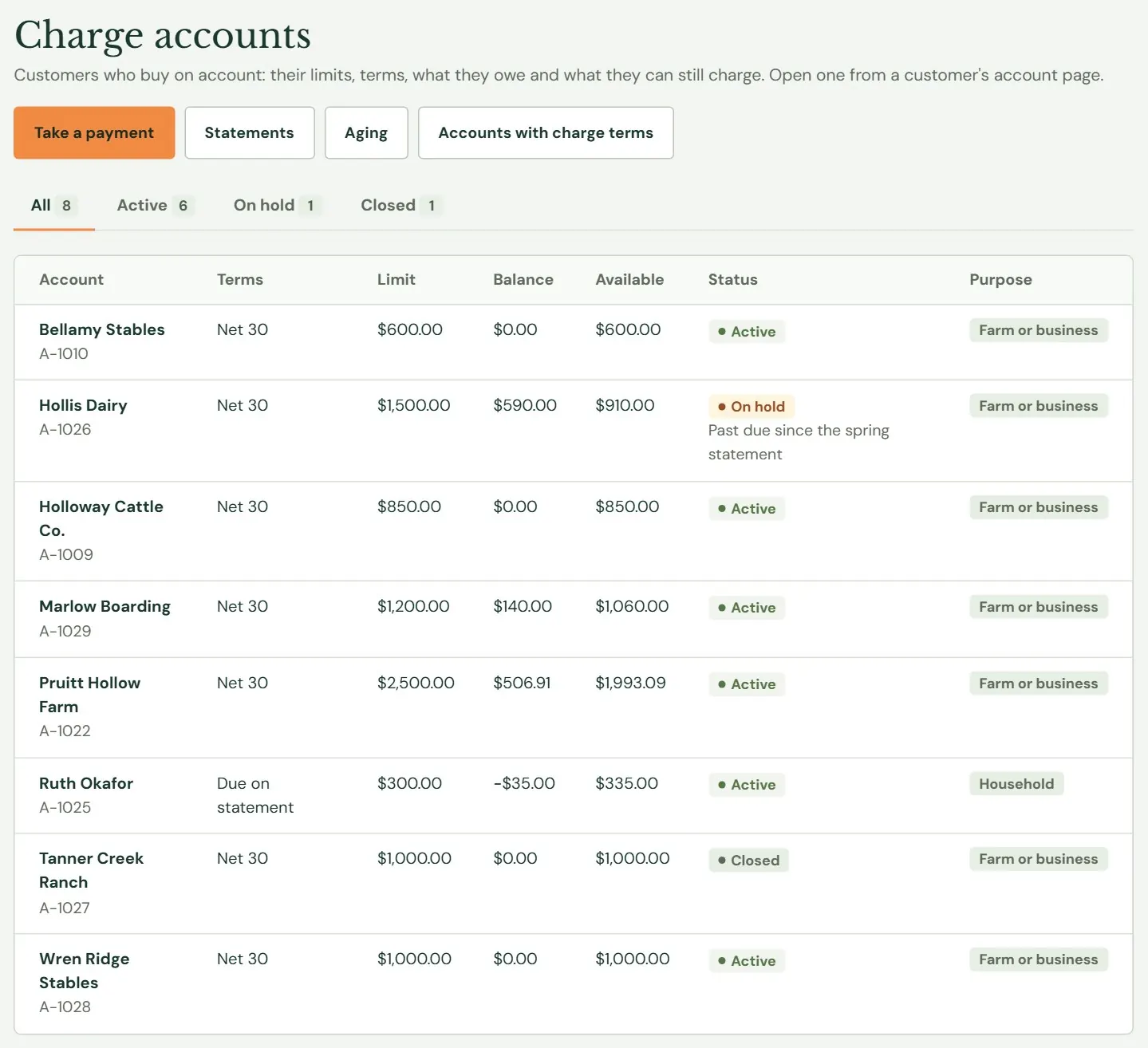
- 1Take a payment records money a customer pays toward their account.
- 2On hold lists only the accounts that are stopped.
- 3Limit is the most the account may owe.
- 4Available is what the account can still charge.
- 5Status reads Active, On hold or Closed. A hold shows its reason.
- Go to Customers, then Charge accounts. The accounts are in name order, 50 to a page. The tabs All, Active, On hold and Closed shorten the list, and a tab with accounts in it carries a count.
- Read across the row. Terms reads Net 30, Due on statement or Seasonal with its due date. Limit and Available read No limit on an account that has none. Balance is what the customer owes, and a balance with a minus sign is a credit: the store owes the customer. Purpose reads Needs review until someone chooses what the customer buys for.
- Press the account's name. The customer's account opens at its Charge account card, with the open invoices and the latest activity.
The list has no button for opening an account. An account is opened from the customer (Open a charge account with a limit and terms, in Chapter 15), or from Accounts with charge terms for a customer whose old records said they buy on account (Open accounts for customers whose old fields said they buy on account, in Chapter 17). Once you have opened one, that customer is in this list as Active. Read only people see the list, Statements and Aging, and do not see Take a payment.
Open a charge account with a limit and terms
Included on every plan except Static Website and Online Store.
A charge account belongs to one customer's account in Roadside, so the customer needs an account first (Add or correct a customer's account, in Chapter 33 of Core Roadside). You give it the most it may owe, say when charges fall due, and choose how its statements go out. Staff can read a charge account and cannot open or change one.
From the next sale, the account's owner and its authorized buyers can take goods without paying, up to the limit. Check the limit and the people before you open the account: Check who may charge to an account, in Chapter 16.
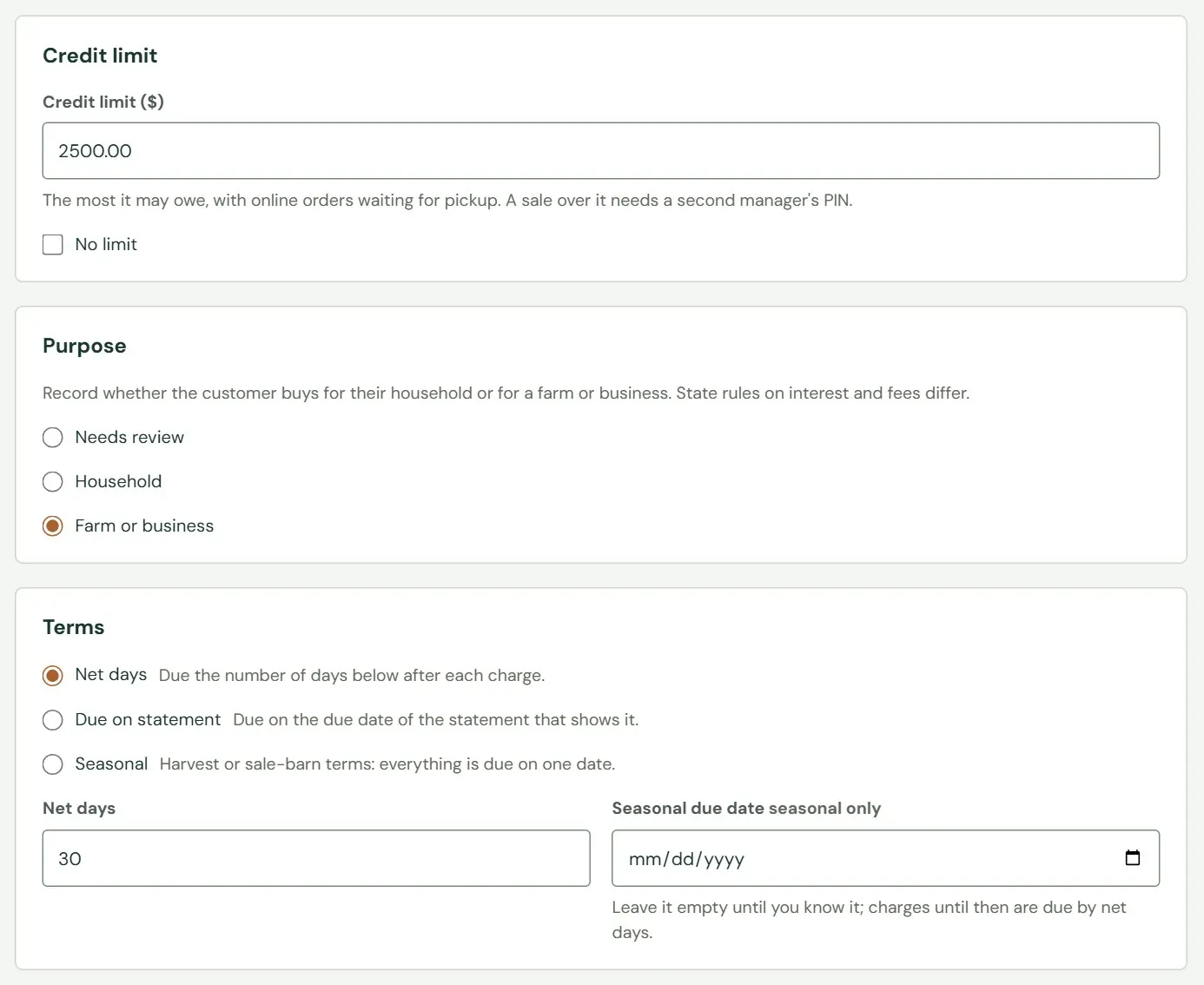
- 1Credit limit ($): type the most the account may owe.
- 2No limit: tick it to let the account owe any amount.
- 3Farm or business: choose it for a customer who buys for a farm or a business.
- 4Net days: each charge is due this many days after it is made.
- 5Seasonal: choose it when everything is due on one date.
- Go to Customers, then Accounts, open the customer and press Open charge account on the Charge account card. The card reads No charge account. until one is opened.
- Type the Credit limit ($), in dollars and cents. The screen explains it: The most it may owe, with online orders waiting for pickup. A sale over it needs a second manager's PIN. A Manager or the Store owner can tick No limit instead.
- Choose the Purpose: Household or Farm or business. It starts on Needs review. The card gives the reason: State rules on interest and fees differ.
- Choose the Terms. The form opens on Net days, with 30 in the box. The table below gives the three choices.
- Fill in Charging and statements. Tick A PO or job number is needed on every charge for a customer who wants one on every invoice. Under Statements, choose Email, Print or Email and print. Statements go to the account's own email unless you type another in Statement email.
- Press Open charge account. Roadside says Charge account opened. and the card shows Active with the limit and the terms.
| Terms | When a charge is due |
|---|---|
| Net days | The number of days in Net days after each charge. The box takes 0 to 3,650. |
| Due on statement | On the due date of the statement that shows the charge. |
| Seasonal | On one date, typed in Seasonal due date. You may leave the date empty until you know it. Charges made before then are due by net days. |
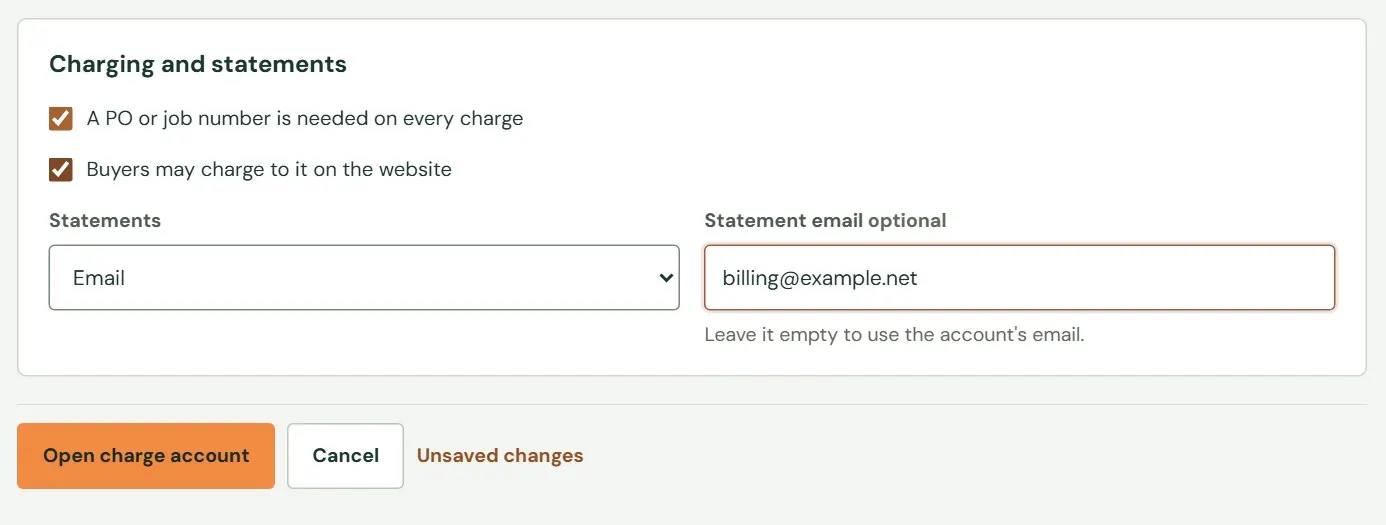
- 1Tick this to require a PO or job number on every charge.
- 2Tick this to let the account's buyers charge website orders.
- 3Statements: choose Email, Print or Email and print.
- 4Open charge account saves the form and opens the account.
Two messages stop the form most often. Enter the credit limit, like 500.00. A manager can choose No limit instead. means the limit box is empty. Statements by email need an address: add one here or on the account, or send them by print. means neither the form nor the customer's account has an email. An archived customer must be restored before the account can be opened.
A sale is charged to the account at the register, and its receipt prints the account's balance: Print a receipt or the store's copy, in Chapter 5. A sale that would take the account over its limit goes through only when a second manager, someone other than the cashier, approves it at the register with their own Counter PIN. A register that is offline can still charge the account, within fixed amounts (Know what a register may put on a charge account while offline, in Chapter 7).
- Credit limit
- The most a charge account may owe.
- Net days
- Terms under which each charge is due a set number of days after it is made. Net 30 means 30 days.
- Seasonal terms
- Terms under which everything on the account is due on one date, such as after harvest.
- Purpose
- Whether a charge-account customer buys for a household or for a farm or business.
A customer's account may also carry older Payment terms and Credit limit ($) fields. Those are notes. Only the Charge account card sets a limit the register obeys.
Bringing in what a customer already owed, and letting buyers charge website orders to the account, are in Chapter 17, Bring in what customers owed and let buyers charge online. Checking who may charge to an account, putting it on hold and closing it are in Chapter 16, Check who may charge, and put an account on hold.
Change a limit, the terms or how statements go
Included on every plan except Static Website and Online Store.
Raise a limit before seed season, move a customer to seasonal terms, start asking for a PO, or send statements to the bookkeeper. All of it is on the form that opened the account.
- Open the customer and press Change on the Charge account card. The form is headed Change the charge account and has the same four cards.
- Change what you need. The top of the form says what a change of terms does: New terms apply to new charges. Invoices already made keep their due dates.
- Press Save charge account. Roadside says Charge account saved. Read the card to see that the change took. It carries a PO required badge while the PO box is ticked, and Charges online while the website box is ticked.
Lowering a limit below what the customer owes asks nobody for payment. It stops further charges, unless a second manager approves one at the register. To stop every charge, close the account: Put an account on hold, or close it, in Chapter 16. A hold still lets a second manager approve one sale at a register that is online.
If two people change the same account at once, the second sees This charge account was changed by someone else. Check it and try again. Nothing of theirs was saved. Open the account again and make the change once more.
Something here does not match your screen? Write to support@dirtroadsoftware.com with the name of the screen, what you pressed and what you expected. A picture of the screen helps.