
Check who may charge, and put an account on hold
Once a charge account is open, check who is allowed to charge to it before goods leave the store. Put the account on hold while a bill is sorted out, and close it when it is finished.
Check who may charge to an account
Included on every plan except Static Website and Online Store.
A charge account takes purchases from the account's owner and from the people the owner has authorized. The card names them, so anyone at the store can check before a hired hand puts a pallet of feed on the farm's account. Opening the account and setting its limit are in Open a charge account with a limit and terms, in Chapter 15.
- Account owner
- The primary contact of a customer's account. The owner may always buy on the account and pick up its orders.
- Authorized buyer
- A contact the store has marked as allowed to charge purchases to the account.
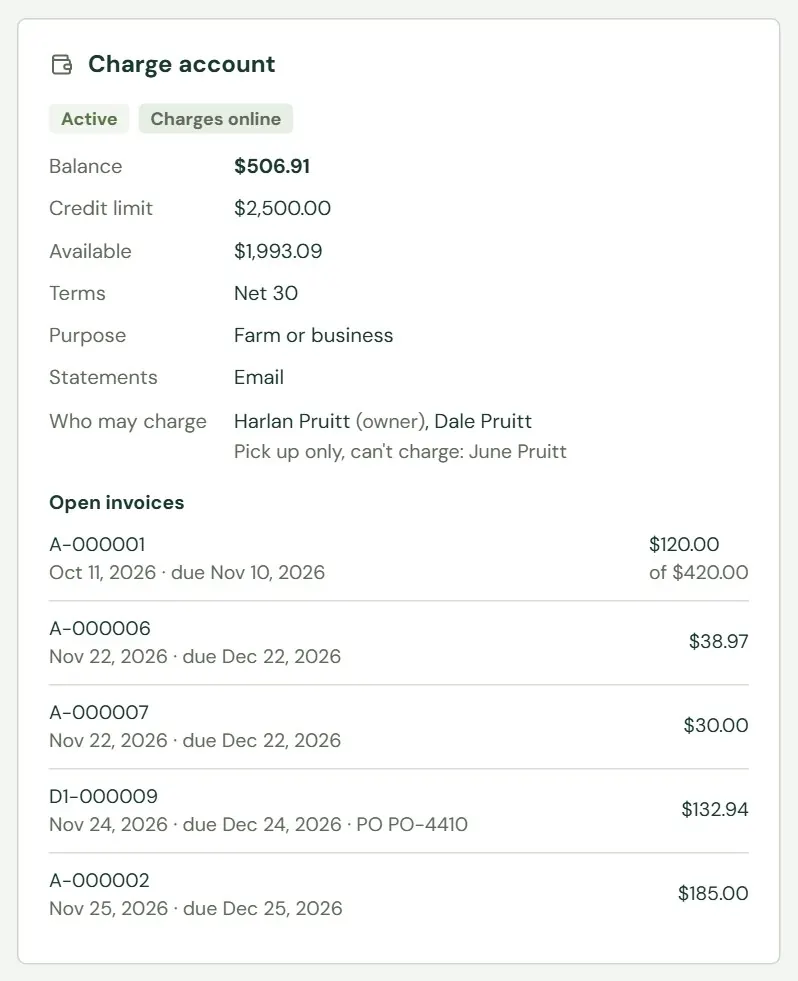
- 1Balance is what the customer owes today.
- 2Available is what the account can still charge.
- 3Who may charge names the owner first, then each authorized buyer.
- 4Pick up only, can't charge names people who may collect orders and nothing more.
- 5Open invoices lists what is unpaid, with each due date.
- Open the customer and read Who may charge on the Charge account card. The owner comes first, marked (owner), then every authorized buyer.
- Read the line under it. Pick up only, can't charge lists the contacts who may collect the account's orders. They cannot put a purchase on the account.
- To add or remove a buyer, go to the Contacts card on the same page. Tick or untick Authorized to buy on this account for the person: Set who may buy and who may pick up, in Chapter 33 of Core Roadside.
Ticking Authorized to buy on this account lets that person charge to the business from the next sale. Tick it only when the account's owner has said so.
An account with no primary contact reads Nobody yet, with the note Add the account's owner (its main contact) before it can be charged to. The change worked when the person's name is on the Who may charge line. At the register the cashier names the buyer on a charged sale, and the receipt prints the name beside Bought by: Print a receipt or the store's copy, in Chapter 5.
Put an account on hold, or close it
Included on every plan except Static Website and Online Store.
A hold stops a customer charging while a bill is sorted out. Closing is for an account that is finished. Neither one changes what the customer already owes.
- Hold (on a charge account)
- A stop on further charges to the account. A second manager can still approve one sale at a register that is online.
The cashier sees the reason you type, at the counter, with the customer standing there. Write it so it can be read aloud.
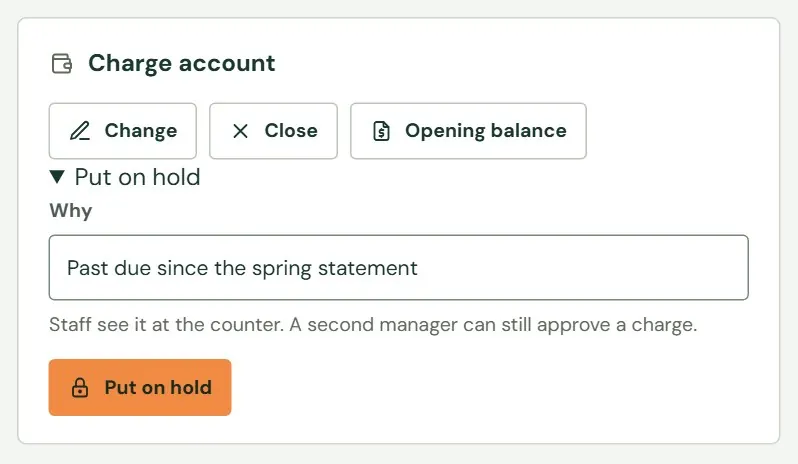
- 1Change opens the form for the limit, terms and statements.
- 2Put on hold opens the box for the reason.
- 3Why: type the reason the counter will read.
- 4Close ends the account for further charges.
- Open the customer and press Put on hold at the foot of the Charge account card. It shows on an account that is Active.
- Type the reason in Why, up to 300 characters, such as the screen's example, Past due since the spring statement.
- Press Put on hold. Roadside says On hold. Charges to it are refused unless a second manager approves one. The card reads On hold: and your reason.
- To lift it, press Release hold. Roadside says Released. The account can be charged again.
At the register a charge to a held account is refused with the reason, unless a second manager, someone other than the cashier, approves that one sale with their own Counter PIN. That approval needs the register to be online. A register that is offline refuses a held account outright, and no manager can approve the sale there (Know what a register may put on a charge account while offline, in Chapter 7).
Close an account, and reopen it
Press Close on the card. Roadside asks Close this charge account? It takes no new charges. Payments still go on it, and you can reopen it. A closed account takes no charge at the register, and no manager's approval changes that. What is owed stays owed.
The list of accounts on Take a payment leaves closed accounts out, so take the customer's last payment before you close, or reopen the account to take one. On a closed account the button reads Reopen, and the account comes back Active with the limit and terms it had.
Either change worked when the account is under On hold or Closed on the Charge accounts list.
Something here does not match your screen? Write to support@dirtroadsoftware.com with the name of the screen, what you pressed and what you expected. A picture of the screen helps.