
Take orders ahead for things that arrive later
Spring chicks and plant starts sell before they arrive. Preorders lets a customer reserve a spot in a delivery, at the counter, by phone or on the website, and pay when they pick up.
In this chapter
Set up a product customers reserve ahead
Included on every plan except Static Website and Online Store.
The Store owner sets Preorders up once from Store account > All of Roadside (Set up a tool the store already has, in Chapter 3 of Core Roadside). On that setup sheet the tool is called Bookings; once set up, the menu and screens call it Preorders. Preorders reserves spots in a future delivery and takes no money: customers pay when they pick up.
- Preorder
- An item a customer reserves before it arrives and pays for at pickup.
- Arrival batch
- One delivery of a pre-order product, with its arrival date and how many are coming.
The Preorders list explains what belongs here: Products whose Availability is Preorder, like spring chicks and plants. Customers reserve a spot in an arrival batch and pay when they pick up.
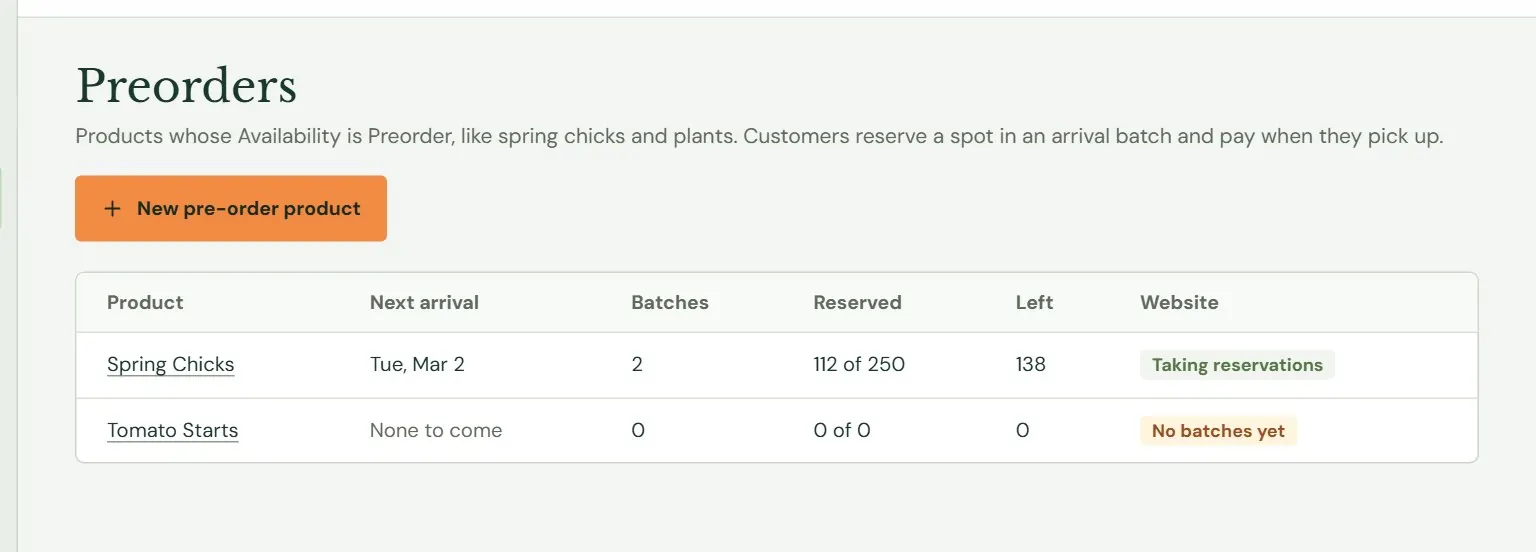
- 1New pre-order product starts a draft pre-order product.
- 2Next arrival shows the earliest upcoming date, or None to come.
- 3Left counts open spots across the product's batches.
- 4Website shows the product's online status badge.
The list shows Product, Next arrival, Batches, Reserved, Left and Website. Press a product's name to open its Preorders page. The Website badge reads No batches yet when no batch exists, Draft while the product is still a draft in Products, or Not on the website when it is hidden or set to In the store only. An active online product with a batch reads Taking reservations, and a stopped one reads Not a pre-order now.
Setting a product as a pre-order prevents it from being bought online as an ordinary item: the website offers a reservation instead. Both Store owners and Managers can set up pre-order products; someone without product editing permission sees Changing a product needs permission to edit products. Ask a manager.

- 1Name, up to 200 characters.
- 2Price each, paid at pickup.
- 3Department, or None.
- 4Save and add a batch saves the draft and opens the first batch form.
- Open Sales > Preorders and press New pre-order product.
- Type Name (placeholder Spring Chicks) and Price each. The screen notes: Customers pay this when they pick up. To offer breeds or kinds, add them as options on the product's page later.
- Choose a Department (or None) and add a Description (up to 4,000 characters) if wanted.
- Press Save and add a batch. Roadside saves the draft and opens the batch form, confirming: <name> is saved as a draft pre-order. Add its first arrival batch, then put it on the website from its page in Products.
For a product already in Products, open it in Products and press Take reservations for this product on its Preorders card (or open an earlier pre-order in Preorders and press Take reservations). It appears in the Preorders list with No batches yet until you add one. Add breeds or kinds in Products (Build the list of choices customers pick, in Chapter 16 of Core Roadside) and publish the product when ready (Put a finished product on the website, in Chapter 14 of Core Roadside). For regular online checkout rules, see Choose what goes in the cart and order form, in Chapter 24 of Core Roadside.
Add an arrival batch
Included on every plan except Static Website and Online Store.
Preorders must be set up for your store first (Set up a product customers reserve ahead, in Chapter 10).
Each arrival batch is one delivery: when it arrives, how many are coming and how many one website shopper may claim. As the screen states: A batch is one arrival: the day or week it comes in and how many. Customers reserve spots in it until it's full.
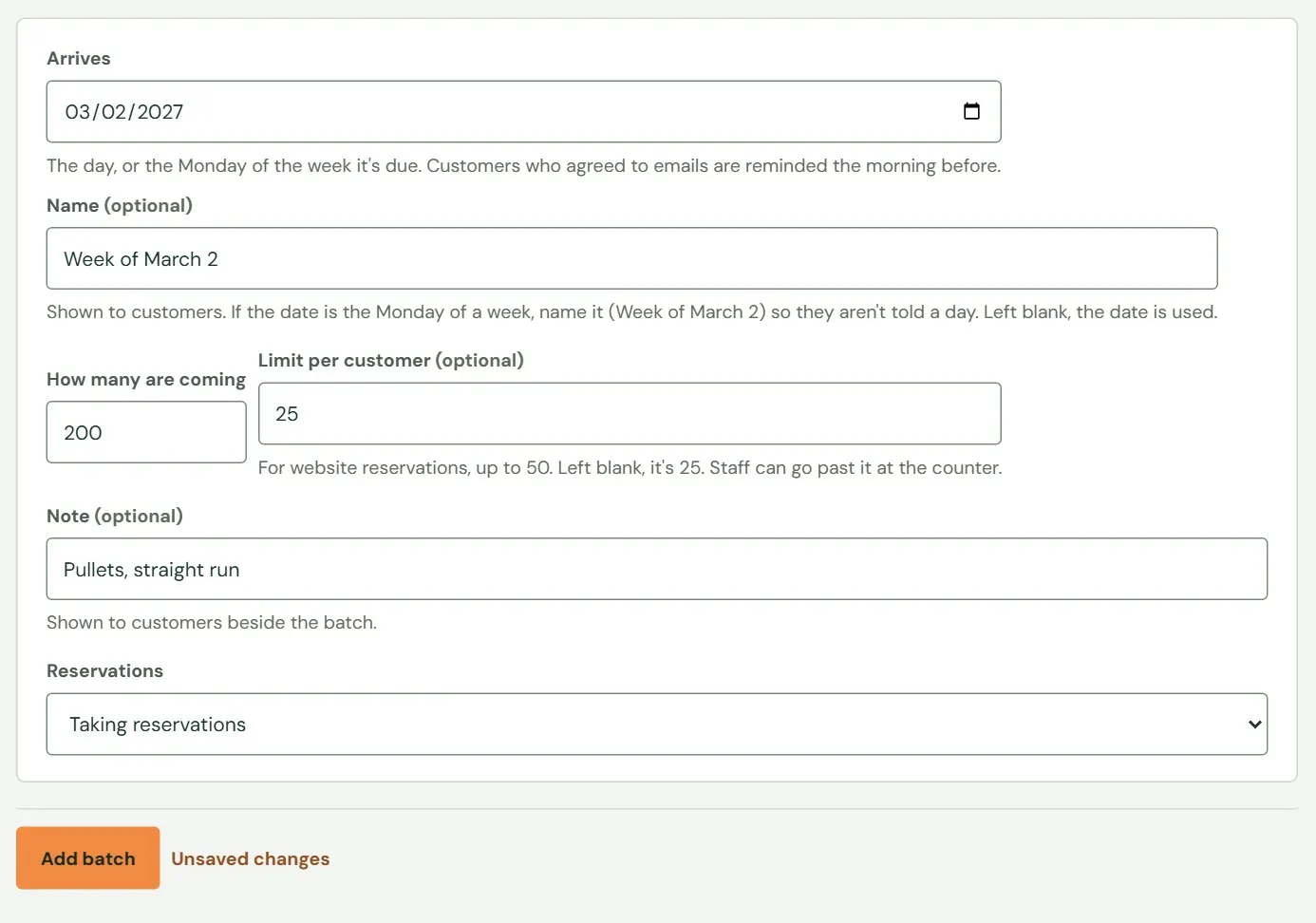
- 1Arrives sets the delivery day, or Monday of the arrival week.
- 2How many are coming sets total spots.
- 3Limit per customer (optional) caps online orders, 1 to 50.
- 4Reservations sets Taking reservations or Not taking reservations.
- 5Add batch saves the batch card.
- Open the product under Sales > Preorders and press Add a batch.
- Set Arrives. The hint says: The day, or the Monday of the week it's due. Customers who agreed to emails are reminded the morning before.
- Type Name (optional) (up to 80 characters, placeholder Week of March 2). Name a Monday-of-week arrival so customers do not expect a single day; left blank, Roadside prints the date.
- Choose For when the product has pre-order options: pick Any or one choice (such as a breed), and add a batch for each choice coming in.
- Type How many are coming (up to 100,000) and Limit per customer (optional). The screen notes: For website reservations, up to 50. Left blank, it's 25. Staff can go past it at the counter.
- Add a Note (optional) (up to 200 characters, placeholder Pullets, straight run), leave Reservations on Taking reservations and press Add batch.
Roadside confirms Batch added. and shows the batch card on the product's Preorders page.
Before changing Arrives on a batch that has reservations, check the screen's warning: Changing it emails the new date to the reserved customers who agreed to emails, and lists the rest to call. After saving, the banner reads Its new date is <date>. Emailed N customers the new date. Call ... When no customer could be emailed, it says Nobody was emailed. in place of the count.
Press Edit on any batch card to update it and press Save batch (Batch saved.). How many are coming cannot go below the number already reserved, For is locked once reservations exist, and an arrived batch keeps its date (It has arrived, so its date stays.). If nobody holds a spot in a batch, Edit batch offers Remove this batch (Only a batch nobody has reserved in can be removed.), which confirms Batch removed. A batch that has ever had a reservation, even a cancelled one, is refused with This batch has reservations, so it stays. Set it to Not taking reservations instead.
Take a reservation at the counter or by phone
Included on every plan except Static Website and Online Store.
Preorders must be set up for your store first (Set up a product customers reserve ahead, in Chapter 10).
Record phone-in and walk-in preorders in Roadside. As the screen states: For a customer at the counter or on the phone. They pay when they pick up. No money is taken here, and counter reservations hold their spots right away.
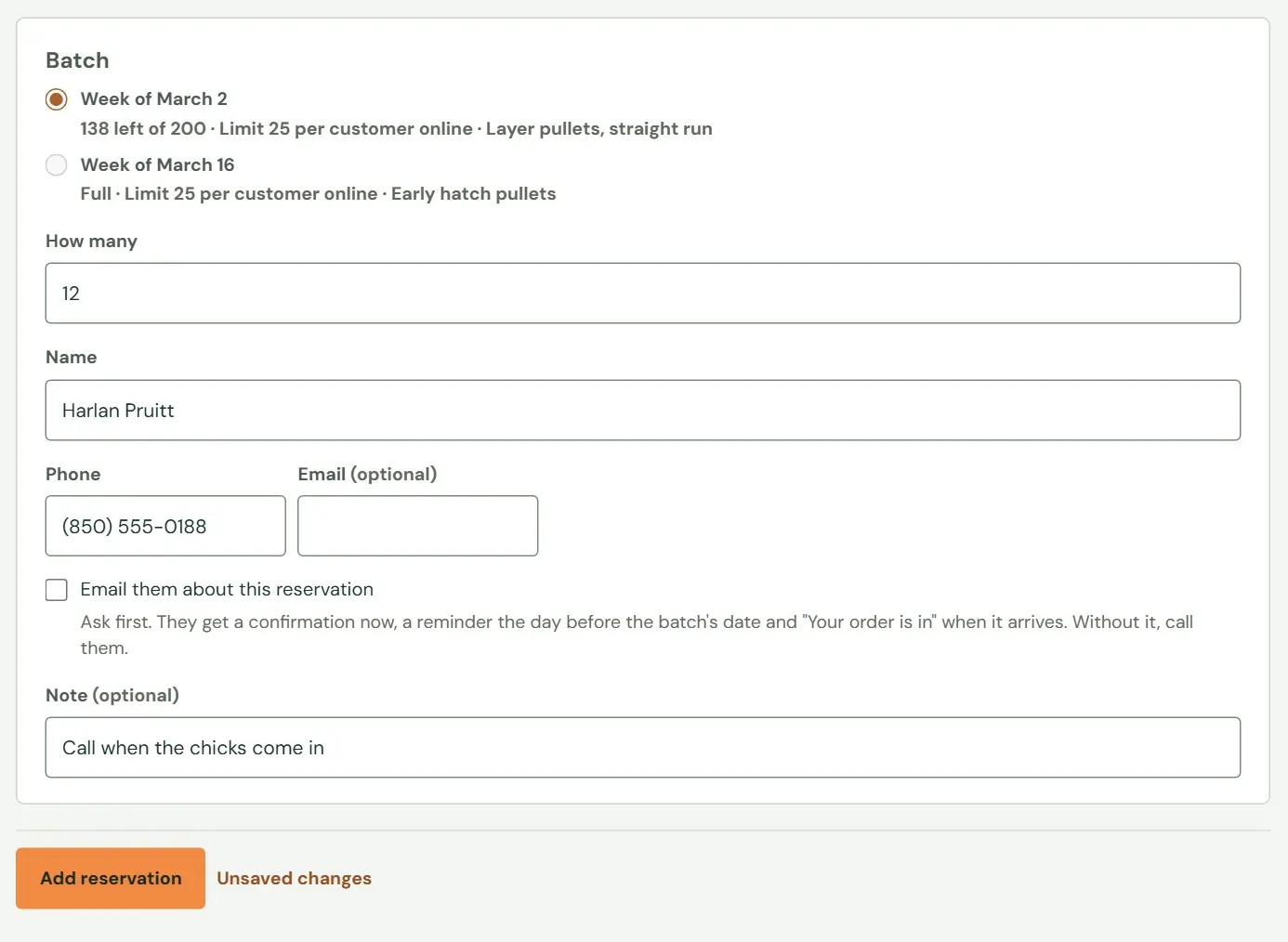
- 1Batch lists each upcoming arrival; full or closed batches are dimmed.
- 2How many sets the quantity, 1 to 1,000.
- 3Name records who the reservation is under.
- 4Email them about this reservation sends emails when ticked.
- 5Add reservation holds the spots in the batch.
Ask the customer before ticking Email them about this reservation. With it ticked and an email entered, pressing Add reservation sends a confirmation email right away.
- Open the product under Sales > Preorders and press Add a reservation at the top or on the batch card.
- Choose the Batch. Full, closed or arrived batches cannot be picked; leaving it blank gives Pick the batch the reservation is for.
- Type How many (1 to 1,000). Staff can go past the batch's online limit, up to the spots left.
- Type Name (required, up to 160 characters), Phone (up to 40) and Email (optional) (up to 254), with at least a phone number or email.
- Tick Email them about this reservation only if they agree. The screen warns: Ask first. They get a confirmation now, a reminder the day before the batch's date and "Your order is in" when it arrives. Without it, call them.
- Add a Note (optional) (up to 500 characters) if needed and press Add reservation.
Roadside returns to the batch card with Reserved <n> for <name>. They'll get a confirmation email. (when emailed). The batch's n of m reserved total goes up, and the row shows source At the counter. This job stays in Roadside; at pickup, ring up the payment as an ordinary sale.
Put a customer on the waiting list
Included on every plan except Static Website and Online Store.
Preorders must be set up for your store first (Set up a product customers reserve ahead, in Chapter 10).
When a batch is full, or has fewer spots left than a customer wants, add them to its waiting list. The waiting list holds nothing: when spots open, the first to reserve gets them. The Add to waiting list button is on a full batch's card only. For a batch that still has some spots, open the form from a full batch of the same product and choose the batch you mean under Batch. If the product has no full batch, reserve the spots that are left.
- Waiting list
- People who want spots in a full batch. Joining holds nothing for them.
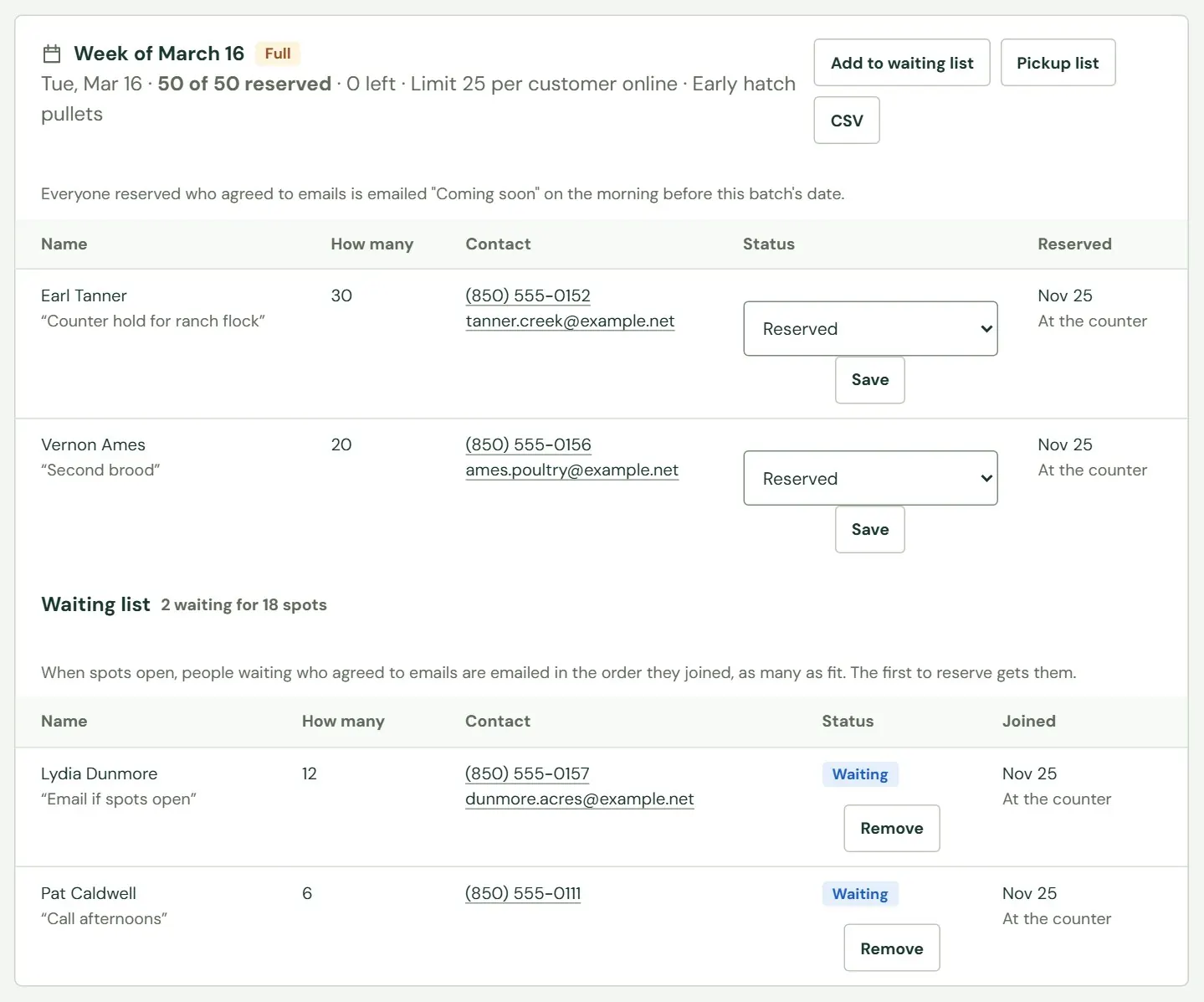
- 1Add to waiting list adds a customer to this batch's line.
- 2Shows how many people wait and for how many spots, or Nobody waiting.
- 3Remove takes someone off the waiting list.
- Open the product under Sales > Preorders and press Add to waiting list on the full batch card.
- Confirm the Batch and type How many (1 to 1,000), Name, Phone, Email (optional) and any Note (optional). Roadside needs a phone number or an email, one of the two at least.
- Ask before ticking Email them about the waiting list. The hint notes: Ask first. They're emailed when they join and if spots open up. Without it, call them.
- Press Add to the waiting list. Roadside confirms Added <name> to the waiting list for <n>. They'll be emailed if spots open up. (or Call them if spots open up.).
The customer appears under Waiting list with Name, How many, Contact, Status and Joined (one active place per person per batch). Spots can open on an open batch while your website is taking reservations for that product. Roadside then emails waiting people who agreed to emails, in the order they joined (status Emailed that spots opened). It passes over anyone who wants more spots than are still open to offer. The batch card lists anyone without email approval in a call prompt. While the website is not taking reservations, nobody is emailed: call the people on the list. Press Remove beside a row to take someone off (<name> is off the waiting list.); customers who joined online can also leave on their own (Left the list).
Mark a batch arrived and hand it out
Included on every plan except Static Website and Online Store.
Preorders must be set up for your store first (Set up a product customers reserve ahead, in Chapter 10).
When the delivery reaches the store, a Store owner or Manager marks the batch arrived so reserved customers hear their order is in. Anyone on the team can print the pickup sheet, and Staff, Managers and Store owners update statuses as customers collect.
Press Mark batch arrived only when the shipment is physically in the store. It emails every reserved customer who agreed to emails that their order is in (with your pickup hours from Store info), locks the batch as Arrived, and cannot be unsent.
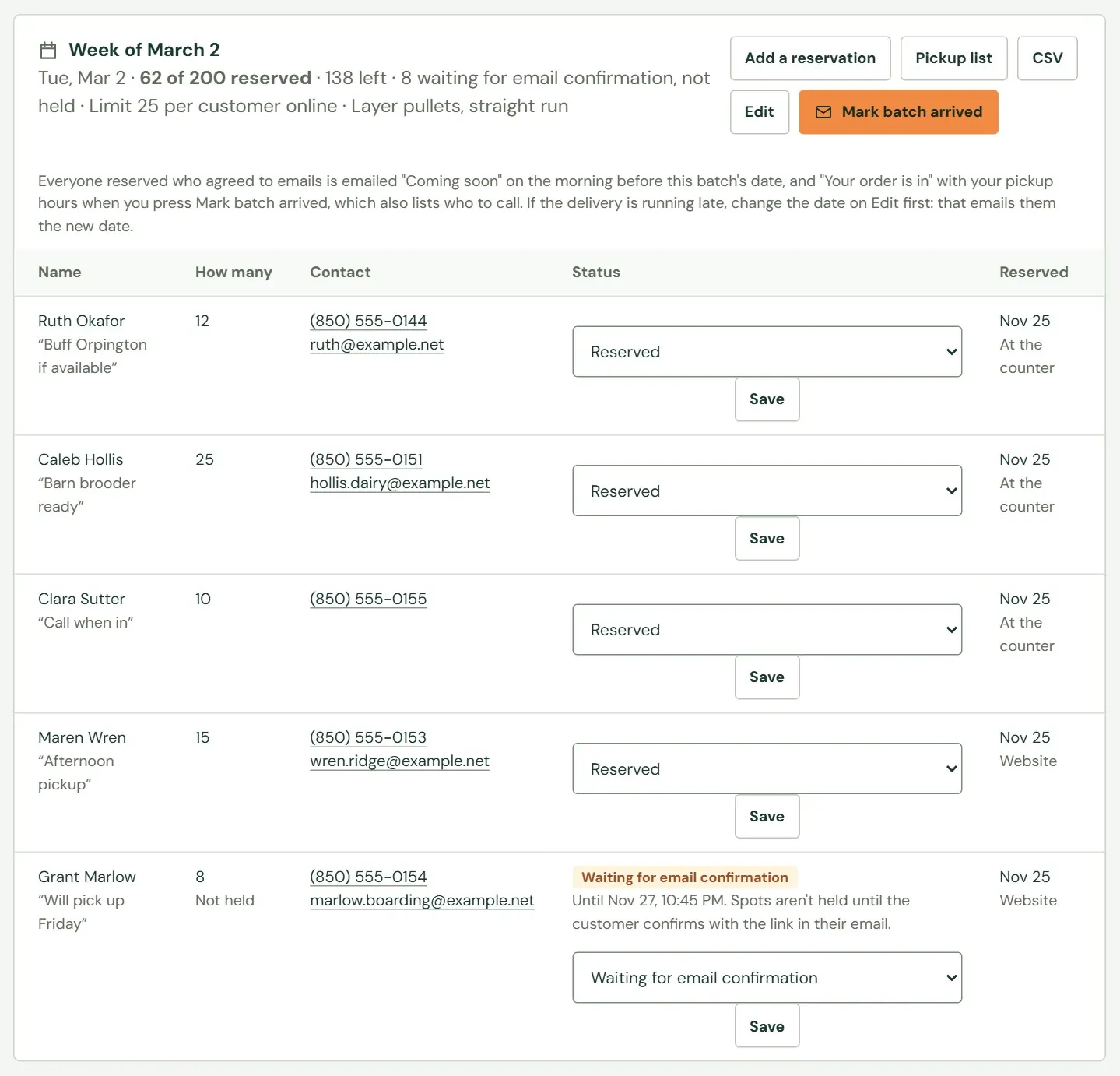
- 1Add a reservation adds a counter or phone-in reservation.
- 2Shows n of m reserved and how many spots are left.
- 3Status changes a row's state when saved with Save.
- 4Mark batch arrived marks the delivery in and emails reserved customers.
- 5Pickup list opens the printable check-off sheet.
- Open the product under Sales > Preorders, verify the shipment, and press Mark batch arrived (Store owner or Manager). The batch shows Arrived with Marked arrived ..., reserved rows move to Arrived, told, and Roadside reports: Emailed n customers that their order is in. Call <names>: they don't get emails about their reservation. When no customer could be emailed, it says Nobody was emailed. in place of the count.
- Call the customers listed in that message (or rows showing (no emails) under Contact).
- Press Pickup list on the batch card (or at the top of the page for all batches) and print from the tab that opens.
- At pickup, take payment as an ordinary sale, tick the customer off the sheet, choose Picked up in their row's Status list and press Save (Roadside confirms <name>: Picked up.).
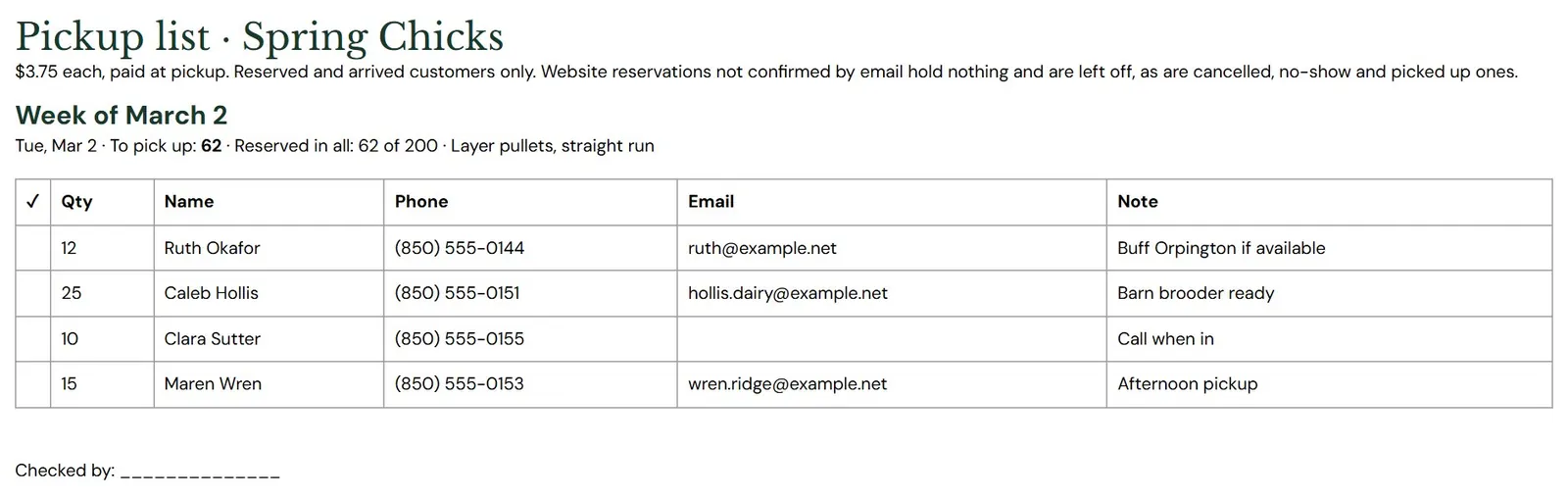
- 1To pick up totals units still waiting to be collected.
- 2Qty shows each customer's reserved count.
- 3Checked by gives a signature line for handover.
The pickup list prints ✓, Qty, Name, Phone, Email, Note and Checked by: ______________. Its note states: Reserved and arrived customers only. Website reservations not confirmed by email hold nothing and are left off, as are cancelled, no-show and picked up ones.
Staff, Managers and Store owners choose from five statuses on each row and press Save: Reserved, Arrived, told and Picked up hold spots in the batch; Cancelled and No-show return the spots to the batch. Changing one of those back to a status that holds spots is refused when the batch has no room left. Website reservations not confirmed by email read Waiting for email confirmation or Not confirmed in time, hold nothing and cannot be picked by staff.
Press Export CSV (all batches) or CSV (one batch) to download every status in a spreadsheet. Its columns are Product, Batch, Arrives, Choice, Name, Phone, Email, Quantity, Status, Source, Customer note, Staff note, Reserved at and Picked up at.
See what the customer does on the website
Included on Counter + Online Store and Whole Store plans.
Preorders must be set up for your store first (Set up a product customers reserve ahead, in Chapter 10).
On the Counter and Counter + Stock plans: Reservations are taken at the counter and by phone only. Online reservations require the online store with online ordering switched on.
When online ordering is open (Open checkout or let customers browse only, in Chapter 24 of Core Roadside) and the pre-order product is published with an open batch, its Preorders page reads Taking reservations on the website and at the counter. The foot of that page gives a reserve-page address you can share in a post or text.
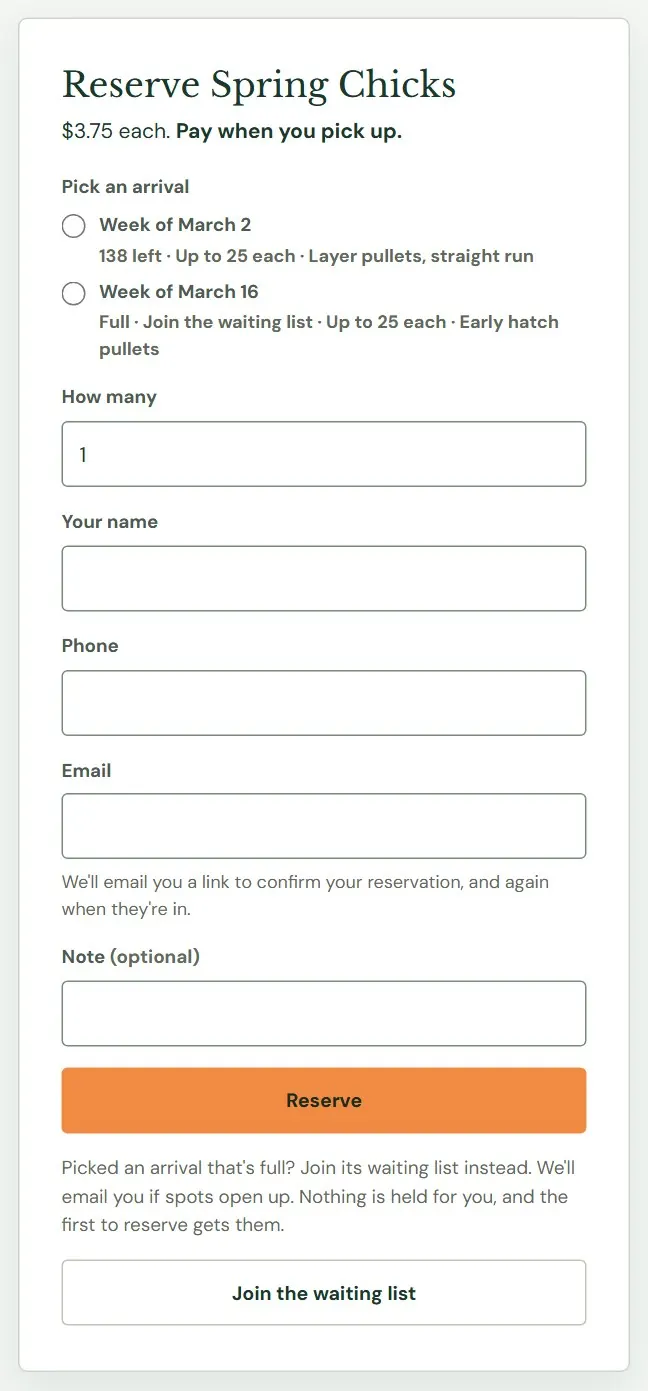
- 1Pick an arrival lists open and full batches with caps.
- 2How many accepts a quantity up to the online limit.
- 3Reserve emails the customer a confirmation link.
- 4Join the waiting list puts them in line for a full batch.
- The customer opens Reserve <product>, chooses Pick an arrival, enters How many, Your name, Phone and Email, and any Note (optional). The page requires the phone number and the email. The customer then presses Reserve (or Join the waiting list on a full batch). A customer with no email address cannot reserve on the website: take the reservation at the counter or by phone (Take a reservation at the counter or by phone, in Chapter 10).
- Roadside emails a confirmation link. The page states: Check your email to confirm your reservation and Open it and choose Confirm my reservation within 48 hours. Your spots aren't held until you do. Until confirmed, Roadside shows waiting for email confirmation, not held and leaves the row off the pickup list.
- The customer presses Confirm my reservation from the email. While room remains within their limit, their spots are held, the row appears with source Website, n of m reserved increases, and your store's order email gets a notice.
- To cancel, the customer opens that email link and presses Cancel my reservation, freeing their spots and emailing your store. Cancelling a request that was never confirmed sends your store nothing, because it held no spots.
If a customer reports This link doesn't work. It may have been copied incompletely., have them open the link straight from the email, or handle it from the batch card. After 48 hours without confirmation, the row reads Not confirmed in time and holds nothing. On the reserve page whose address you share, every customer confirms from the email. On your website's own product page, a signed-in shopper reserving under their verified account email holds spots straight away. The online limit counts everything held in that batch under the same email or phone number.
Stop taking reservations for a product
Included on every plan except Static Website and Online Store.
Preorders must be set up for your store first (Set up a product customers reserve ahead, in Chapter 10).
Close a single batch on its own, or stop reservations for the whole product at the end of the season. Existing reservations stay on file either way.
As the screen warns: Stop taking reservations sets the product's Availability back to "In stock while there are some". Reservations already made stay. Each choice's Availability is also in the product's Options in Products. After you press it, the product sells as an ordinary item wherever it is published for sale. If its stock is counted, check its stock on hand in Products (Record a delivery, shelf count or damaged bag, in Chapter 18 of Core Roadside) first. A product made with New pre-order product is not counted, so it shows as in stock from then on.
- To close one batch: open the product under Sales > Preorders, press Edit on that batch, choose Not taking reservations under Reservations and press Save batch. Other batches stay open, and you can reopen it until it is marked arrived.
- To end reservations for the product: press Stop taking reservations on the product's Preorders page.
Roadside confirms <name> isn't a pre-order any more, so it takes no new reservations. The ones it has stay., and the Preorders list shows Not a pre-order now. You can still print the pickup list, export the CSV and update remaining pickups. Next season, press Take reservations on the product's Preorders page to start again.
Something here does not match your screen? Write to support@dirtroadsoftware.com with the name of the screen, what you pressed and what you expected. A picture of the screen helps.