
Add finance charges and late fees
A store can add a monthly finance charge, a flat late fee, or both to accounts that are past due. Both are off until the Store owner turns one on and confirms the terms were reviewed for the store's state.
In this chapter
Turn on a finance charge
Included on every plan except Static Website and Online Store.
Finance charges and late fees are set on Charge account settings, behind the Settings button on Statements. The button shows only to the Store owner, and only the Store owner can change the settings. A person below Store owner whose role has been given the screen sees every field greyed out, with the notice Only the Store owner or the Owner can change these., and no button to save.
- Finance charge
- A monthly percentage added to the part of a balance that is past due.
- Grace period
- How many days past due an amount can be before a finance charge applies to it.
Roadside adds the charge when the month's statements are made, never in between. On each account it works out what was past due by more than the grace period on the statement's last day, less any credit not yet applied, and charges the monthly rate on that, rounded half up to the cent. A payment dated after the statement's last day does not lower that month's charge.
- A finance charge is never added to an earlier finance charge or late fee, so charges do not compound.
- An account that owed nothing on the statement's last day is not charged. An account on hold or closed that still owes is.
- No charge on less than ($ past due) skips accounts whose past-due amount is under the figure you type.
- Minimum charge ($) raises a smaller charge to that figure, but never above the past-due amount itself.
- Each charge is its own invoice on the account, dated the statement's last day and due when that statement is due.
- An account is charged once per statement period. Making the same period's statements again does not charge twice, but statements for another date start a new period, which is charged again.
Set each account's purpose first
Each charge account has a Purpose: Household, Farm or business or Needs review (Open a charge account with a limit and terms, in Chapter 15). While any account is a household account or still needs review, the settings screen shows a notice. While both are off it begins Before you turn on finance charges or late fees:. It counts those accounts and says Household accounts carry extra state and federal rules for interest and fees, telling you to check with your lawyer. Sort those accounts out before you turn a charge on.
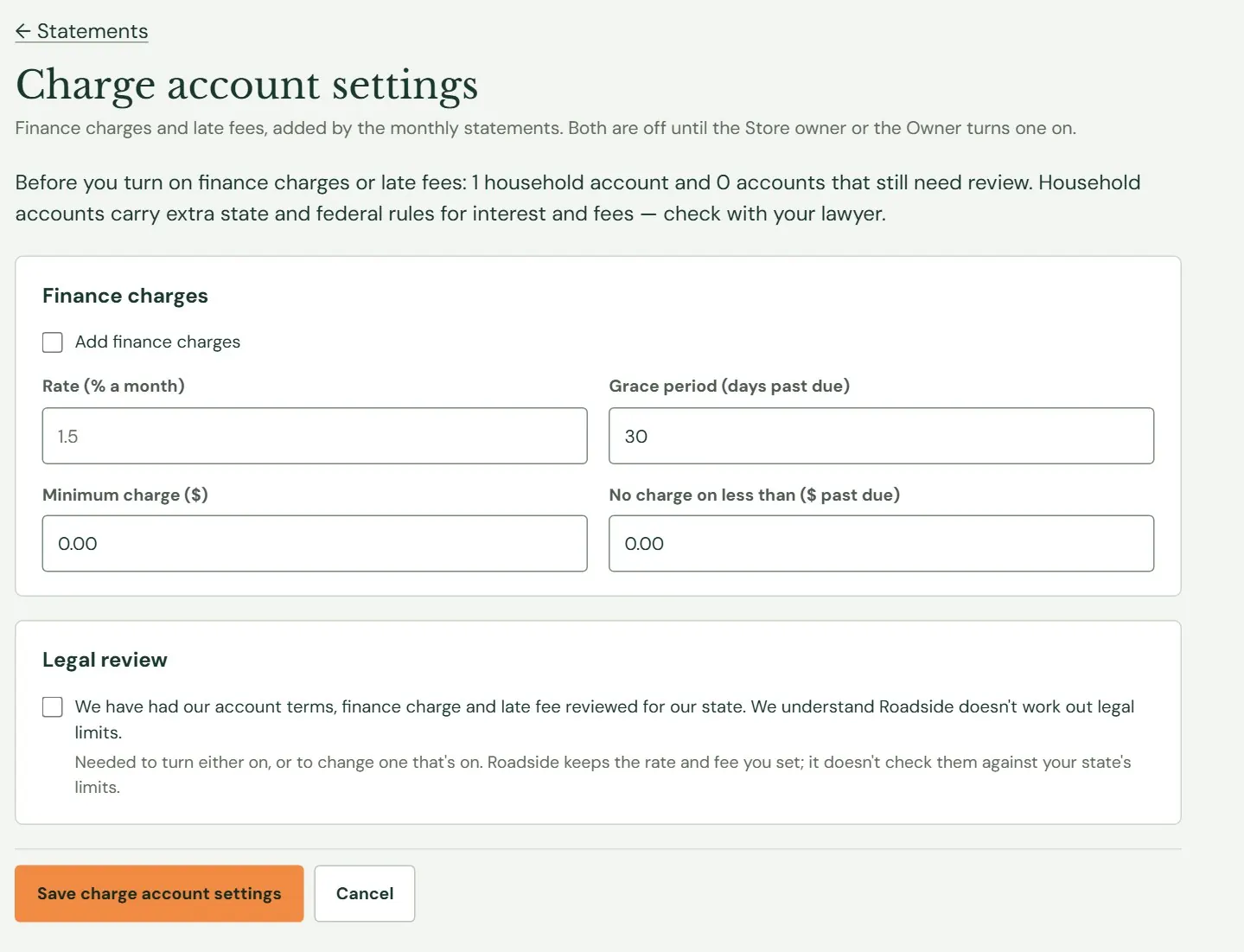
- 1Add finance charges: tick to turn them on.
- 2Rate (% a month): type the monthly rate your terms give.
- 3Grace period (days past due): days before an amount is charged.
- 4Legal review: tick to confirm your terms were reviewed for your state.
- 5Save charge account settings keeps your choices.
- Go to Customers, Charge accounts, Statements, and press Settings.
- Tick Add finance charges.
- Type the monthly percentage in Rate (% a month). The grey figure in an empty box is a placeholder, not a suggestion.
- Set Grace period (days past due), from 0 to 365. It starts at 30.
- Fill in Minimum charge ($) and No charge on less than ($ past due) if your terms have them. Leave them empty if not.
- Tick the box on the Legal review card. It reads We have had our account terms, finance charge and late fee reviewed for our state. We understand Roadside doesn't work out legal limits. Under it: Needed to turn either on, or to change one that's on. Roadside keeps the rate and fee you set; it doesn't check them against your state's limits.
- Press Save charge account settings. Roadside asks you to confirm it is you before it saves, as it does for other sensitive changes (Change a role or remove someone who left, in Chapter 41 of Core Roadside).
From the next statements made, every account past due by more than the grace period is charged, and the charge prints on statements that go to customers. If Roadside prepares the statements on a schedule, that counts too (Have Roadside prepare each month's statements, in Chapter 27). Roadside keeps the rate you type and does not check it against any law. Tick the legal review box only once your store has had its terms reviewed for your state, as the screen asks.
It worked when the message reads Finance charge and late fee settings saved. and the Legal review card shows Last confirmed with the date. Each statement made after that prints your rule in its terms. A save without the rate is refused with Set the rate first., and one without the tick with Tick the box to confirm your legal review first.
Change the rate or turn it off
Changing any finance-charge figure while it is on needs the legal review tick again. To stop charging, untick Add finance charges and save; turning off needs no tick. No new charges are added after that. Charges already added stay on the accounts until they are paid or credited (Find a charge on a statement and take one off, in Chapter 21).
Turn on a late fee
Included on every plan except Static Website and Online Store.
A late fee is one flat amount per statement period, added when the statements are made, to an account with anything past due by more than the days you set. It is on the same Charge account settings screen as finance charges. A store can use either one or both.
- Late fee
- A flat amount added once per statement period while something on an account is past due.
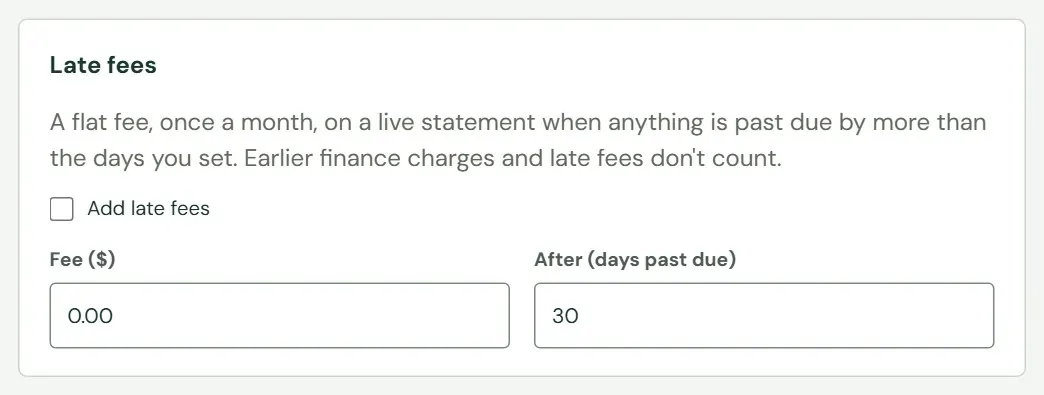
- 1Add late fees: tick to turn them on.
- 2Fee ($): type the flat amount.
- 3After (days past due): days before the fee applies.
- Open Settings on Statements and tick Add late fees.
- Type the amount in Fee ($).
- Set After (days past due), from 0 to 365. It starts at 30.
- Tick the box on the Legal review card, as for a finance charge.
- Press Save charge account settings and confirm it is you.
The fee is added to customers' accounts on the next statements made, once per statement period, for every account with an amount past due by more than the days you set. Earlier finance charges and late fees do not count toward it. Roadside does not check the fee against your state's limits; the store confirms its terms were reviewed, as the screen asks.
It worked when the message reads Finance charge and late fee settings saved. and the next statements print the fee in their terms. A save without an amount is refused with Set the fee first. Unticking Add late fees and saving stops new fees. Fees already added stay on the accounts.
Find a charge on a statement and take one off
Included on every plan except Static Website and Online Store.
When a customer asks about a charge, show them the statement. Each finance charge or late fee is a line in the activity table, with Finance charge or Late fee under Description and its invoice number under Reference. The statement's terms print the store's rule, in one sentence made from the rate, the minimum charge when one is set, and the days saved in the settings. It begins A finance charge of and the rate.
The same invoice number appears under Open invoices on the customer's Charge account card, dated the last day of that statement.
A credit takes money off what the customer owes, shows on their next statement, and stays in the account's activity once given. Roadside takes any amount: what is more than the charge goes to the oldest other open invoices, never to another finance charge or late fee, and the rest stays on the account as credit.
- Open the customer under Customers, Accounts, and press Give a credit on the Charge account card.
- Type the amount in Amount ($). To take off that charge alone, type the amount open on it.
- Under Apply it to, choose the charge's invoice number. Each line gives the number, its date and the amount open. The hint reads A finance charge or late fee is credited only when you choose it here.
- Say why in Why, up to 500 characters. Staff see the note on the account.
- Press Give a credit. The message reads Credit given.
It worked when the charge's invoice leaves Open invoices on the Charge account card, or shows a smaller amount open. Left at The oldest open invoices, a credit pays the customer's purchases and leaves the fee owing, because Roadside never puts a credit on a finance charge or late fee by itself. Give a credit or add a charge, in Chapter 18 covers the rest of the Give a credit screen.
Something here does not match your screen? Write to support@dirtroadsoftware.com with the name of the screen, what you pressed and what you expected. A picture of the screen helps.