
See who is overdue and show customers their account online
Aging shows who is behind and by how long. On Whole Store, the customer portal lets a charge account's owner read the account's statements and invoices on your website.
In this chapter
See who is overdue
Included on every plan except Static Website and Online Store.
Aging lists what each charge account owed on a date, split by how long it has been owed. Open it with the Aging button on Charge accounts, or the Aging report button on Statements. Making and sending the statements is in Chapter 19, Make and send the month's statements.
- Aging
- What customers owe, sorted by how long it has been owed. Store owners also call it A/R aging.
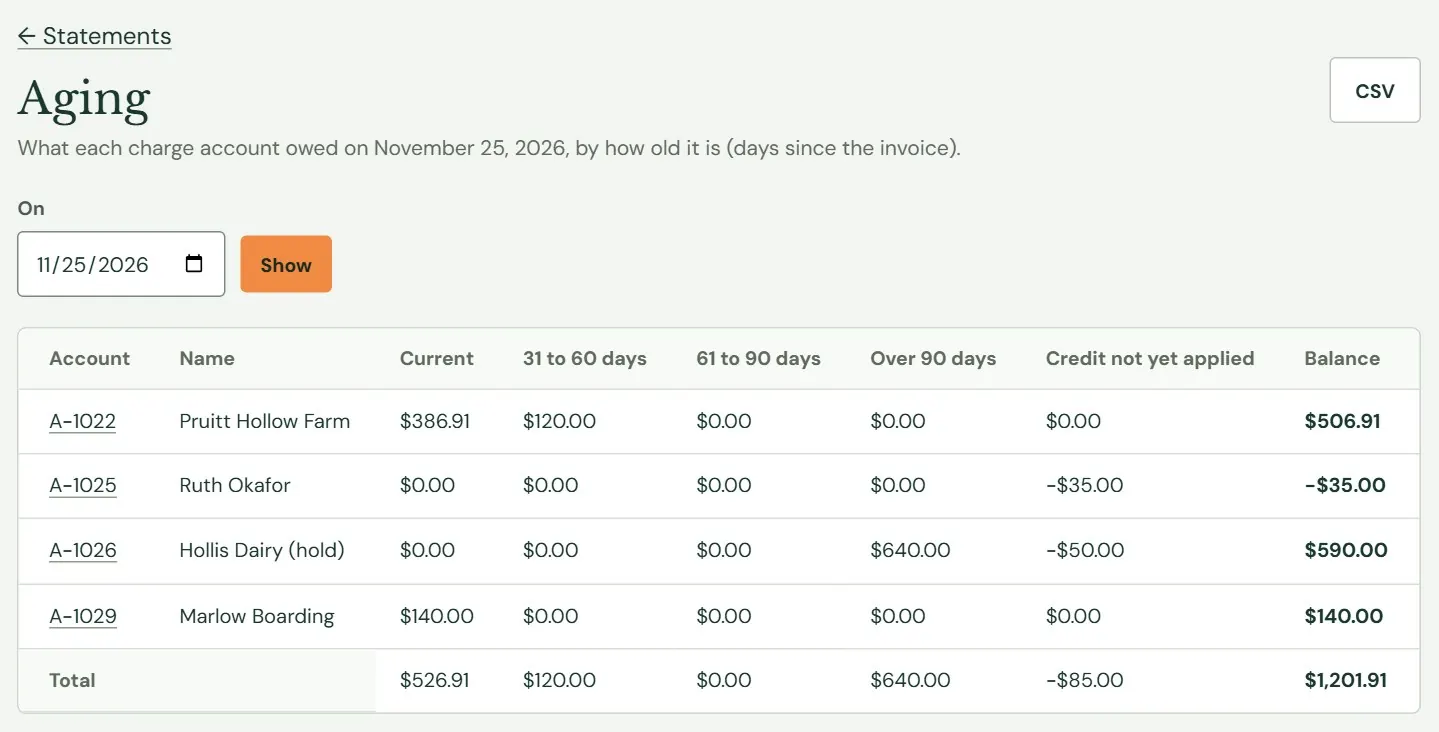
- 1On: choose the date to see, today at the latest.
- 231 to 60 days: amounts from invoices one to two months old.
- 3Over 90 days: the oldest amounts, to chase first.
- 4Balance: what the account owes in all.
- 5CSV downloads the table for a spreadsheet.
- Press Aging on Charge accounts, or Aging report on Statements. The page opens on today's date.
- To see another day, choose it in On and press Show. The line under the heading names the date and how the columns count.
- Read across each account. The columns are Current, 31 to 60 days, 61 to 90 days and Over 90 days, counted from each invoice's date, then Credit not yet applied and Balance. An account that is on hold or closed shows that after its name. The Total row adds up every column.
- Press an account number to open its statement preview for that date.
- Press CSV for the same table as a file named
aging-and the date, with each account's Status and Purpose added.
Some stores have their aging set to count from the due date, and the line under the heading then says days past due. The columns read Not yet due, 1 to 30 days past due, 31 to 60 days past due, 61 to 90 days past due and Over 90 days past due.
It worked when an account's Balance for today's date matches the balance on its Charge account card. When no account has a balance or a credit, the table reads Nothing owed on any charge account.
Read only people can download the CSV too. It holds every account's balance, so keep the file private.
Show the account owner their statements online
Included on the Whole Store plan.
The customer portal lets the owner of a charge account sign in on your website and read the account's statements and invoices. Roadside calls it Customer portal. On the website the customer sees it as Account documents and orders, on their Your account page.
- Customer portal
- The part of the store's website where a charge account's owner reads its statements and invoices.
The Store owner sets it up once, from All of Roadside with Set it up (Set up a tool the store already has, in Chapter 3 of Core Roadside). Switching it off later works the same way as for any tool (Switch off a tool the store set up, in Chapter 3 of Core Roadside). After that, the Customer portal screen under Website shows whether customers can read their documents. It changes nothing itself. Store owners and Managers open it. Staff and Read only do not.
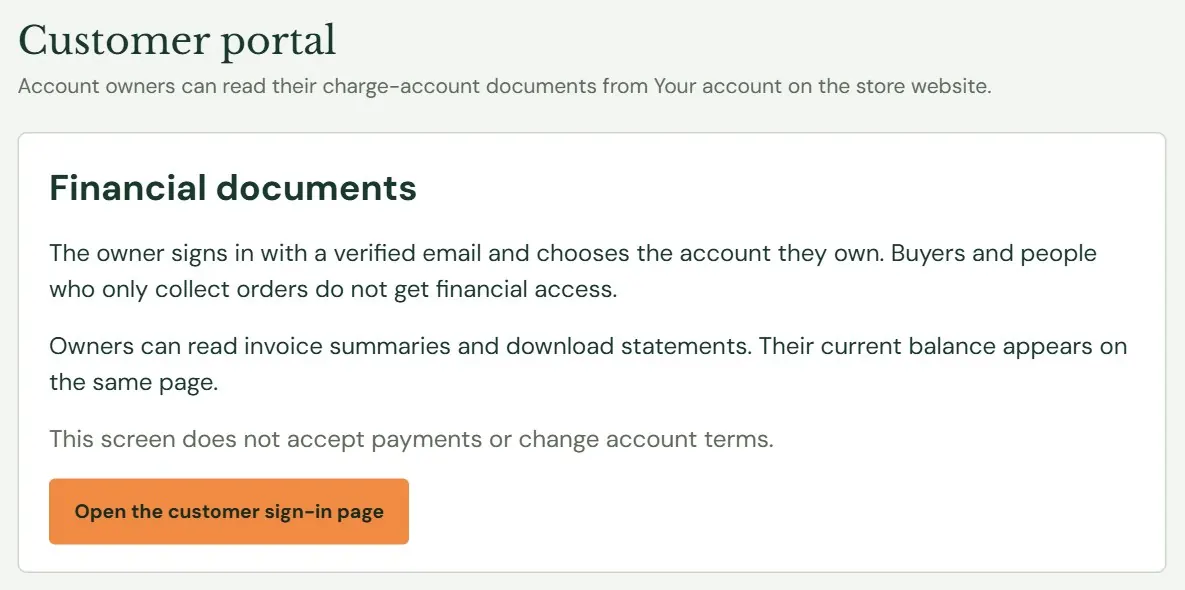
- 1Customer portal: the screen's name in Roadside.
- 2Financial documents: read who can see the account's papers.
- 3Open the customer sign-in page: see the page customers use.
- Go to Website, then Customer portal.
- Check for a warning at the top. With none, account owners can read their documents.
- Press Open the customer sign-in page. Your website's account page opens in a new tab, where customers sign in.
The Financial documents card says who gets in: The owner signs in with a verified email and chooses the account they own. Buyers and people who only collect orders do not get financial access. An authorized buyer can still charge to the account but cannot read its statements. The owner reads invoice summaries, downloads statements and sees the current balance. The portal takes no payments and changes no terms, so the customer still pays at the counter or by check.
A warning that begins Financial access is unavailable until Online ordering and Charge accounts are enabled means one of the two is off for your store. Write to support@dirtroadsoftware.com.
A customer signs in on your website the same way they do to follow an order (Help a customer find or repeat an order, in Chapter 24 of Core Roadside).
Know what the account owner sees on the website
Included on the Whole Store plan.
Once the owner signs in on your website and chooses their account, the Your account page shows a section headed Account documents and orders, with the line View financial documents or build a cart from a past order. Contact the store about payments. These are the words on the Sample store's website. Your website's design may word the headings differently.
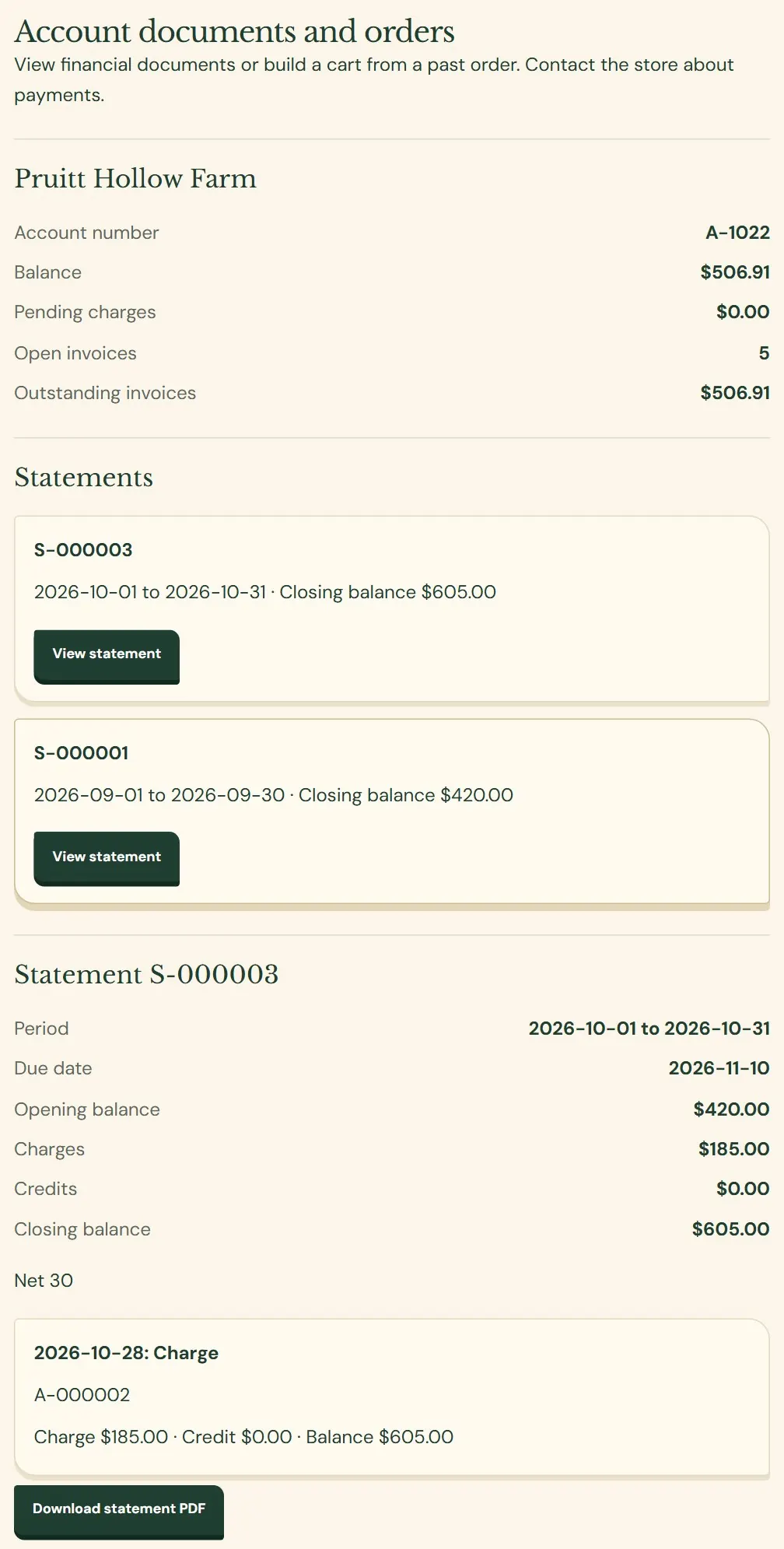
- 1Balance: what the account owes today.
- 2Statements: the account's statements, newest first.
- 3View statement opens one statement on the page.
- 4Download statement PDF saves the statement as a file.
At the top are Account number, Balance, Pending charges, Open invoices and Outstanding invoices. Below come two lists, Statements and Invoices, with View statement and View invoice on each line. A statement opens with its period, opening and closing balance and activity, and the button Download statement PDF. The PDF has the same amounts, dates and balances as the statement Roadside makes, with each line described in plain words such as Charged or Payment and never your staff's notes. An invoice shows Invoice date, Due date, Amount, Applied, Remaining, Status and Purchase order.
Under Order again, the owner picks a past order to see which items are available today, then presses Add selected items to cart. The page says This adds a cart draft. It does not place an order.
When a customer sees nothing
The section stays hidden for anyone on the account who is not its signed-in owner, and for an owner whose account has no charge account. If the documents fail to load for another reason, the page reads Financial documents could not be loaded. Refresh your account to try again.
It worked when the owner's Balance matches the balance on the customer's Charge account card in Roadside.
Something here does not match your screen? Write to support@dirtroadsoftware.com with the name of the screen, what you pressed and what you expected. A picture of the screen helps.