
Keep selling when the internet is down
A counter computer can keep taking cash while the internet is out, if the Store owner allows it. Afterwards, check the sales it brought back and deal with any that need a person.
In this chapter
Let registers take cash sales while offline
Included on every plan except Static Website and Online Store.
Offline selling is off until the Store owner turns it on. The screen explains what it does: When the internet is down, a counter computer can keep taking cash sales for up to 72 hours since it was last online. They upload when it's back.
- Offline
- The register cannot reach Roadside, because the internet or the store's network is down.
- Offline sale
- A sale a register saves on its own computer until it can send it to Roadside.
With this on, a register takes payment for a sale Roadside has not seen yet: cash, and a check when your store takes checks at the counter. Roadside books the sale, its money and its stock, when the register is back online. Cards and charge accounts wait for the connection, and so do refunds.
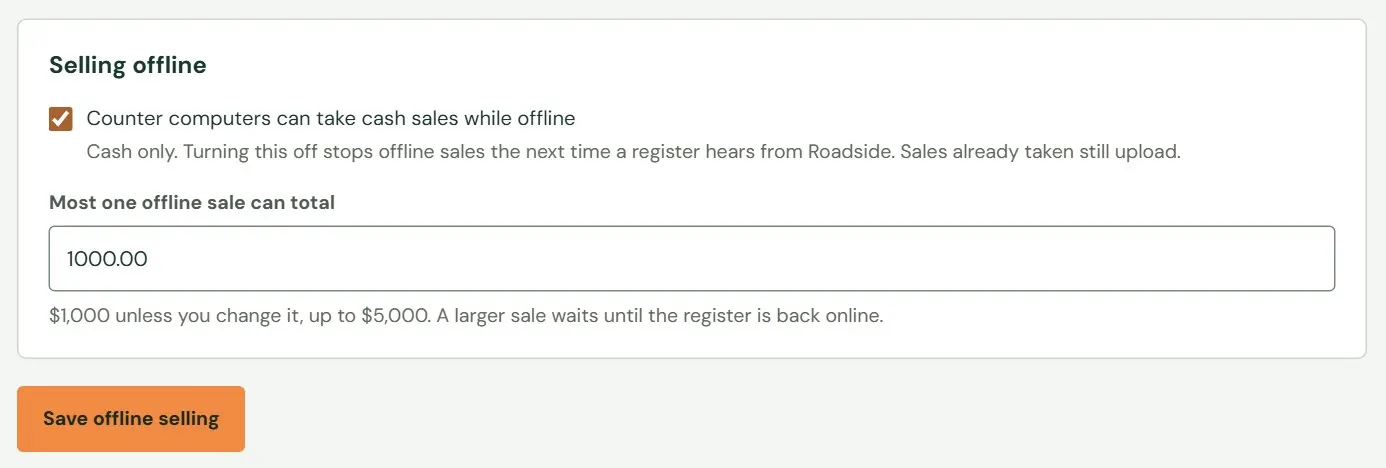
- 1Tick the box to let counter computers take cash sales while offline.
- 2Most one offline sale can total: type your limit for a single sale.
- 3Save offline selling keeps both.
- Go to Store settings, then Registers, and press Offline selling settings. The button is on the Offline selling card.
- Tick Counter computers can take cash sales while offline.
- Set Most one offline sale can total. It is $1,000 unless you change it, and it can be from $1.00 to $5,000.00. A larger sale waits until the register is back online.
- Press Save offline selling. The message begins Offline selling saved. A register that is online gets the change within 15 minutes.
To stop offline selling, untick the box and save. The screen says: Turning this off stops offline sales the next time a register hears from Roadside. Sales already taken still upload. An amount outside the range is refused with The most one offline sale may total is between $1.00 and $5,000.00.
Offline selling is for connected counter computers. It does not apply to a register in a web browser. A Manager cannot change it, and does not see the Offline selling card on Registers.
What the cashier sees and does is in the Crossroads POS manual: Get ready while connected, When the connection drops and What works without Roadside.
Once a register is back online, each offline sale ends one of these ways.
| What happened to the sale | What you do |
|---|---|
| The register sent it and Roadside booked it | Nothing. It is an order like any other register sale. |
| Roadside booked it and wants it looked at | Check the order and mark it checked (Check offline sales that need a look, in Chapter 5). |
| Roadside held it without booking it | Write to Dirt Road with the receipt number (Check offline sales that need a look, in Chapter 5). |
| The computer cannot connect to send it | Save the register's waiting sales to a file and write to Dirt Road (Bring in sales from a register that cannot connect, in Chapter 5). |
Check offline sales that need a look
Included on every plan except Static Website and Online Store.
Most offline sales are booked without anyone looking at them. Offline problems lists the ones that need a person. The line joins the Sales menu once your store has such a sale. Before that the menu does not show it.
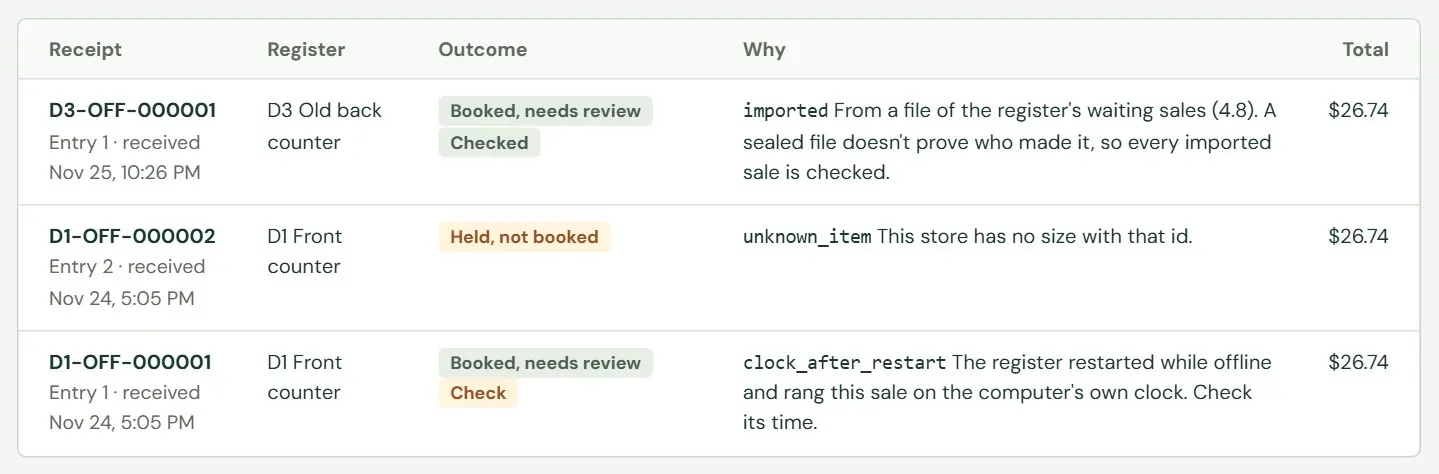
- 1Receipt: the receipt number. On a booked sale, press it to open the order.
- 2Outcome: whether Roadside held the sale or booked it.
- 3Held, not booked: the sale is in no total.
- 4Booked, needs review: money and stock were booked.
- 5Check stays until someone marks the order checked.
The table has the columns Receipt, Register, Outcome, Why and Total, newest first, up to 200 rows. Under each receipt number is the time Roadside received the sale. Why gives Roadside's reason.
| Outcome | What it means |
|---|---|
| Held, not booked | Roadside kept the sale as the register sent it and did not book it. It is in no total and it changed no stock count. The money the cashier took is in the drawer. |
| Booked, needs review | The money and the stock were booked, and the sale is an order. The order shows Check until someone marks it checked. |
A sale that was booked
- Open Offline problems and find a row marked Check.
- Press the receipt number. The order opens with a notice at the top and Mark as checked beside it.
- Compare the order with the register's own record of the sale. Read the row's Why first, then the order's items, total and History.
- Press Mark as checked. The message reads Marked as checked. and the notice is gone from the order. On Offline problems the row's badge reads Checked.
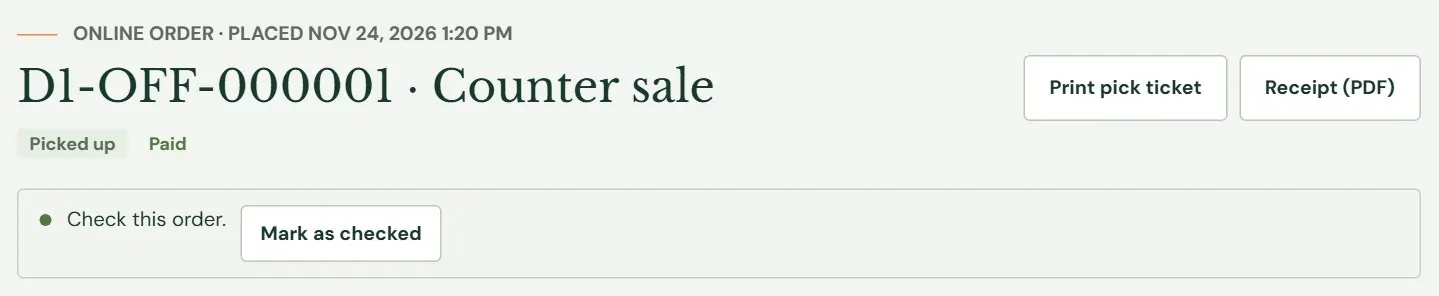
- 1The notice that asks someone to check this order.
- 2Mark as checked clears it, once you have looked.
Store owners, Managers and Staff can mark an order checked. Read only people can read the list and the order. At the register the same sales read Synced with differences or Manager review needed: see Sales saved on this register in the Crossroads POS manual.
A sale that was held
Nothing on this screen books a held sale or clears it. Write to Dirt Road through Support and give the receipt number from the row (Send a question about Roadside, in Chapter 37 of Core Roadside). Do the same for a row whose Why reads Compromised export key or Compromised signing key.
Until a held sale is settled, the drawer holds money that Day summary does not count. Day summary says so for that day, for example 1 offline sale from this day isn't booked yet ($42.79), so it isn't in these numbers. Their cash is in the drawer. A held sale that was paid by check put a check in the drawer, not cash. Keep that in mind when you count the drawer (Count the cash and close a drawer, in Chapter 3).
Bring in sales from a register that cannot connect
Included on every plan except Static Website and Online Store.
A register that is online sends its offline sales itself, so first try to get the computer back on the internet. The one exception is a register you reported Lost or stolen: keep it off the internet, because it clears its saved sales when it connects. A retired register can still send the sales it holds for 30 days. When a computer cannot connect at all, its sales come in by file. The register saves the file. Ask Dirt Road to import it: the import page is reached from a screen that a Store owner or a Manager cannot open.
- Waiting sales
- Sales a register has taken and not yet sent to Roadside.
- Acknowledgement
- The file Roadside gives back after an import, so the register knows which sales arrived and can clear them.
Importing books the sales: the money is counted and stock counts change. Do not ring the same sales up again while you wait. Roadside books each sale once, even when a file is imported twice or the register had already sent part of it.
- At the register, press Save waiting sales to a file and keep the file. Recover this register in the Crossroads POS manual shows that screen. The import it describes is the part Dirt Road does for you.
- Write to Dirt Road. Open a ticket from Support, or write to support@dirtroadsoftware.com. Name the register by its letters and name, and say you have its file of waiting sales.
- Load the acknowledgement on the register. An import ends with a file for the register, so ask Dirt Road for it. The register calls it Roadside's signed settlement file. Once it is loaded there, the register clears those sales.
- Check the sales on Offline problems. A sale Roadside booked from the file is marked for a check, and one it could not book reads Held, not booked. A sale Roadside already had keeps its earlier result and is not booked twice (Check offline sales that need a look, in Chapter 5).
It worked when the sales are orders in Roadside and the register has cleared its waiting sales. A sale the import could not book is listed on Offline problems as Held, not booked.
Stop a lost computer from uploading
Included on every plan except Static Website and Online Store.
A computer that has gone missing should not go on sending sales to your store. Lost or stolen on Retire a register stops it. The page says of the data a register keeps: A lost or stolen register removes them without uploading.
This cannot be undone. The computer is cut off from the store at once, and it clears its saved data without sending anything the next time it connects. Sales it had not sent do not reach Roadside that way. If the computer turns up with those sales still on it, keep it off the internet and write to Dirt Road before anything else: once it connects, it clears them.
- Open Retire a register and find the computer's card. It carries the computer's name and letters.
- Press Lost or stolen and confirm. Roadside asks Revoke access and request local data removal for this register?
- Check the card. The message reads Access revoked. Local removal is requested for the next connection. and the card says Access revoked.
The button is also on the card of a register you retired earlier. Press it there when a retired computer goes missing during the 30 days it may still send sales. Retire a register or report it lost, in Chapter 1 has the picture of this page and covers retiring a computer you still have.
Check a customer edit made while offline
Included on every plan except Static Website and Online Store.
A counter computer that is offline can still change a customer's details. If someone changes the same detail in Roadside in the meantime, both edits cannot stand. Roadside keeps the one that was saved first and does not apply the other.
Roadside sets the edit it did not apply aside on a list that Dirt Road can read. No screen a Store owner or a Manager opens shows that list, and Roadside sends no notice about it. What you can do is check the customer.
- After an outage, ask the cashiers which customers they changed at the register, such as a phone number they corrected.
- Open each customer under Accounts and read the detail. If it still shows the old value, the cashier's edit was not applied.
- Make the change again on the account. Add or correct a customer's account, in Chapter 30 of Core Roadside shows how to correct an account.
To learn exactly which edits were set aside, write to Dirt Road through Support and give the day of the outage and the register.
Something here does not match your screen? Write to support@dirtroadsoftware.com with the name of the screen, what you pressed and what you expected. A picture of the screen helps.