
Set your Counter PIN
A Counter PIN is the short number a person types at the register instead of a password. Each person sets their own, and nobody else can set it for them.
In this chapter
Set your own Counter PIN
Included on every plan except Static Website and Online Store.
Everyone who works a register sets a PIN on their own My account. The card describes it this way: A short number for switching users on the store's counter computer, even when the internet is down. It only works in the desktop app on computers your administrator paired; it never signs in to this website.
- Counter PIN
- A person's own number of 6 to 8 digits for the register. It is not a Roadside password and never signs in to Roadside.
- Two-step sign-in
- Roadside asks for a code from your authenticator app after your password, a step the screens call two-factor.
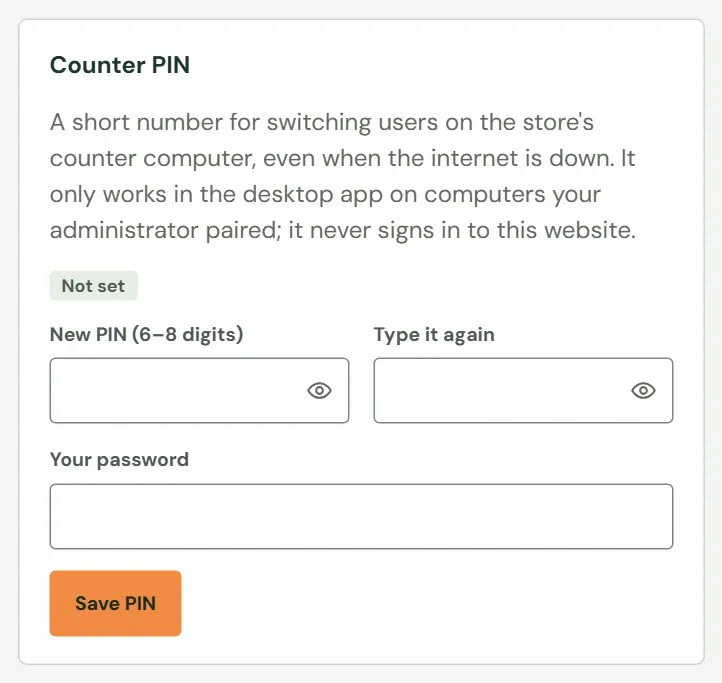
- 1Counter PIN is on the Sign-in & security tab of My account.
- 2Not set turns to Set, with the date, once you save.
- 3Type the PIN here, and again in the box beside it.
- 4Type your Roadside password, so Roadside knows it is you.
- 5Save PIN keeps it.
- Open My account, then Sign-in & security, and find Counter PIN. The card reads Not set until you have one.
- Type the number in New PIN and again in Type it again. A PIN is 6 to 8 digits. Pick one nobody would guess.
- Type Your password. With two-step sign-in, type a current Authenticator code as well.
- Press Save PIN. The message reads Counter PIN saved. Paired counter computers pick it up at their next sync. The card reads Set with the date, and Roadside emails you a notice headed Your counter PIN was set.
If you sign in with Google or Microsoft, the card has Confirm with Google or Confirm with Microsoft in place of a password box. Press it, confirm with that account, then choose your PIN.
| Roadside says | What to do |
|---|---|
| A counter PIN is 6 to 8 digits. | Use digits only, at least 6 and at most 8. |
| The two PINs do not match. | Type the same number in both boxes. |
| That the PIN could be guessed: Avoid repeated digits, runs like 123456 and simple patterns. | Choose a number without a pattern. |
| Too many attempts. Wait five minutes. | Wait, then check your password before you try again. |
A register accepts the PIN after it has next been in touch with Roadside, so set yours while the registers are online. At the register you sign in with it: see Sign in with your PIN in the Crossroads POS manual. A Manager or Store owner types the same PIN to approve a counter discount (Have a manager approve a counter discount, in Chapter 9) or a manual item (Decide whether cashiers may type in an item, in Chapter 8).
Nobody can set, change or read another person's PIN, a Store owner included. Each person does it from their own login.
Change or remove your Counter PIN
Included on every plan except Static Website and Online Store.
Change your PIN when someone may have seen it, or when you have forgotten it. Roadside does not show or recover a PIN. You replace it, and Roadside asks for your password, not the old PIN.
- Open Counter PIN on My account. With a PIN set, the card reads Set and the date it was set.
- Type the replacement in New PIN and Type it again.
- Type Your password, and a current Authenticator code with two-step sign-in.
- Press Change PIN. The card reads Set with today's date. Each register takes the change the next time it is in touch with Roadside.
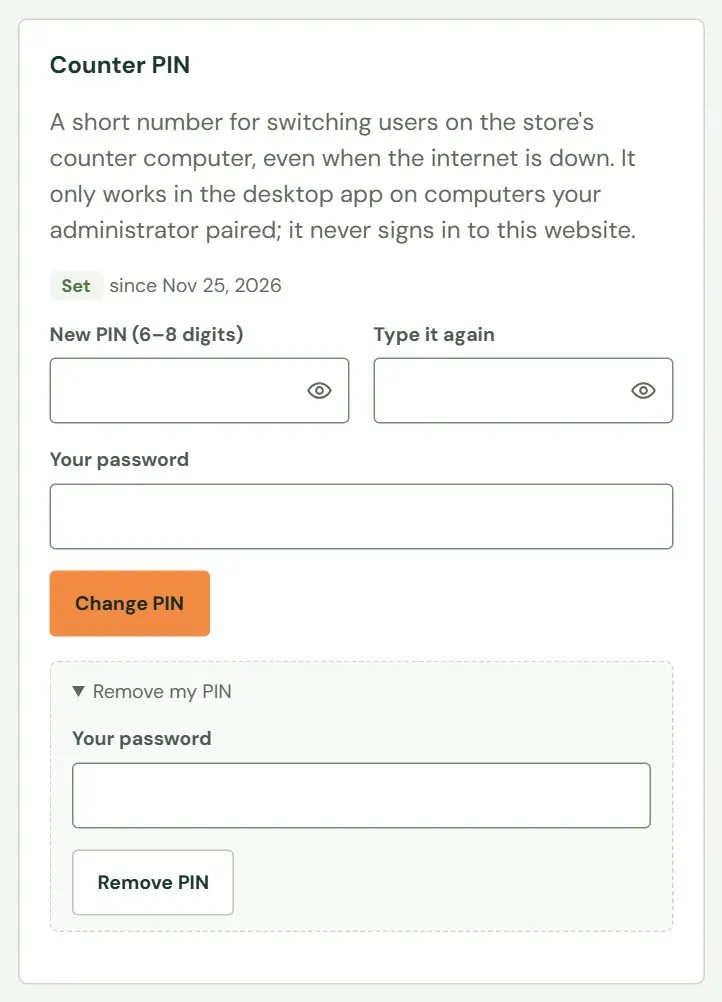
- 1Set, and the date the PIN was last saved.
- 2Change PIN saves the replacement you typed.
- 3Remove my PIN opens the part that takes the PIN away.
- 4Remove PIN removes it, once you confirm.
Remove your PIN
Without a PIN you cannot approve at checkout until you set one again. You still get into a register by signing in with your Roadside password while it is online.
- Press Remove my PIN on the card.
- Type Your password, and a current Authenticator code with two-step sign-in.
- Press Remove PIN and confirm. Roadside asks Remove your counter PIN? The message then reads Counter PIN removed., the card reads Not set, and you get an email headed Your counter PIN was removed.
Help a team member whose PIN does not work
Included on every plan except Static Website and Online Store.
You cannot fix someone's PIN for them. You can tell them why the register refuses it and what gets them selling again. The work is done by the team member, signed in to Roadside as themselves.
| What happened | Why | What the team member does |
|---|---|---|
| The register stopped taking a PIN that worked before | A register locks a PIN after 5 wrong tries. | Signs in at the register with their Roadside password while the register is online. |
| A PIN set or changed a moment ago is refused | A register takes a changed PIN the next time it is in touch with Roadside. | Waits until the register is online and has been in touch, then tries again. |
| They have forgotten the PIN | Roadside does not show or recover a PIN. | Sets another one (Change or remove your Counter PIN, in Chapter 2). |
| The Counter PIN card has no boxes to type in | Their account has no password and no Google or Microsoft account connected. | Asks for an invitation, sets a password with it, then sets the PIN. |
In the last case the card says: Your account has no password and no connected Google or Microsoft account to confirm it's you with. Ask your store's owner to send you a new invitation so you can set a password, then set your PIN here. Give someone their own sign-in, in Chapter 38 of Core Roadside shows how to send the invitation link.
It worked when the team member's Counter PIN card reads Set and the register takes the PIN.
At the register, a Manager can use Managerial override on the lock screen of a register someone else locked, to open it or to sign that person out. It does not approve a sale and it does not reset anyone's PIN. See My PIN stopped working and Lock the register when you step away in the Crossroads POS manual.
Something here does not match your screen? Write to support@dirtroadsoftware.com with the name of the screen, what you pressed and what you expected. A picture of the screen helps.