
Check your team's hours on the time clock
People clock in and out at the register with their Counter PIN. In Roadside a manager checks the punches, fixes the ones that went wrong, approves the pay period and exports the hours.
In this chapter
See who is on the clock and check a punch
Included on every plan except Static Website and Online Store.
The Time clock page shows who is working, what needs a manager's eye, and each person's hours for the pay period. Its heading says: Who's working, and everyone's hours for payroll. Hours are decimal: 3.25 is 3 hours 15 minutes. Staff and Read only people do not have the menu line.
- Punch
- One clock-in, clock-out, or start or end of a break, made at the register with a Counter PIN.
- Shift
- A clock-in and its clock-out, with any breaks between them. On Day summary a register shift is something else: a drawer's day.
- Decimal hours
- Hours written with a decimal point, so 3.25 is 3 hours 15 minutes and 7.5 is 7 hours 30 minutes.
People clock in, clock out and take breaks at the register, from its sign-in screen or its lock screen, each with their own Counter PIN: see Use the time clock in the Crossroads POS manual. Each punch Roadside accepts shows here, including one a register sends after the internet was back. A punch Roadside refuses, such as one for someone who is not on the time clock, is not recorded: the register says so, on its lock screen for one it made while offline.
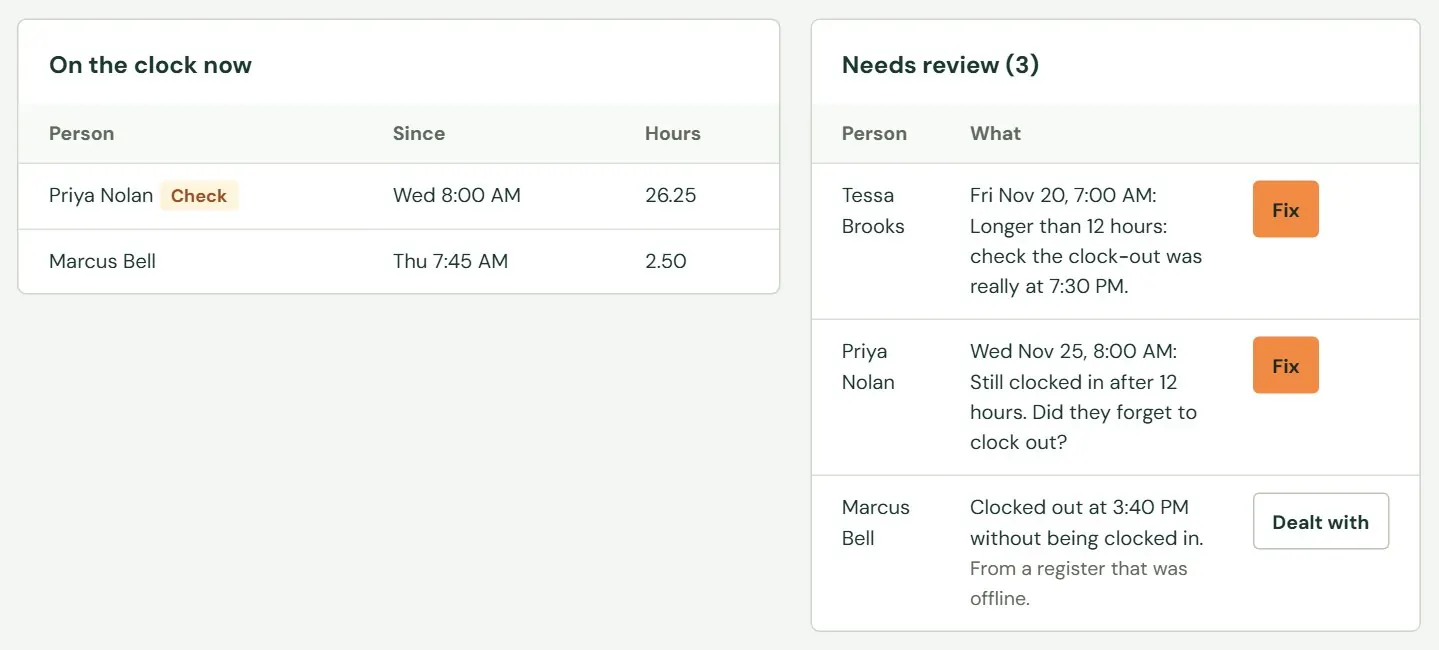
- 1On the clock now: who is clocked in, since when, and their hours so far.
- 2Needs review: each shift or punch a manager should look at.
- 3Fix opens the shift, to give it the right times.
- 4Dealt with clears a late punch you have checked.
On the clock now lists each person clocked in, with Since and Hours. On break marks someone on a break, and Check marks a shift that has run longer than the store's limit for review. With nobody in, it reads Nobody is clocked in.
Needs review gives the count in brackets and holds two kinds of row.
- A shift to check, with Fix. The usual one reads Still clocked in after 12 hours. Did they forget to clock out?, with the store's own limit in place of 12. A shift is also listed when it ran past that limit or starts inside another shift. Roadside never closes a shift by guessing. Press Fix and save the right times (Fix a shift or add one that was missed, in Chapter 12), and the row goes.
- A punch from a register that was offline, with Dealt with. It is a punch that did not fit, such as a clock-out with no clock-in, and it adds no hours. If the person worked hours that are missing, add the shift first. Dealt with cannot be undone: the row does not come back. Then press it. The message reads Marked as dealt with. It stays in the person's history.
It worked when Needs review reads Nothing to check.
Below, Timesheet totals each person's hours for one pay period: Regular, Overtime, Total, Breaks and Shifts, with a row for Everyone. Press another person's name to see their shifts, each with an Edit button, and edited beside one a manager changed. Your own page has no Edit buttons. Today has an Hours this week card for Store owners and Managers, with Open the time clock →.
Fix a shift or add one that was missed
Included on every plan except Static Website and Online Store.
Correct a shift when someone forgot to clock out or punched at the wrong time, and add one when someone worked without clocking in. The old times and your reason stay in the shift's history. Nobody changes their own time, the Store owner included: another Manager or the Store owner does it, and on your own page the buttons are gone with the line You can't change your own time. Ask another manager.
A change to a shift inside an approved pay period reopens that person's time for the period. Approve it again once the change is saved (Approve a pay period and export the hours, in Chapter 12).
Change a shift
- Open the shift. Press Fix beside it under Needs review, or press the person's name under Timesheet, then Edit on the shift's row. The page is headed Shift on and the day, such as Shift on Wednesday, Nov 25.
- Correct the times. Change Clock-in day, Clock in, Clock-out day or Clock out. In the screen's words, leave Clock out empty if they're still working.
- Type Why it's changing. It is required and takes up to 300 characters, such as Forgot to clock out; left at 5:00.
- Check the breaks, then press Save shift. When the shift has breaks, saving removes a break that falls wholly outside the new times and shortens one that crosses them. The message reads Shift saved. and the person's page opens at that day.
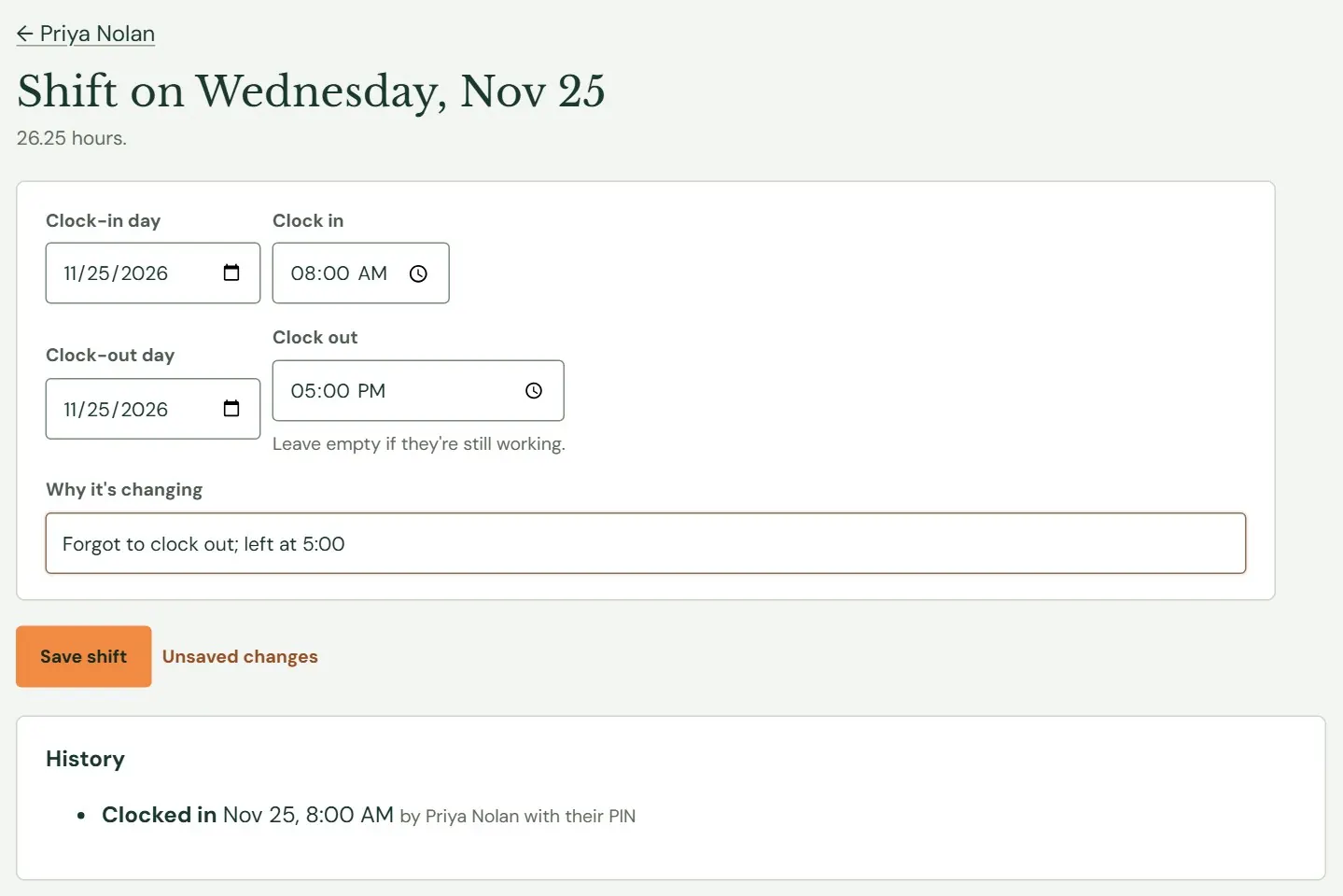
- 1Clock out: type the time the person left.
- 2Why it's changing: say what happened, for the history.
- 3Save shift keeps the change.
- 4History: every punch and change, who made it and why.
History lists each punch and change: Clocked in, Clocked out, Started a break, Ended a break, Changed or Added, with the time and who did it. A punch made at the register adds with their PIN, and one sent late adds (the register was offline). A change shows the times it replaced, beginning Was, and the reason.
Add a missed shift
- Open the person's page from their name under Timesheet, and press Add a missed shift. The page says: For a shift Priya Nolan worked but didn't clock. It's marked as added by you.
- Choose the Day, which starts at today, and type Clock in and Clock out. A clock-out at or before the clock-in counts as the next day, for a shift past midnight.
- Type Why, up to 300 characters, such as Forgot to clock in; opened the store at 7:00.
- Check the day and the times, then press Add shift. An added shift cannot be deleted, only changed, and adding one inside an approved pay period reopens that person's time. The message reads Shift added. Cancel goes back without adding it.
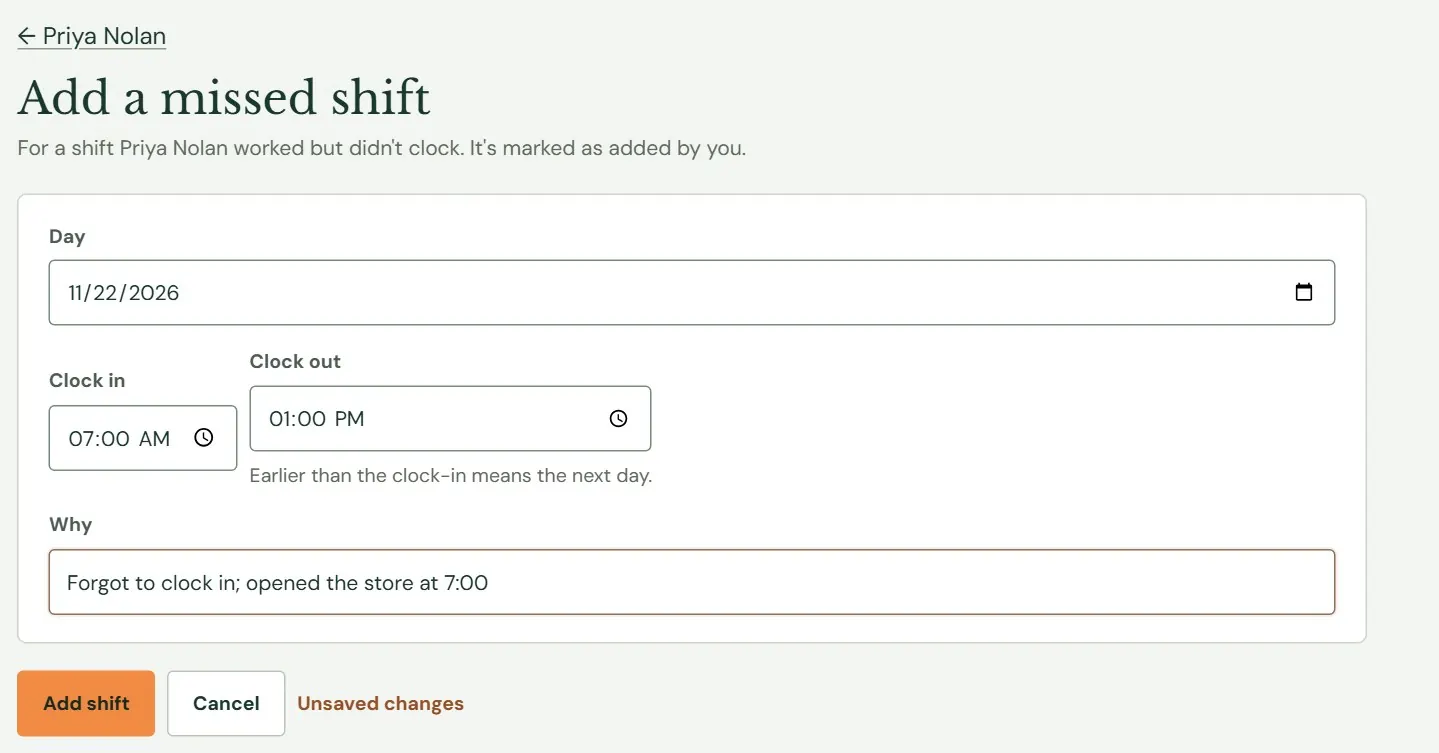
- 1Day: the day the person worked.
- 2Clock in: when they started.
- 3Clock out: when they left.
- 4Why: the reason, kept with the shift.
- 5Add shift saves it.
| Roadside says | What to do |
|---|---|
| Give the clock-out time too. | A missed shift needs both times. |
| The clock-out must be after the clock-in. | Check the two days and times on the shift. |
| A shift can't be longer than 24 hours. Split it into two shifts. | Save one shift, then add the rest as a missed shift. |
| That overlaps another shift, with its times | Change the other shift first. |
Someone changed this shift while you were editing it. means another manager saved first: reload the shift and make your change again. It worked when the shift's History shows your change and reason, and the person's own page reads changed by a manager beside it (Check your own hours, in Chapter 13).
Approve a pay period and export the hours
Included on every plan except Static Website and Online Store.
Approving says a pay period's hours are right and locks them. The export downloads them as a file for whoever does your payroll. Roadside does not run payroll or work out anyone's pay.
Approving locks each approved person's hours for the period. The export includes everyone's hours, approved or not, so approve first and export after. Nobody approves their own time: a Manager approves the Store owner's, and the Store owner a Manager's. Some pay periods, such as twice a month, do not start on the first day of a work week. There, a change to a shift early in a work week can change the overtime of that week's later shifts in the next pay period, which stays approved. Check that period before you export it.
- Choose the pay period. Under Timesheet, the arrows step back and forward a period, and This period returns to the current one. Opened from Hours this week, the page shows a week, which has no approve button when your pay period is longer: press This period.
- Clear what is open. A name marked On the clock or Check cannot be approved yet. Fix those shifts first (Fix a shift or add one that was missed, in Chapter 12). Rows with Dealt with under Needs review add no hours and do not stop approval: read them, and add any missing shift before you approve.
- Press Approve this pay period. The screen explains: Approves each person's time but your own once all their shifts are closed and checked, and locks it. Anyone with a shift still open or to check is skipped, and you can approve them after it's fixed.
- Read the message. For example: Approved 3 people's time. It's locked; changing a shift reopens it. It names anyone skipped and why, and adds Your own time needs another manager to approve it. when your own hours are in the period.
- Press Export CSV at the top of the page for one row a person, or Export shifts for one row a shift.
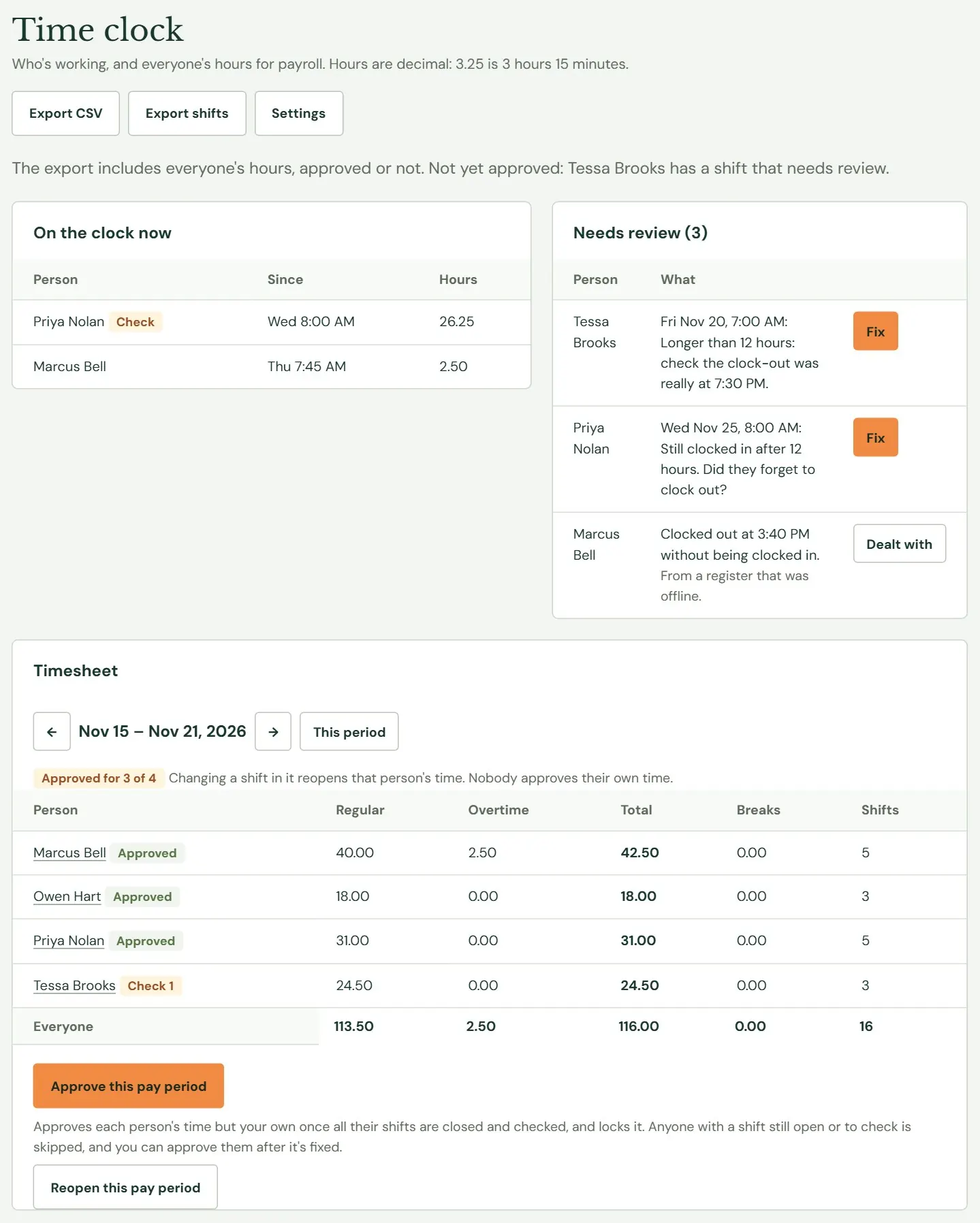
- 1The pay period shown. Use the arrows to step to another.
- 2Overtime: hours past the store's overtime limit.
- 3Approved for 3 of 4: who is approved so far.
- 4Approve this pay period locks the hours that are ready.
- 5Export CSV downloads the period's hours for payroll.
It worked when the period reads Approved, or Approved for and how many. If nobody can be approved, the message starts Nobody can be approved yet. and says what to fix. A period holding only your own hours gives Only your own time is in this period. Another manager approves it.
Reopen this pay period takes the approval off everyone in the period, so managers can change its shifts again. A punch that lands in an approved period reopens that person's time on its own, whether it is made at that moment or sent late by a register that was offline.
| File | Columns, in order |
|---|---|
Export CSV, named time-clock-<start>-to-<end>.csv | First name, Last name, Email, Period start, Period end, Regular hours, Overtime hours, Total hours, Break hours, Shifts |
Export shifts, named the same with -shifts on the end | First name, Last name, Email, Date, Clock in, Clock out, Regular hours, Overtime hours, Total hours, Break hours, Edited, Status |
Dates read like 2026-10-13 and hours are decimal numbers with no units. In the shifts file, Edited reads yes for a shift a manager changed, and Status reads open for a shift still on the clock. While anyone is not approved, the page says above the timesheet: The export includes everyone's hours, approved or not. Not yet approved: and their names.
Something here does not match your screen? Write to support@dirtroadsoftware.com with the name of the screen, what you pressed and what you expected. A picture of the screen helps.