
Bring in what customers owed and let buyers charge online
When your store starts keeping charge accounts in Roadside, bring in what each customer already owed and open accounts for the customers whose old records say they buy on account. Then decide whether buyers may put website orders on their account.
In this chapter
Bring in what a customer already owed
Included on every plan except Static Website and Online Store.
A customer who owed the store money before you kept charge accounts in Roadside starts with that amount, not with zero. The opening balance is one entry for what they owed, or were owed, dated the day it was owed from. The customer needs a charge account first (Open a charge account with a limit and terms, in Chapter 15).
An account gets one opening balance, and it cannot be edited or deleted. Check the amount and the date against your old records before you post it.
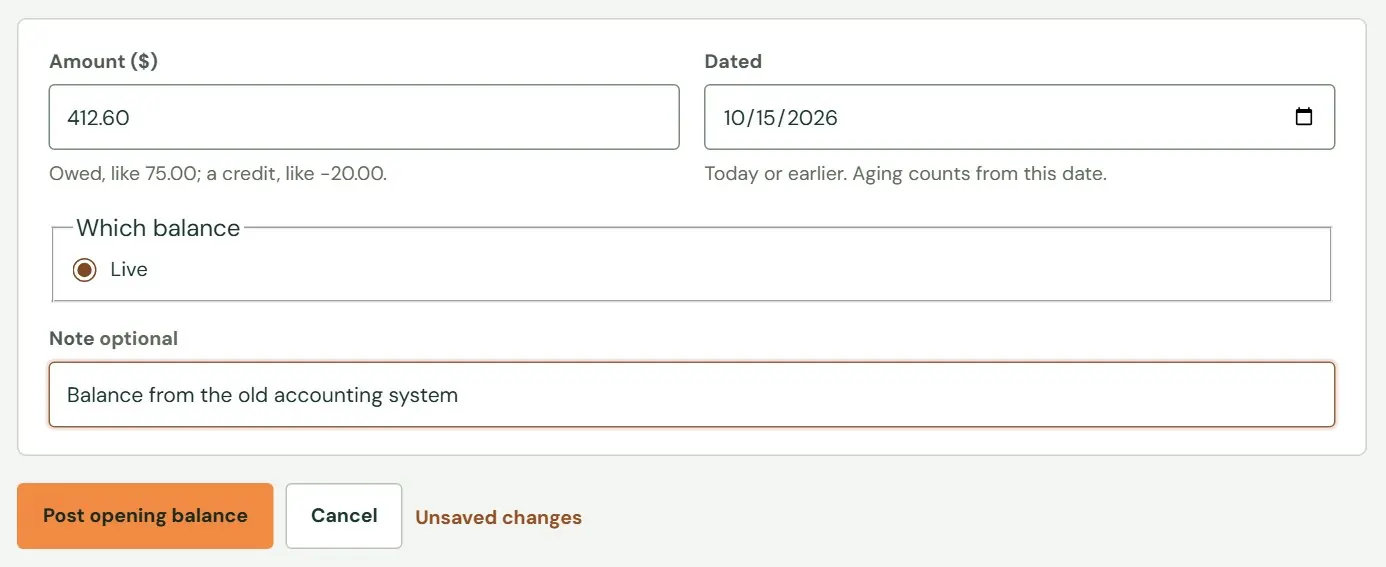
- 1Amount ($): what the customer owed. Type a minus sign for a credit.
- 2Dated: the day the amount was owed from.
- 3Note: where the figure came from.
- 4Post opening balance puts the amount on the account.
- Open the customer and press Opening balance on the Charge account card.
- Type the Amount ($). The note under the box reads Owed, like 75.00; a credit, like -20.00.
- Choose the date in Dated. It must be today or earlier, and Aging counts the age of the amount from it.
- Under Which balance, choose Live. The form does not post until one is chosen.
- Add a Note if it helps, then press Post opening balance. Roadside says Opening balance posted.
An amount owed becomes one invoice, dated the day you chose and due by the account's terms. A credit is applied to whatever is open on the account. It worked when Balance matches your old records and, for an amount owed, Open invoices on the card lists the invoice.
A second opening balance is refused: This account already has an opening balance. Correct it with a credit or a charge instead. A wrong figure is put right with a credit or a charge for the difference: Give a credit or add a charge, in Chapter 18. The Opening balance button can stay on the card after you post. Opened again, the form marks Live with (has one).
Open accounts for customers whose old fields said they buy on account
Included on every plan except Static Website and Online Store.
A store that uses the Feed & Seed pack may have typed charge terms into the Payment terms and Credit limit ($) fields of its customers before it had charge accounts. When Charge accounts is set up, Roadside lists those customers once, each with the charge account it would get. Nothing is opened until you open it.
The Accounts with charge terms button is on the Charge accounts list only while a customer on that list still waits. A customer given terms later is not added to it, and is opened from their own account.
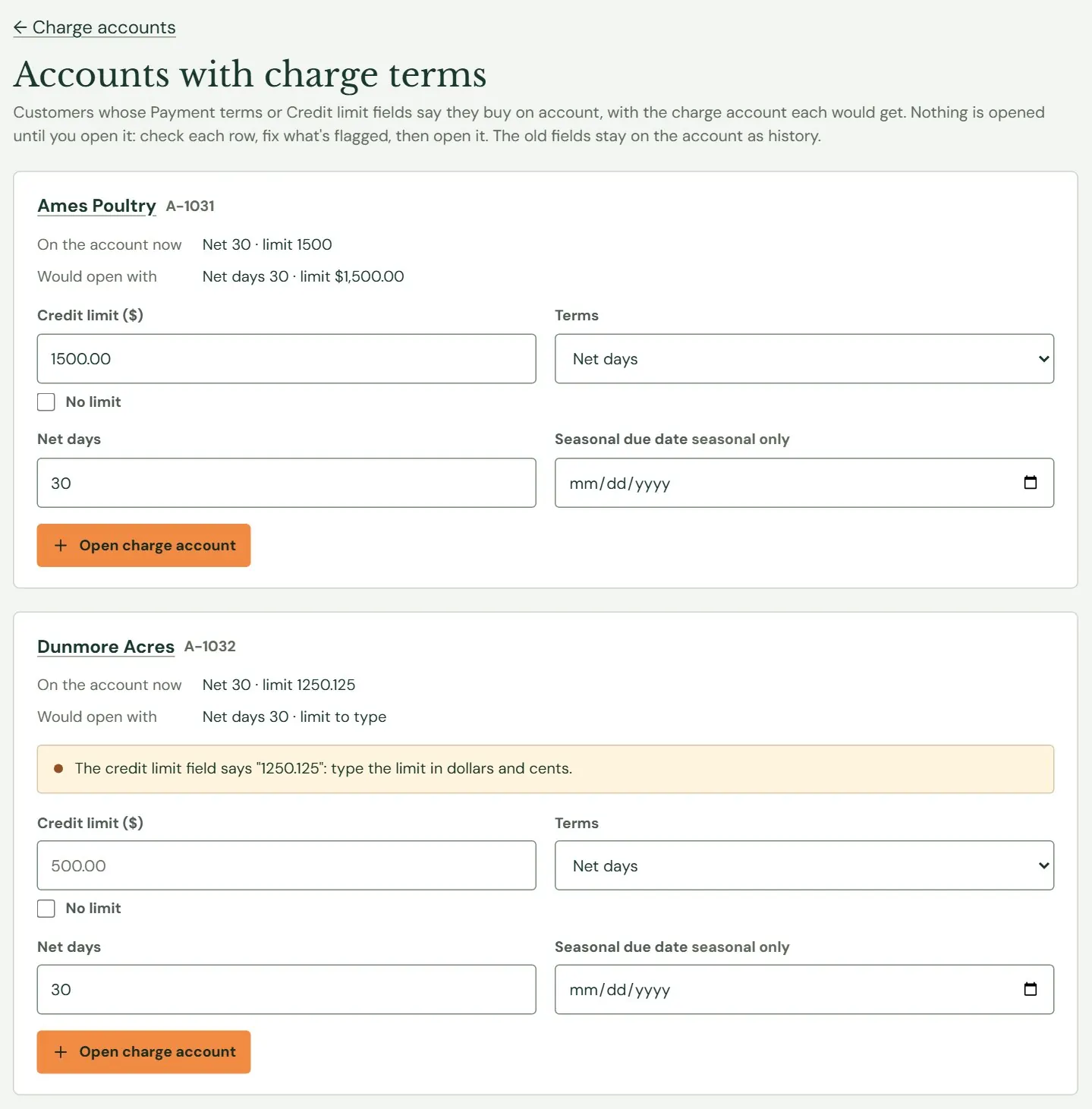
- 1On the account now: what the old fields say.
- 2Would open with: the terms and limit Roadside proposes.
- 3Credit limit ($): check the figure, or type one where it is missing.
- 4Open charge account opens this one customer's account.
- Go to Customers, Charge accounts and press Accounts with charge terms.
- Read a customer's card. On the account now gives the old terms and limit. Would open with gives what the charge account would start with.
- Fix what is flagged. A note on the card says what needs you, such as No credit limit on file: type one, or a manager chooses No limit. or Seasonal terms: add the date it's due. Correct the limit, the terms or the dates on the card.
- Press Open charge account on that card. Roadside says Charge account opened for and the customer's name. The card leaves the list.
Accounts are opened one at a time, and each lets the customer charge from the next sale, so check the people on it as you go. The old fields stay on the customer as history. Set the purpose, the PO rule and how statements go afterwards with Change.
Nothing on this page brings over a balance. Post what each customer owed as an opening balance: Bring in what a customer already owed, in Chapter 17. When the last one is done the page reads Nothing left to bring over, and each customer is on the Charge accounts list.
Let buyers charge website orders to their account
Included on Counter + Online Store and Whole Store plans.
A farm that orders feed on your website for Friday pickup can put the order on its account, as it would at the counter. Two things must both be on: this setting for the whole store, and the website box on each account you choose.
With this on, a signed-in buyer can place a website order with no card and no cash. The amount is added to the account's balance when the order is handed over.
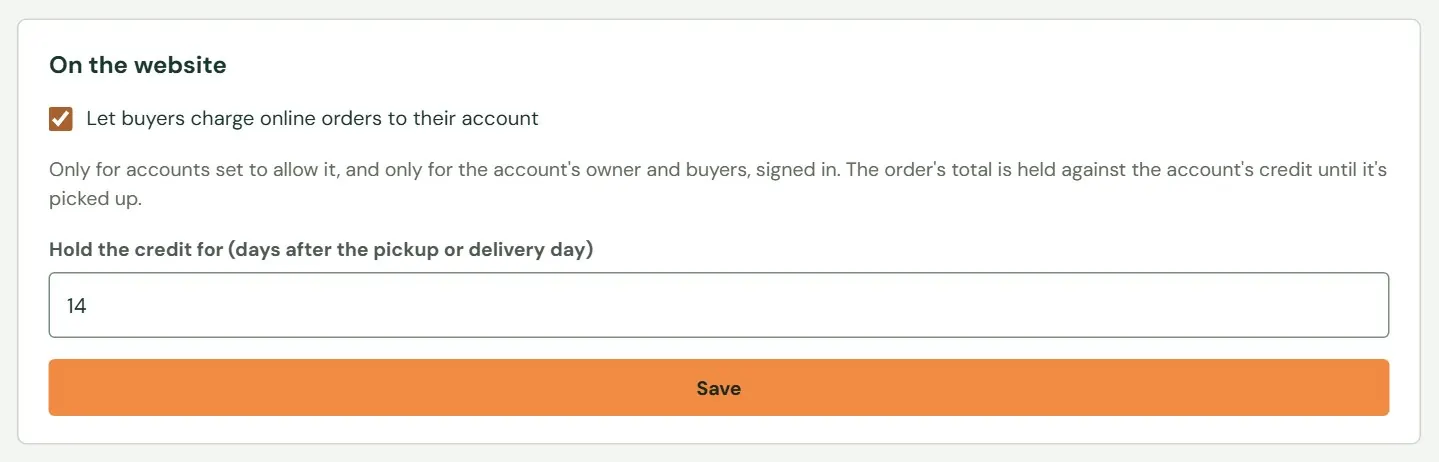
- 1Tick this to offer charging at website checkout.
- 2Hold the credit for: how many days an order's amount is set aside.
- 3Save keeps both choices.
- Go to Customers, then Charge accounts, and scroll to the On the website card under the list. It is not on the Charge account settings screen, and a Manager does not see it.
- Tick Let buyers charge online orders to their account. The card says who it reaches: Only for accounts set to allow it, and only for the account's owner and buyers, signed in.
- Set Hold the credit for (days after the pickup or delivery day). It starts at 14 and takes a whole number from 1 to 90. Any other number is refused with Hold days is a whole number of days, 1 to 90. Nothing is saved.
- Press Save. Roadside says Buyers can charge online orders to accounts set to allow it. With the box unticked it says Charging to an account is off on the website.
- Tick Buyers may charge to it on the website on each account that should have it. A Manager or the Store owner does this with Change: Change a limit, the terms or how statements go, in Chapter 15.
At checkout the buyer sees Charge to my account when they are signed in and shopping for the account, the account is Active, and it has credit left. It is offered for orders picked up or delivered, not for orders you ship. Nobody can approve a website order over the limit: the shopper is told to pay another way or call the store. Help a customer choose pickup, delivery or shipping, in Chapter 23 of Core Roadside covers the rest of checkout.
While the order waits, its total counts against the account's credit, and the card shows it on the Available line as an amount waiting for pickup. If the days you set pass after the pickup or delivery day and the order is still waiting, the amount stops counting, and the charge is checked against the account's credit again at pickup. An order with no pickup or delivery day counts from the day it was placed. The Sales tax report lists these orders under Charge account holds, not posted yet: Check and download sales tax for a filing period, in Chapter 32 of Core Roadside.
The setting worked when an account you ticked shows the Charges online badge on its card and, after its first website order, an amount waiting for pickup.
Something here does not match your screen? Write to support@dirtroadsoftware.com with the name of the screen, what you pressed and what you expected. A picture of the screen helps.