
See what your customer gets after they order
Once an order is placed, the customer has an order page, a pickup code and a run of emails. Know what each one shows, so you can answer when they call.
In this chapter
Help a customer find or repeat an order
Included on Online Store, Counter + Online Store and Whole Store plans.
Every order has its own page on your website. The checkout lands there, and the link in the order emails opens it again, so a customer can check on an order without an account. The link is private to that order. A customer who cannot find it should look in the email that confirmed the order.
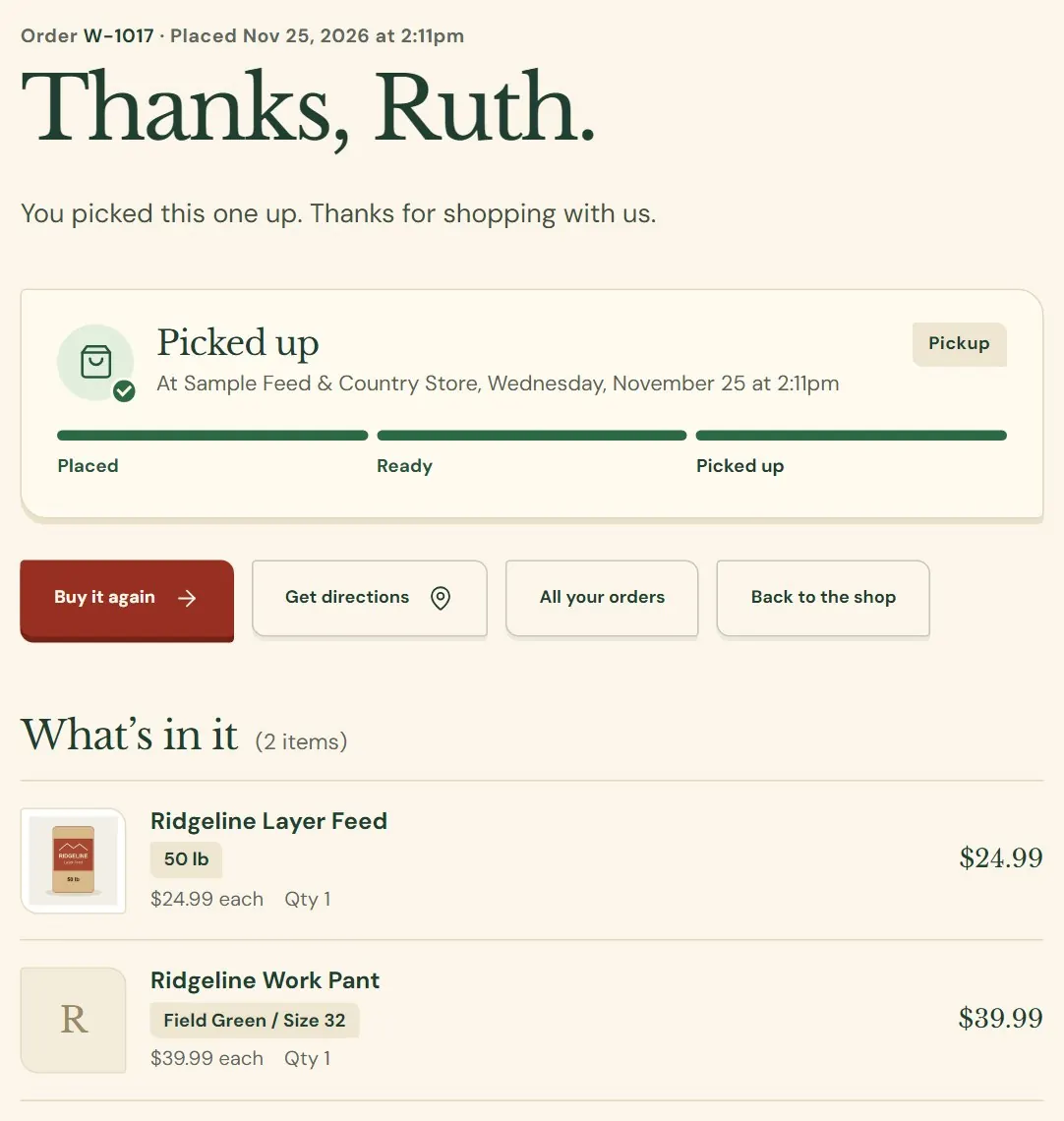
- 1Placed fills in when the order comes in.
- 2Ready fills in when your store marks the order ready.
- 3Picked up fills in when your store hands it over.
- 4Buy it again starts a new cart with the same items.
A bar of three steps shows how far along the order is: placed, ready, then handed over. The sentence at the top of the page changes with the order, and the items are listed under the bar. On an open pickup order the customer's pickup code is above the bar (Help a customer show their pickup code, in Chapter 24) and today's hours are under it (Help a customer see when to come for a pickup, in Chapter 24).
- Open the order page from the link in an order email. A customer with a website account can sign in instead, and their account page lists their orders, each open pickup order with its pickup code.
- Read the bar and the sentence at the top of the page. An order that is not paid yet says so and has a button to finish paying.
- To order the same things again, use the button that buys it again. It is there once the order has been picked up, delivered or shipped. It starts a new cart at today's prices, with what is on the shelf today.
The words on this page belong to your website's design, so yours may differ. On the pictured store the bar reads Placed, Ready and Picked up. A delivery order ends with Delivered, and a shipped order reads Packed, then Shipped. The buttons read Buy it again, Finish paying and All your orders.
A customer's website account is separate from a Roadside sign-in. Customers sign in on your website, and your team signs in to Roadside.
Included on the Whole Store plan. The account owner can find the store's charge-account documents in the customer portal. Customers reach it from Your account on your website.
The ready step moves only when someone at your store presses Mark ready for pickup on the order in Roadside. That press also sends the ready email when your store has ready emails switched on. Tell a customer their order is ready, in Chapter 28 has the steps.
The emails a customer gets about an order are listed in Tell which email a customer gets about an order, in Chapter 24.
Help a customer show their pickup code
Included on Online Store, Counter + Online Store and Whole Store plans.
A customer with an open pickup order has a pickup code: eight letters and numbers, such as 7K3M-9QXA, and a QR code your counter can scan. They show it when they collect. The code is in three places, and it is the same in each.
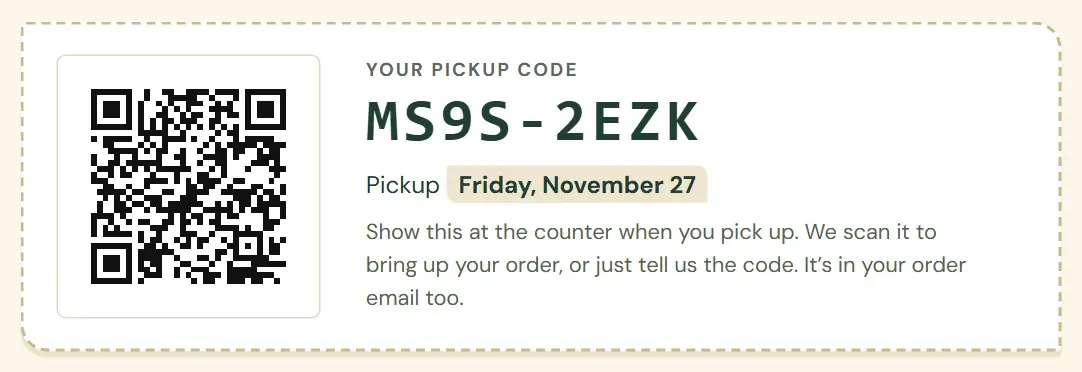
- 1The QR code your counter scans.
- 2The code, to read out if the QR code will not scan.
- 3The pickup day.
- Look in the order email. The email that confirms the order, the one that says it is ready and the one about a moved pickup day each have a card headed Your pickup code, with the QR code and the code under it.
- Or open the order page. A section headed Your pickup code sits above the bar, with the QR code, the code and the pickup day.
- Or sign in to the website account. The list of orders gives each open pickup order's code, with a link that opens the order page at its QR code.
- Show the QR code at the counter. If it will not scan, the customer gives their name or order number and reads the code out. The person at the counter finds the order that way and matches the code.
A delivery order and a shipped order have no pickup code. The code leaves the order page and the account page once the order is picked up or cancelled. Hand over an order from its pickup code, in Chapter 28 has the steps for the person at your counter.
The code points at the order and gives nothing away. Someone who scans it without being signed in to your store's Roadside sees a page that names the code and your store, and says to show it at the counter.
The words on these pages belong to your website's design, so yours may differ. On the pictured store the section tells the customer to show the code at the counter when they pick up, and the account page's line reads Pickup code, the code, and Show QR code.
Help a customer see when to come for a pickup
Included on Online Store, Counter + Online Store and Whole Store plans.
The page of an open pickup order says when your store is open, so the customer does not drive over to a locked door. Under the bar it gives today's hours, whether you are open at that moment, the week's hours, and any closed day or short day you have entered. All of it comes from Hours and contact.
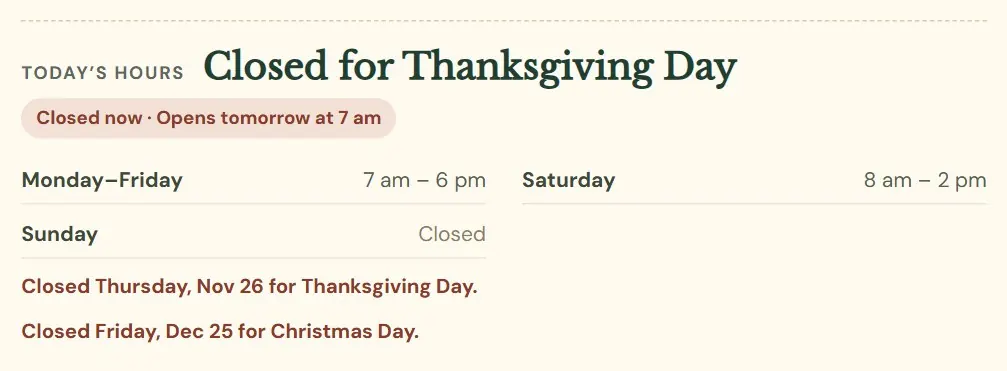
- 1Today's hours, as your store words them.
- 2Whether the store is open, or when it opens next.
- 3The week's hours.
- Open the order page from the link in an order email.
- Read Today's hours under the bar. On a closed day or a short day the line names it, such as hours followed by for Christmas Eve, or Closed for Christmas Day. A day the store is closed every week reads Closed today.
- Read the words beside it. They say whether the store is open and when it opens next.
- If the hours are wrong, correct them in Hours and contact. Tell customers when the store opens, in Chapter 6 covers the regular week, and Close early or close for a holiday, in Chapter 6 a closed day or a short day. The order page follows with the next website update (Check whether your change is on the website, in Chapter 12).
| The customer sees | When |
|---|---|
| Open now | The store is open. In the last hour before closing it adds the time, as in Open now · closes at 6 pm. |
| Closed now · Opens today at 7 am | Before opening time on a day the store is open. |
| Closed now · Opens tomorrow at 7 am | After closing, when the store opens the next day. |
| Closed now · Opens Monday at 7 am | When the next open day is further off. The line names the day. |
The page works the hours out in your store's time zone and looks again every minute, so a page left open stays right. The hours are not shown on a delivery order or a shipped order, and they leave the page once the order is picked up or cancelled.
The words on this page belong to your website's design, so yours may differ. On the pictured store the heading over an order that is ready reads Ready for pickup, and the line under it tells the customer to come by during the hours below and show their pickup code.
Tell which email a customer gets about an order
Included on Online Store, Counter + Online Store and Whole Store plans.
Roadside emails the customer at each turn of an order. Use the table when a customer says an email never came, or asks what one meant. Every email goes to the address the customer typed at checkout.
Each one is drawn in your store's look. Your logo is at the top, or your store's name where there is no logo, with your website address beside it. The color is the Receipt color you chose for receipts (Change the name, color and words on a receipt, in Chapter 31). Under a heading such as Your order is ready for pickup. come the order number and the date it was placed. Most have a panel that says when and where, and what is paid, due or refunded. The items with their brand, size and SKU follow, then the totals. The foot carries your sign-off and your store's name, address, phone and email.
The confirmation, the ready email and the one about a moved day also carry a pickup order's code and a View your order button, and the confirmation of an order not yet paid prints your policies in small print. The emails after a cancellation, a refund or a failed bank payment carry no pickup code and no policies, and the ones about an order your store cancelled or a bank payment that failed have no View your order button.
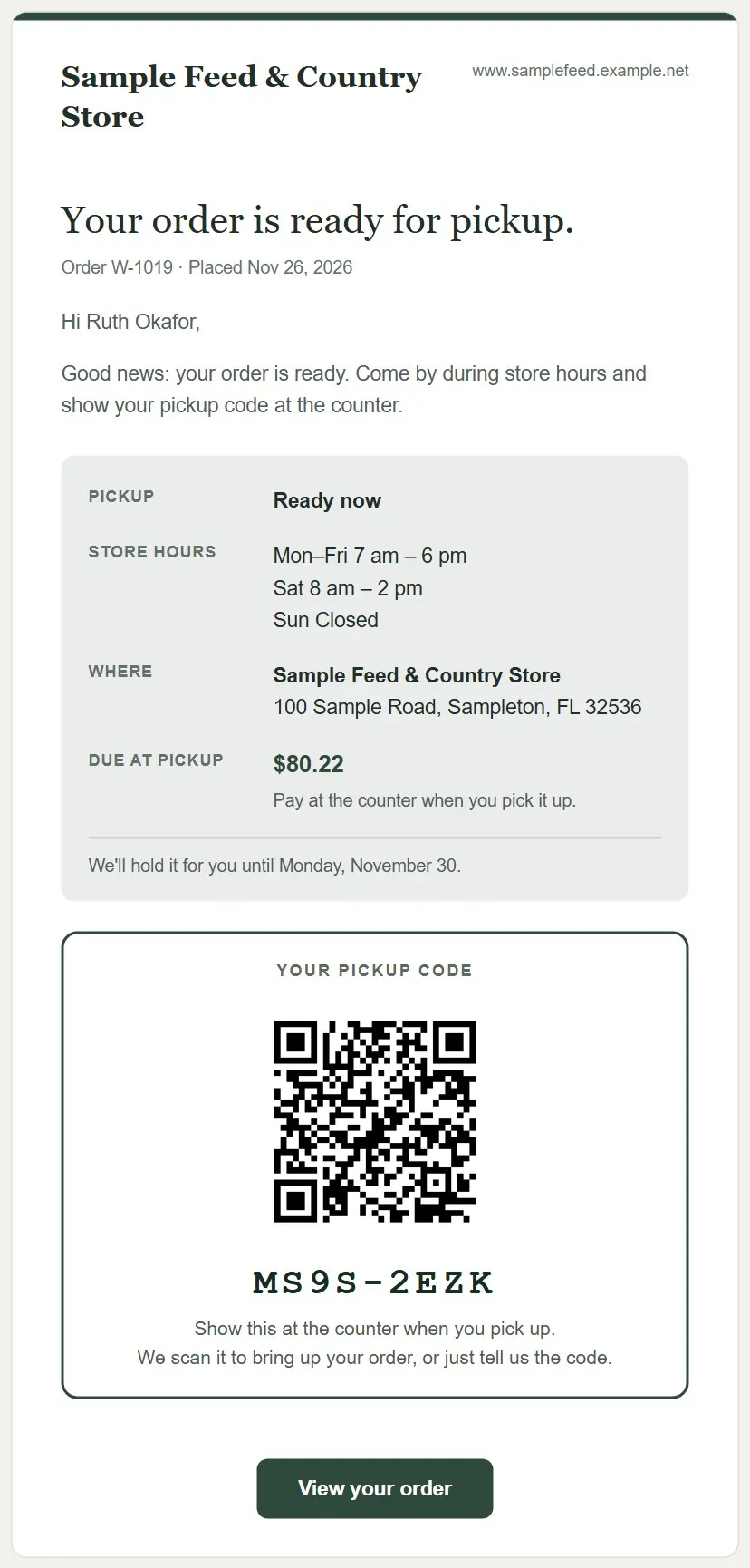
- 1Your logo, or your store's name.
- 2When and where, and what is paid or due.
- 3The pickup code and its QR code.
- 4View your order opens the order page.
| When | Subject | What it says |
|---|---|---|
| The order is placed and not paid yet: pay at pickup, or a card that is held | We got your order W-1017 | The items, the totals, the pickup or delivery day and what is due or held. A pickup order's email carries the pickup code. |
| The order is placed and already paid | Receipt W-1017 from Sample Feed & Country Store | The receipt, with a PDF copy attached and a View your order button. A pickup order's receipt carries the pickup code. |
| The order is placed and paid from a bank account | We got your order W-1017 | That banks take about 4 business days to send the money, and that your store starts on the order once it arrives. The receipt follows when the money is in. |
| Your store marks it ready, with ready emails switched on | Your order W-1017 is ready for pickup | That the order is ready. For a pickup it gives your store's hours, the pickup code and the day your store holds the order until. A delivery order's subject ends is ready for delivery, and a shipped order's ends is packed. |
| Your store marks it picked up or delivered, with picked-up emails switched on | Your order W-1017 was picked up | When it was handed over and the items, with a link to buy them again. A delivery order's subject ends was delivered. When a balance was paid at pickup, the final receipt is attached. |
| The customer moves the pickup or delivery day | Your pickup for order W-1017 is now Friday, December 4 | The old day and the new one, with the pickup time or the delivery address, and for a pickup the pickup code. A delivery order's subject begins Your delivery for order. |
| The customer cancels from their order page | You cancelled order W-1017 | That the order is cancelled, and any amount being refunded to their card. |
| Your store cancels it with Email the customer ticked, or Roadside cancels it when its hold runs out | Your order W-1017 was cancelled | That the order was cancelled, with the reason, and any amount being refunded to the card. |
| A refund goes through | Refund on your order W-1017 | The amount and how it went back. A refund to a card adds that card refunds usually show in 5 to 10 business days. A refund to a bank account adds that bank refunds take about 4 business days. |
| The bank sends a bank payment back | About your order W-1017 | The bank did not send the money, the order was cancelled and nothing was taken. |
| A card hold ran out before the order was confirmed | About your order W-1017 | The hold was released and nothing was charged. The order is still on, and the customer can call to pay or pay at pickup. |
A paid order's confirmation is its receipt, so that customer gets one email for it. The ready email and the picked-up email each have a switch, and Choose who receives order emails and what refunds you offer, in Chapter 25 shows where they are.
Your store gets its own email for each new order. Its subject is New order W-1017 ($26.74), with paid after the amount when the order is paid. A bank payment brings two: one when the order is placed, ending bank payment on its way, and one ending paid when the money arrives. A customer who moves the day brings Customer moved order W-1017 to Friday, December 4, and one who cancels brings Customer cancelled order W-1017. Choose who receives order emails and what refunds you offer, in Chapter 25 shows where to set the addresses these go to.
Something here does not match your screen? Write to support@dirtroadsoftware.com with the name of the screen, what you pressed and what you expected. A picture of the screen helps.