
Choose topics for scheduled store articles
Tell Roadside which towns you serve and which topics fit the store. Check the article history to see what was written and whether it reached the website.
With SEO Articles, an article is written for your website on a schedule. The screen describes each one as “a search phrase people near you look up, answered with what you sell and know.” The writing is done for you. Your part is to steer it: which topic comes next, which towns to name and what to stay away from.
Every article arrives as an ordinary post in Articles, where you can read it, correct it or take it down like any post you wrote yourself (Publish now or schedule a post, in Chapter 32).
- SEO
- Search engine optimization: writing pages so that someone searching Google for a thing you sell finds your website.
- Search phrase
- The words a person types into a search engine, such as how much to feed goats in fall.
Choose which topic gets written next
Your store must have the SEO Articles upgrade.
The Your plan card at the top carries a badge with your schedule and a line that begins Next article: with the day and time. Below it, Topics waiting is the queue the next articles are taken from.
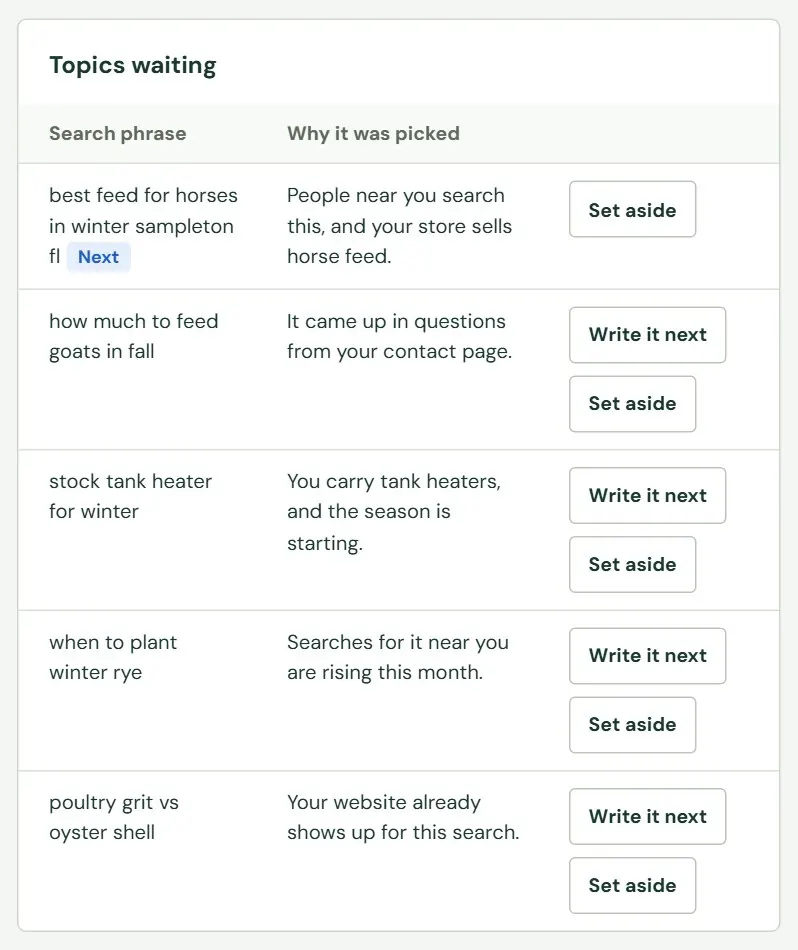
- 1Search phrase: what people type. The first row carries the Next badge.
- 2Why it was picked, in a sentence.
- 3Write it next moves that topic to the front.
- 4Set aside takes a topic out of the queue.
- Read down the Search phrase column. The row marked Next is the one the next article answers.
- Read Why it was picked. The picture shows five reasons, one to a topic. People near you search for the phrase and your store sells the product. It came up in questions from your contact page. You carry the item and its season is starting. Searches for it near you are rising this month. Your website already shows up for the search.
- To choose a different topic for the next article, press Write it next on its row. Roadside says That topic is next.
- To drop a topic that does not suit the store, press Set aside. Roadside says Topic set aside. A phrase you set aside is not suggested again.
When the queue is empty the card reads No topics yet. The next run finds some. While an article is being written, a line under the table names its topic.
Say what the articles should cover
The What the articles cover card holds the facts every article works from. Fill it in once and correct it when the store changes.
- Google Search Console property
- Google Search Console is Google's free report of the searches that bring people to your website. A property is your website's entry in it, written like
sc-domain:example.com.
| Field | What to type |
|---|---|
| Towns you serve | Your town and the nearby towns your customers come from. The articles are written for these towns. Check the towns an article names when you read it. |
| Delivery, in a sentence | How you deliver, the way you would say it at the counter: We deliver free within 10 miles of the store. |
| Topics to avoid | Subjects you do not want written about, one to a line, such as medicated feed. |
| Google Search Console property | Optional. With it, topics come from searches your website already shows up for. |
Press Save. Roadside says Saved.
If you enter a property, the note under the field tells you whether it is connected. When it says Dirt Road cannot read it yet, add Dirt Road's account as a read-only user in Search Console. The next article run uses it.
The articles are written in your website's voice, the one Dirt Road keeps for your store. To change how they sound, ask Dirt Road: Send a question about Roadside, in Chapter 37.
Check a scheduled article or pause the schedule
Your store must have the SEO Articles upgrade.
A finished article is published in Articles on its own, unless its run reads Saved as a draft. Nobody at the store has to approve it first. It reaches the website with the next website update. Your job comes after: read the article, then correct it or take it down in Articles.
Recent articles lists the latest runs of the schedule, newest first. A run is one attempt to write an article.

- 1When the run happened.
- 2Article: its title, or a note saying what happened. Press a title to open the post.
- 3Status of the run.
| Status | What happened, and what to do |
|---|---|
| Published | The article was written and published. The screen's words beside the badge say how far it has got: publishing soon, published to the website or waiting for your approval. The last one is explained below the steps. |
| Saved as a draft | The article was written and not published, and the note says why. In the picture, the photo did not come. Open Articles, add a photo to the draft and publish it (Write a draft with a picture, in Chapter 32). |
| Skipped | No article was written. In the picture, no topics were waiting, and the next run asks for more. Nothing is needed from you. |
| Writing | An article is being written now. |
| Trying again | A run did not finish and will be repeated. |
| Didn't work | The run failed and nothing was published. The note in the Article column says why. |
- Find the run by its date and read its status.
- Press the article's title to open the post. Read it as you would read a draft from a new employee: check the product names, the towns and anything about your own store.
- Correct or remove it in Articles. Change the words and press Update, or use Take down (back to draft) if it should not be on the website.
If a published article is not on the website
On a website that is already live, an update that carries only articles goes out on its own. The screen's words waiting for your approval do not ask you to approve the article. They mean the website update that carries it is held, and the note with the run says why: for example, the update carries other changes too, or it has not gone out within 12 hours. On a store where Dirt Road puts each update live, that step is Dirt Road's. Look at Publishing on Today to see what the update is waiting for: Check whether your change is on the website, in Chapter 12.
If runs keep ending in Didn't work, send Dirt Road a ticket with the date of the run: Send a question about Roadside, in Chapter 37.
Pause the schedule
- Tick Pause SEO articles at the foot of the What the articles cover card.
- Press Save. The badge on Your plan changes to Paused, and the card reads Paused. No articles are written until you turn it back on below.
- To start again, untick the box and press Save. The card goes back to showing when the next article is due.
Pausing stops new articles only. The ones already published stay on the website, and the topics stay in the queue.
Something here does not match your screen? Write to support@dirtroadsoftware.com with the name of the screen, what you pressed and what you expected. A picture of the screen helps.